Global Credentials
Global Credentials provide a centralized way to manage authentication profiles that can be shared across multiple applications and application environments. Instead of creating and maintaining separate credentials for each application, you can create a single global credential and link it wherever the same authentication configuration is required.
When a global credential is updated, the changes are automatically applied to all linked applications and application environments, ensuring consistent authentication settings while reducing manual maintenance. Access to global credentials is controlled through application-aware Role-Based Access Control (RBAC), allowing only authorized users to view, manage, or use shared credentials.
Benefits
- Reuse a single authentication profile across multiple applications and environments.
- Simplify credential rotation by updating authentication details in one place.
- Reduce administrative overhead and eliminate configuration inconsistencies.
- Ensure secure access through application-aware RBAC permissions.
How to create Global Credentials
-
Open your browser and visit: https://<your-tenant>.apisecapps.com
-
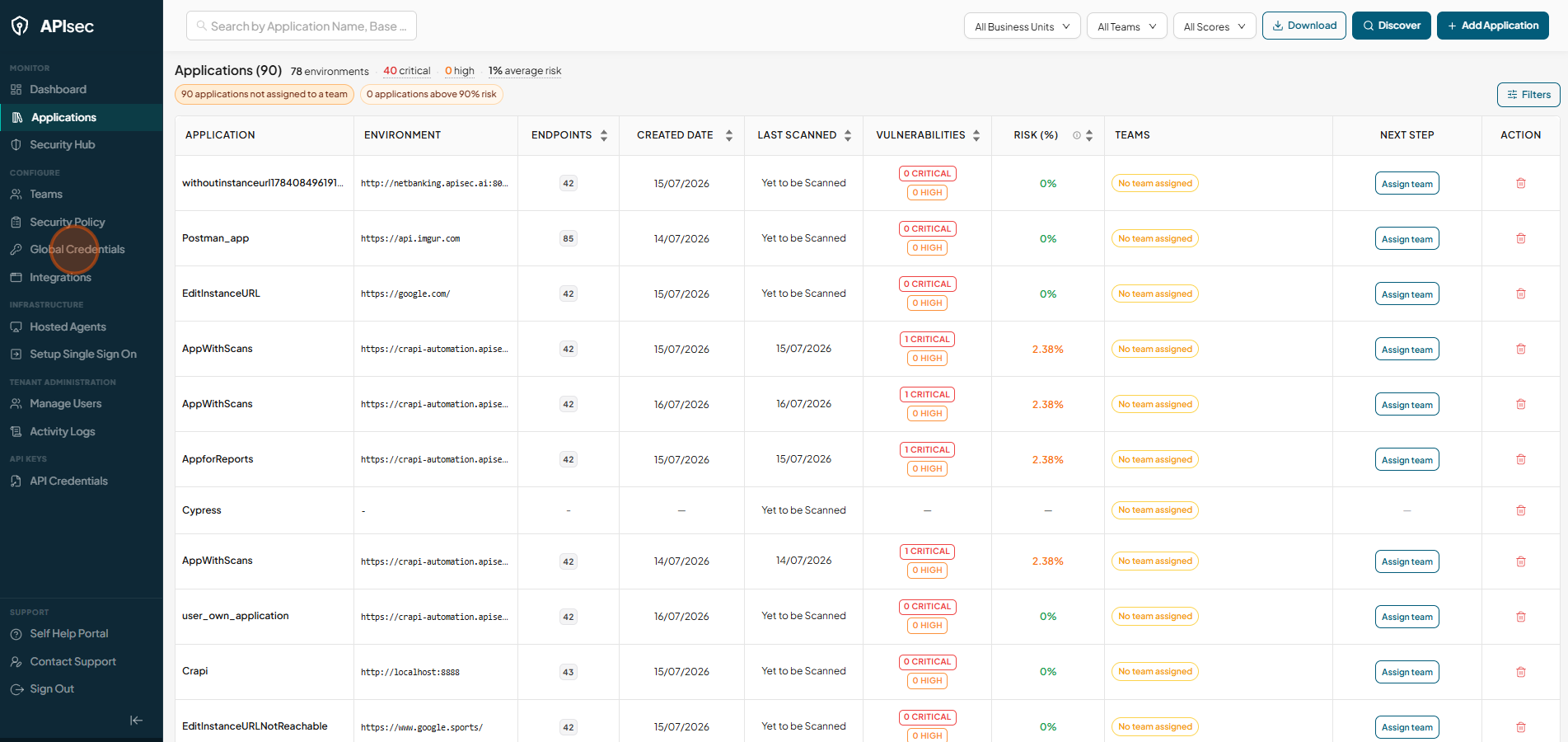
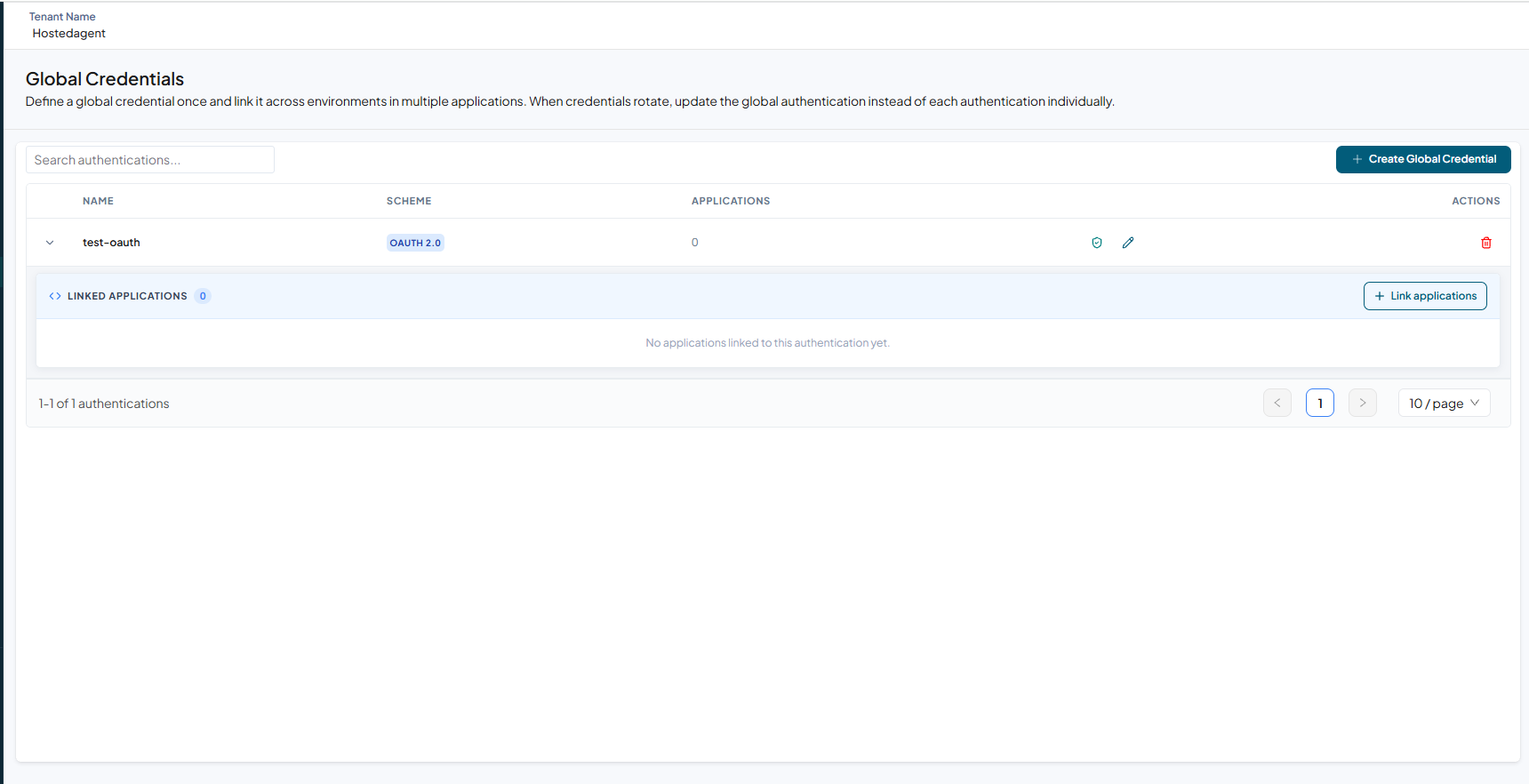
Click Global Credentials.
-
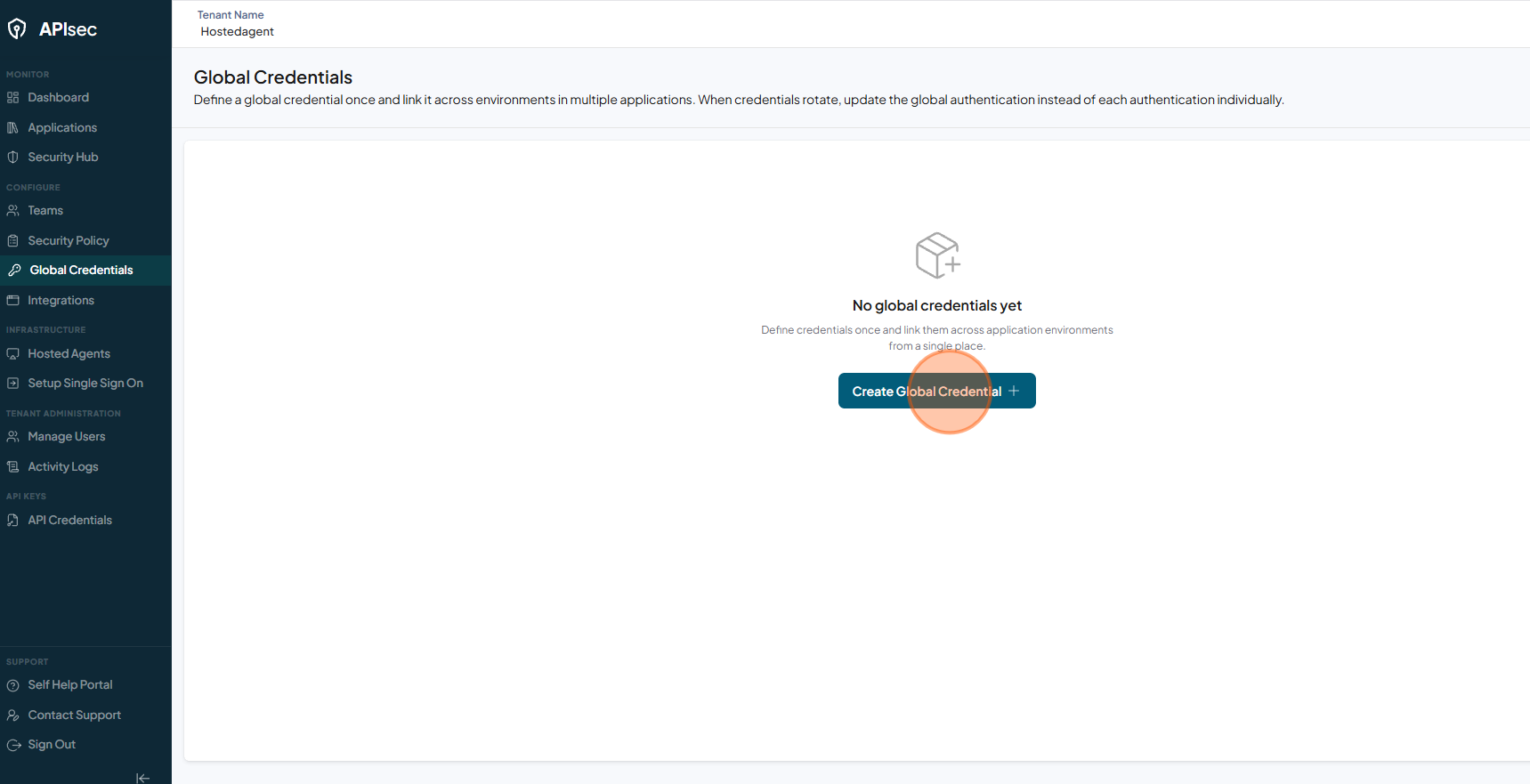
Click Create Global Credential.
-
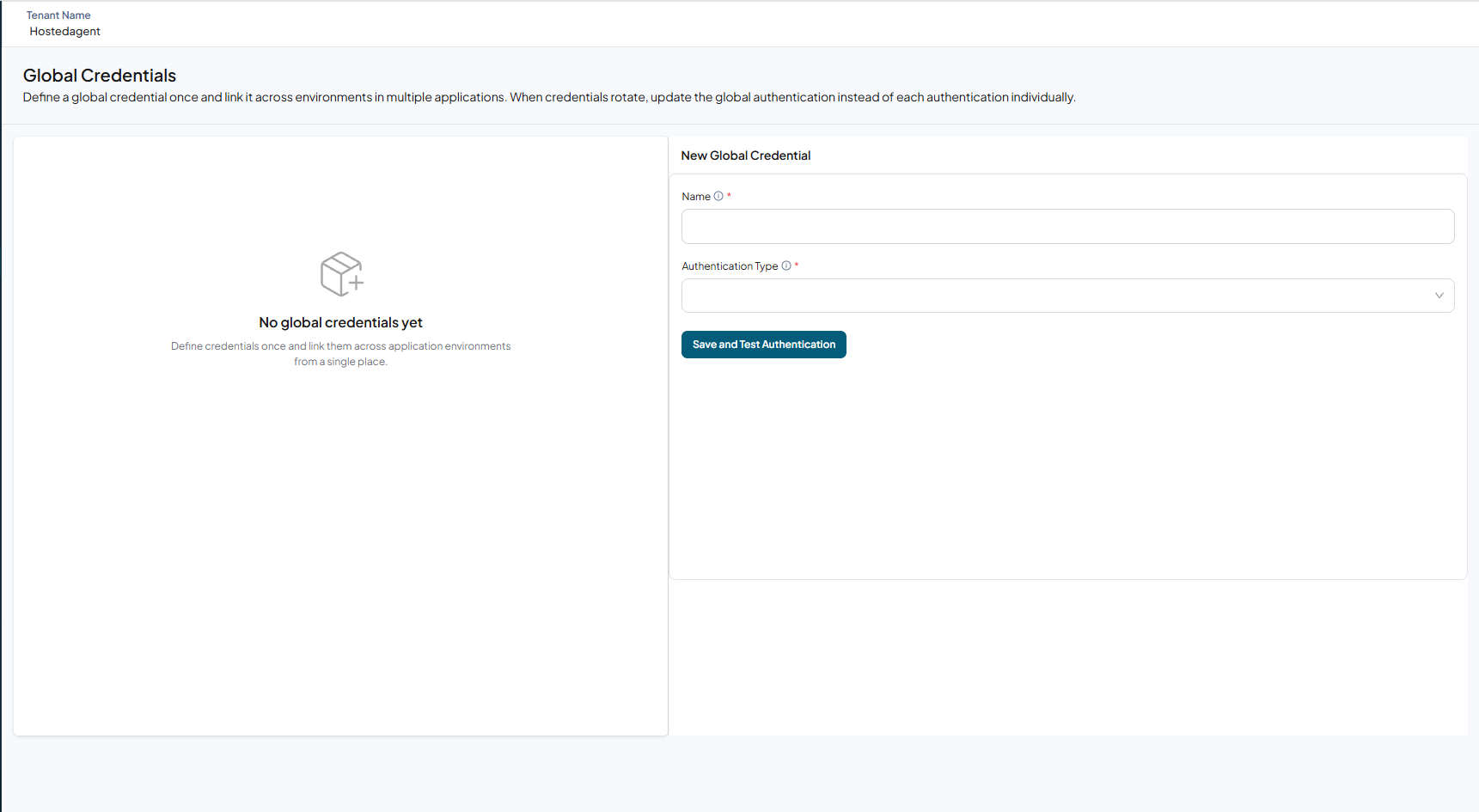
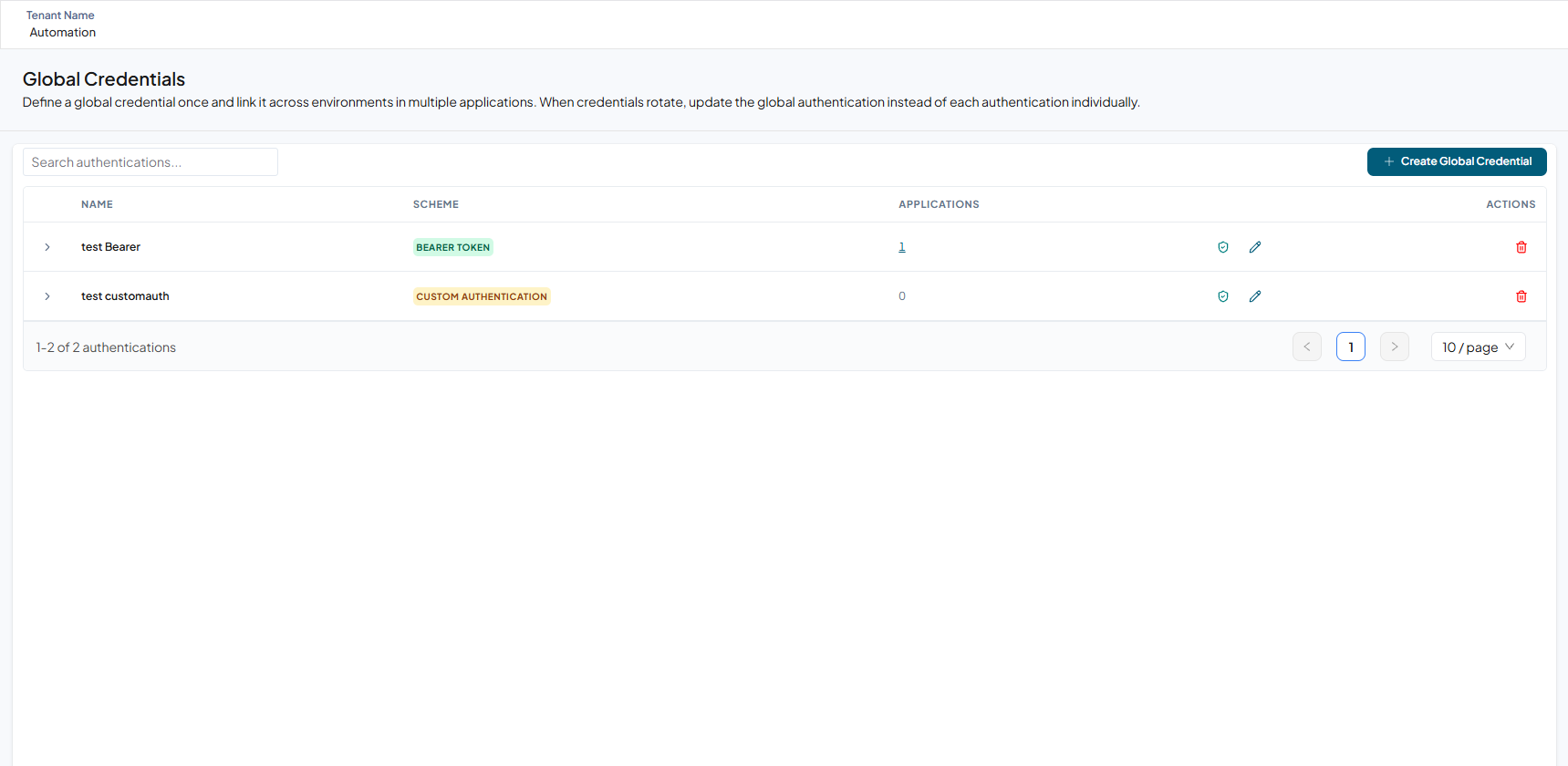
The Global Credentials page opens.
-
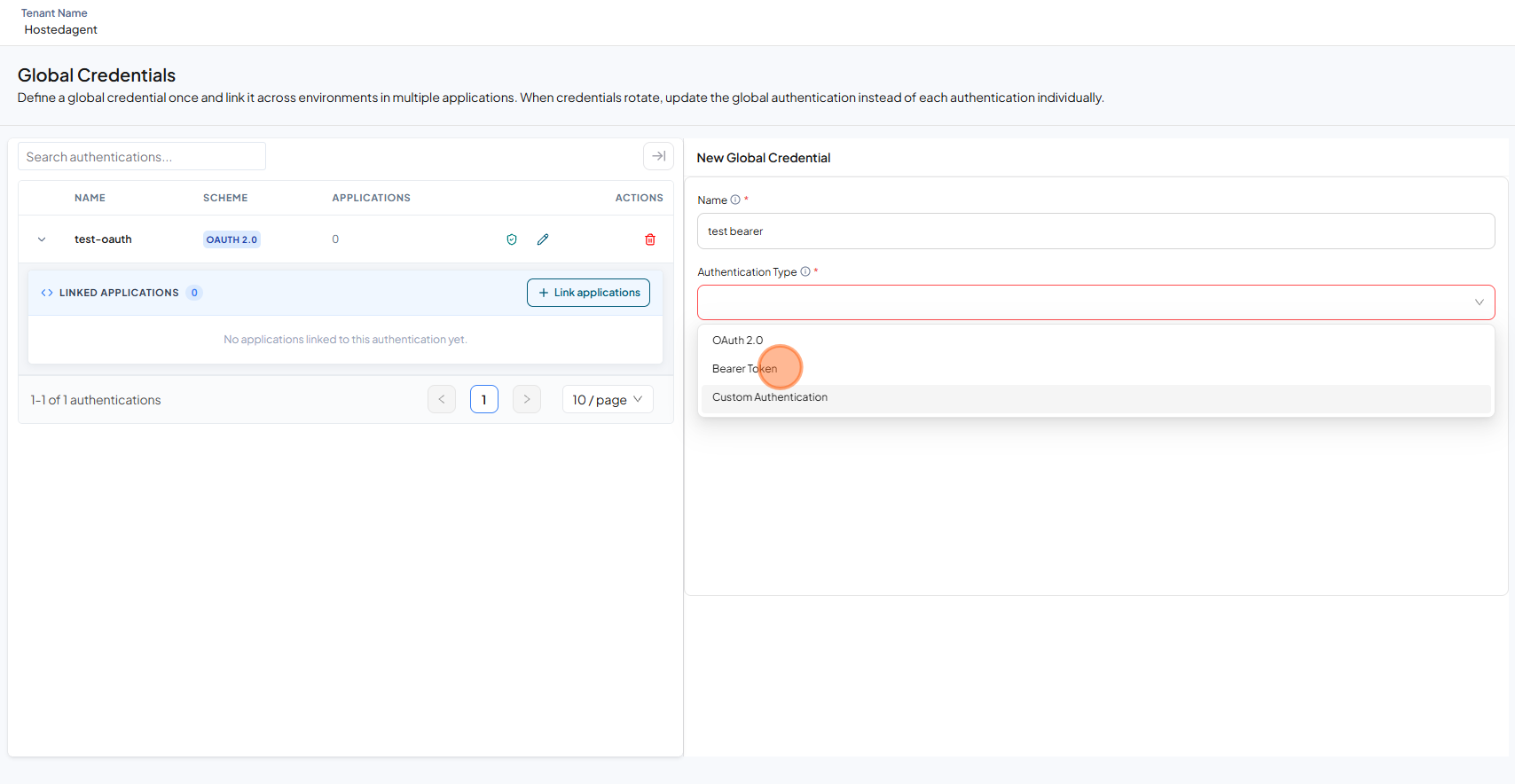
APIsec supports three types of Global Credentials: OAuth 2.0, Bearer Token, and Custom Authentication. The other authentication types in Setting up authentication — API Key, Basic, and HMAC — are configured per instance and cannot be shared as a Global Credential.
- OAuth 2.0
- Bearer Token
- Custom Authentication
Select the authentication type that best matches your application's authentication mechanism.
OAuth 2.0
To create OAuth 2.0 Global Credentials:
-
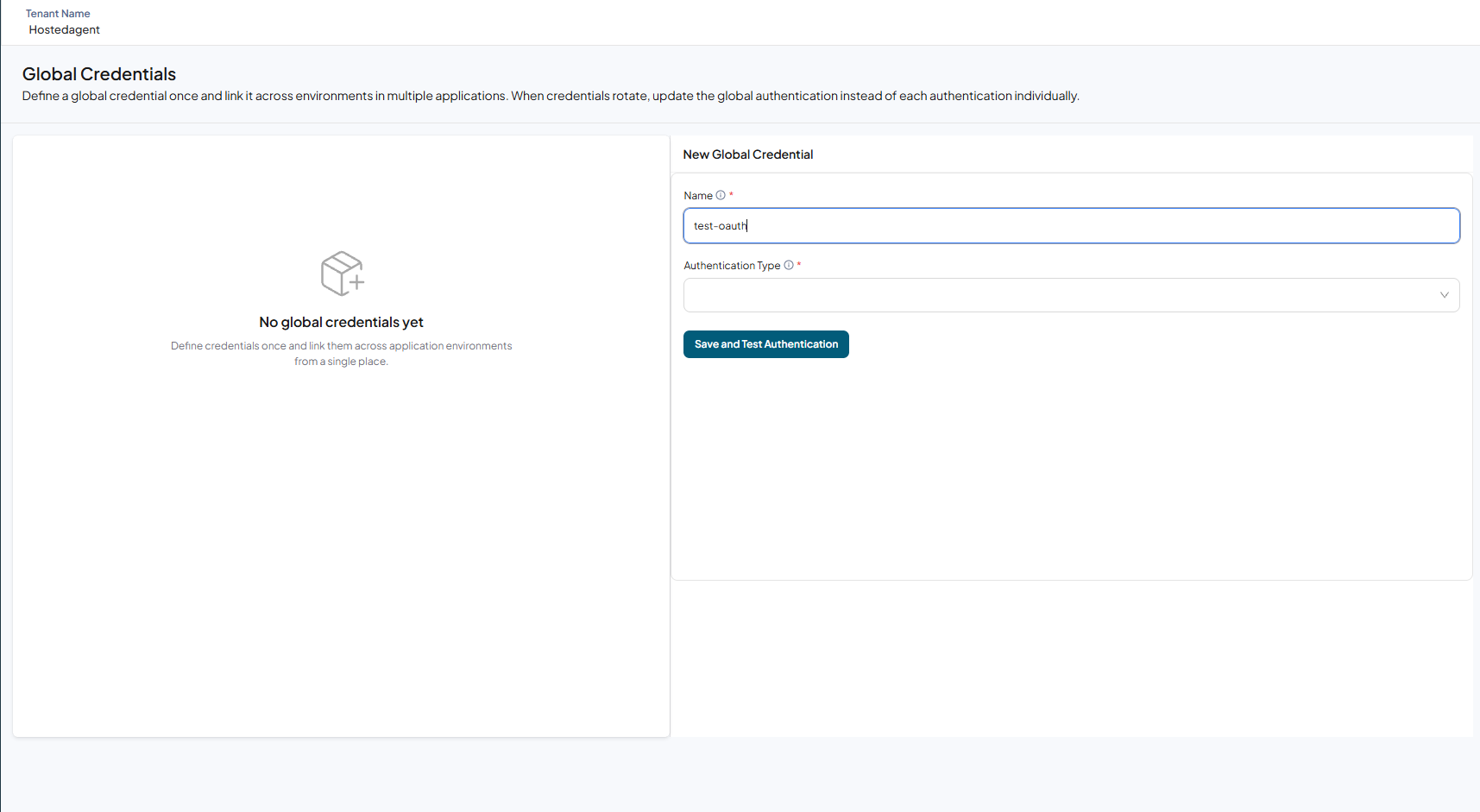
Enter the credential name.
-
From the dropdown, select OAuth 2.0.
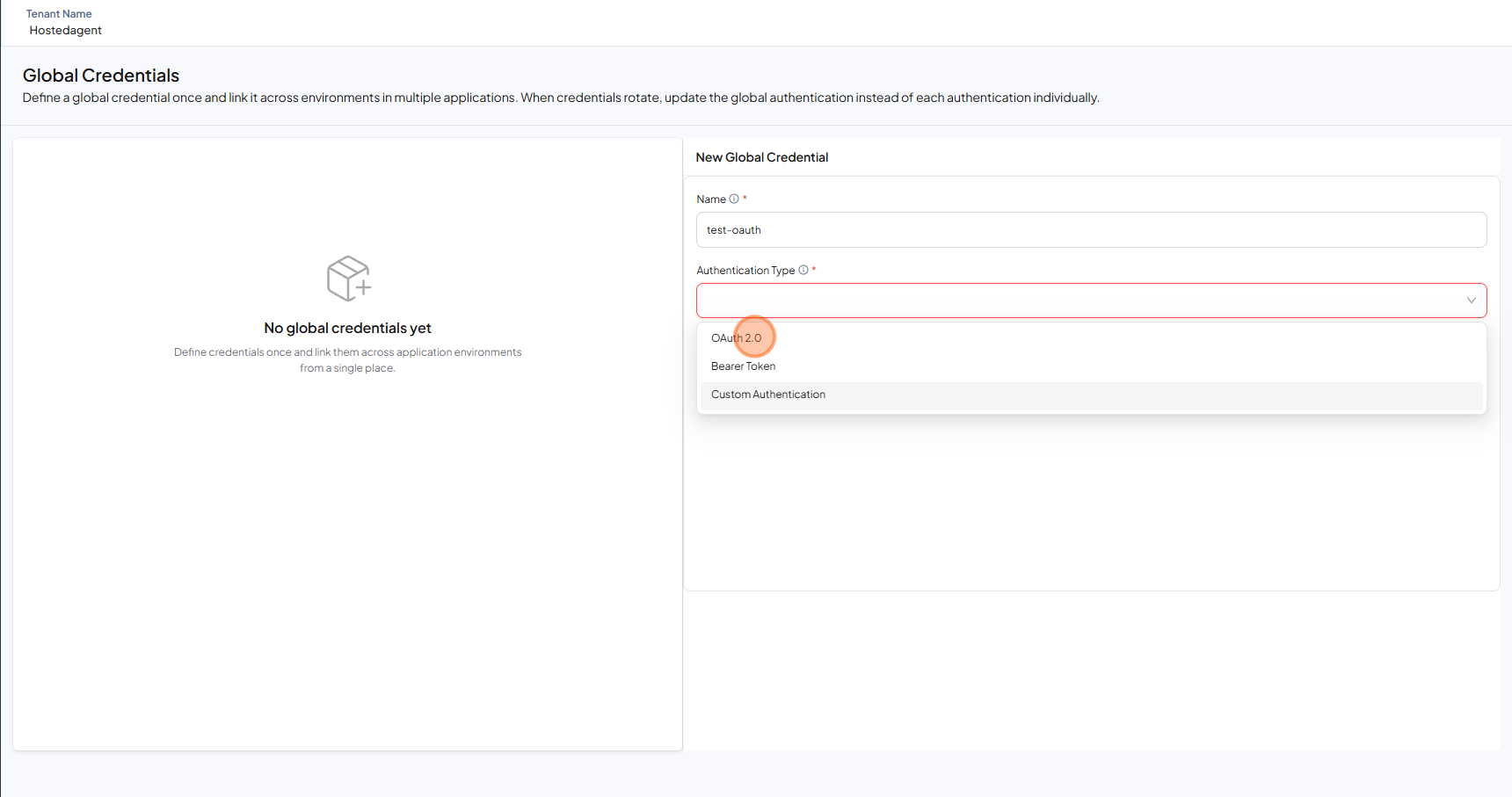
-
Fill in the form.
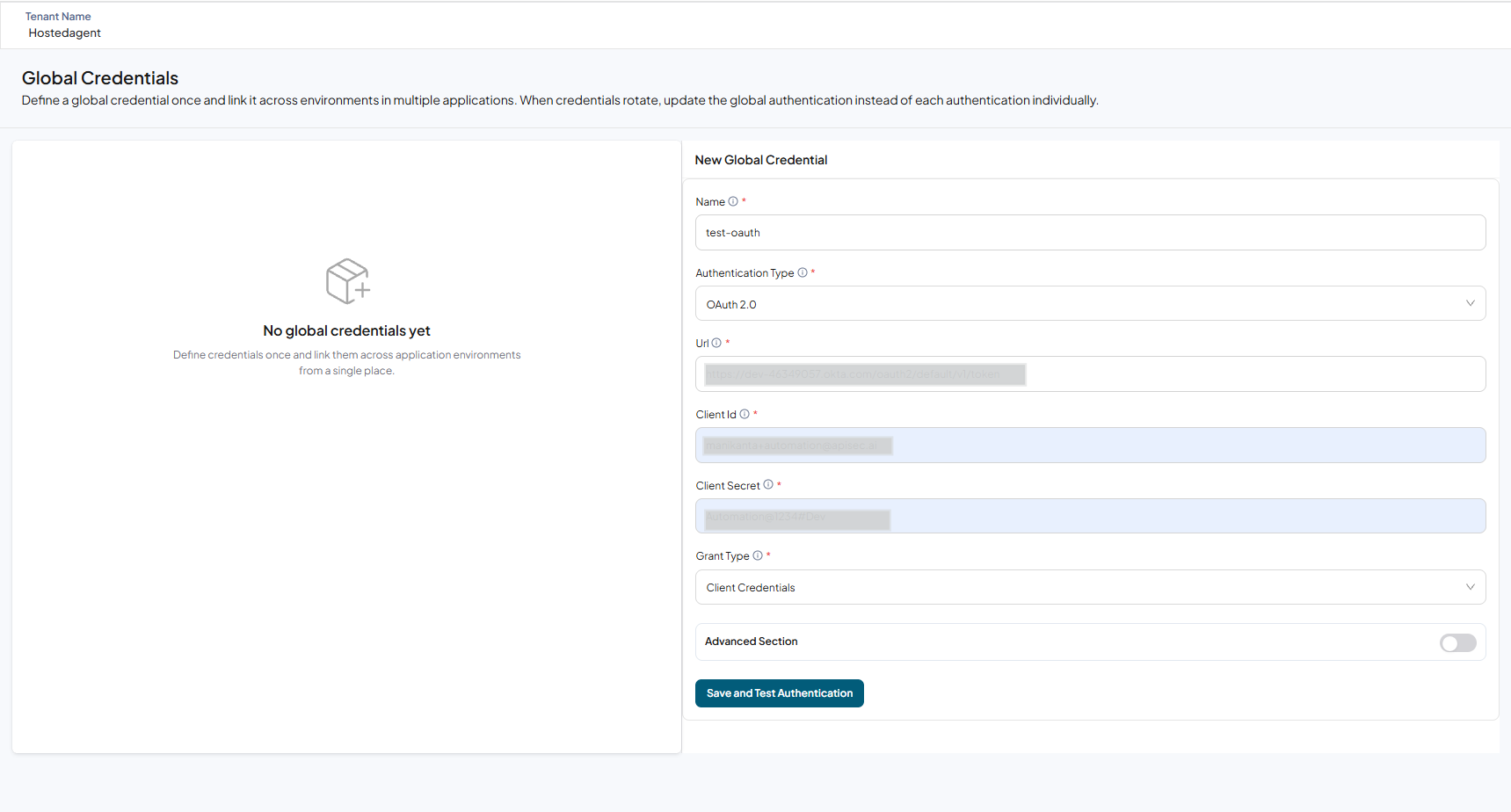
-
Click Save and Test Authentication.
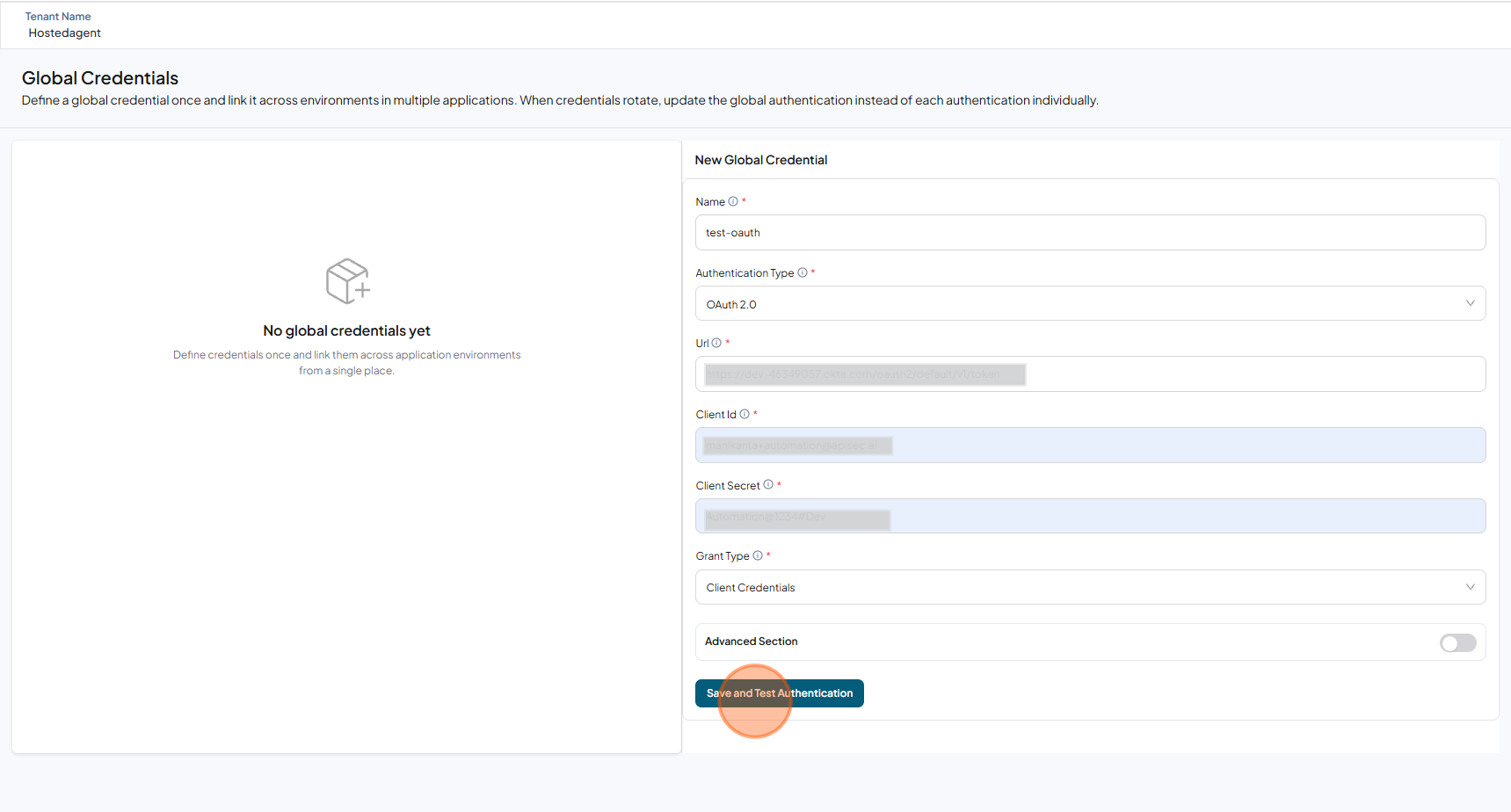
-
The Authentication Test Results display the Authentication Resolution.
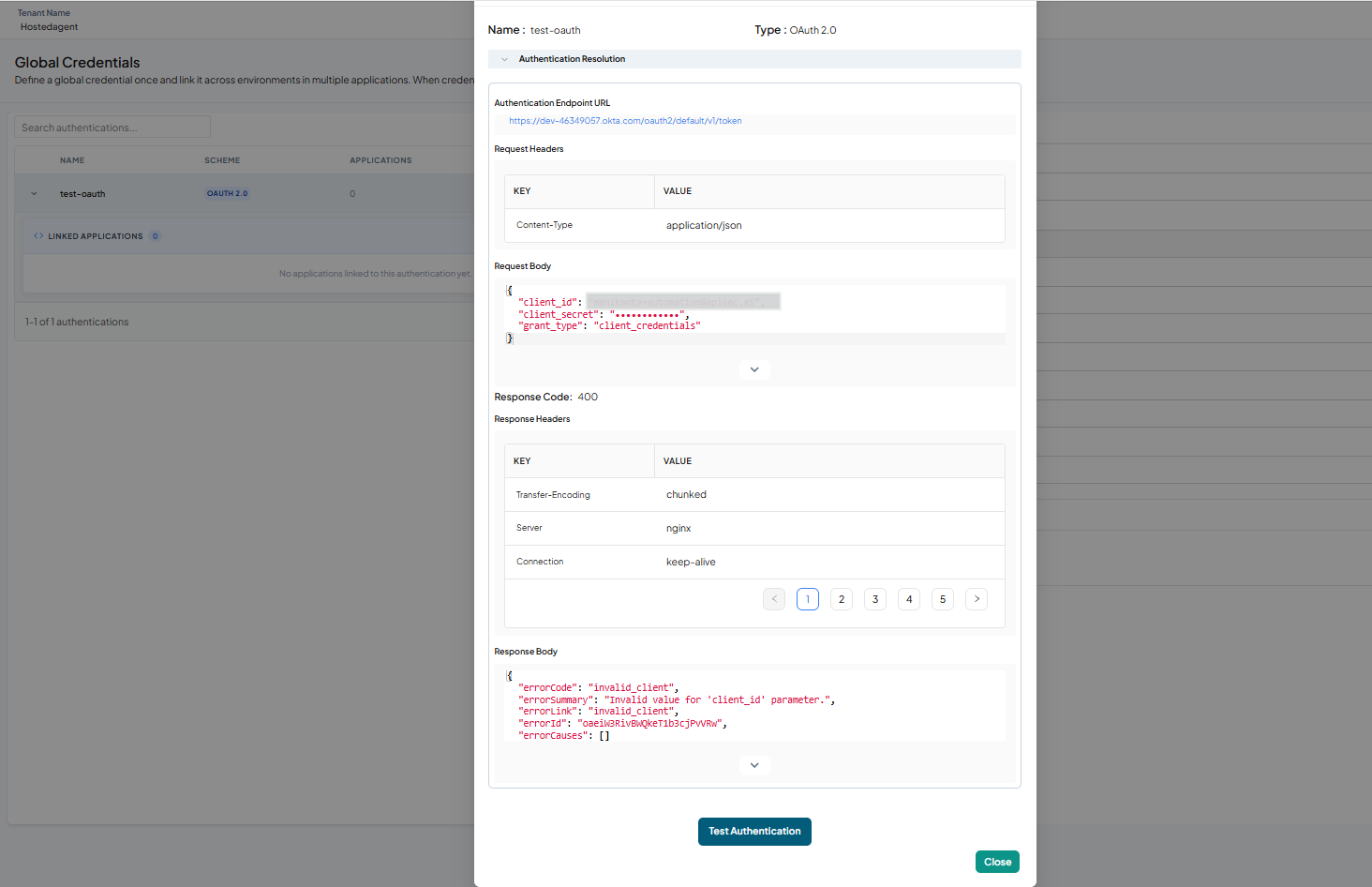
-
Check that the saved OAuth 2.0 credentials are available in the table.
Bearer Token Authentication
To create Bearer Token authentication:
-
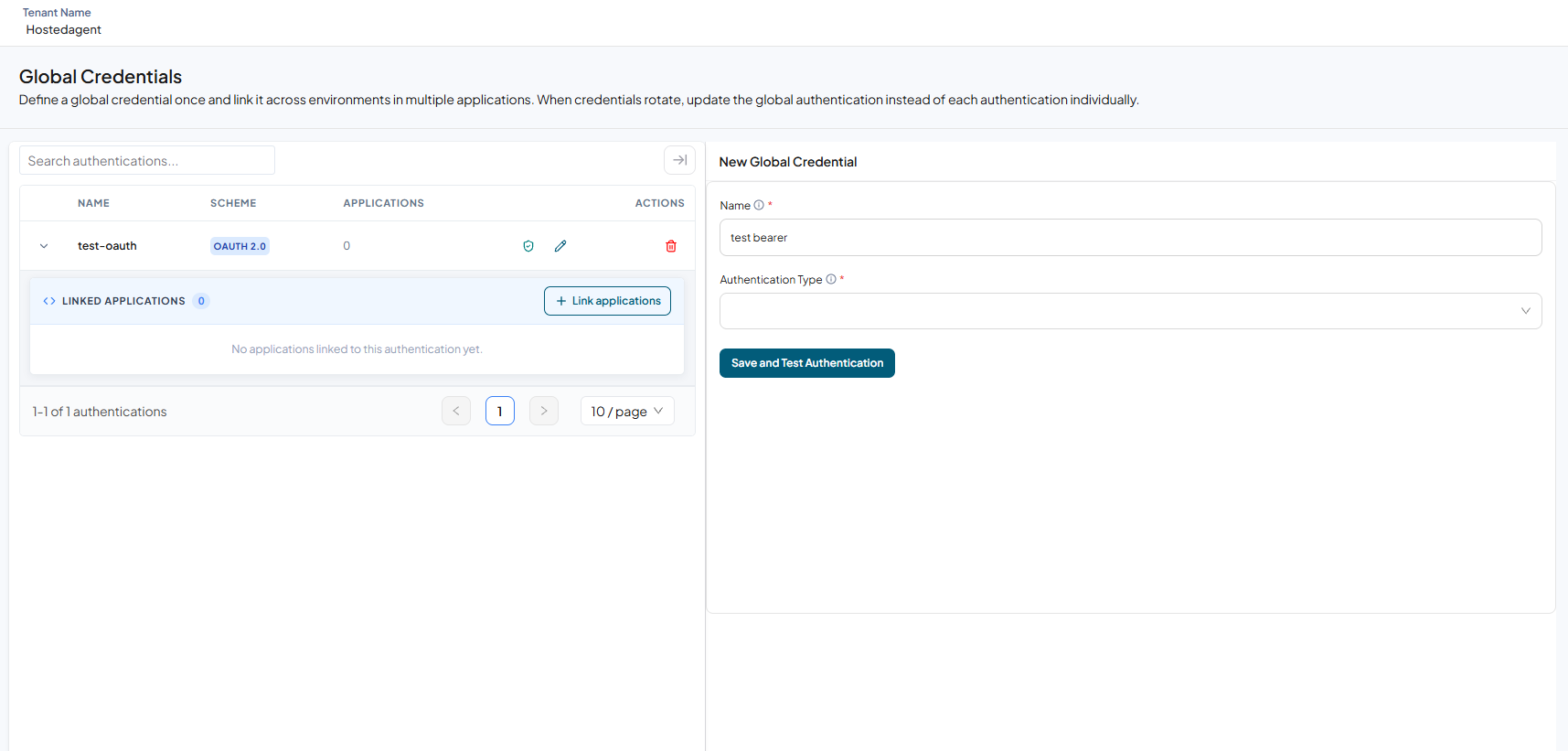
Enter the credential name.
-
From the dropdown, select Bearer Token.
-
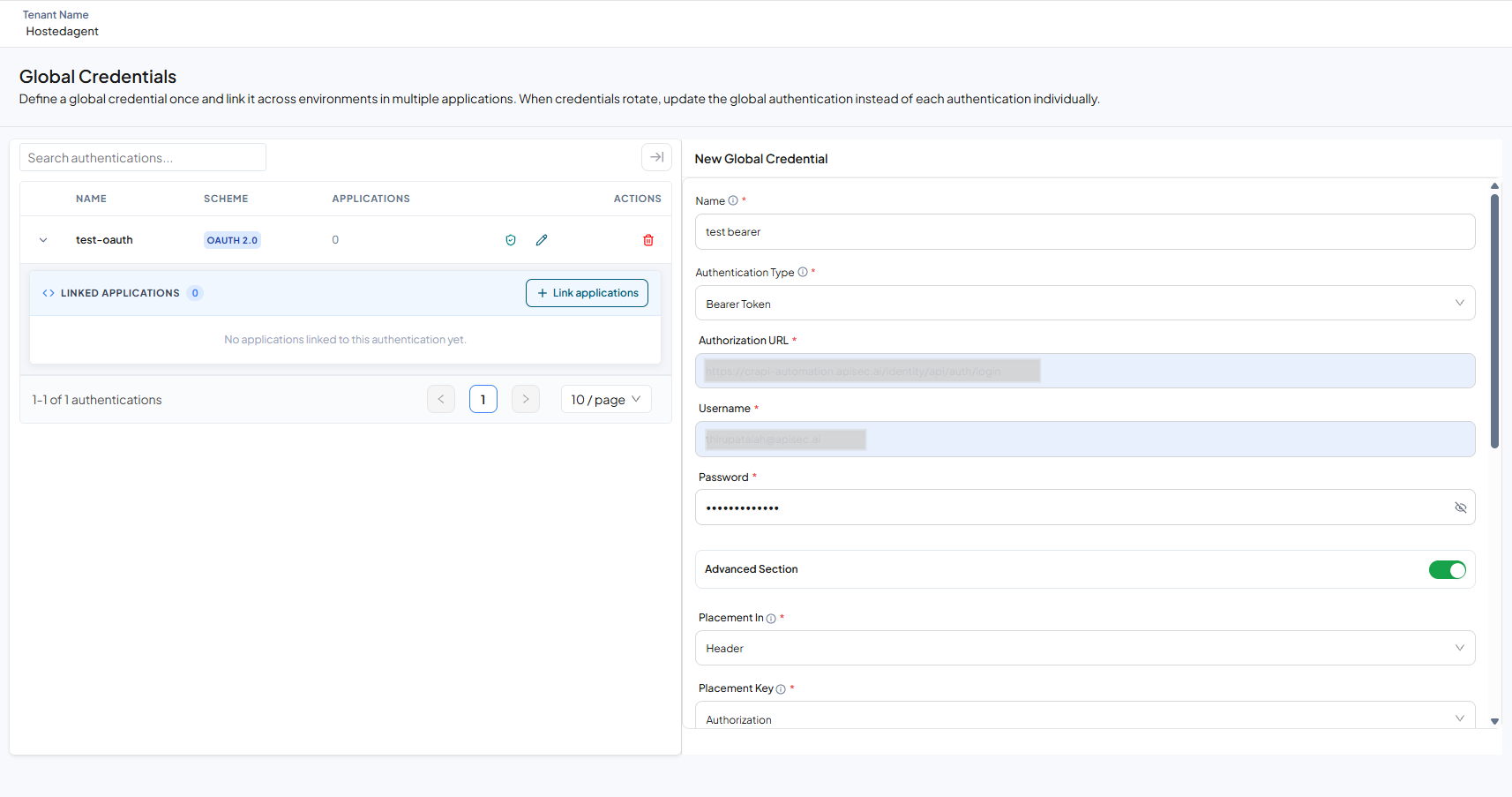
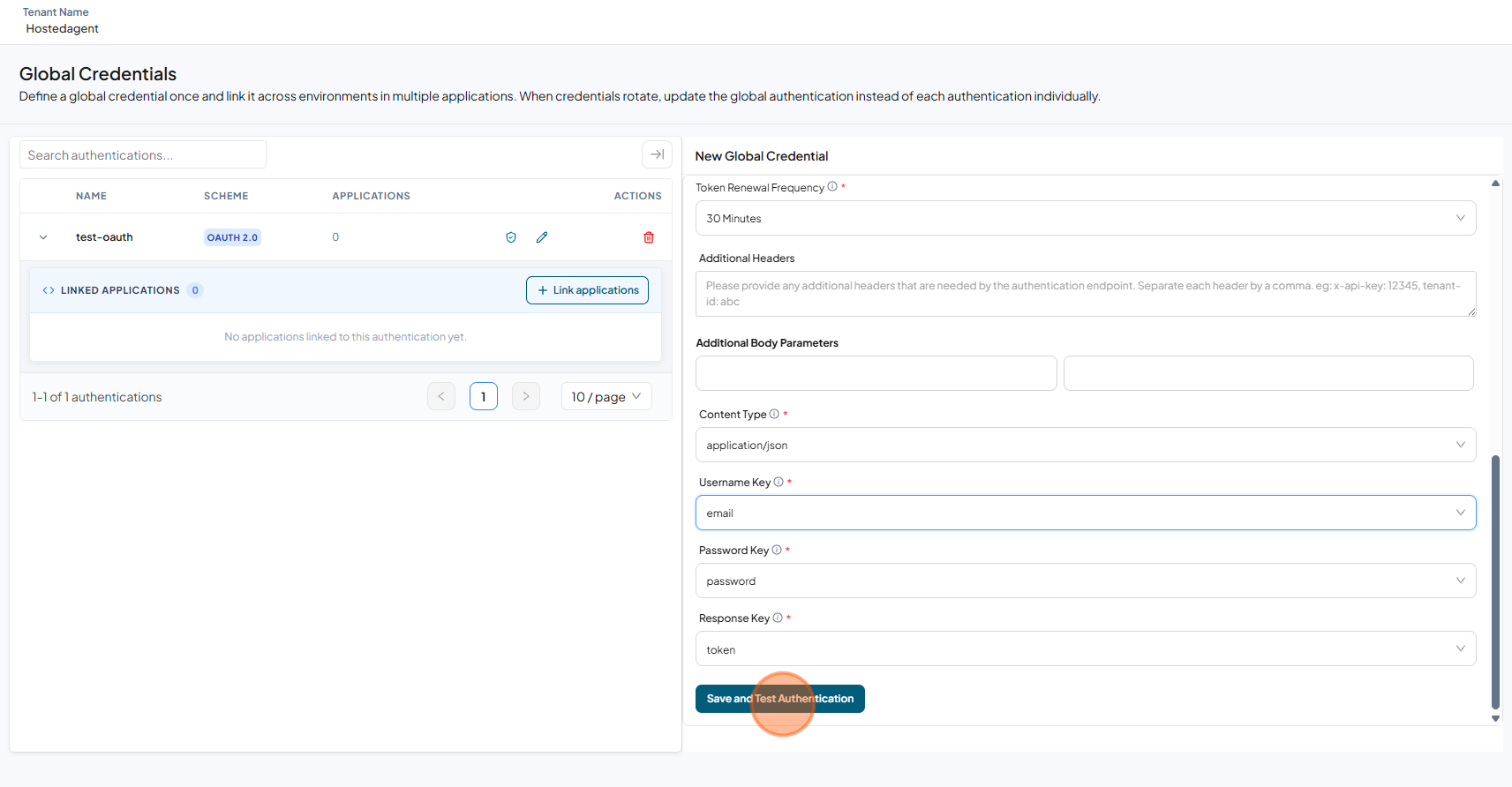
Fill in the form.
-
Click Save and Test Authentication.
-
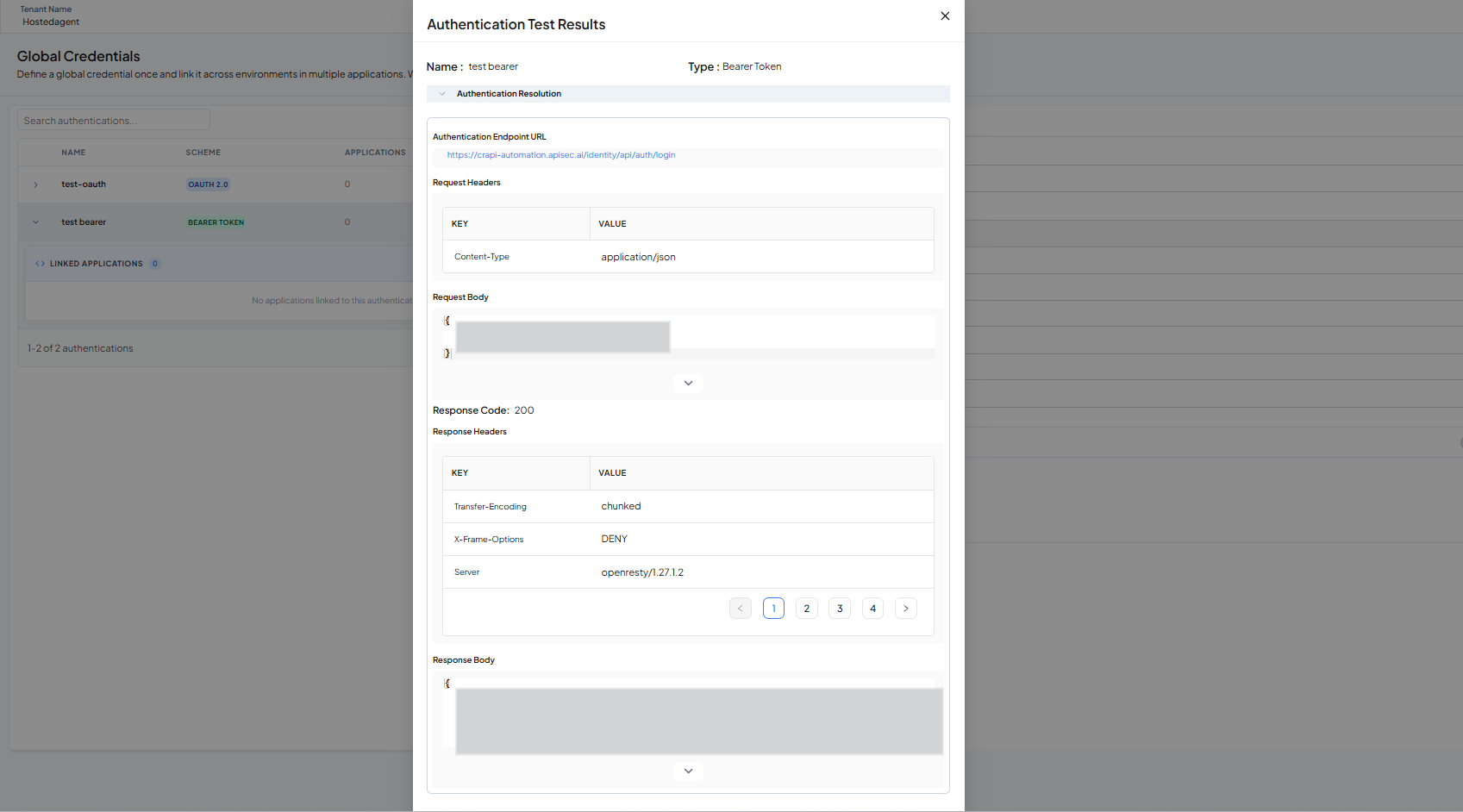
The Authentication Test Results display the Authentication Resolution.
-
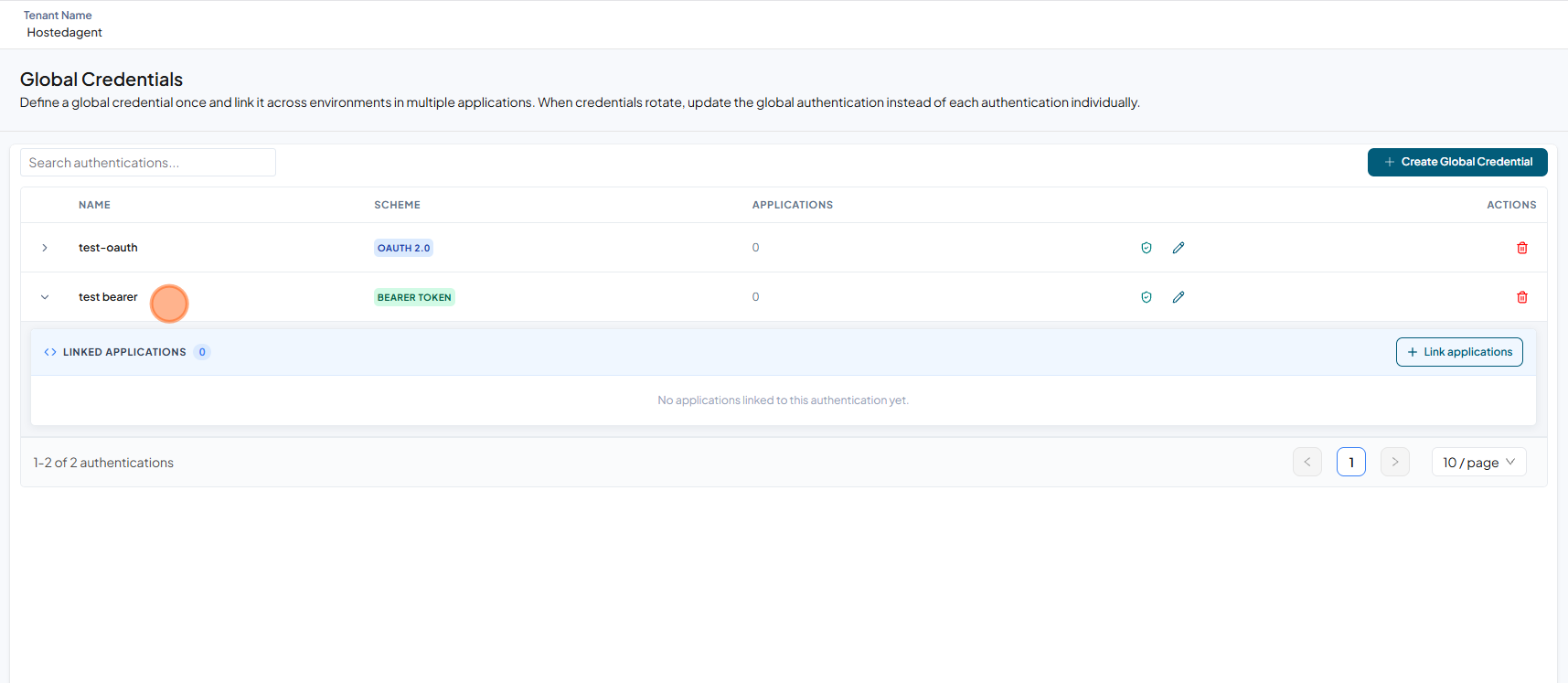
Check that the saved Bearer Token credentials are available in the table.
Custom Authentications
Custom Authentication is designed to support complex, multi-step login flows, often needed for APIs that require chaining multiple requests, passing cookies, and extracting values from headers or response bodies.
-
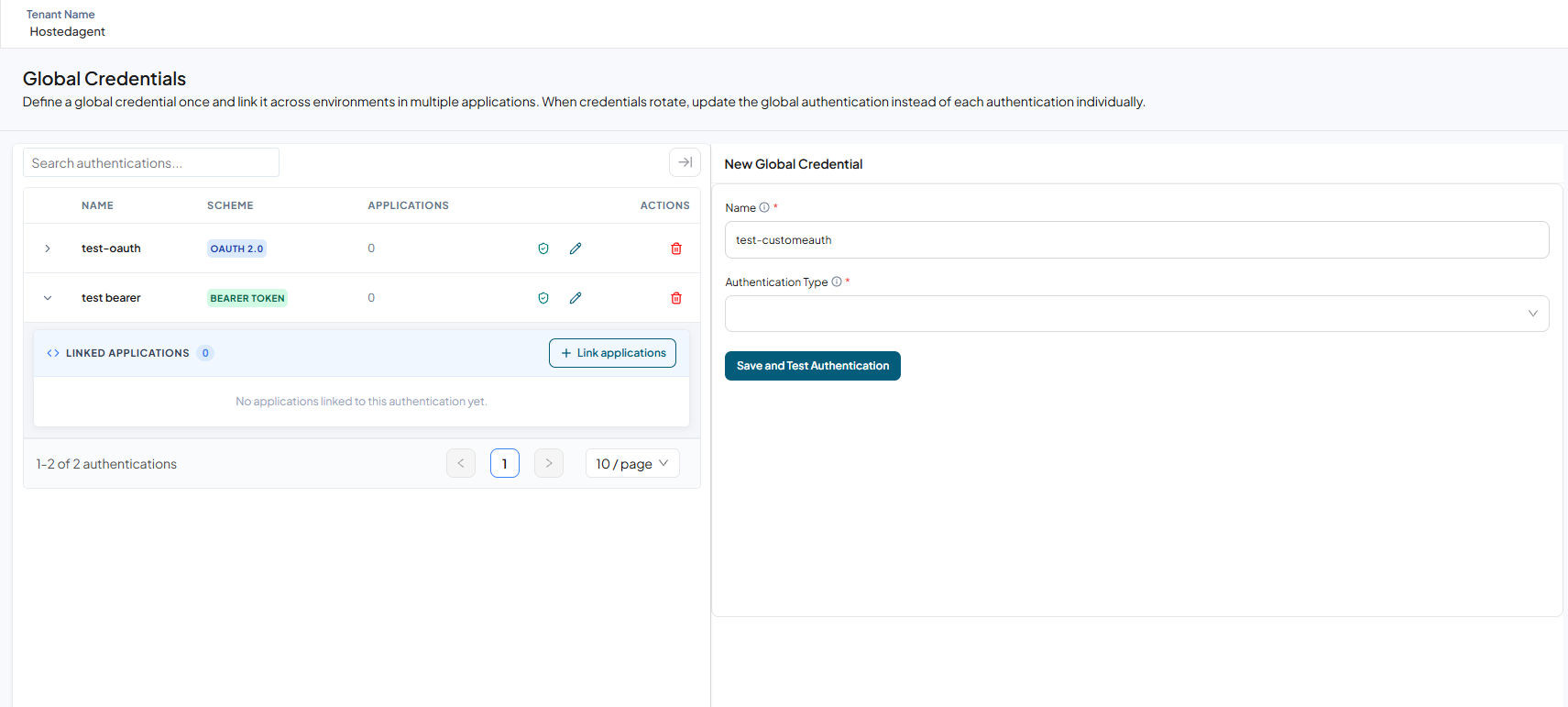
Enter the credential name.
-
From the dropdown, select Custom Authentication.
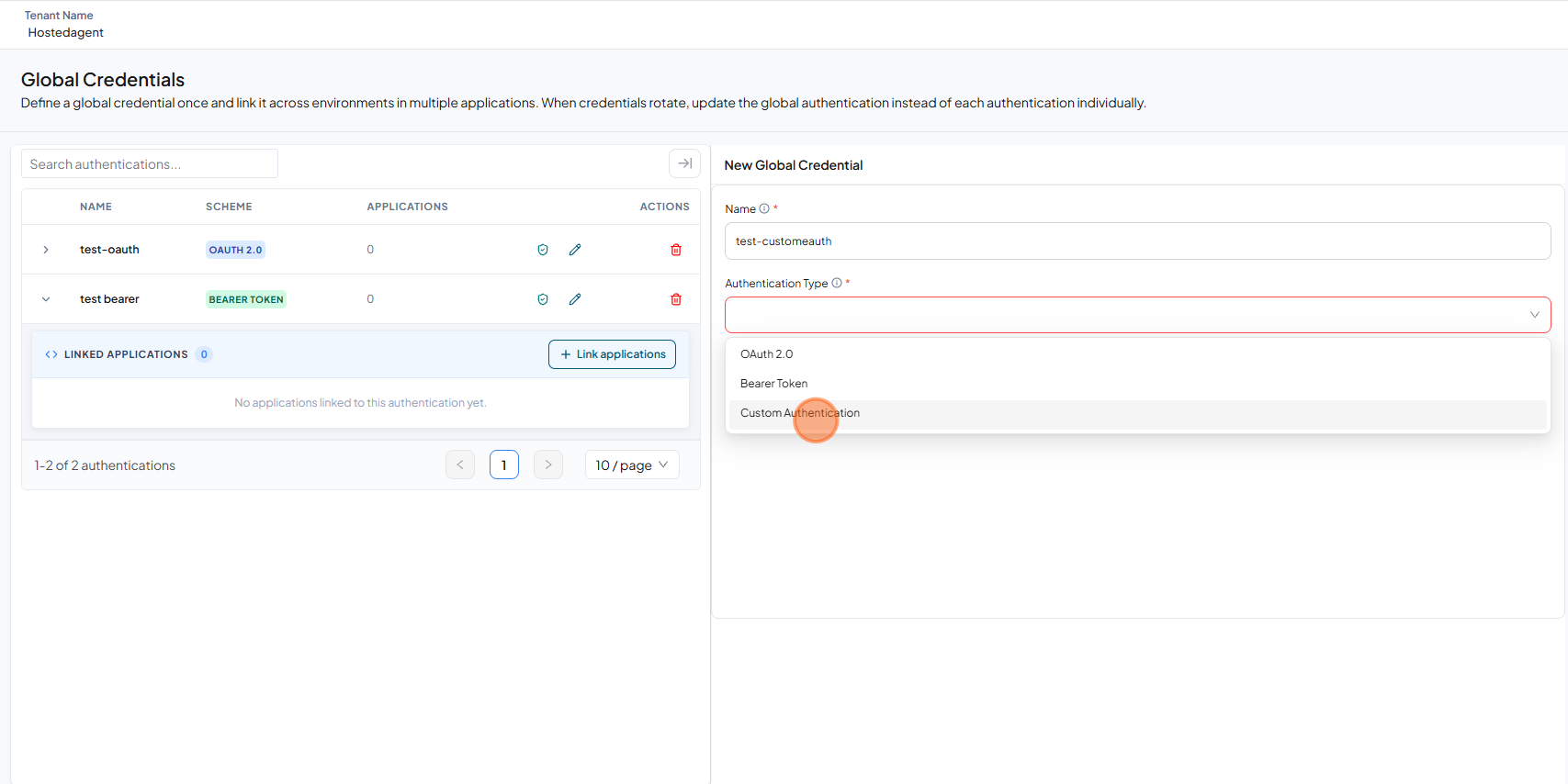
-
Fill in the form.
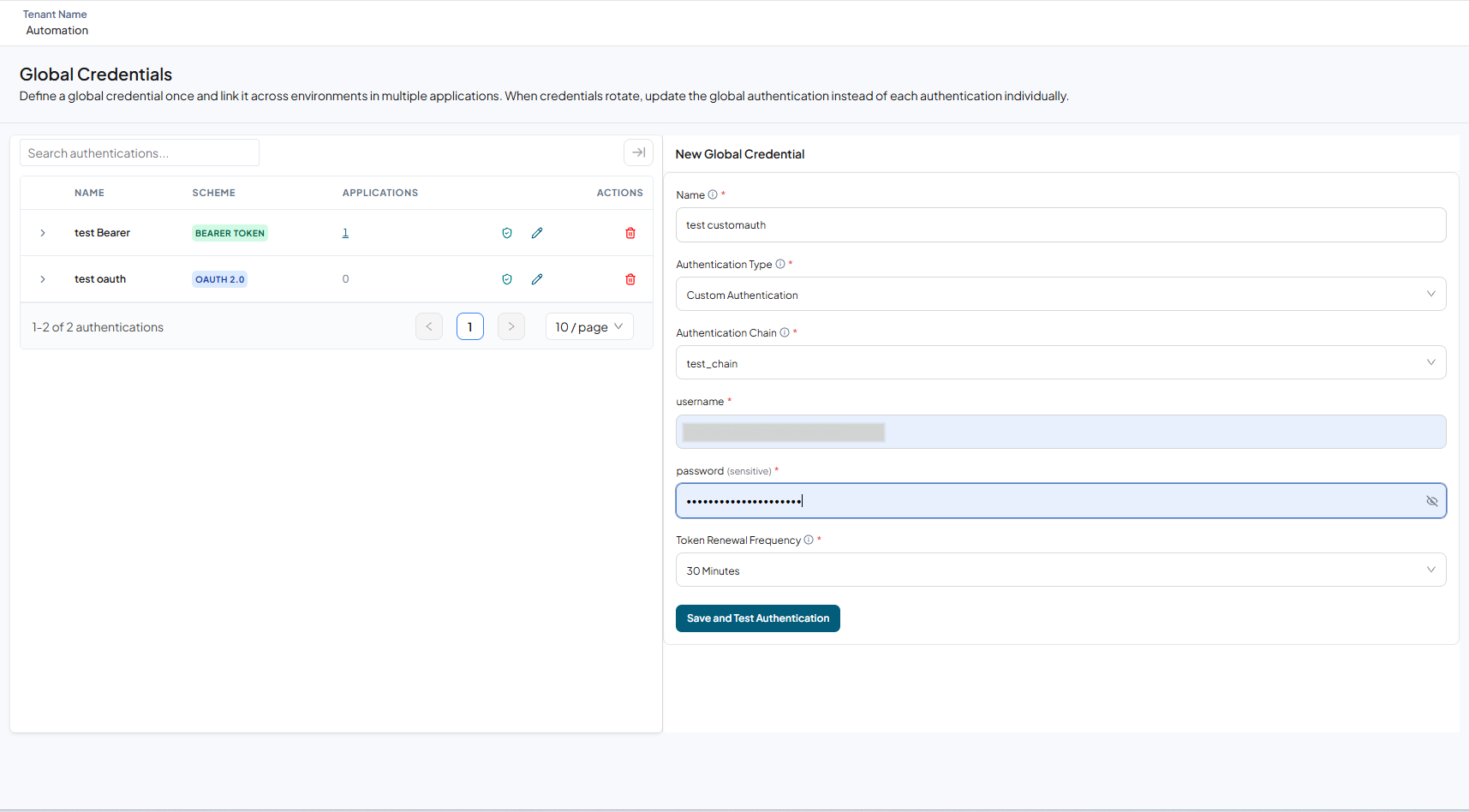
-
Click Save and Test Authentication.
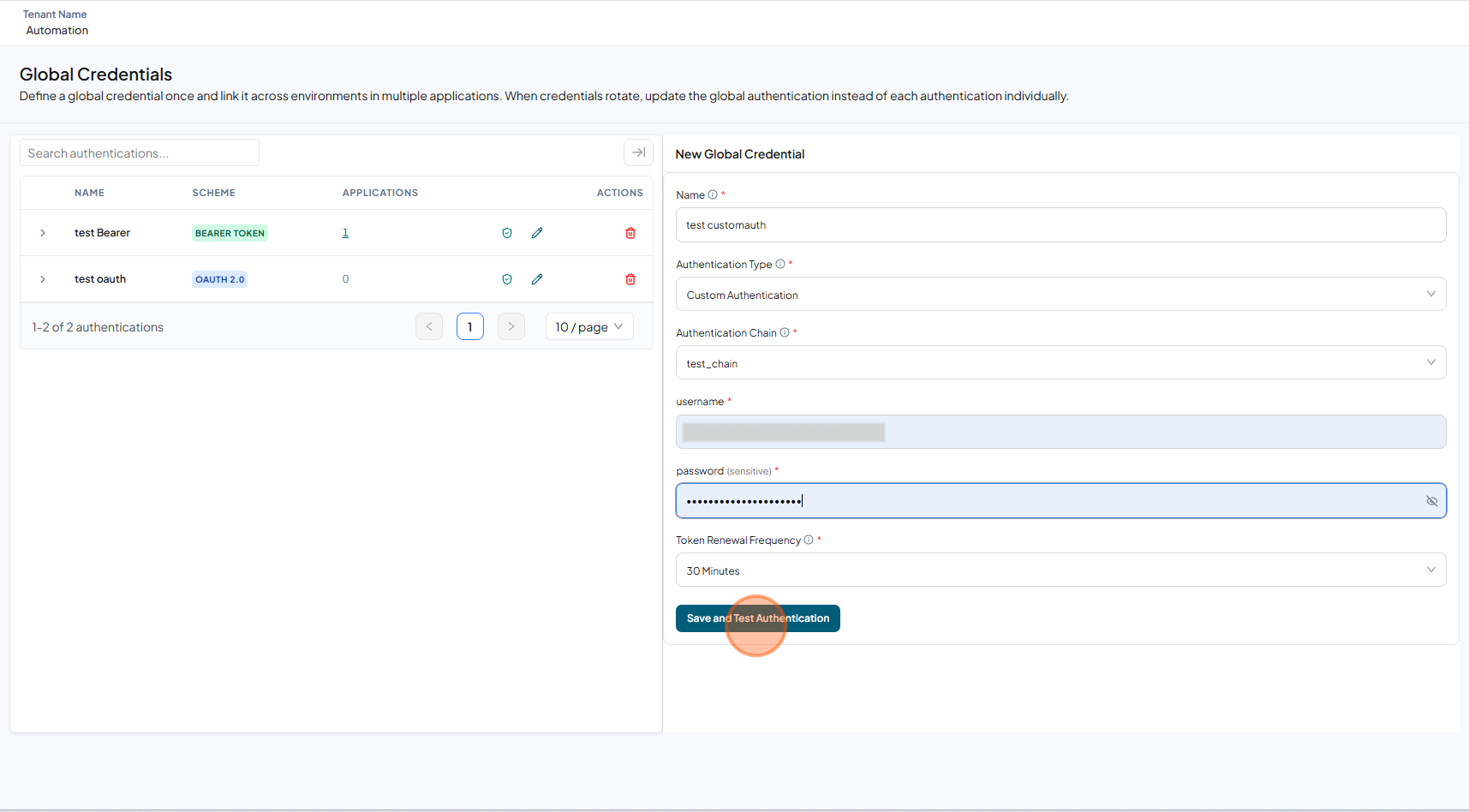
-
The Authentication Test Results display the Authentication Resolution.
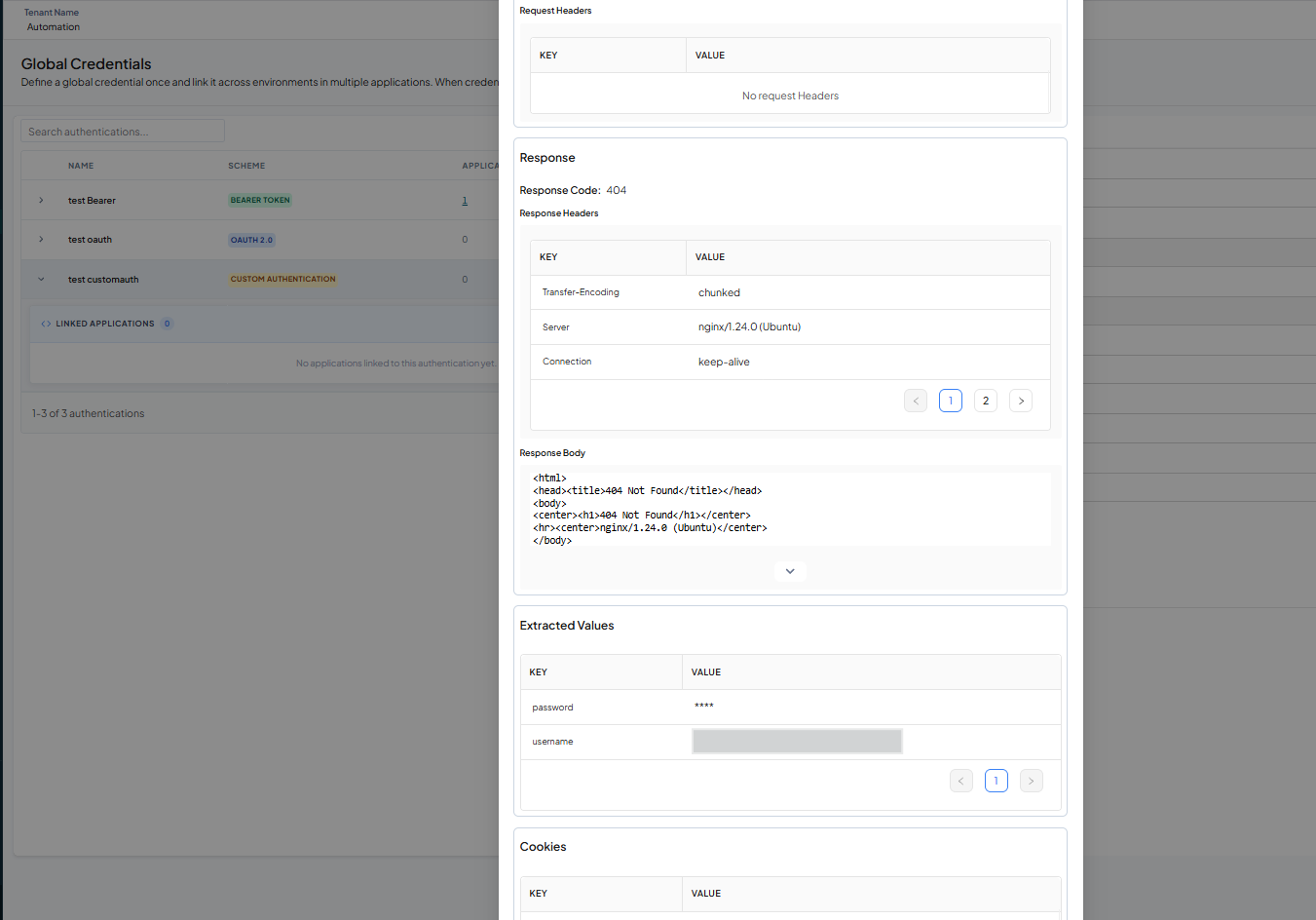
-
Check that the saved Custom Authentication credentials are available in the table.
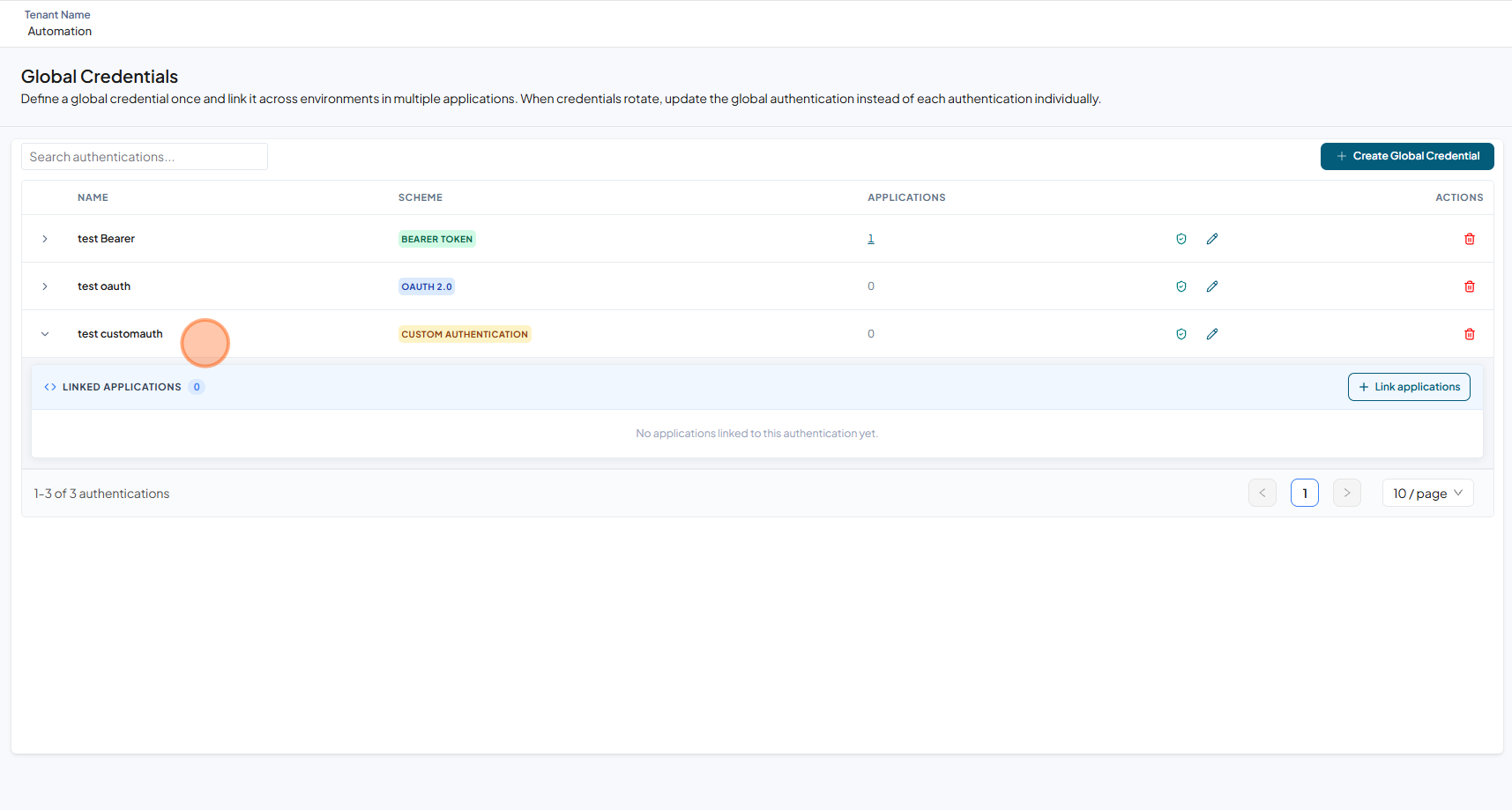
Linking Application
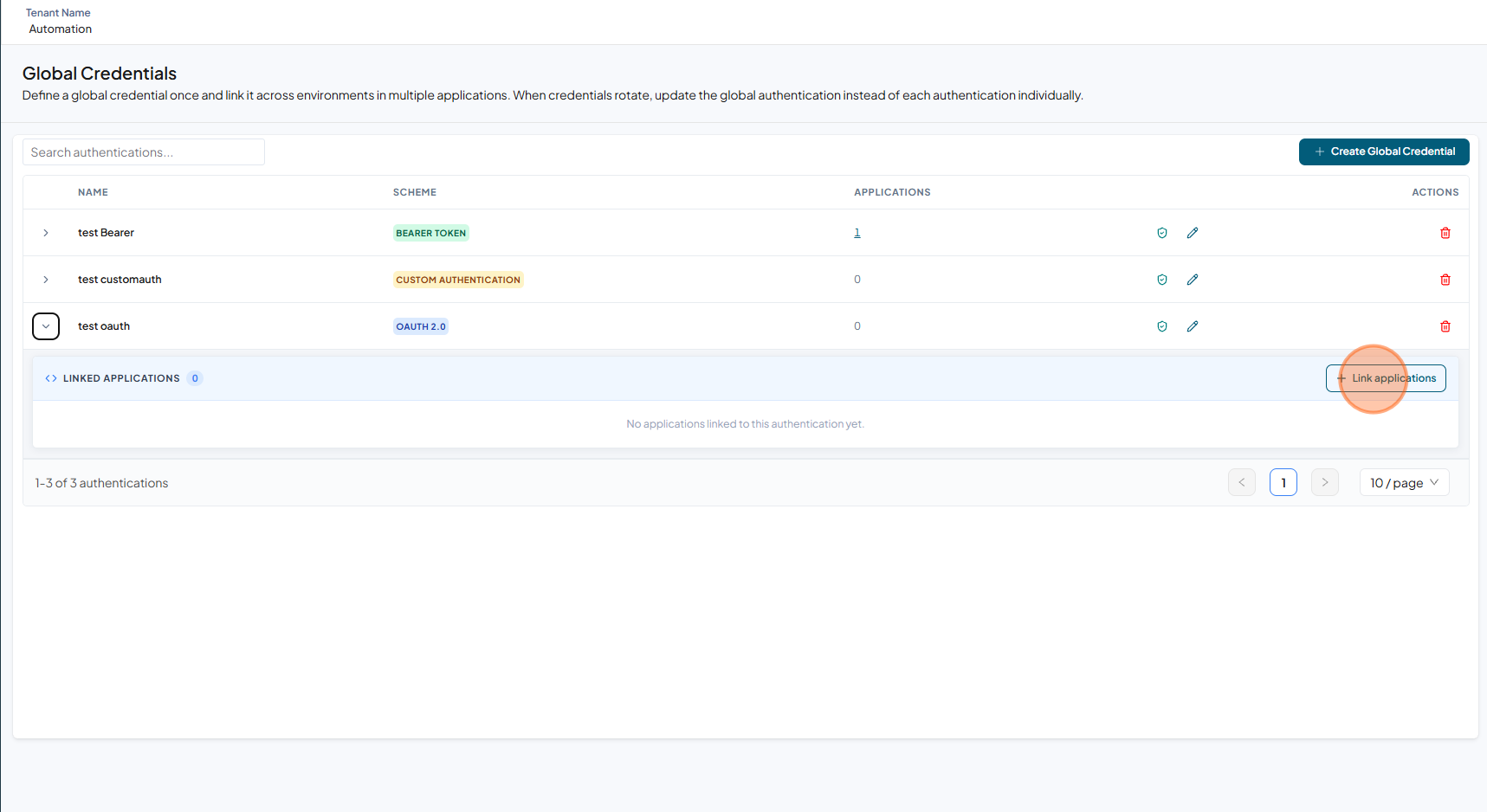
After creating a Global Credential, you can associate it with one or more applications and application environments. Use Link Applications to associate applications and environments with the Global Credential.
-
Open your browser and visit: https://<your-tenant>.apisecapps.com
-
Click Global Credentials.
-
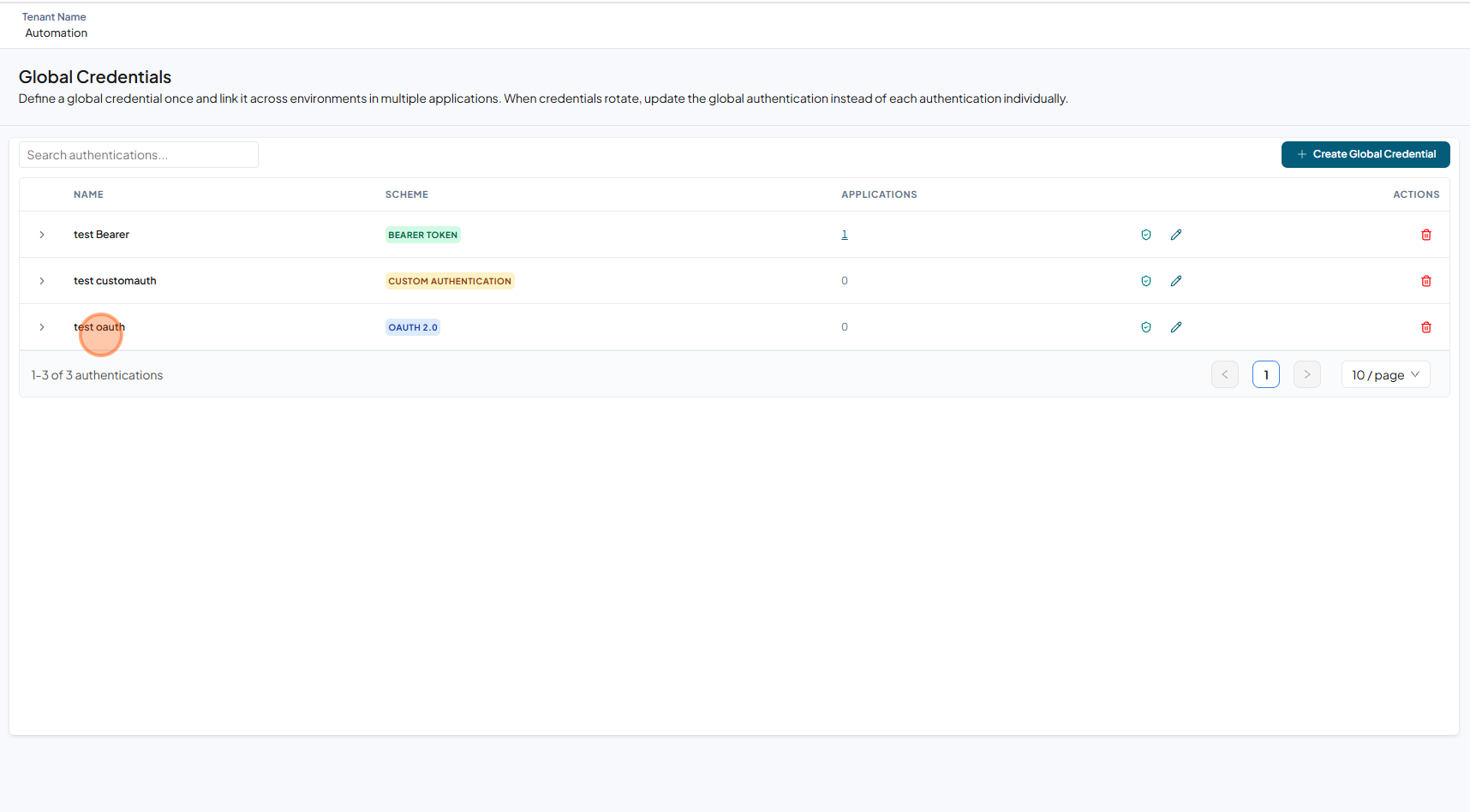
Click the required Global Credential to expand its details.
-
Click Link Applications.
-
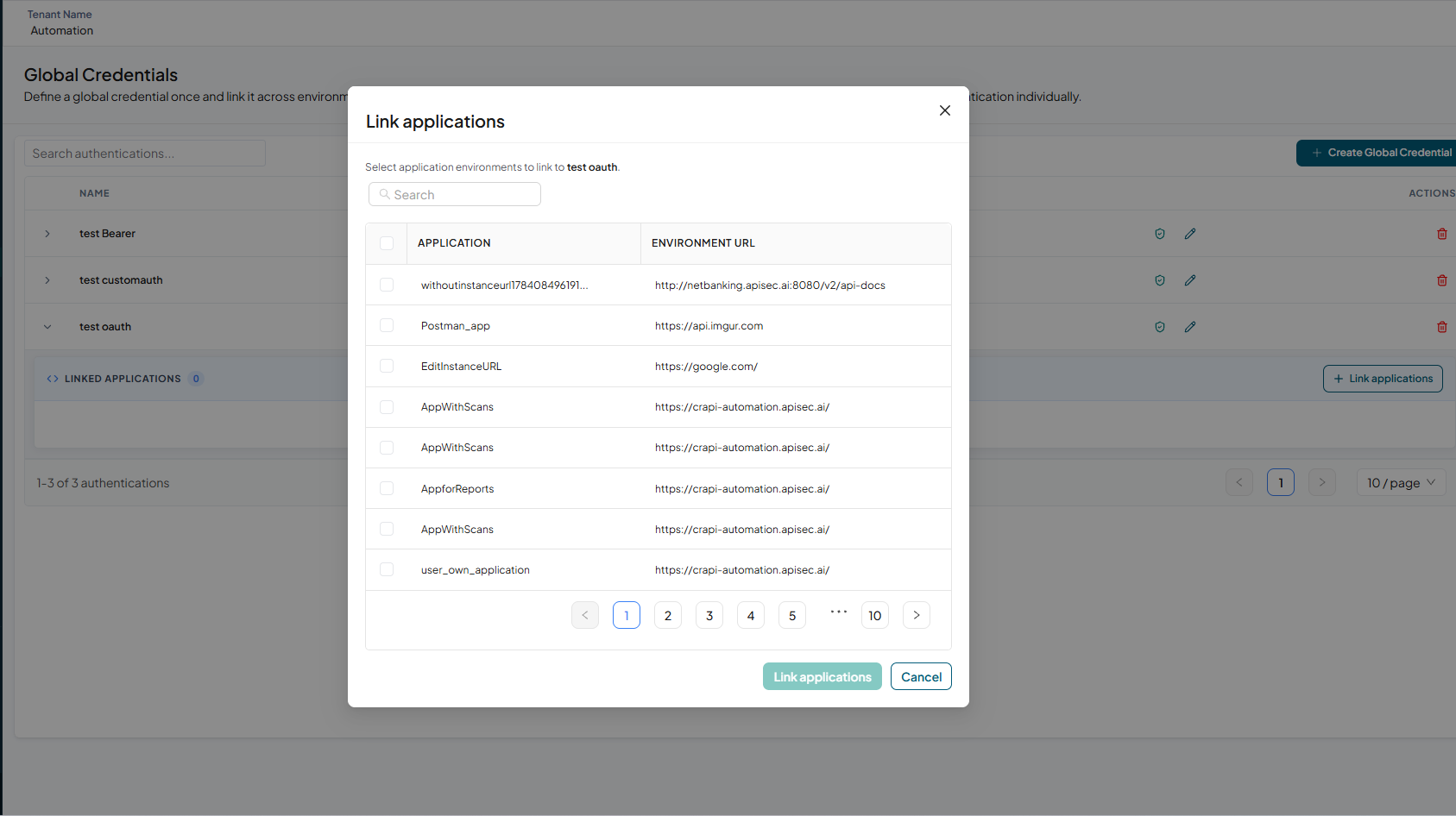
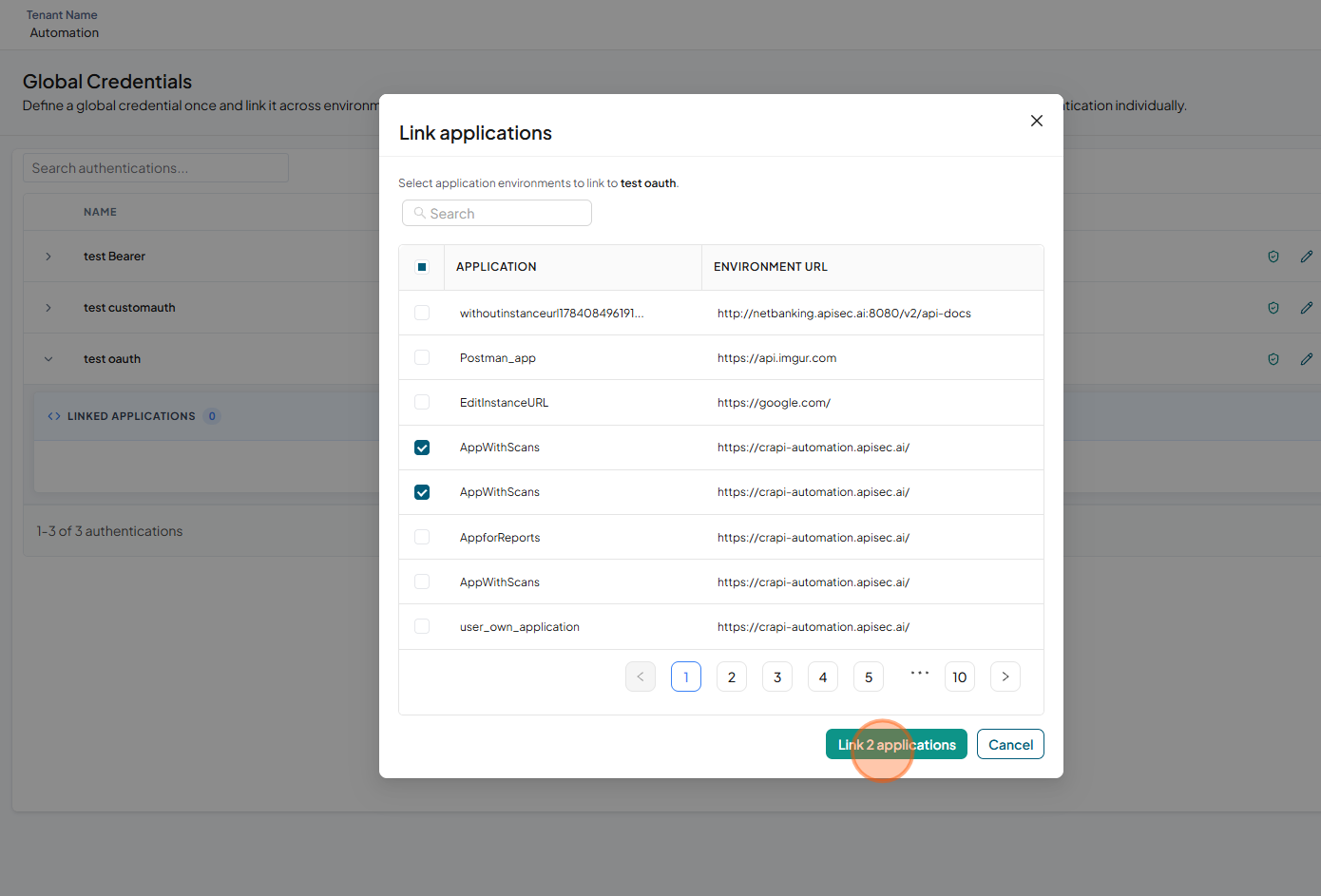
In the Link Applications dialog, select one or more applications that you want to associate with the Global Credential.
-
Click Link Applications to associate the selected applications with the Global Credential.
-
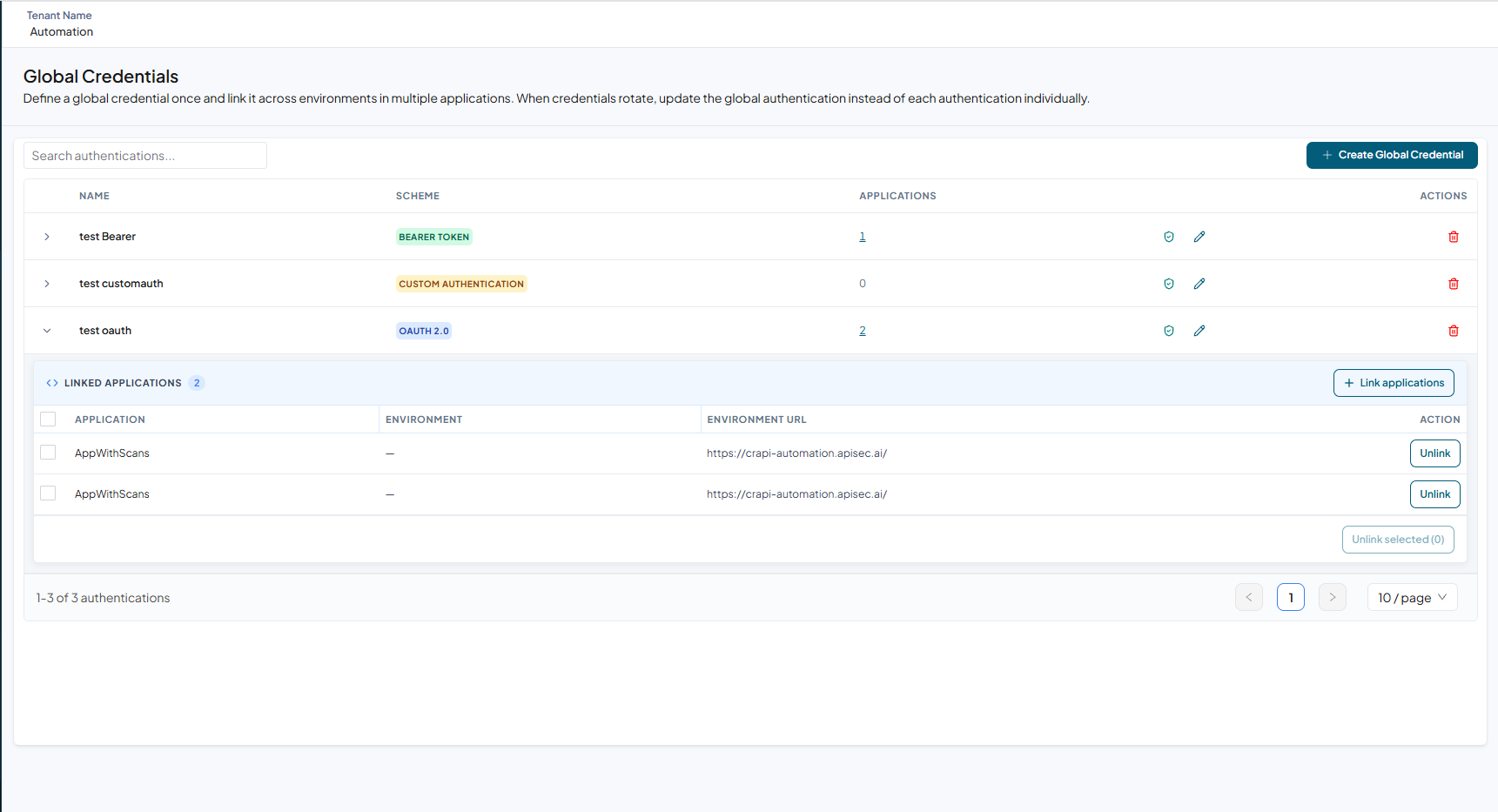
Verify that the selected applications are displayed under the Linked Applications section of the Global Credential.
-
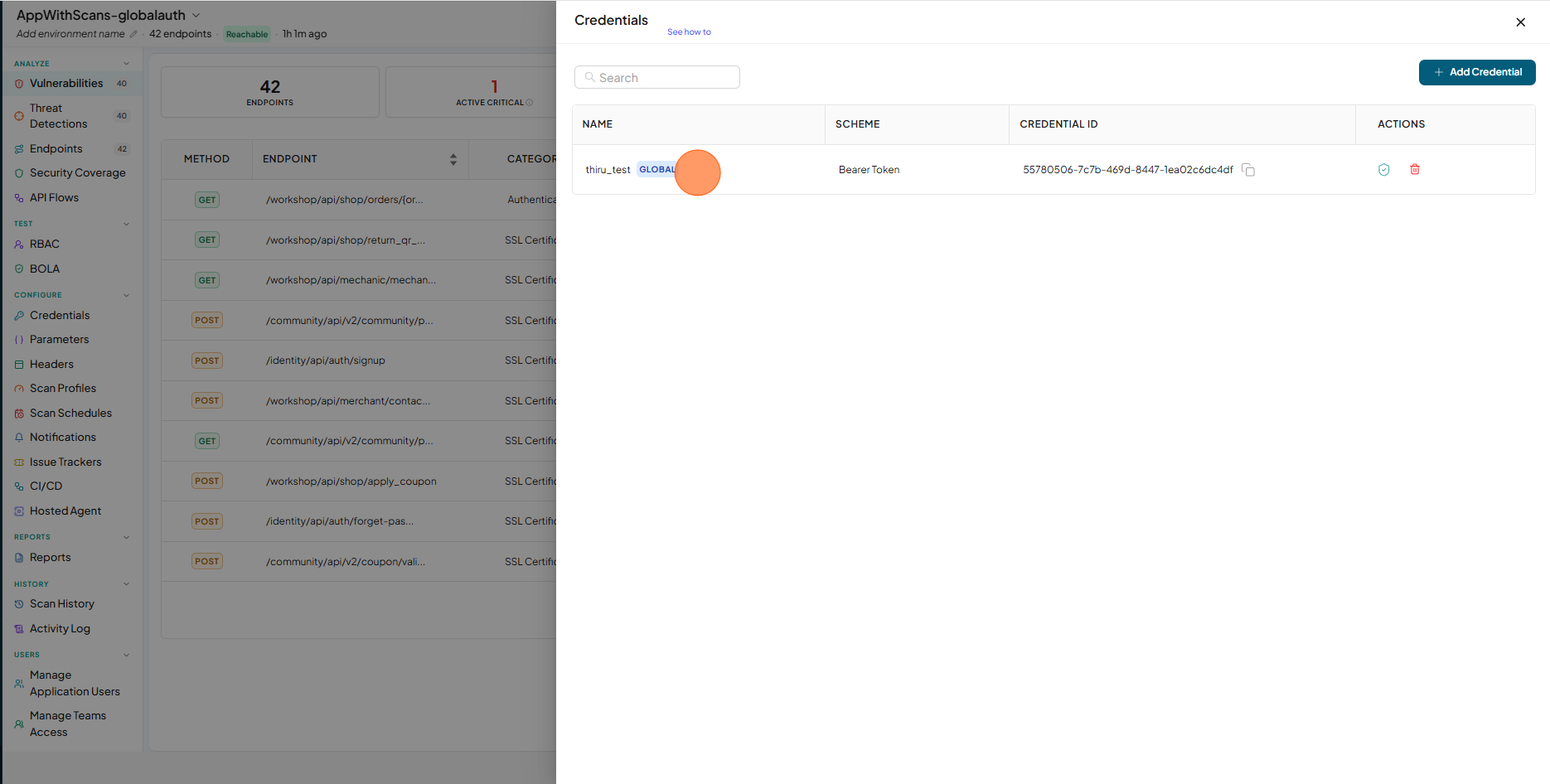
When applications are linked, the Global Credential is displayed on the application's Credentials page with a GLOBAL tag.
-
The Global Credential is automatically used during scan execution, Scan Profile configuration, and scheduled scans.
Unlink Applications
If an application no longer requires a Global Credential, you can unlink the application from the credential.
-
Open your browser and visit: https://<your-tenant>.apisecapps.com
-
Click Global Credentials.
-
Click the required Global Credential to expand its details.
-
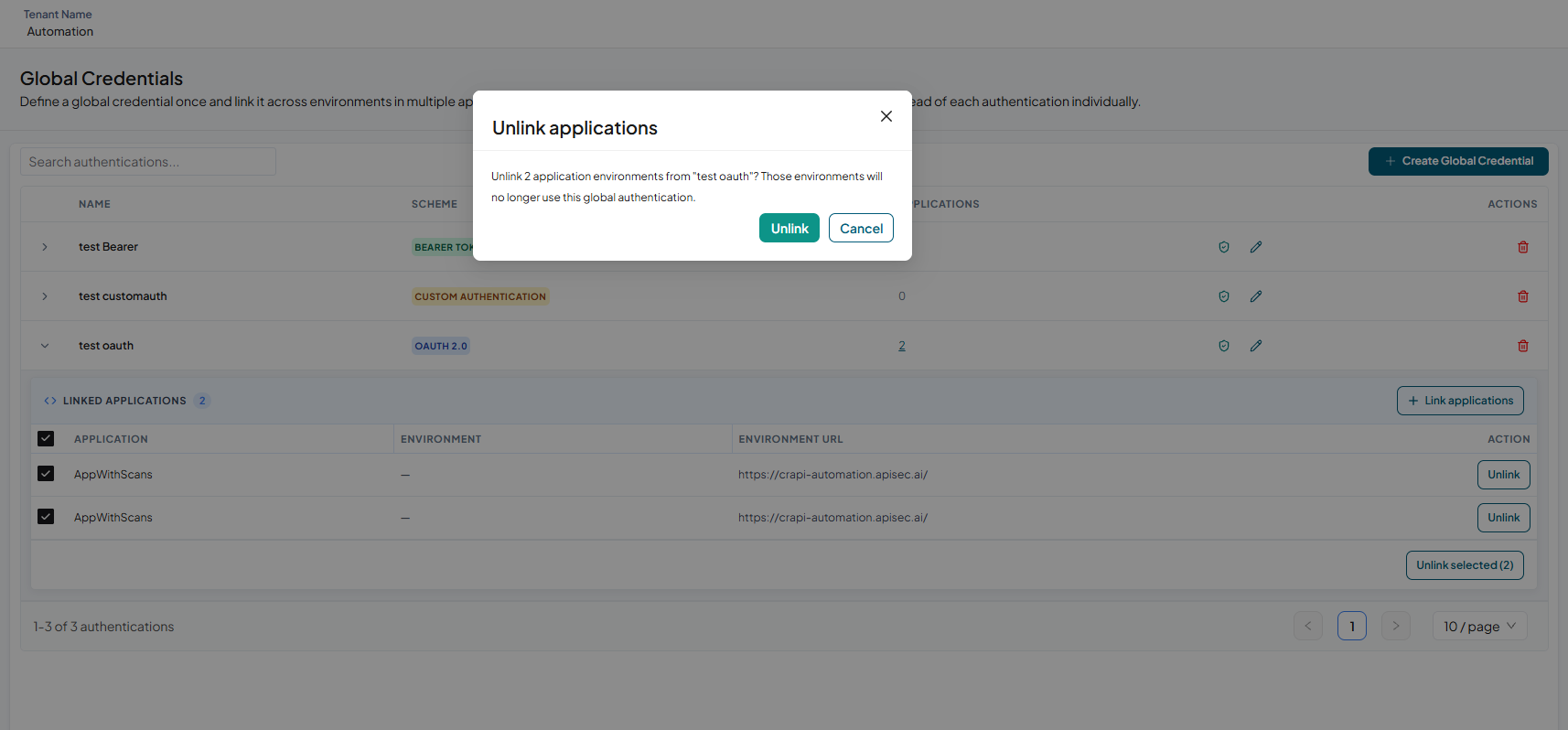
Under the Linked Applications section, locate the application that you want to unlink.
-
To unlink a single application, click Unlink in the Action column next to the application.
-
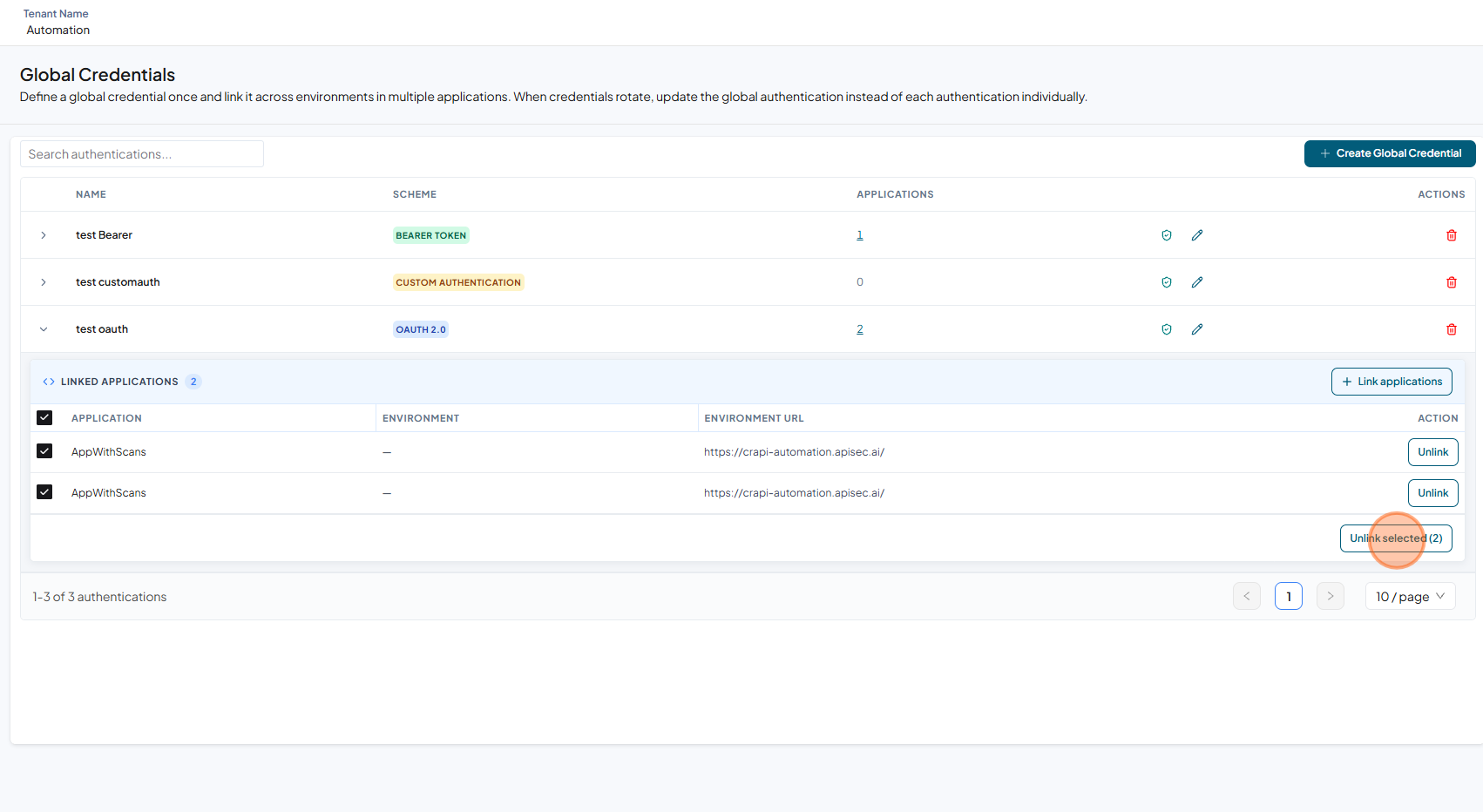
To unlink multiple applications, select the checkboxes next to the applications that you want to remove.
-
Click Unlink to confirm.
-
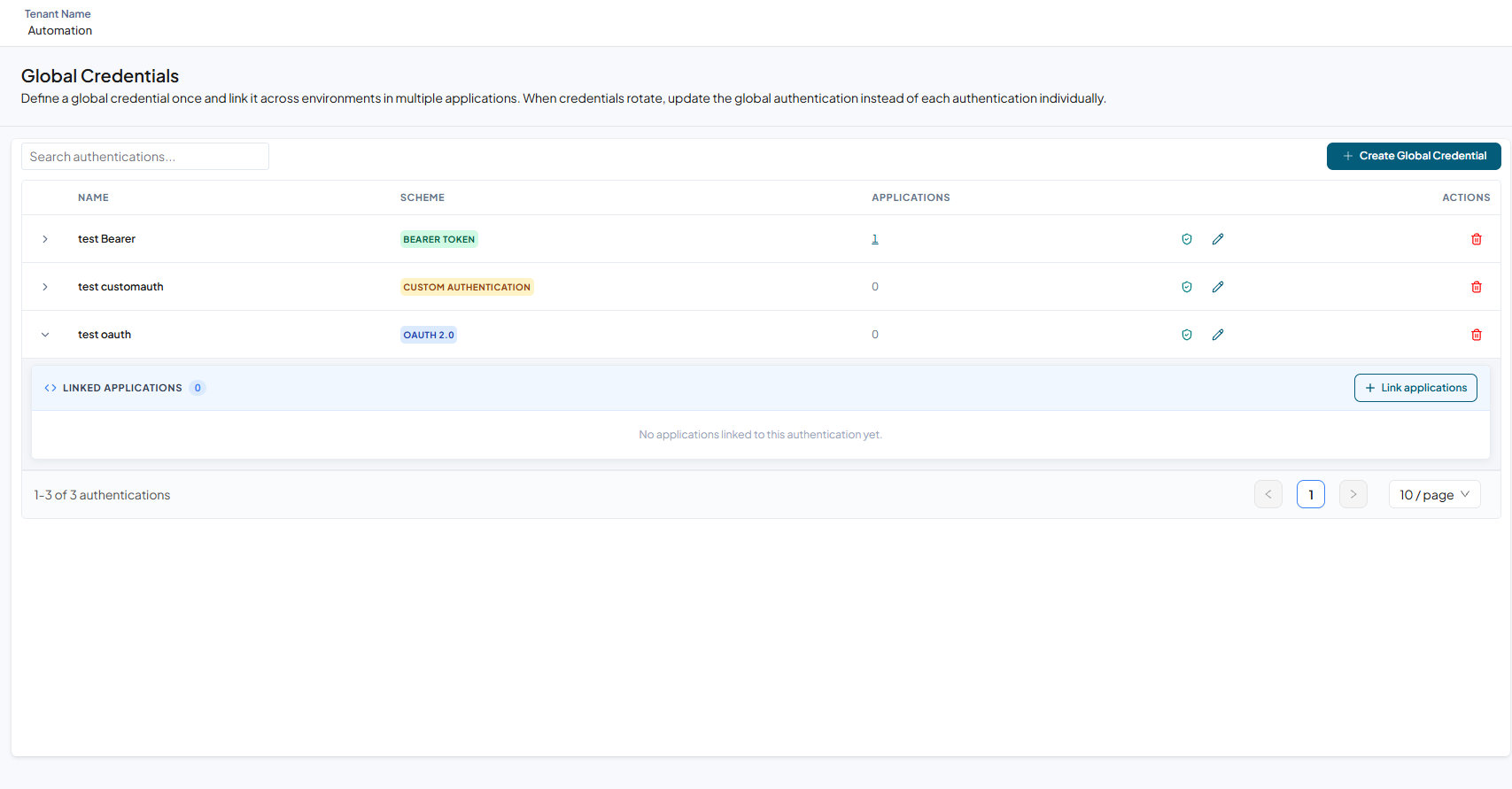
Verify that the selected applications are removed from the Linked Applications list.
 note
noteApplications that have scheduled scans using the Global Credential cannot be unlinked until the scheduled scans are removed.
Deleting Global Credentials
-
Open your browser and visit: https://<your-tenant>.apisecapps.com
-
Click Global Credentials.
-
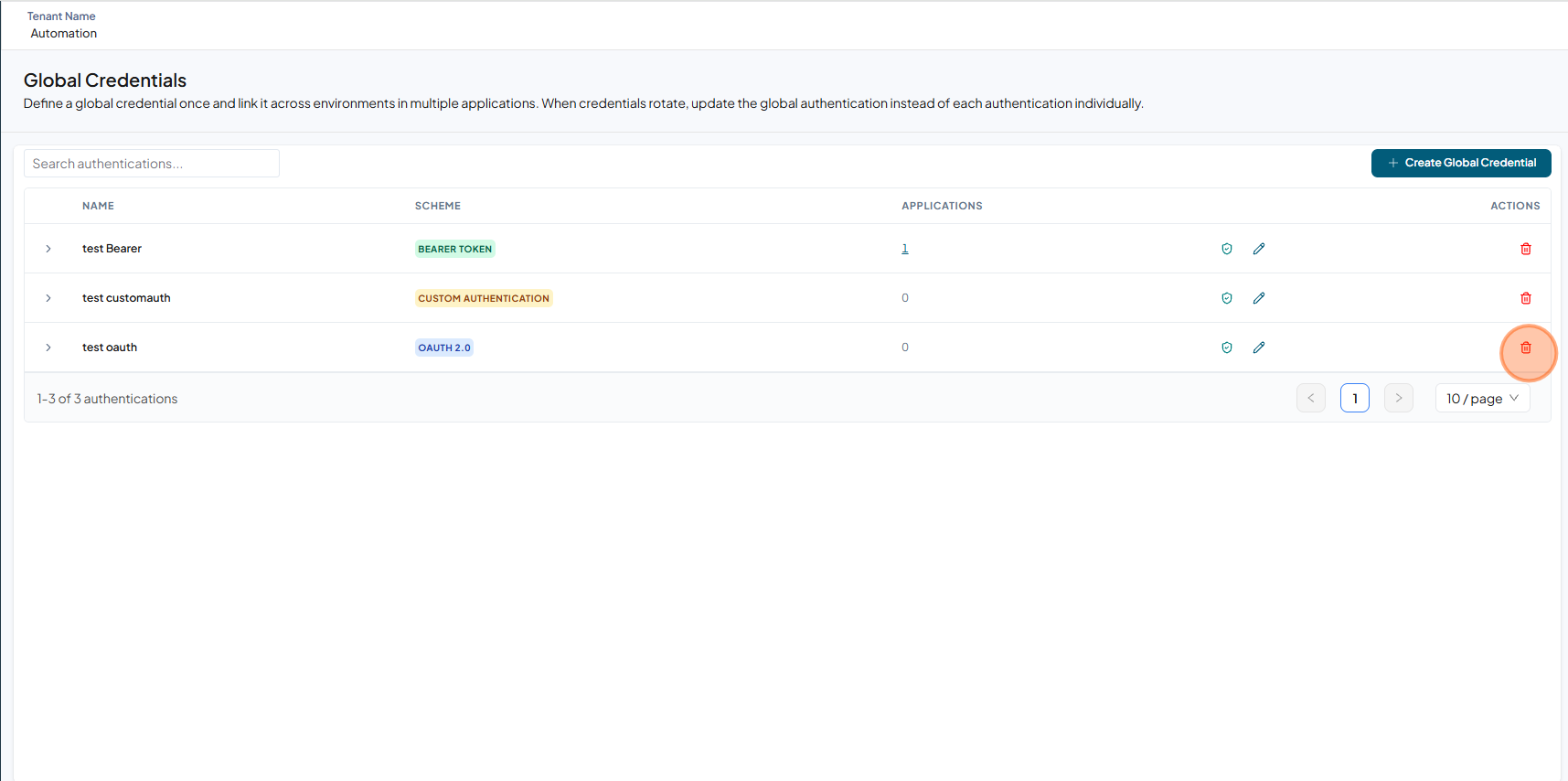
Click the Delete icon for the Global Credential that you want to delete.
-
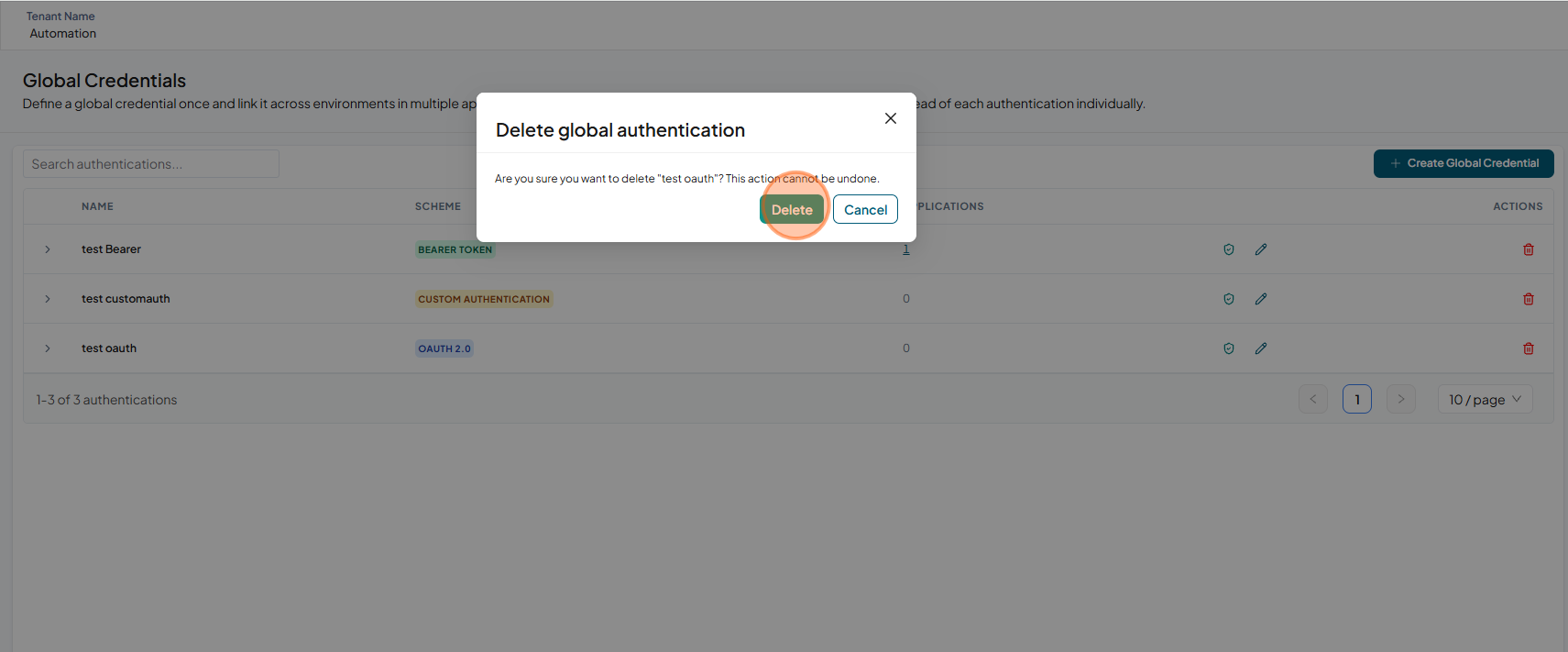
Click Delete to confirm.
-
Verify that the deleted Global Credential is no longer displayed in the Global Credentials list.
 note
noteGlobal Credentials that are linked to one or more applications cannot be deleted. To delete a Global Credential, first unlink all associated applications.