Manage endpoints
After you onboard an API, use the Endpoints tab to review and refine every endpoint APIsec will test. You can configure request parameters, headers, and bodies, add endpoints that were not discovered automatically, and download the current OpenAPI spec.
Explore the Endpoints tab
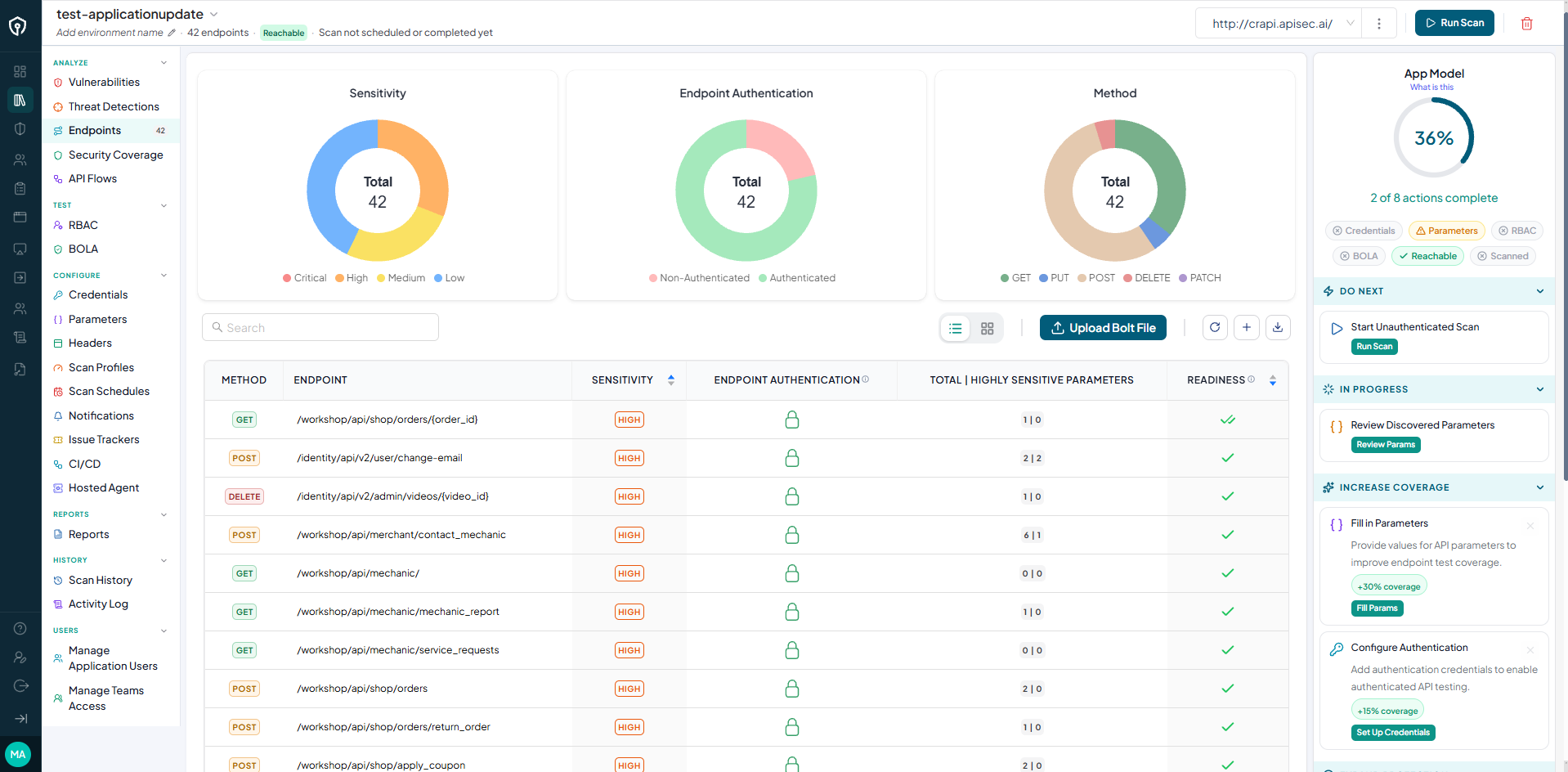
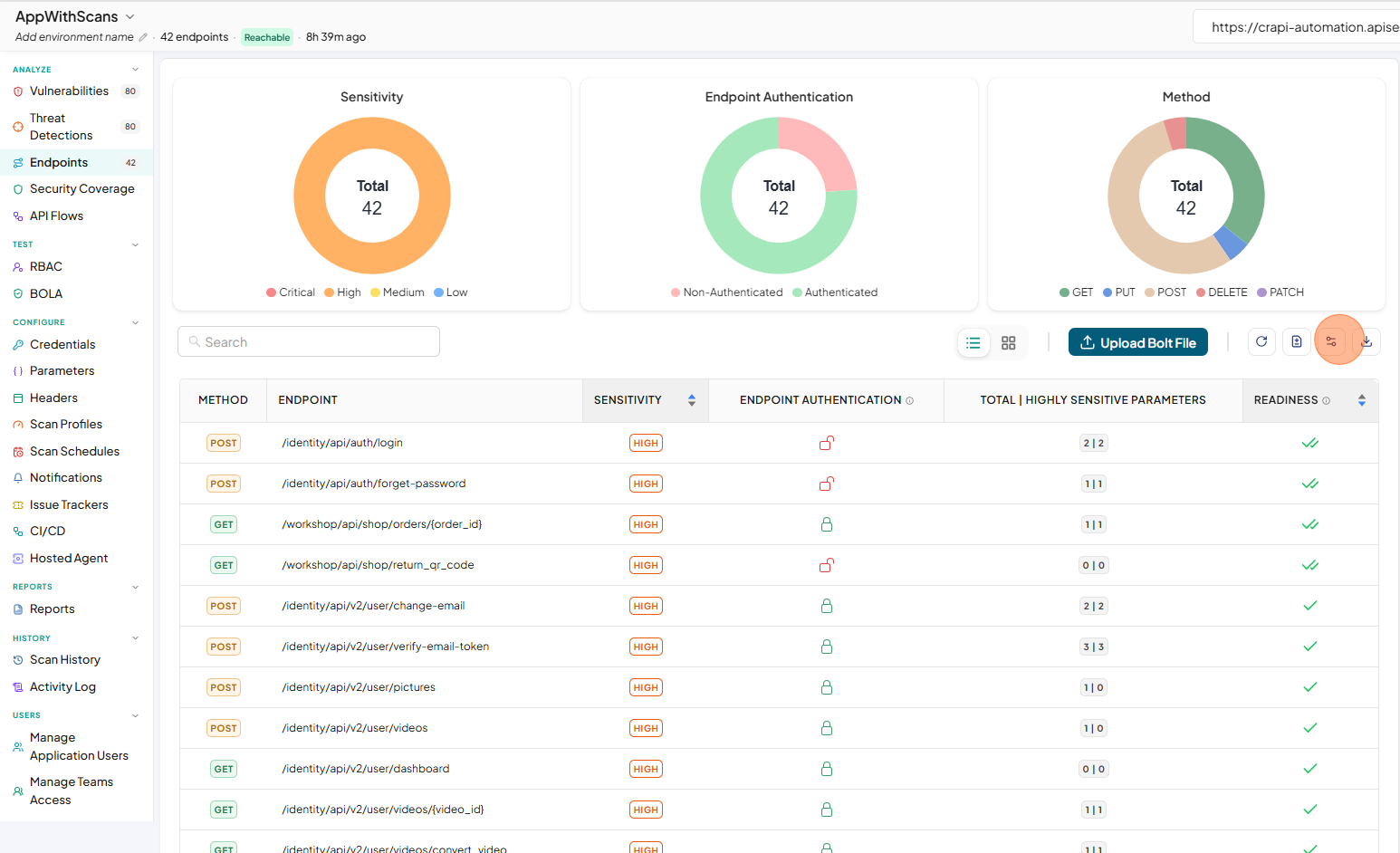
The Endpoints tab shows the full composition of your application, giving you clarity on every API endpoint in use. You can identify where sensitive data is handled, monitor authentication coverage, and detect unauthenticated or high-risk endpoints.
With the interactive dashboards and endpoint reports, you can:
-
Classify APIs by sensitivity level (Critical, High, Medium, Low)
-
Track authentication status across all endpoints
-
Verify each endpoint's configuration readiness for security testing
-
Analyze API methods (GET, POST, PUT, DELETE, PATCH) at a glance
Configure request parameters, headers, and body
To change or customize the request parameters, headers, query parameters, or body for an endpoint:
-
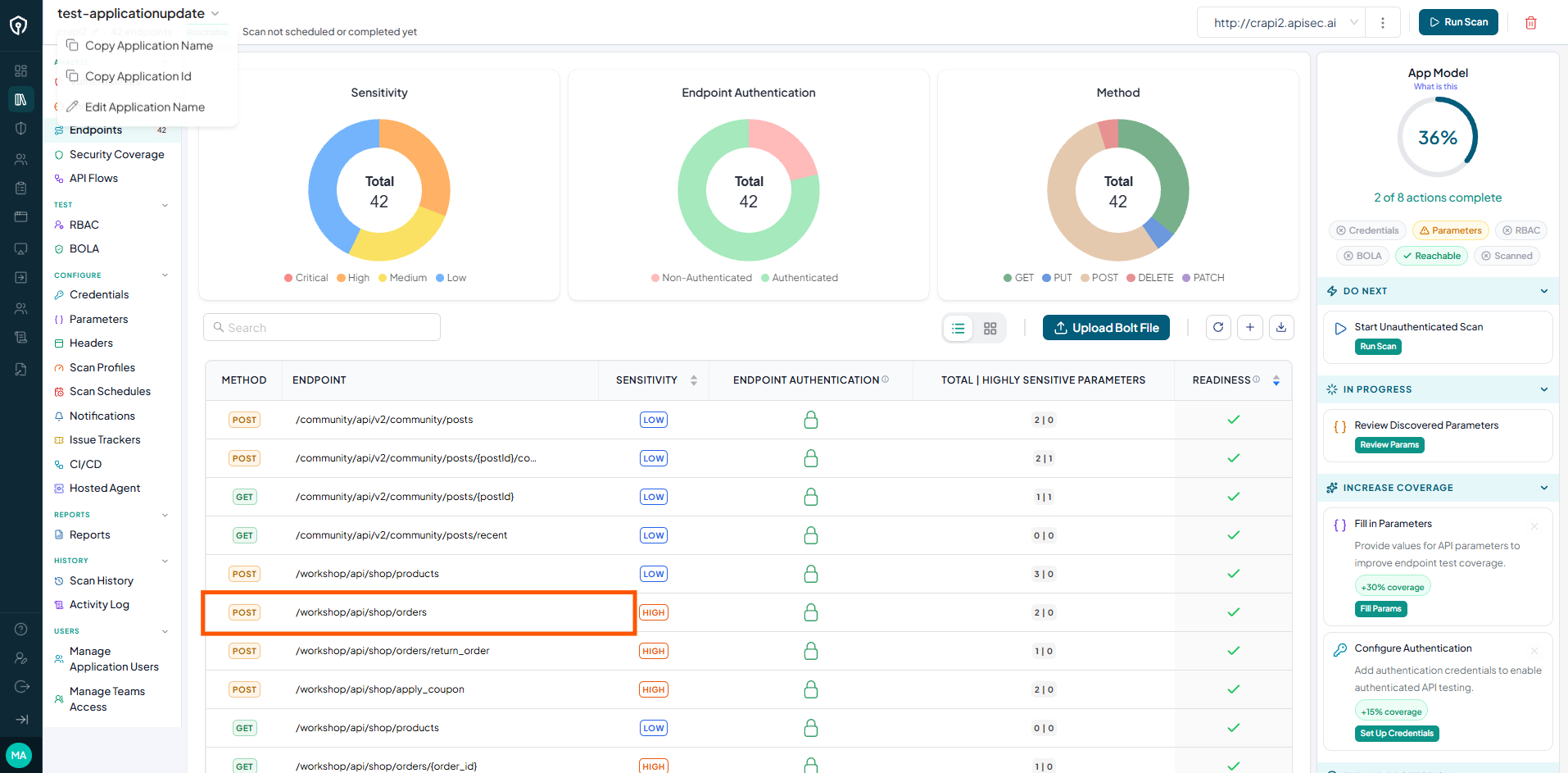
Click the selected endpoint.
-
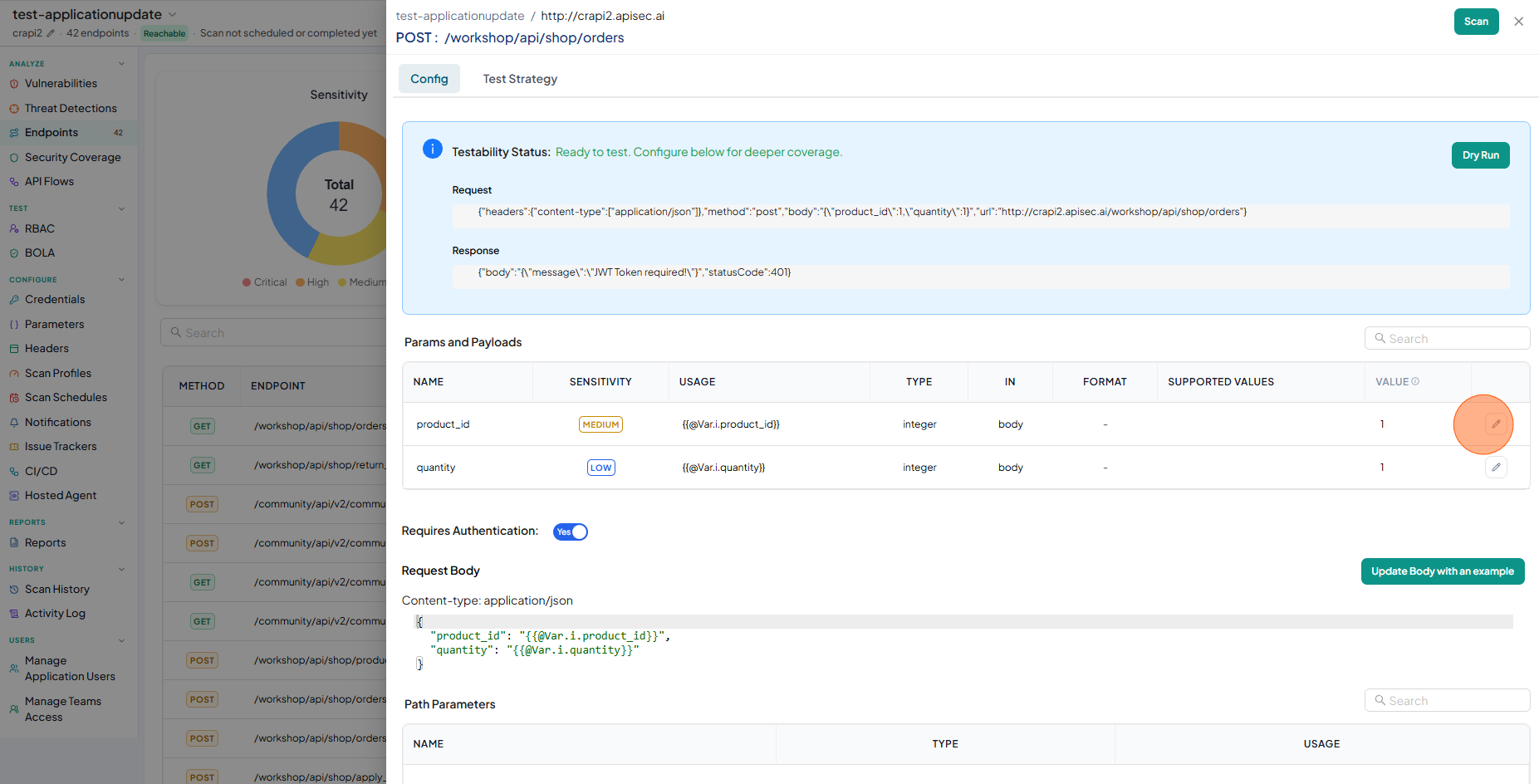
To change a parameter configuration, click the pencil icon next to the parameter.
-
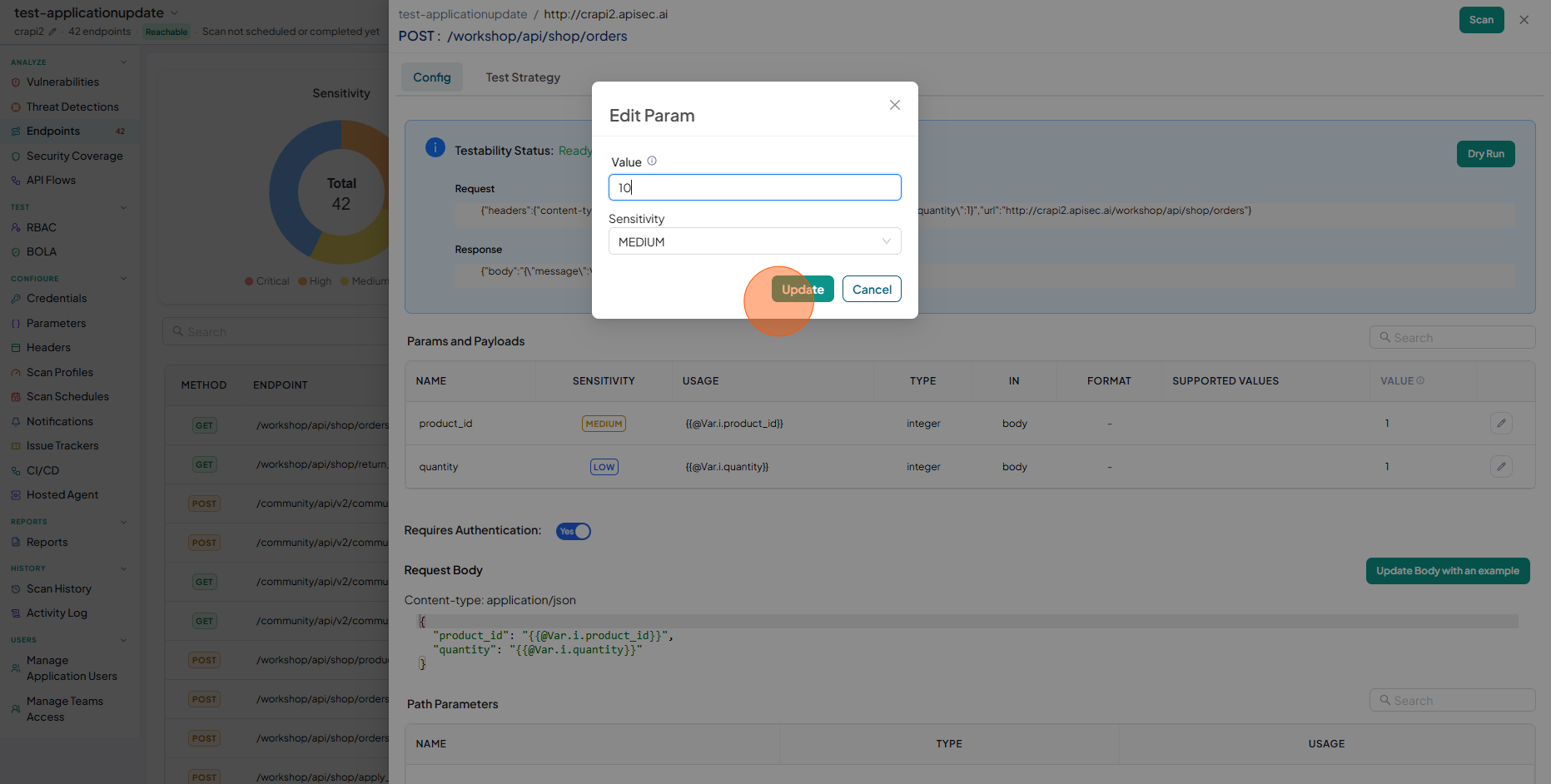
Enter the details and click Update.
Users with View permissions cannot change parameter configuration in a shared application.
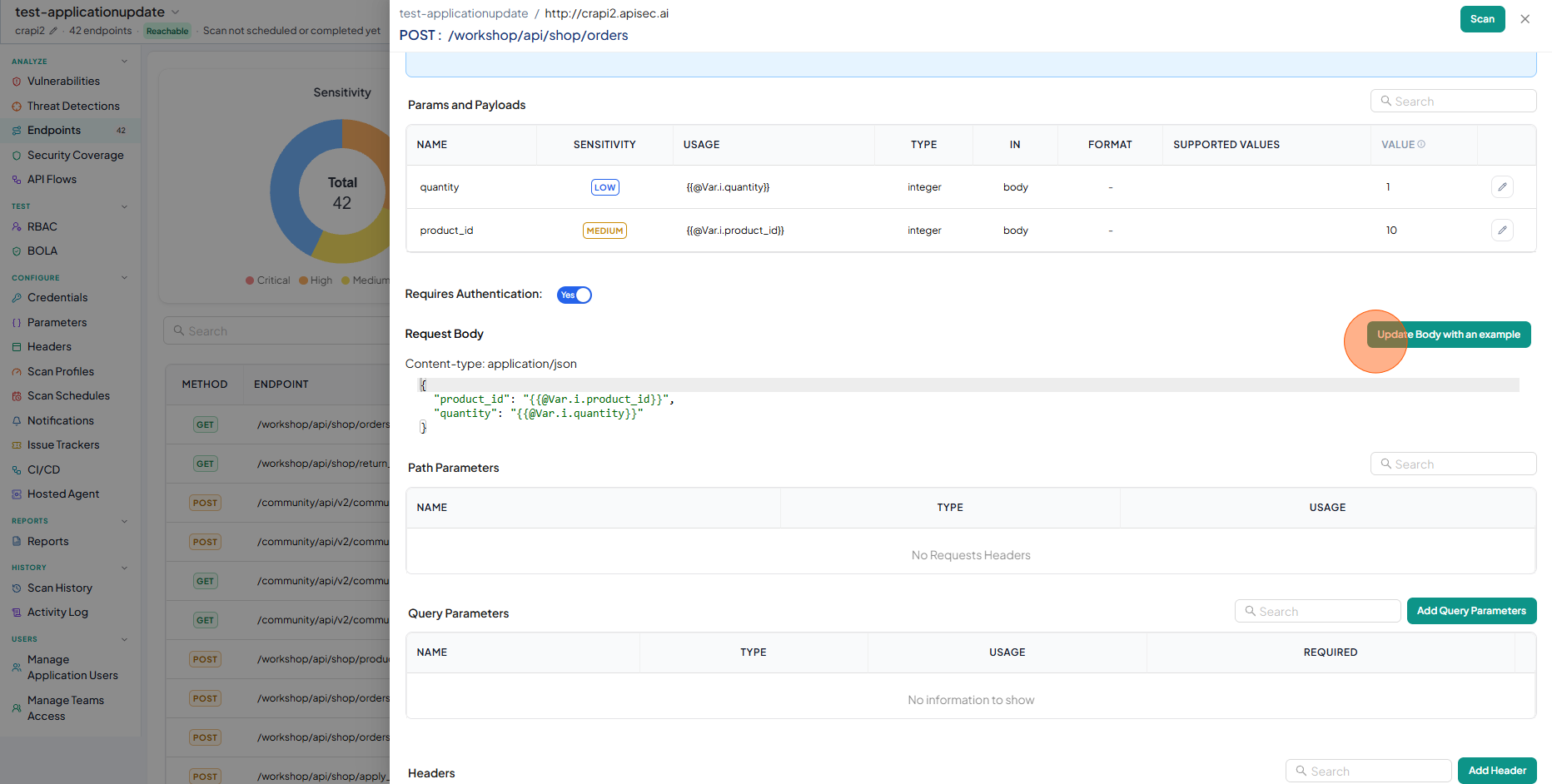
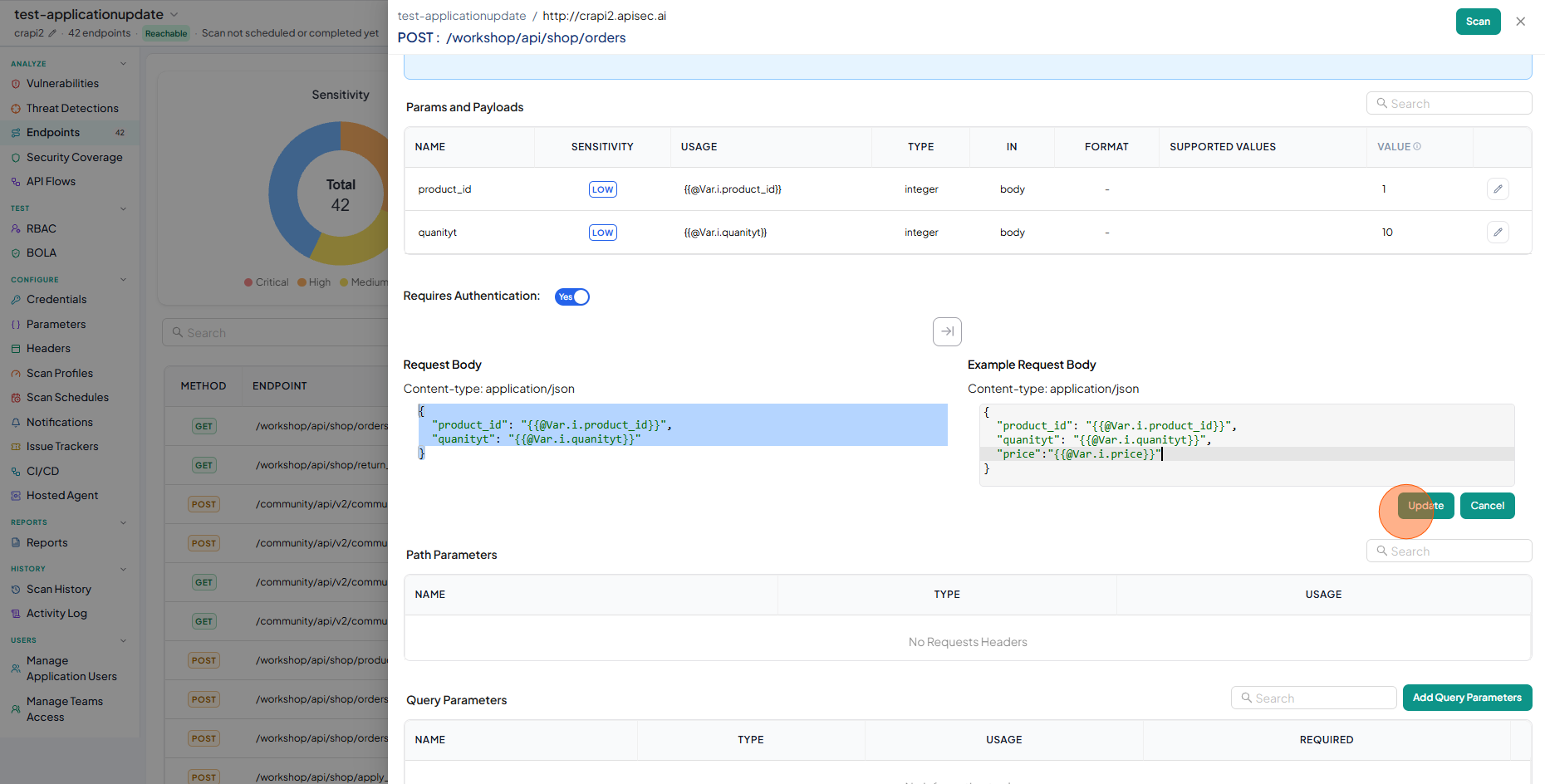
To update the request body:
-
Click Update Body with an example.
-
Enter the sample data and click Update.
-
Check the updated request body.
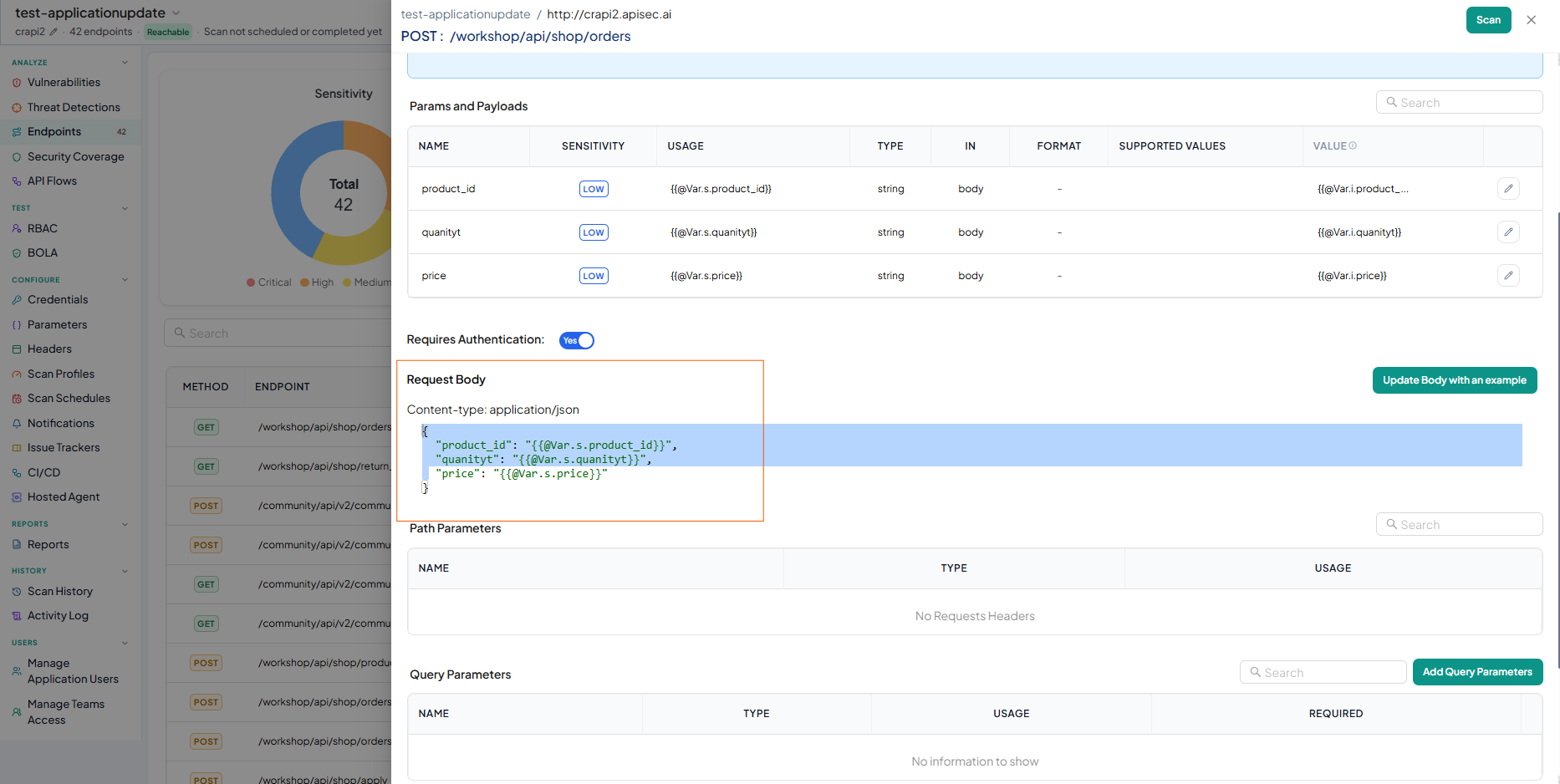
Users with View permissions cannot change the request body in a shared application.
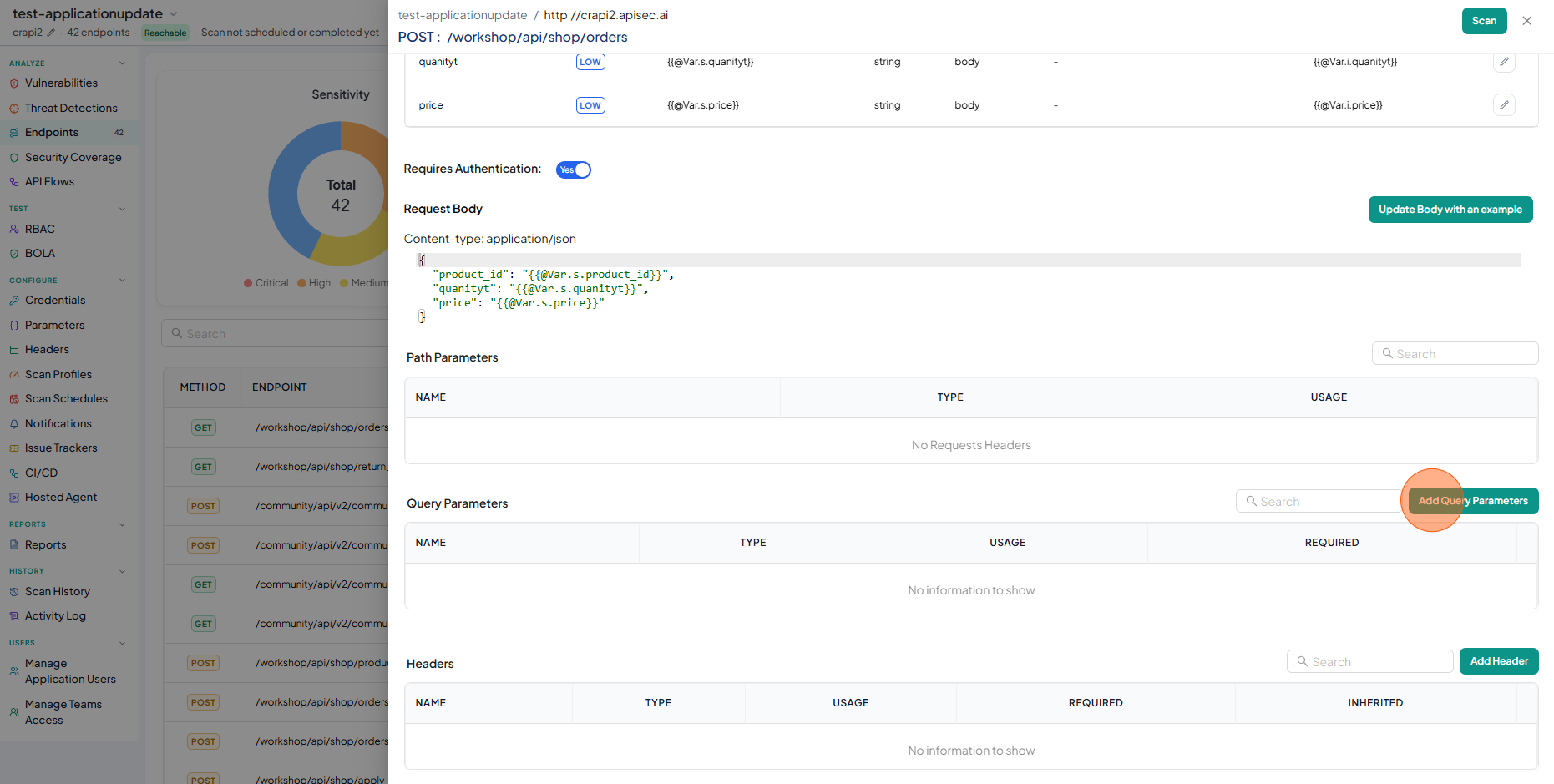
To add a query parameter:
-
Click Add Query Parameters.
-
Enter the data:
- Name – The key of the query parameter (for example,
status,userId). - Value – The value assigned to the parameter.
- Sensitivity – Classifies the parameter by data sensitivity (Critical, High, Medium, Low).
- Type – The data type of the parameter (string, number, boolean, and so on).
- Format – The expected format (for example, email, UUID, date-time).
- Required – Whether this parameter is mandatory for the request.
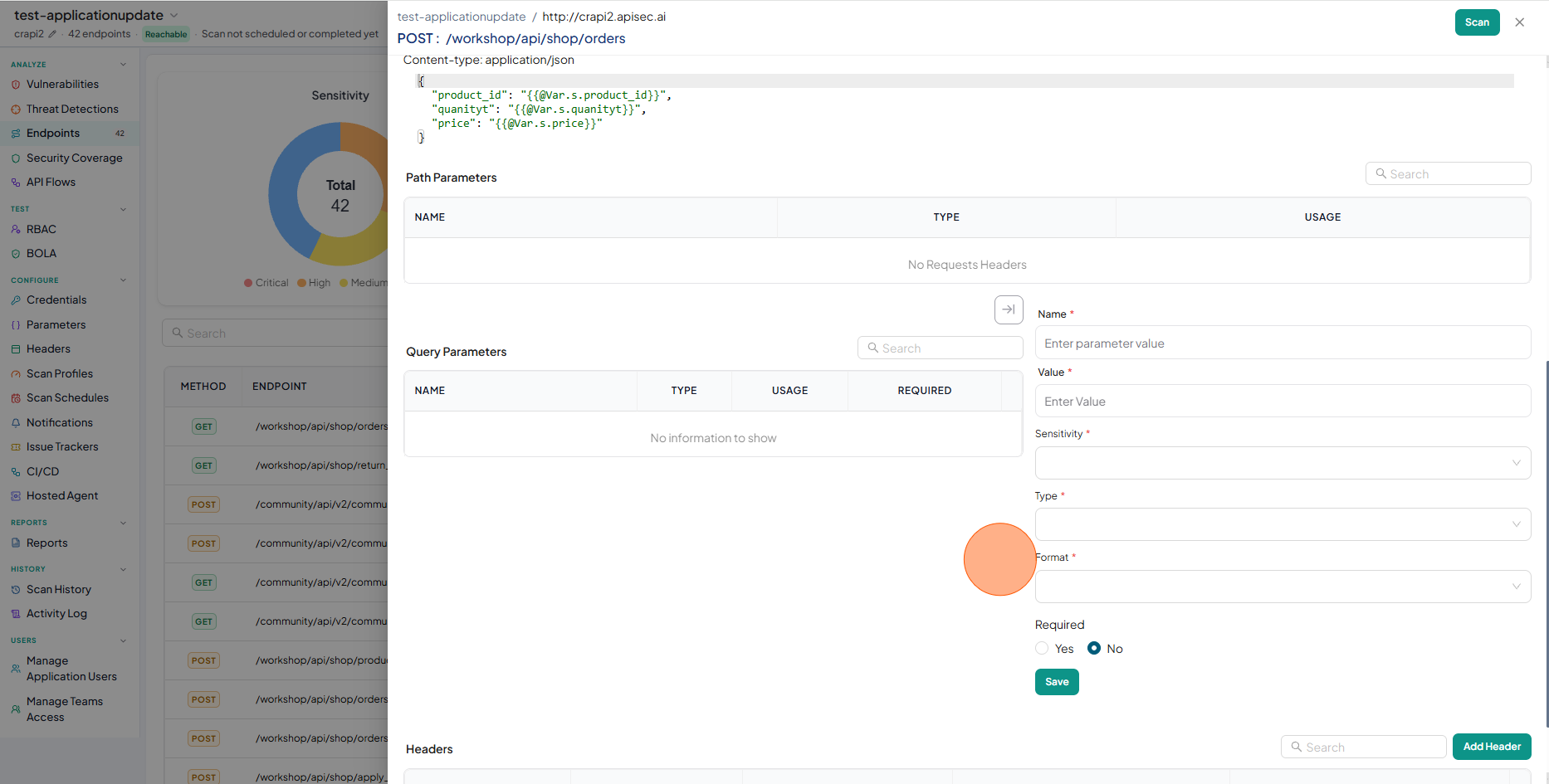
- Name – The key of the query parameter (for example,
-
Click Save.
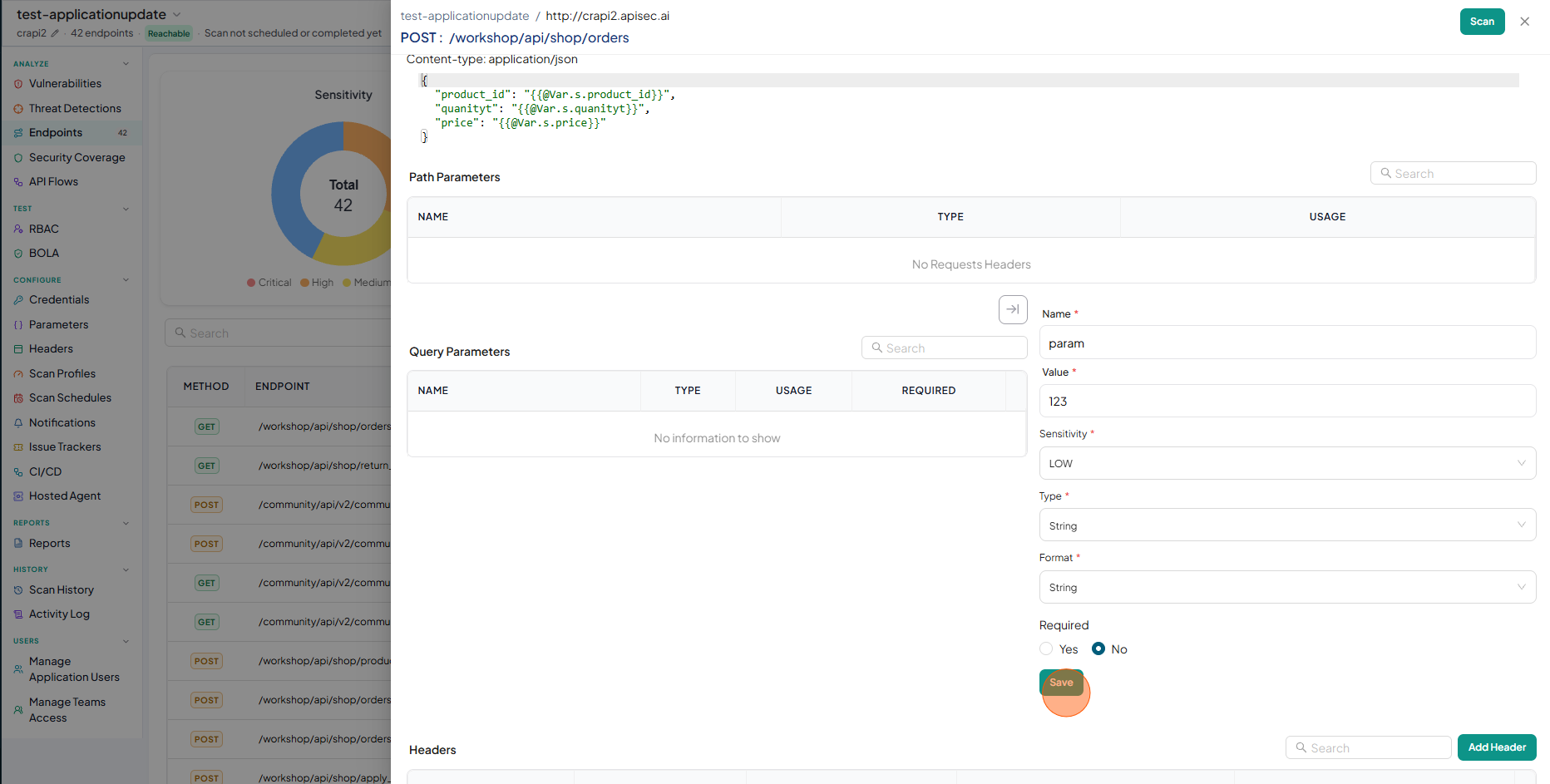
-
Check the newly added parameter.
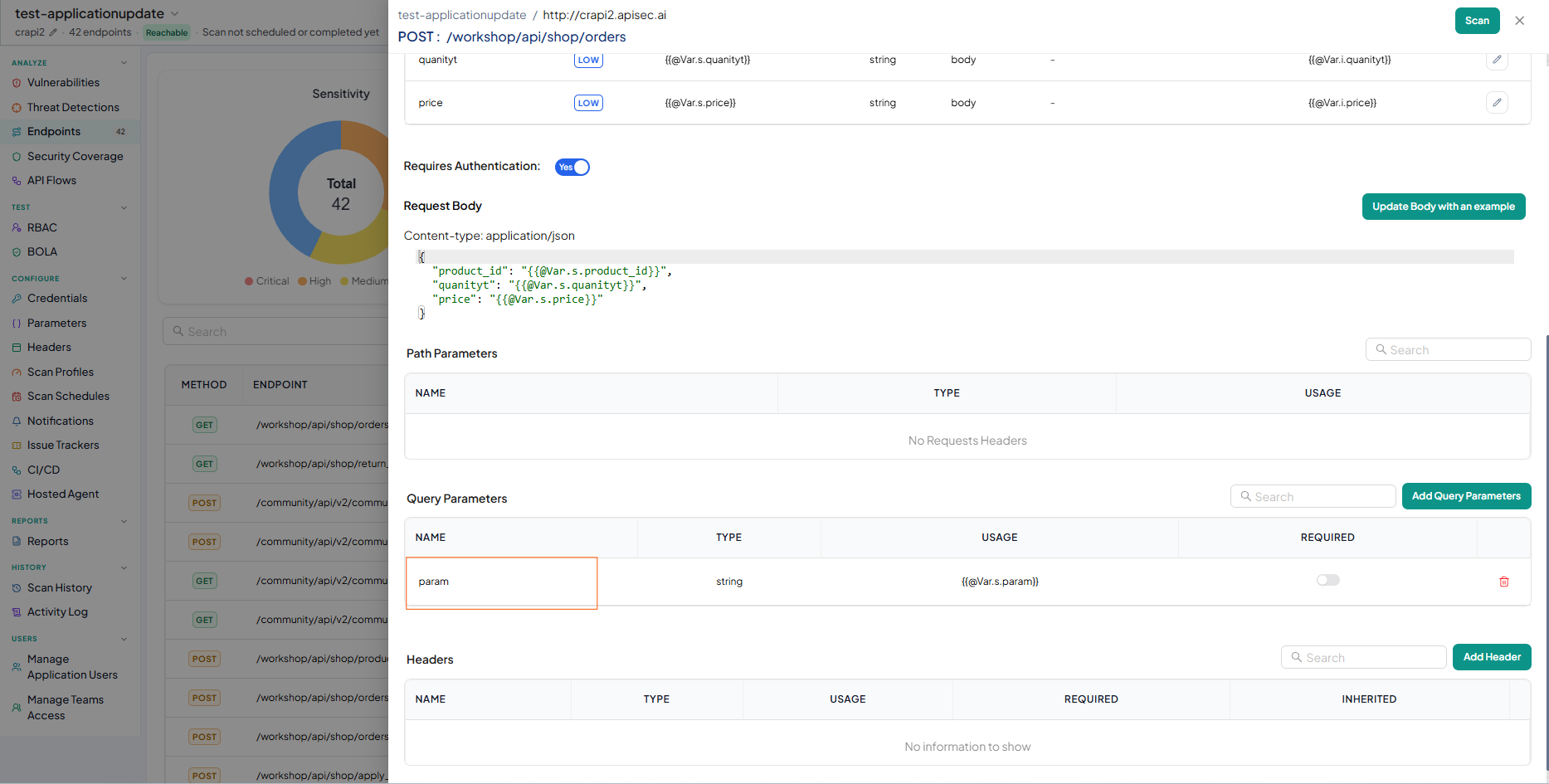
Users with View permissions cannot add, edit, or delete query parameters in a shared application.
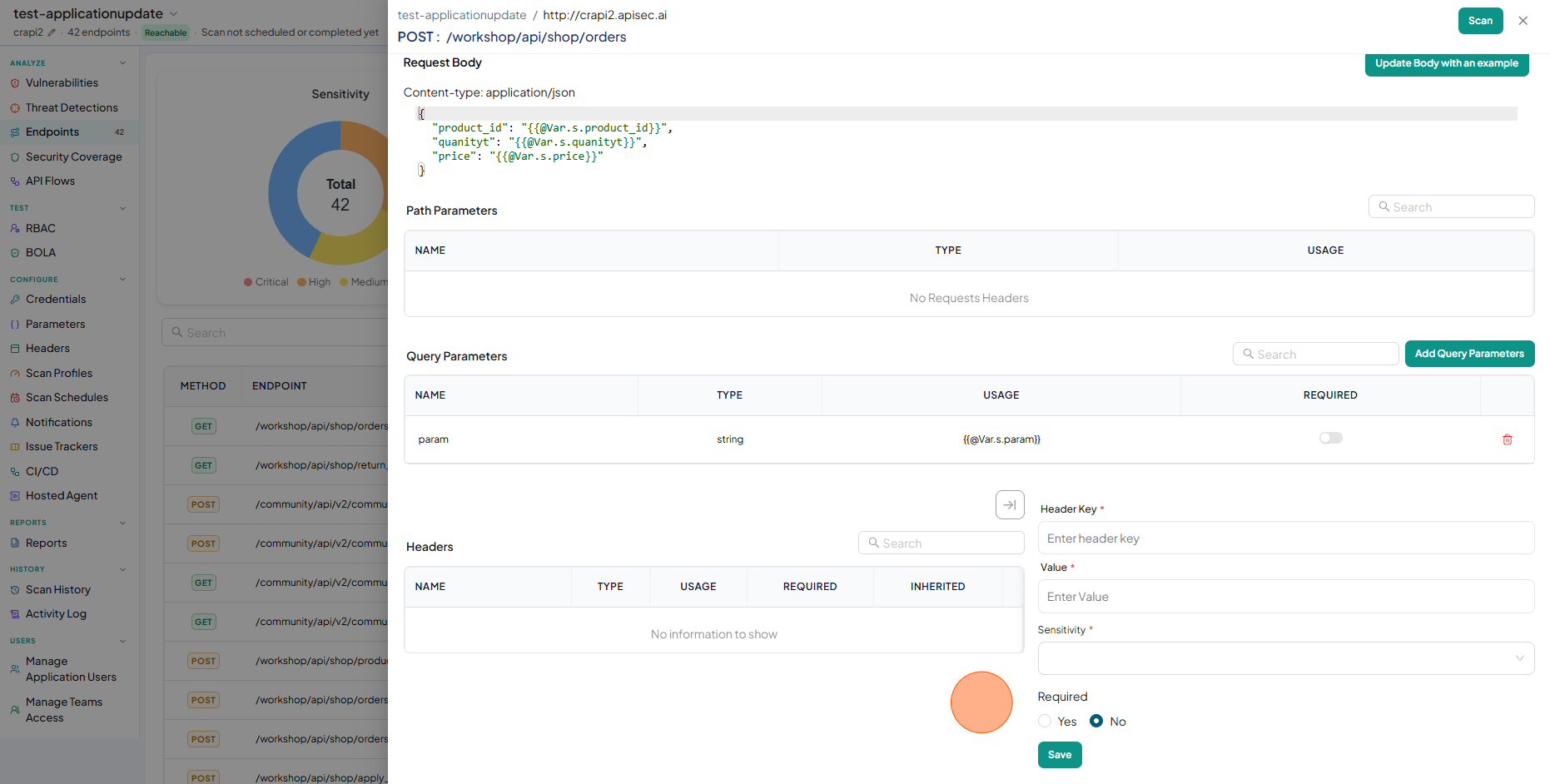
To add a header:
-
Click Add Header.
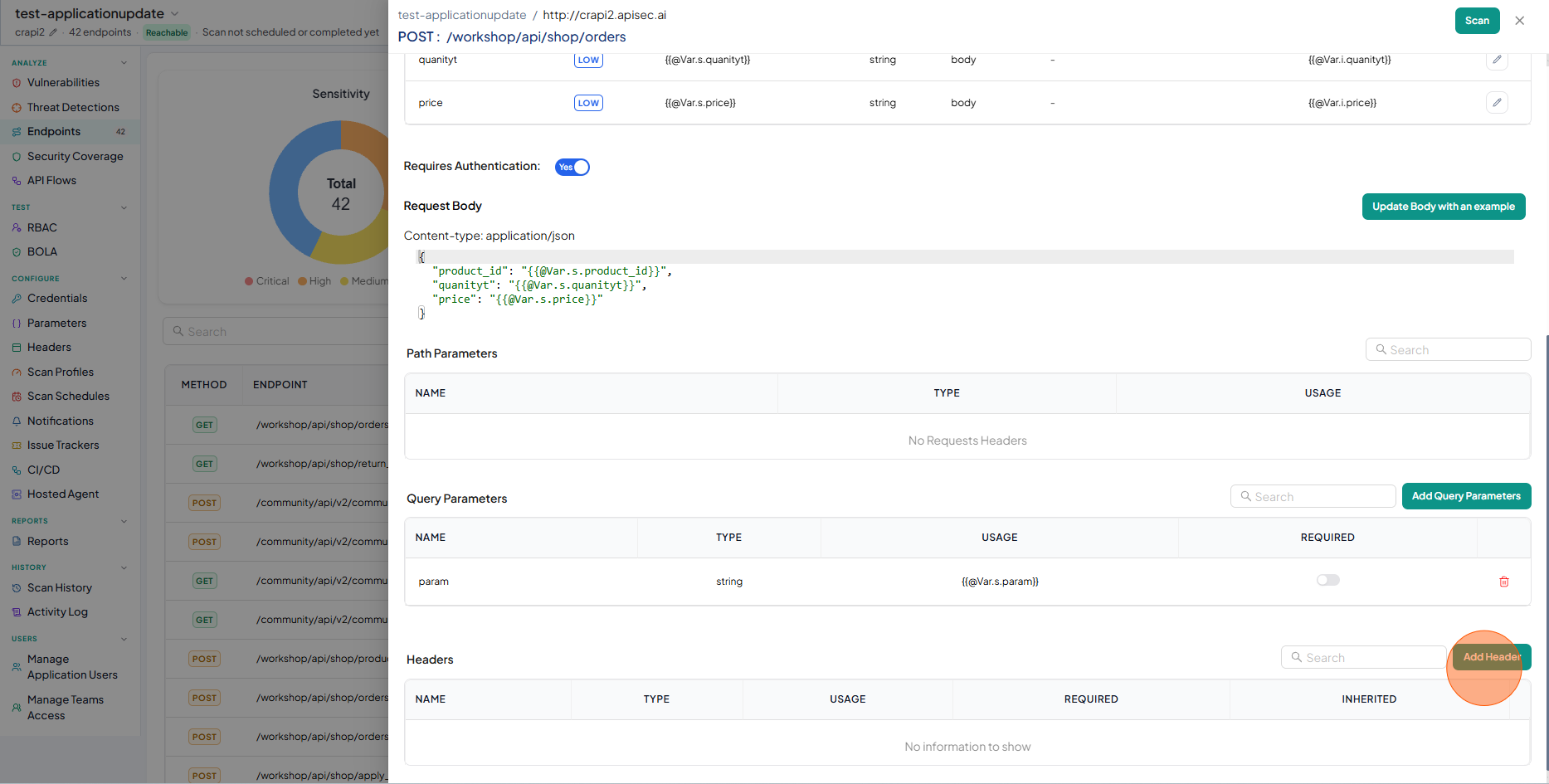
-
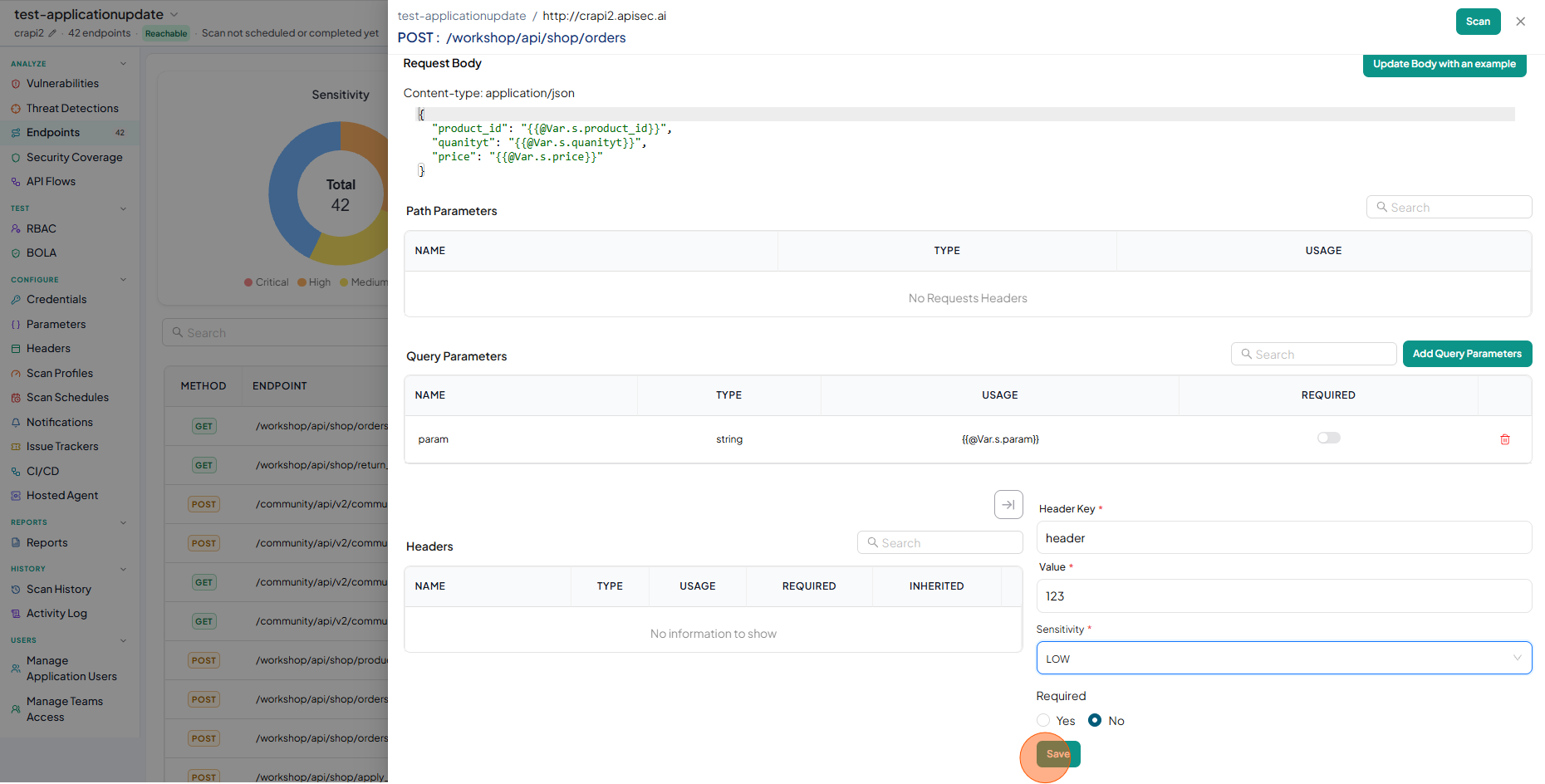
Enter the data:
- Name – The header key.
- Value – The value assigned to the header.
- Sensitivity – Classifies the header by data sensitivity (Critical, High, Medium, Low).
- Required – Whether this header must be included in the request.
-
Click Save.
-
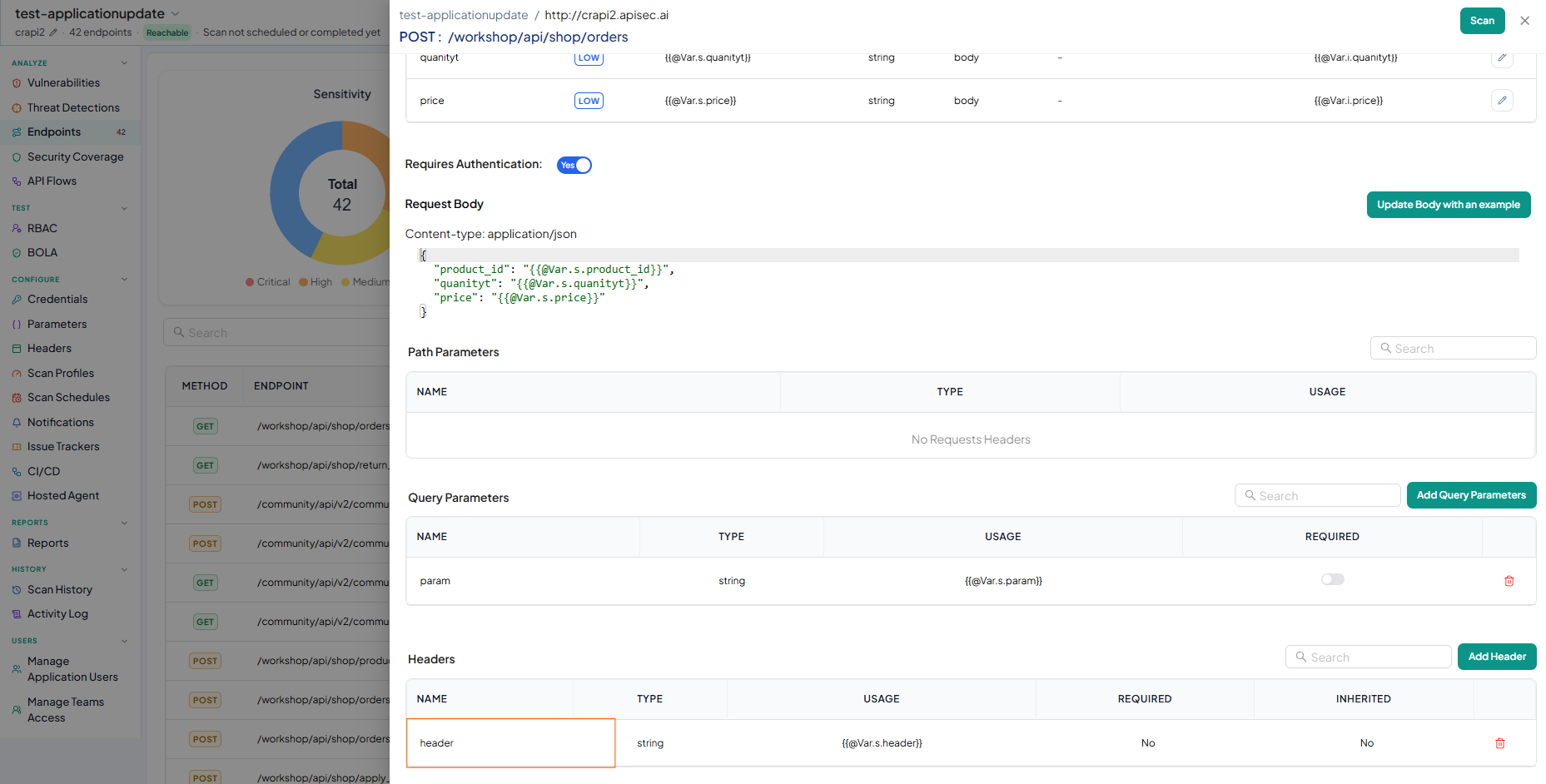
Check the newly added header.
Users with View permissions cannot add, edit, or delete headers in a shared application.
Validate an endpoint before scanning
Before running a full security scan, you can validate that an endpoint is configured correctly with a Dry Run. A Dry Run sends a lightweight request using the configured method, headers, parameters, and body, then shows the actual request and response returned by your API.
For the full walkthrough, see Check endpoint readiness.
Manage endpoints manually
Manage Endpoints lets you curate an application's endpoint list by hand: add an endpoint APIsec didn't discover, or delete one that no longer exists.
Add an endpoint
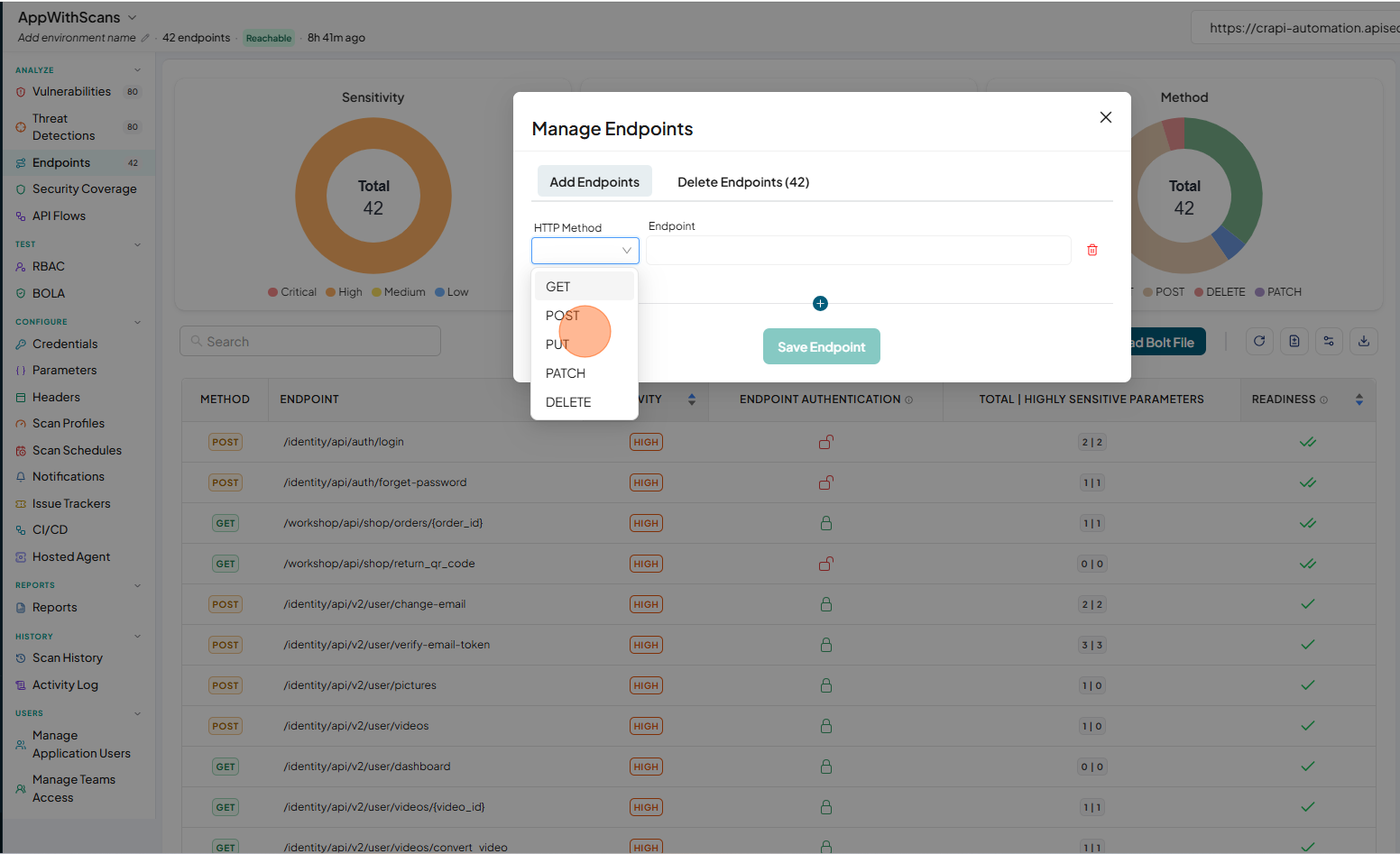
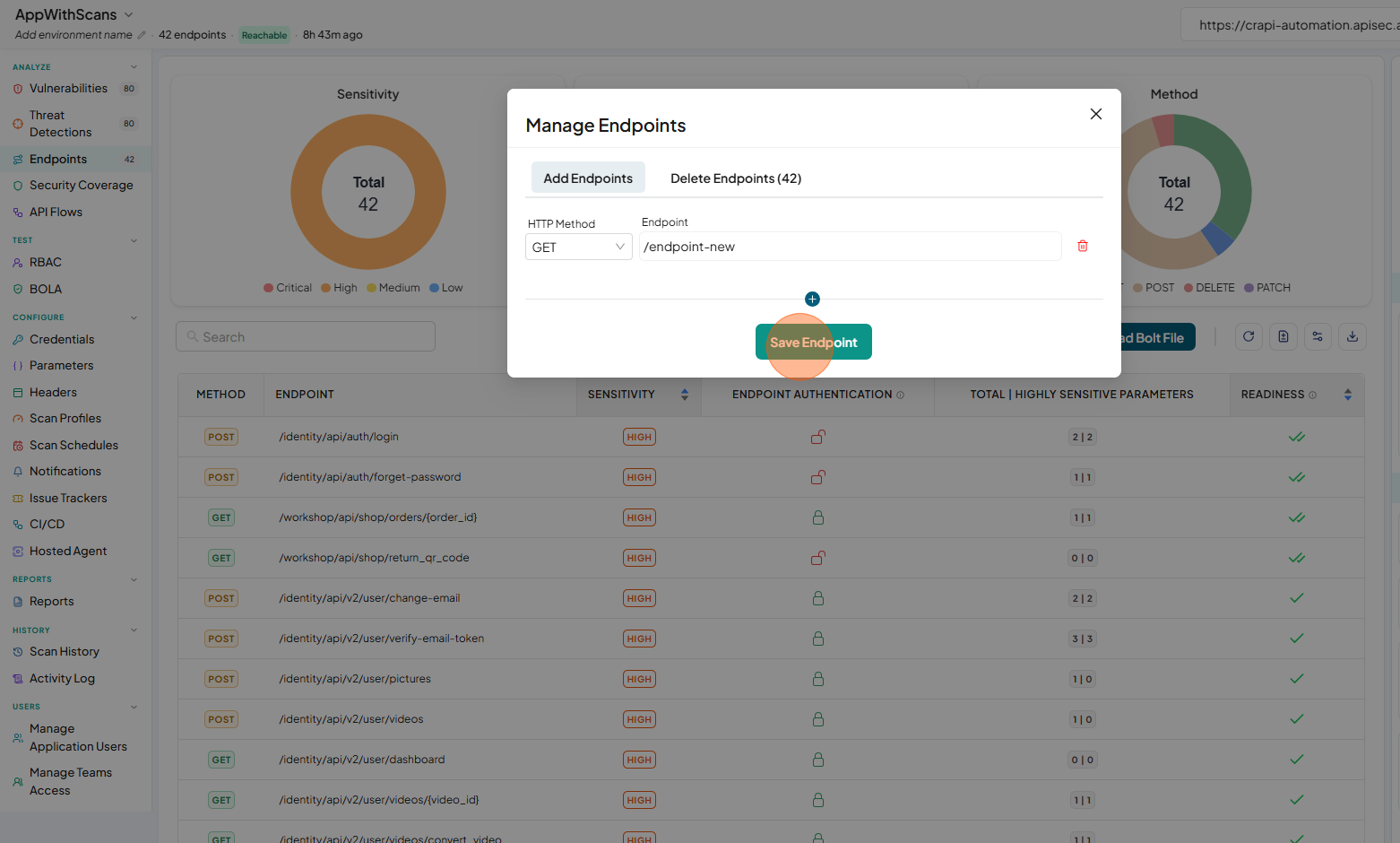
Add an endpoint to manually register a new API endpoint for an existing application. This is useful when an endpoint is not discovered automatically or needs to be defined explicitly for monitoring.
-
Click Manage Endpoint.
-
Select the HTTP method.
-
Enter the endpoint and click Save Endpoint.
-
Verify the newly added endpoint.
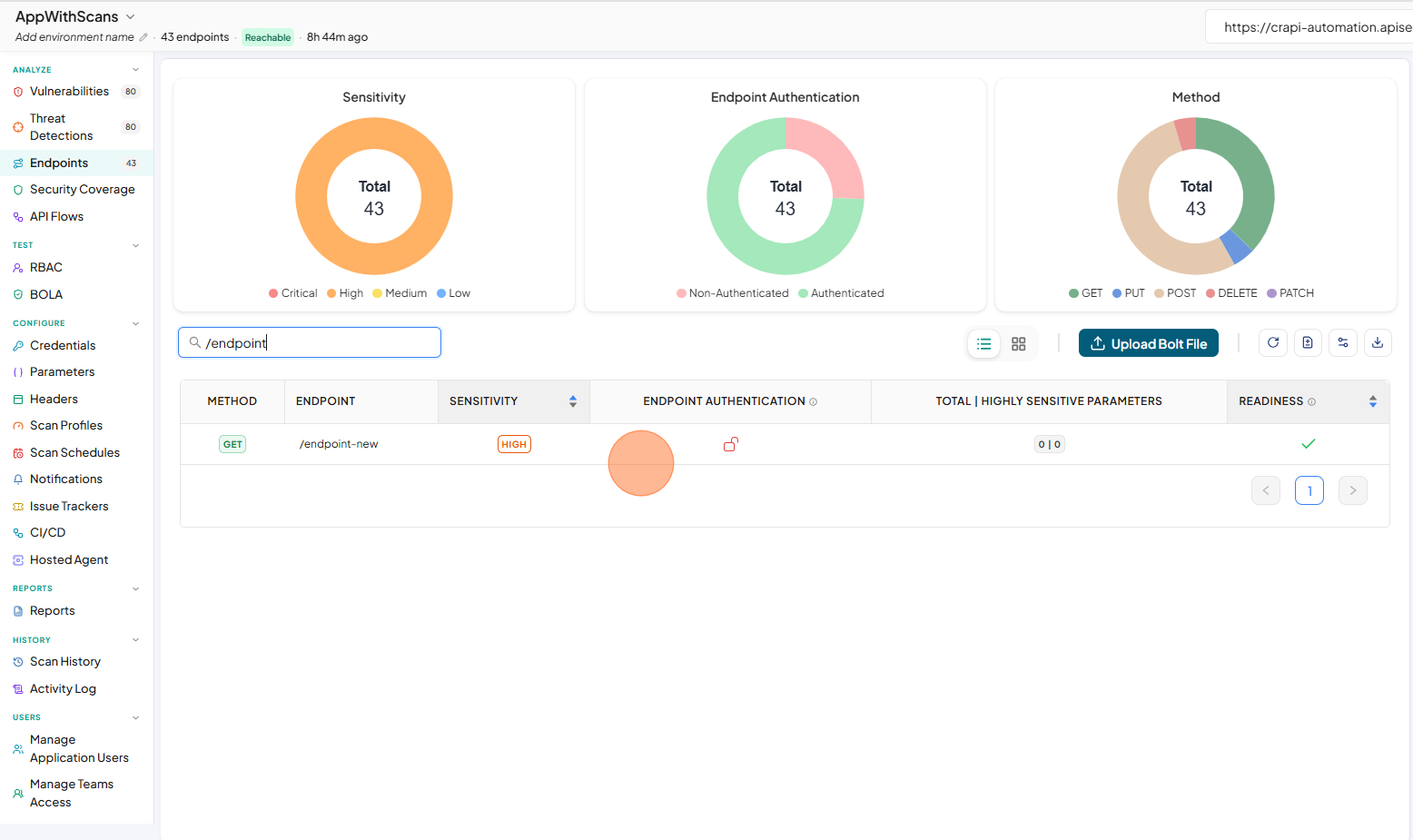
Users with View permissions cannot add endpoints in a shared application.
Delete an endpoint
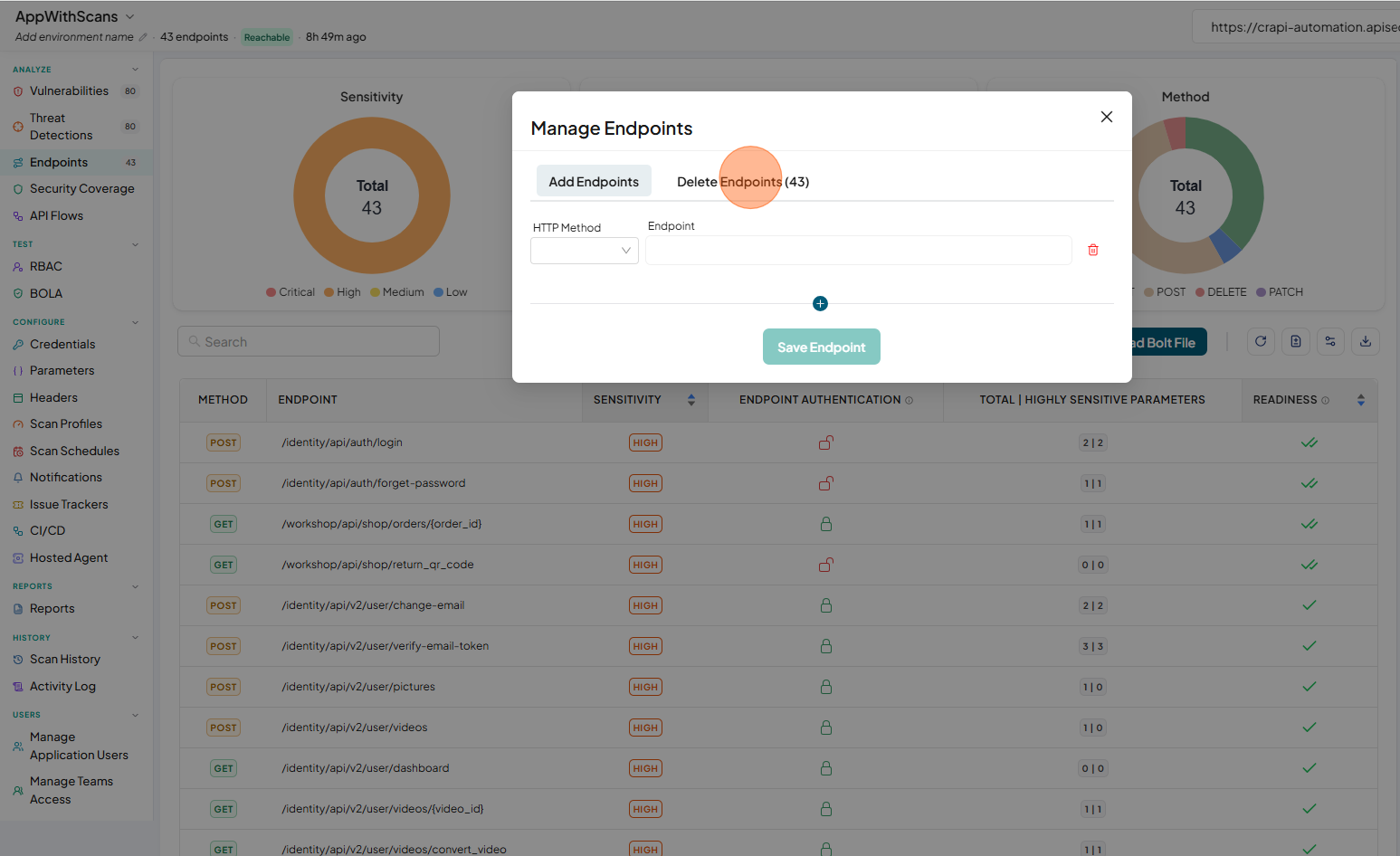
Delete an endpoint to remove it from an application when it is no longer required, keeping the endpoint list accurate.
-
Click Manage Endpoint.
-
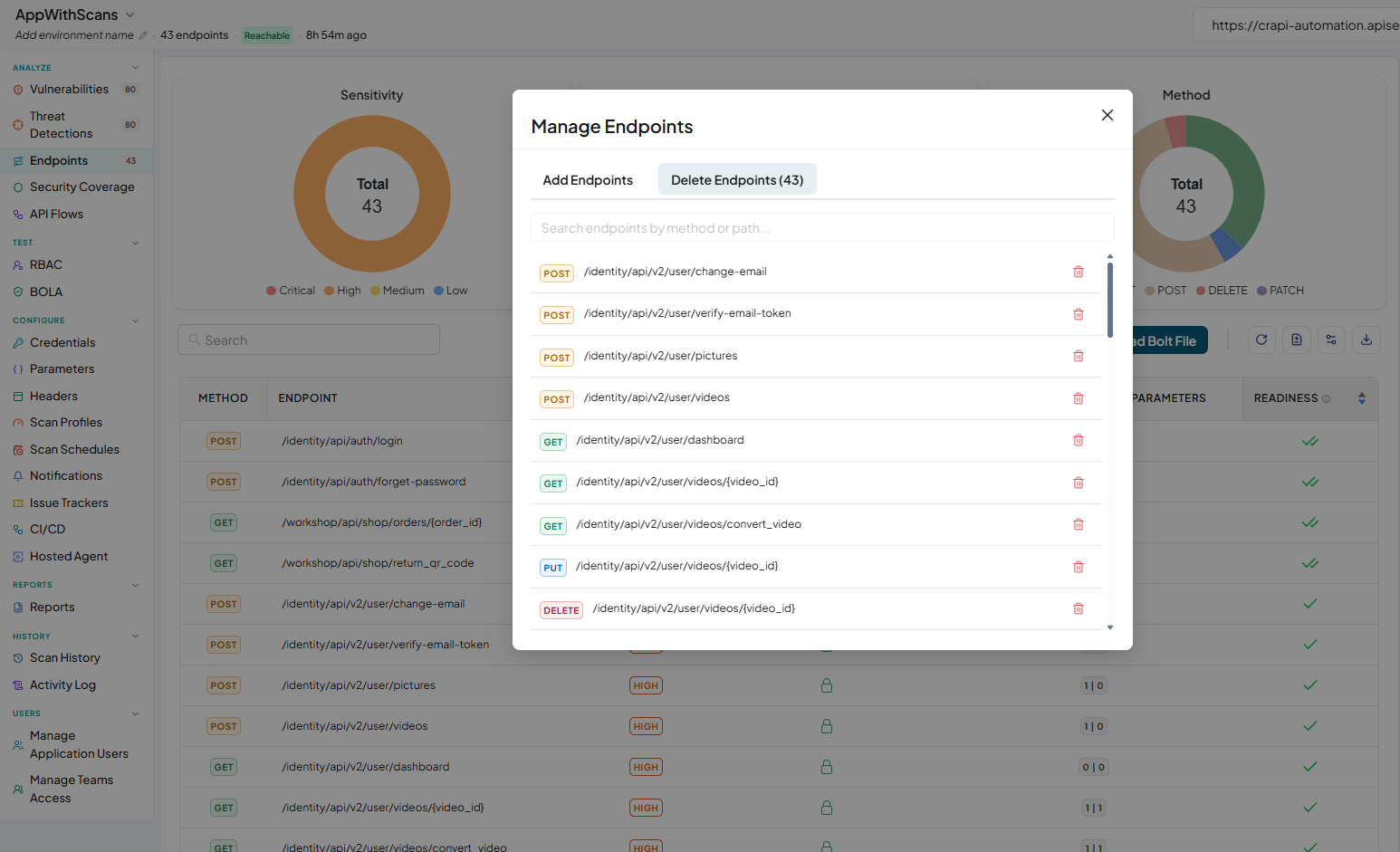
Select Delete Endpoints.
-
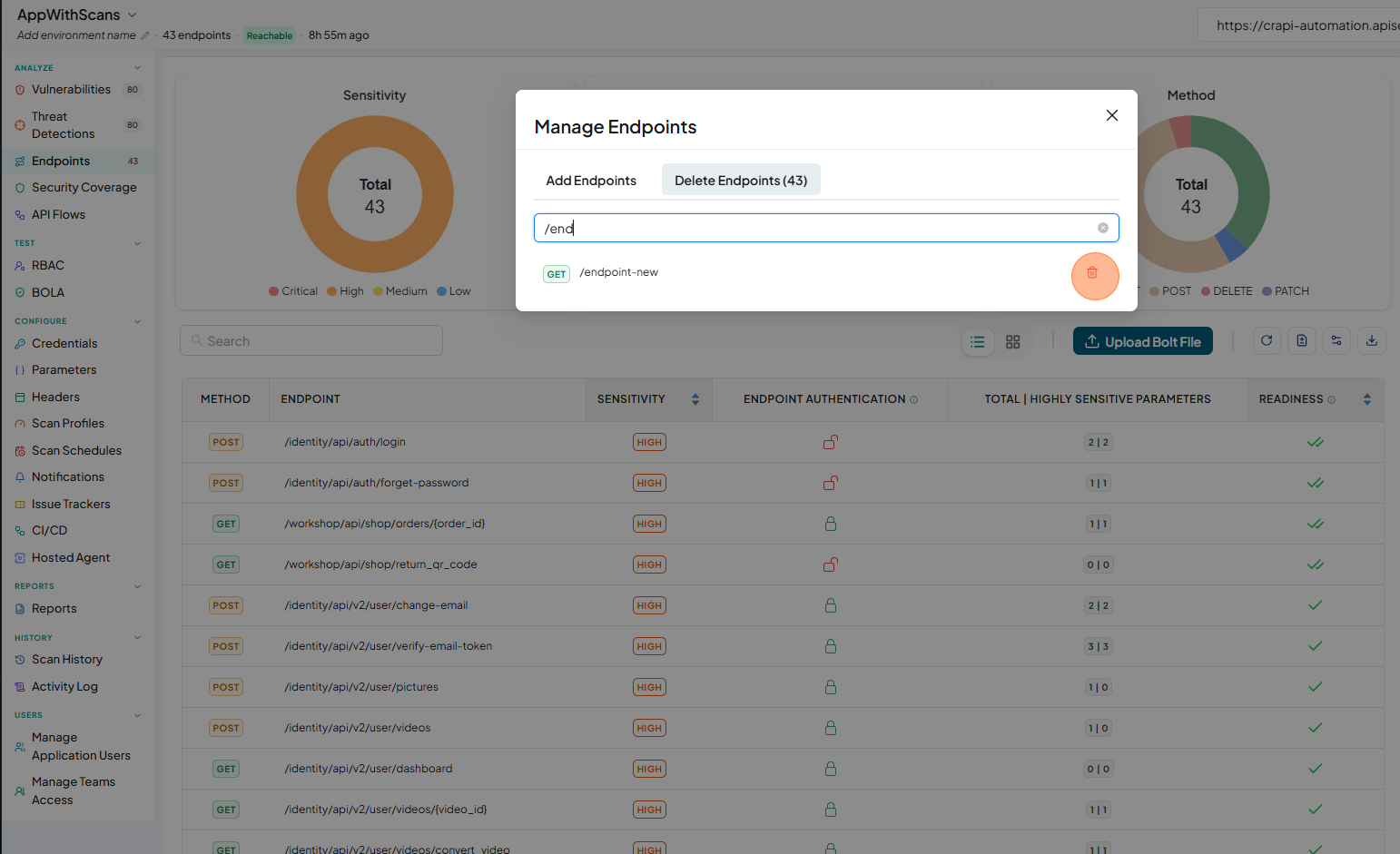
Use the search field to find an endpoint by HTTP method or path.
-
Click the delete icon on the endpoint you want to remove.
-
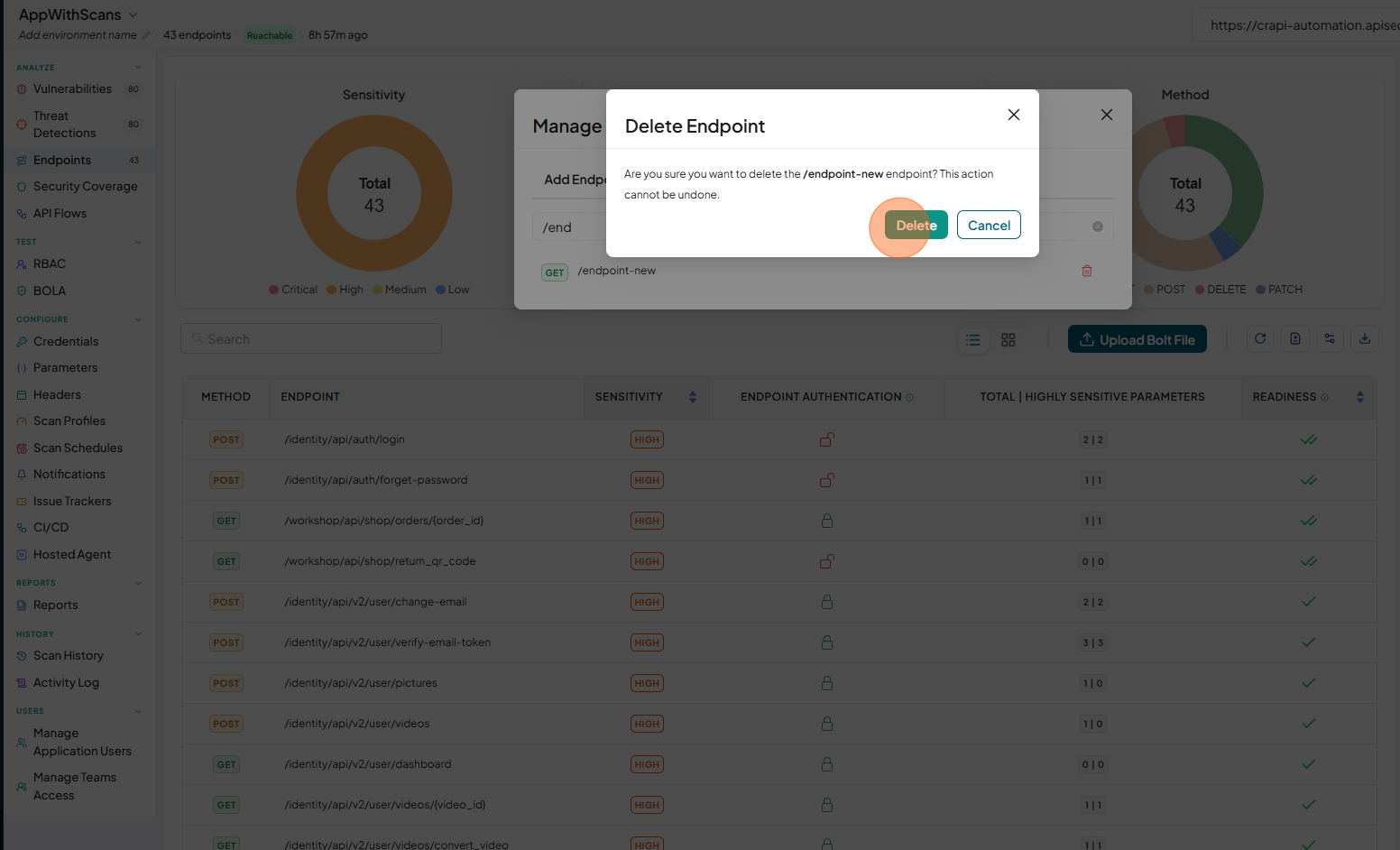
Click Delete to confirm.
Download the OpenAPI spec
Download the OpenAPI Specification (OAS) for an application directly from the platform to get the exact specification used during onboarding.
- Applications onboarded with an OAS provide the original specification for download.
- Applications onboarded with a Postman Collection are converted to an OAS during onboarding, and the converted version is available for download.
- If an application's OAS has been reloaded multiple times, the platform always provides the latest version currently associated with the application.
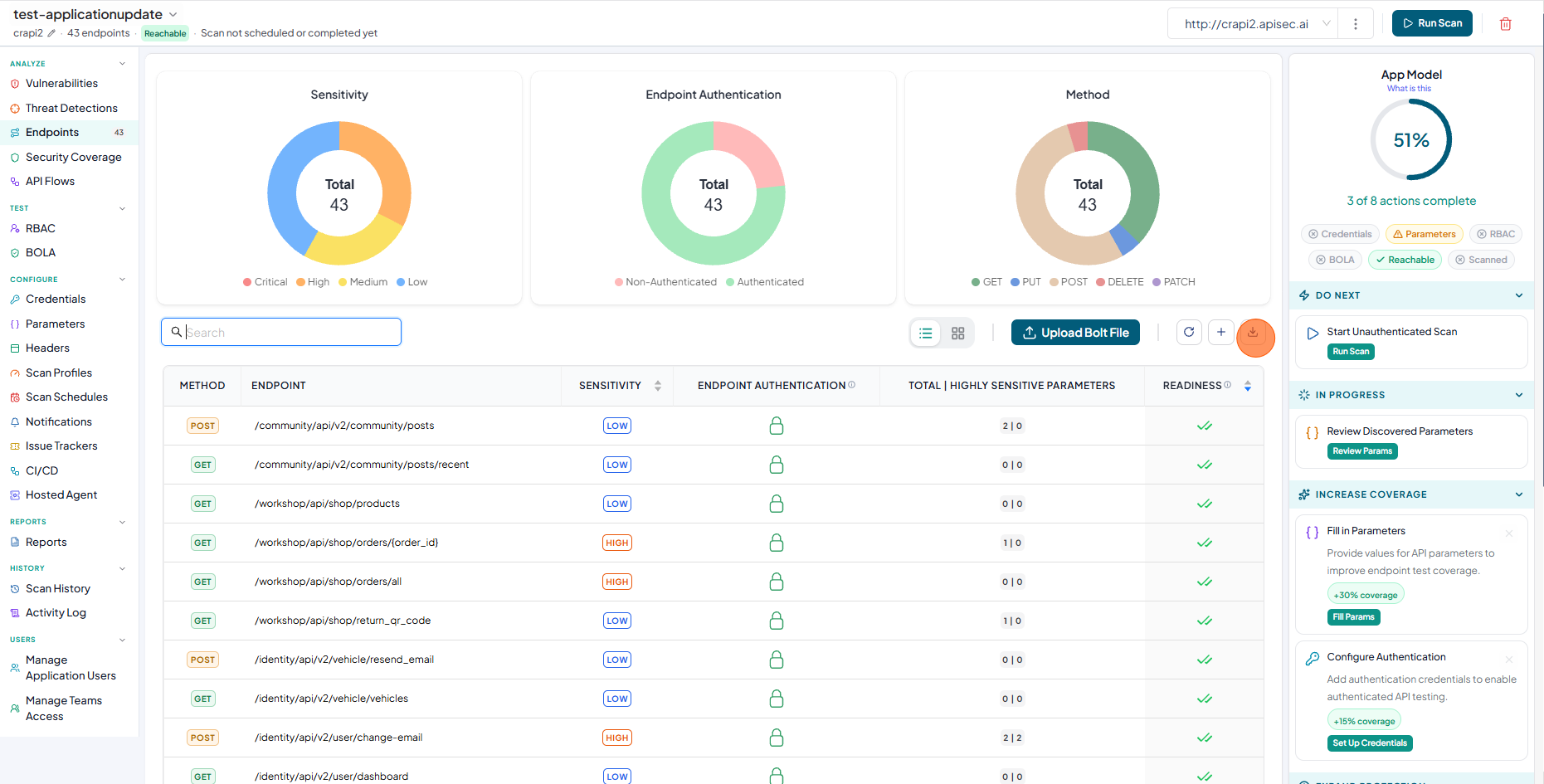
To download the spec, click Download OAS.
Related
- Manage applications and environments — rename an application and manage its environments.
- Check endpoint readiness — validate an endpoint with a Dry Run before scanning.