Managing Metadata Tags
1. Overview
Metadata tags are global, tenant-wide fields that you define once and attach to application environments. They let your team label environments (for example by Priority, Owner or Region), then filter, search, export and send those labels to Jira.
An admin defines each field and its allowed values. The field can then be assigned to any environment in the tenant.
Key terms
| Term | Meaning |
|---|---|
| Field (Tag Label) | A named metadata tag, such as "Priority". Defined once for the whole tenant. |
| Value | One allowed answer for a field, such as "High". ENUM fields have a fixed list of values; TEXT fields take free text. |
| Environment | One instance of an application. Values are assigned per environment, not per application. |
| Assignment | A value (or values) set on a specific environment for a specific field. |
2. Field types
Every field is either ENUM (pick from a list) or TEXT (type a value). You choose the type when you create the field, and it cannot be changed afterwards.
| ENUM | TEXT | |
|---|---|---|
| What users enter | One or more values from a fixed list | A single free-text value |
| Values per environment | Multiple allowed | One |
| Defined by admin | The list of values | A maximum length (default 256 characters) |
| Filtering on the Applications page | Pick one or more values | Type text to match |
| Example | Priority: High, Medium, Low | Owner: "payments-team" |
When to use which
- Use ENUM when values must be consistent across the tenant, such as priority, environment stage or business criticality.
- Use TEXT when values are open-ended, such as an owner name, a cost centre or a ticket reference.
3. Permissions
Only tenant admins can create, edit, delete and assign metadata fields from the Manage Tags screen. Every user can see assigned tags on the Applications page and use them to filter, search and export.
| Action | Admin | User |
|---|---|---|
| Open Manage Tags | Yes | No |
| Create, edit or delete a field | Yes | No |
| Add, rename or remove values | Yes | No |
| Assign values to environments | Yes | TEXT fields only (allowed by the server) |
| See, filter, search and export tags | Yes | Yes |
| Use tags in Jira custom field mappings | Yes | Yes, where the user can manage integrations |
The server enforces these rules, so hiding a button is not the only protection. Manage Tags is not available on PLG (self-serve) tenants.
4. Getting to Metadata Tags
-
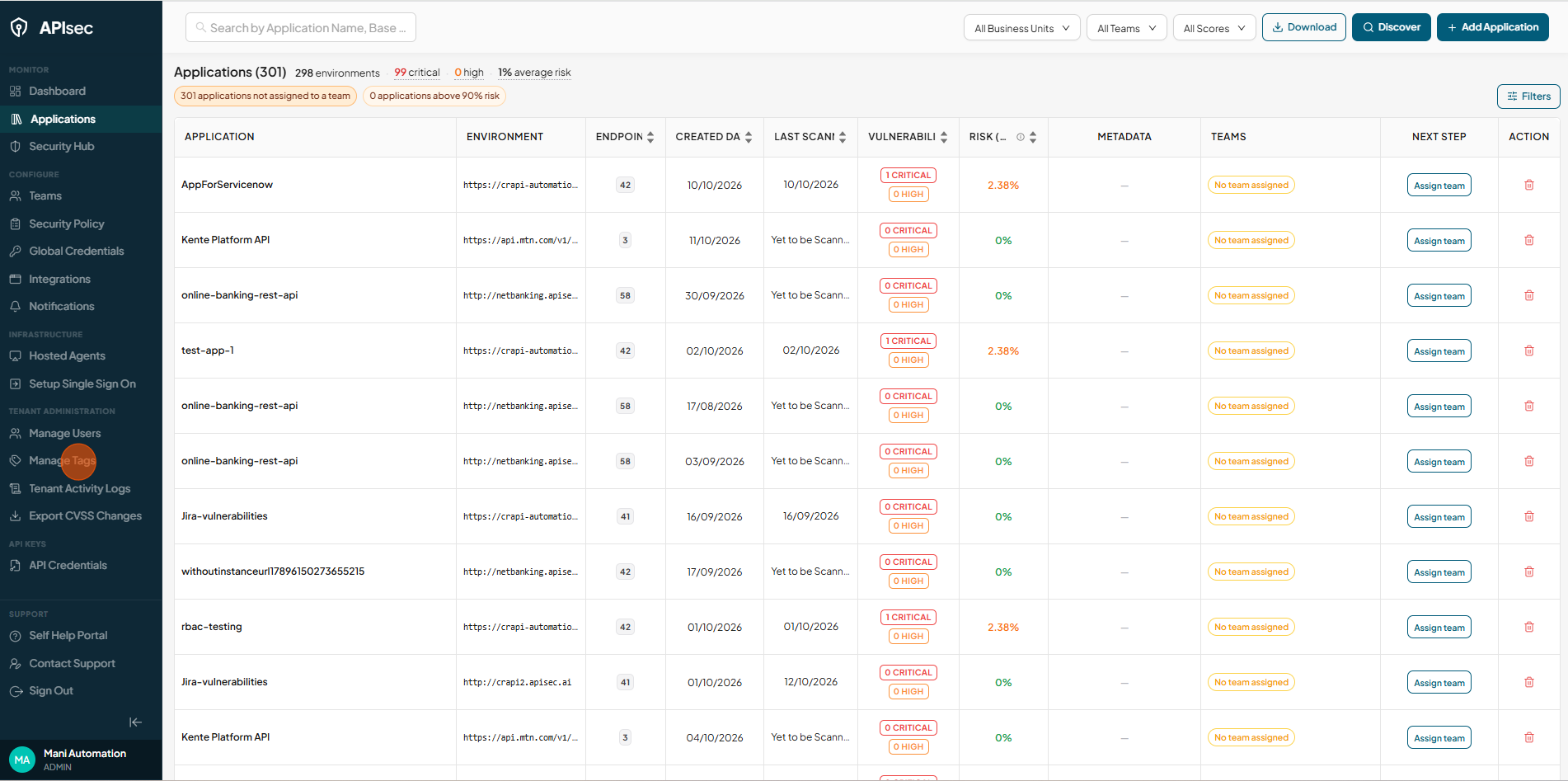
Open the sidebar and Click Manage Tags.
-
This opens the Application Metadata Fields window.
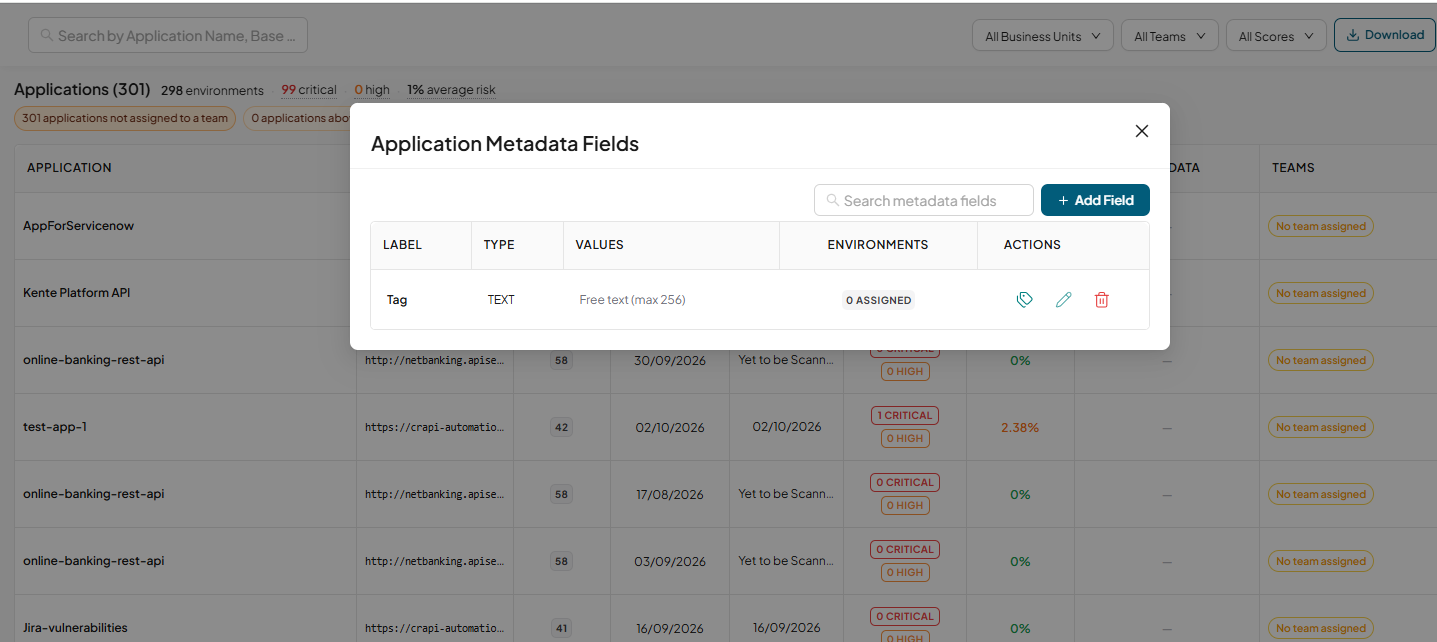
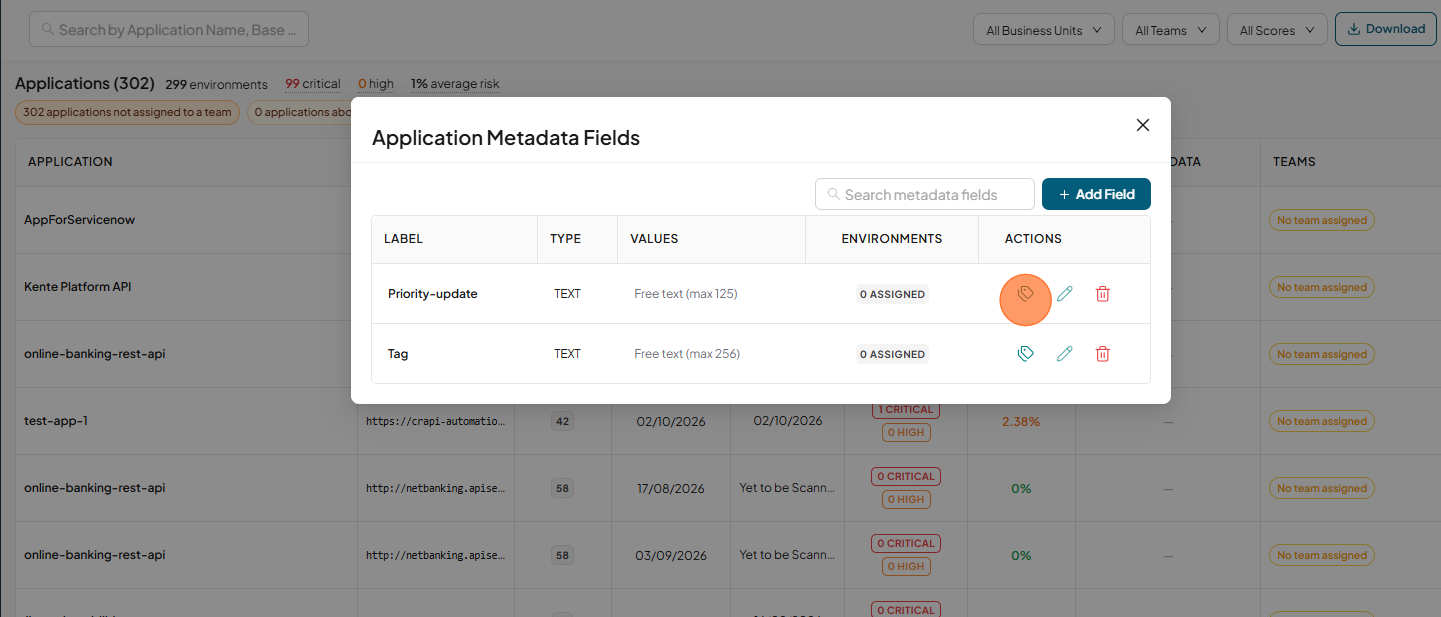
The window lists every field in the tenant with these columns:
| Column | Shows |
|---|---|
| Label | The field name |
| Type | ENUM or TEXT |
| Values | Up to 4 values, then "+N" for the rest. TEXT fields show "Free text (max N)". |
| Environments | "N assigned": how many environments have a value for this field. Click it to open the assign dialog. |
| Actions | Assign, Edit and Delete buttons |
If no fields exist yet, the window shows an Add Field button and an example ("Priority" with High, Medium and Low).
5. Managing fields
Admins create and maintain fields in the Application Metadata Fields window. Field changes apply across the whole tenant straight away.
5.1 Create a field
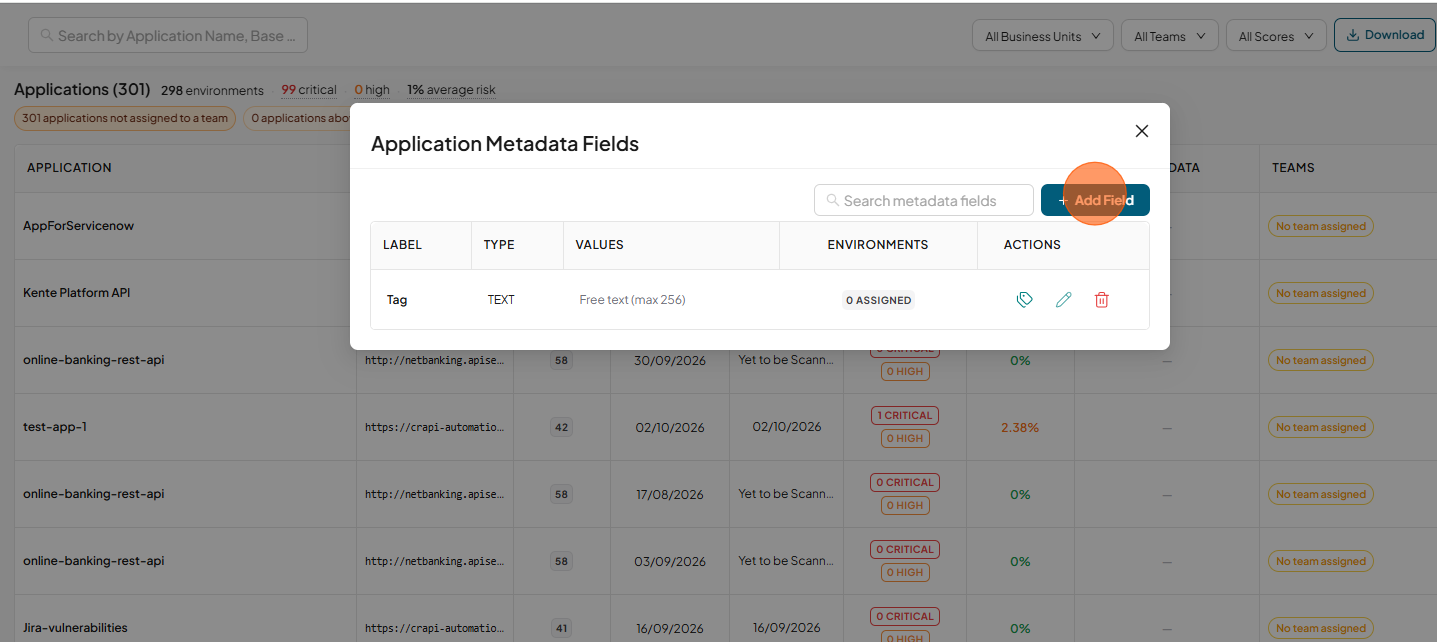
- Click Add Field.
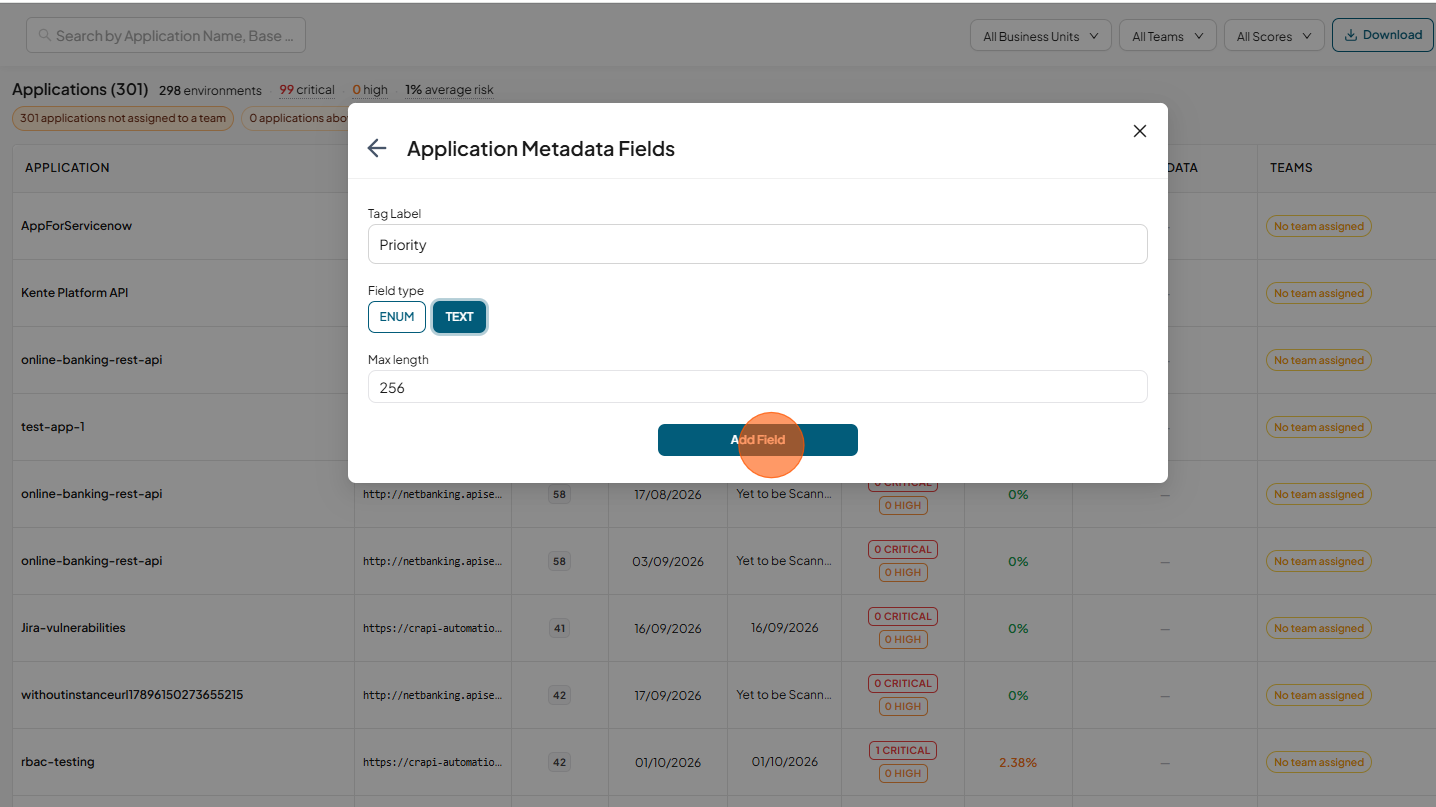
- Enter a Tag Label, for example "Priority".
- Choose a Field type: ENUM or TEXT.
- For ENUM, add one or more Values ("Value name"). For TEXT, set a Max length (default 256).
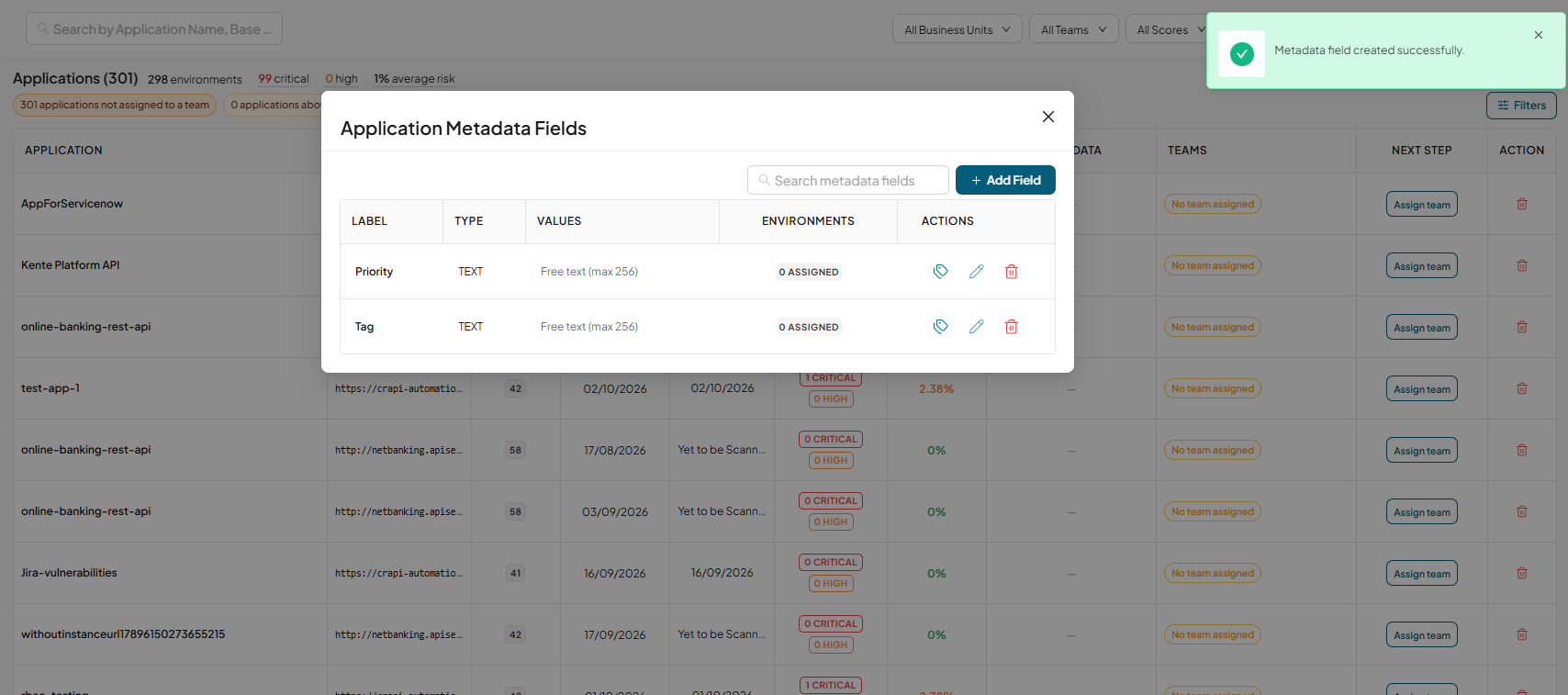
- Click Add Field.
- A Metadata field created successfully. message confirms it.
5.2 Edit a field
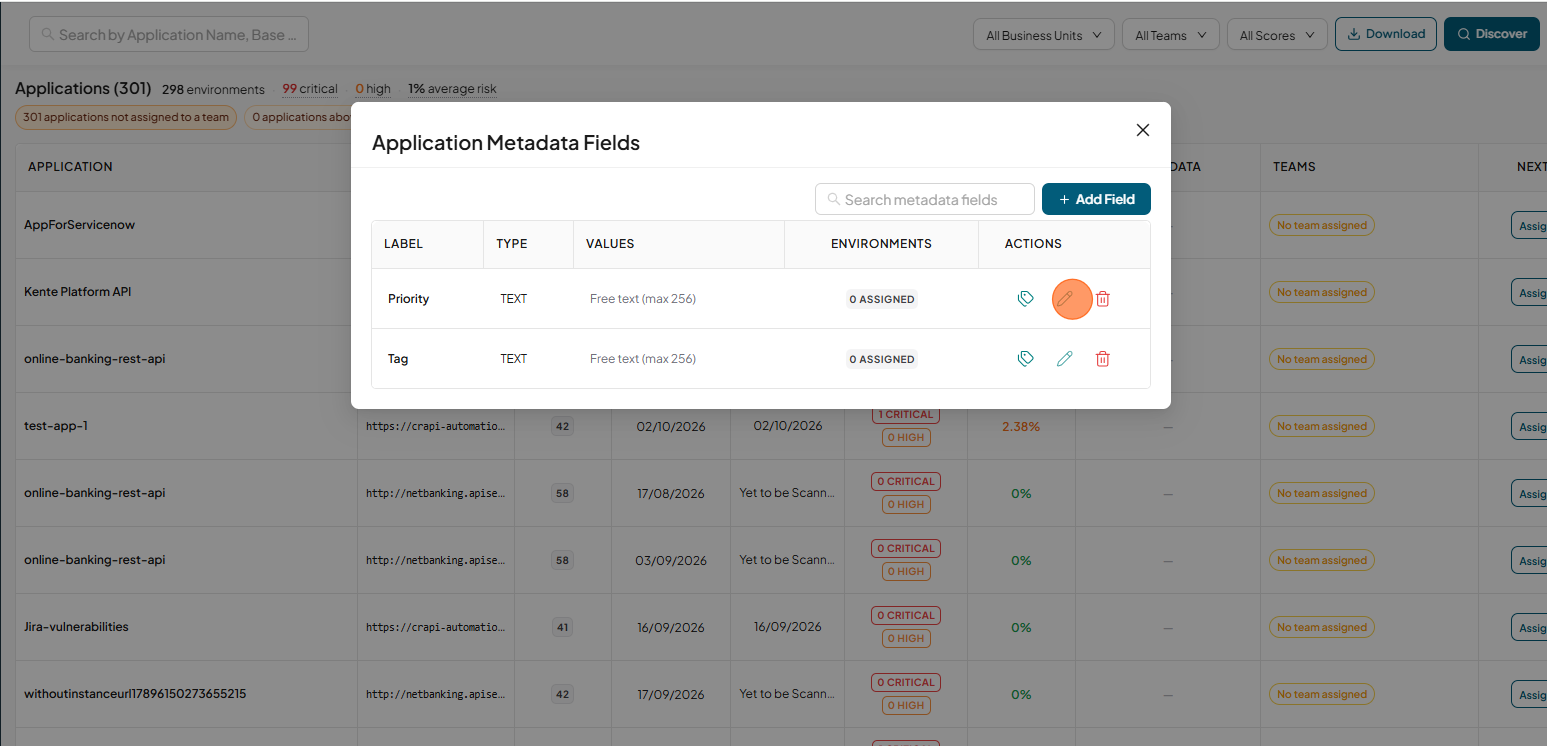
- Click the Edit (pencil) icon on the field's row.
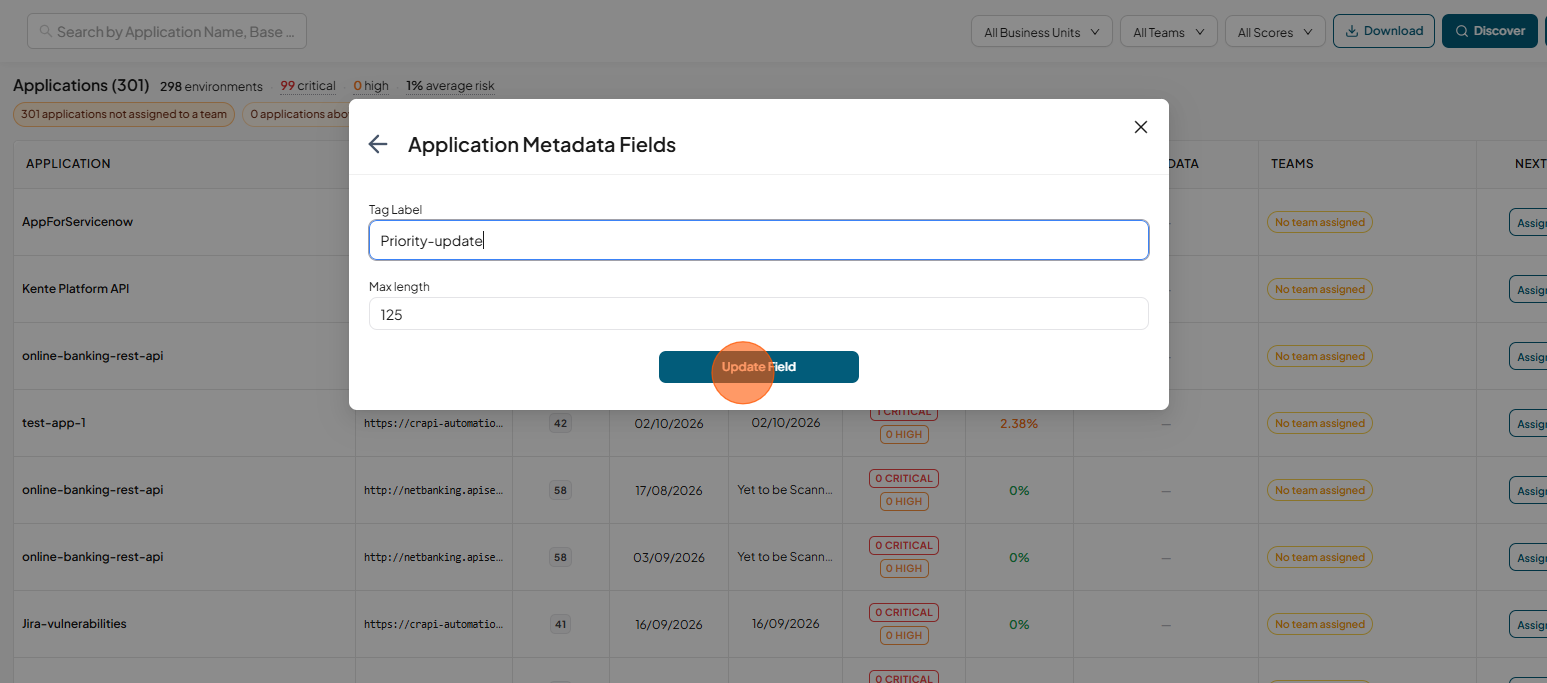
- Change the Tag Label, or the Max length for a TEXT field.
- Click Update Field.
The field type cannot be changed after creation. To switch types, create a new field and move assignments to it.
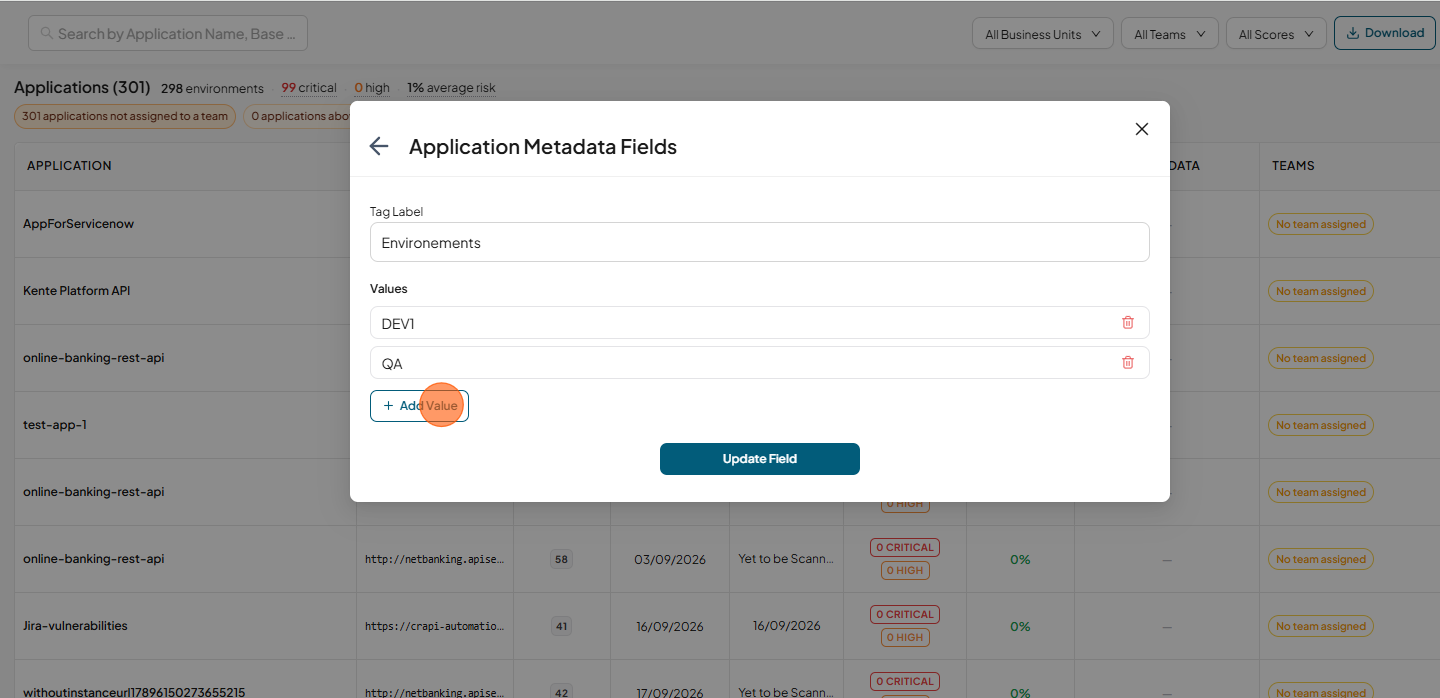
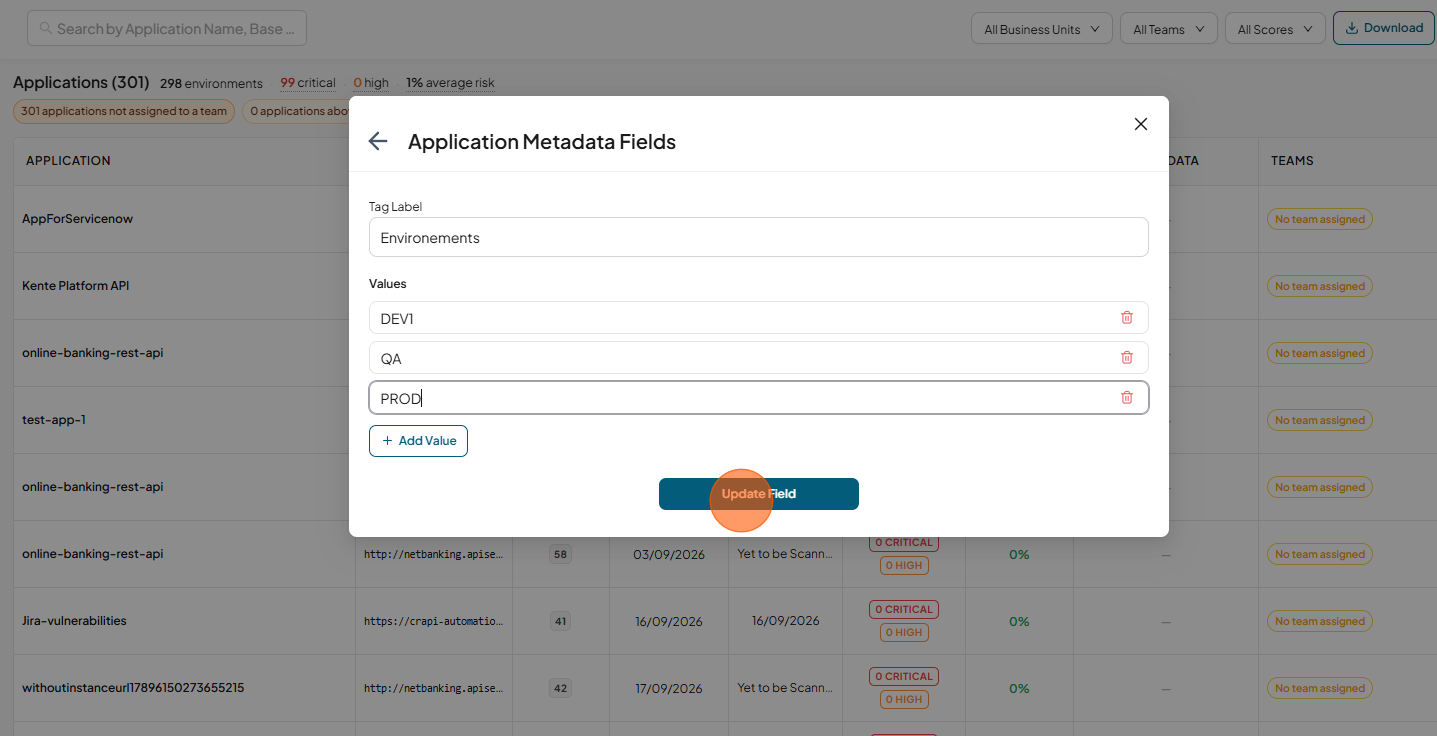
5.3 Add, rename or remove values (ENUM only)
-
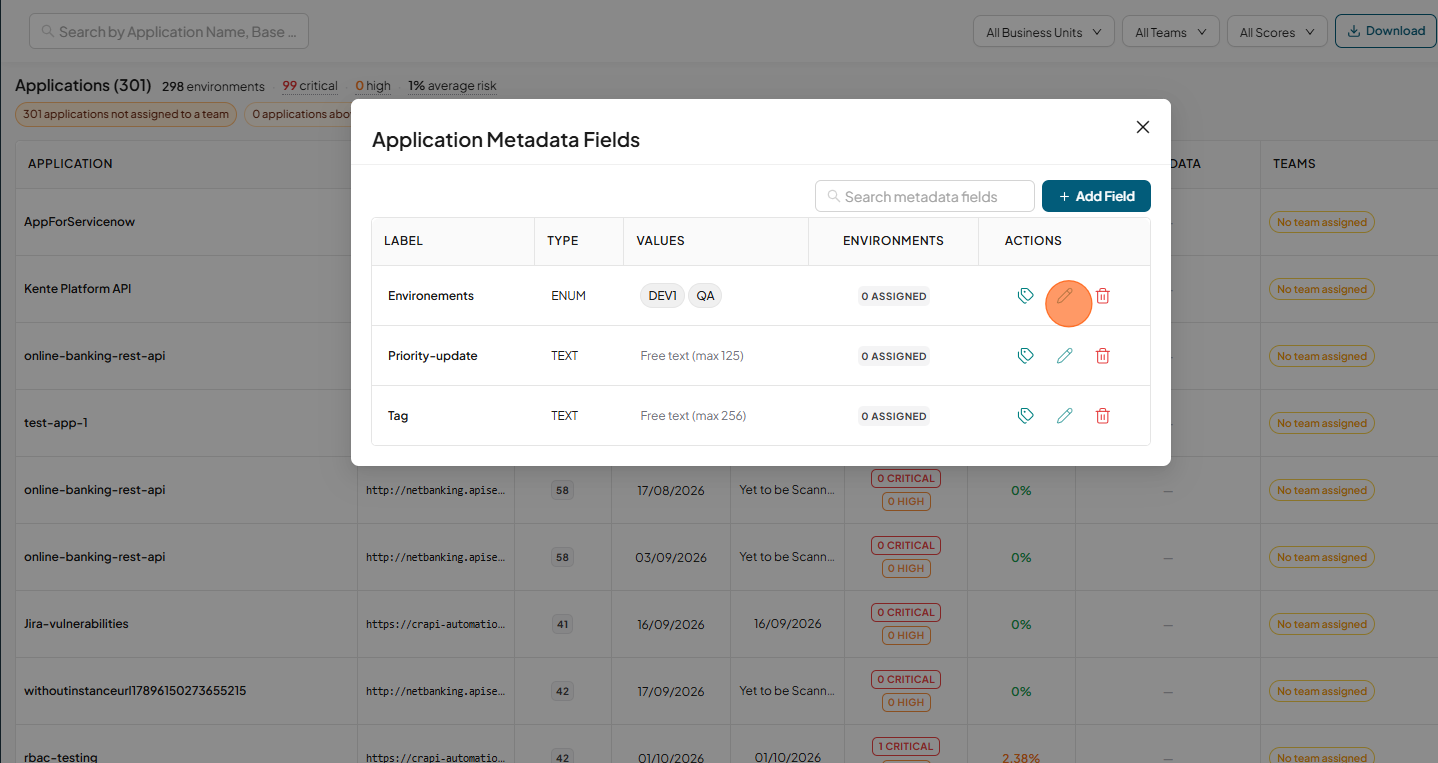
Click the Edit (pencil) icon on the enum field's row
-
Click Add value
-
Enter the name and click Update Field
-
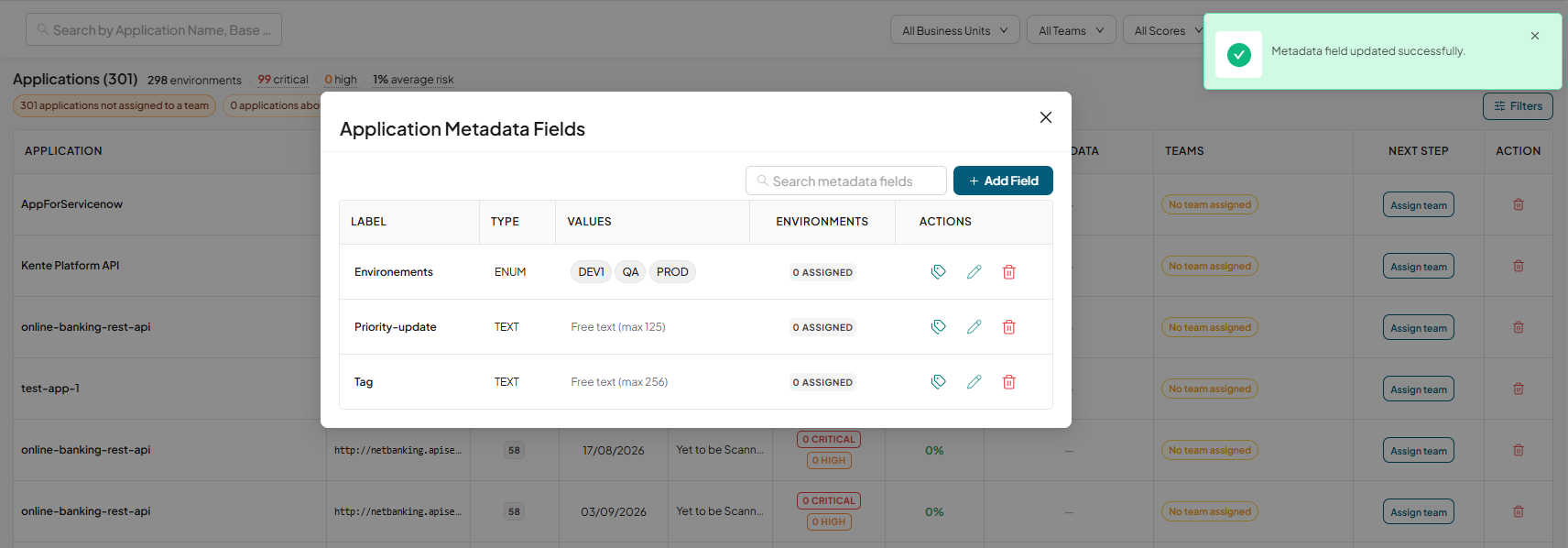
A Metadata field updated successfully. message confirms it.
-
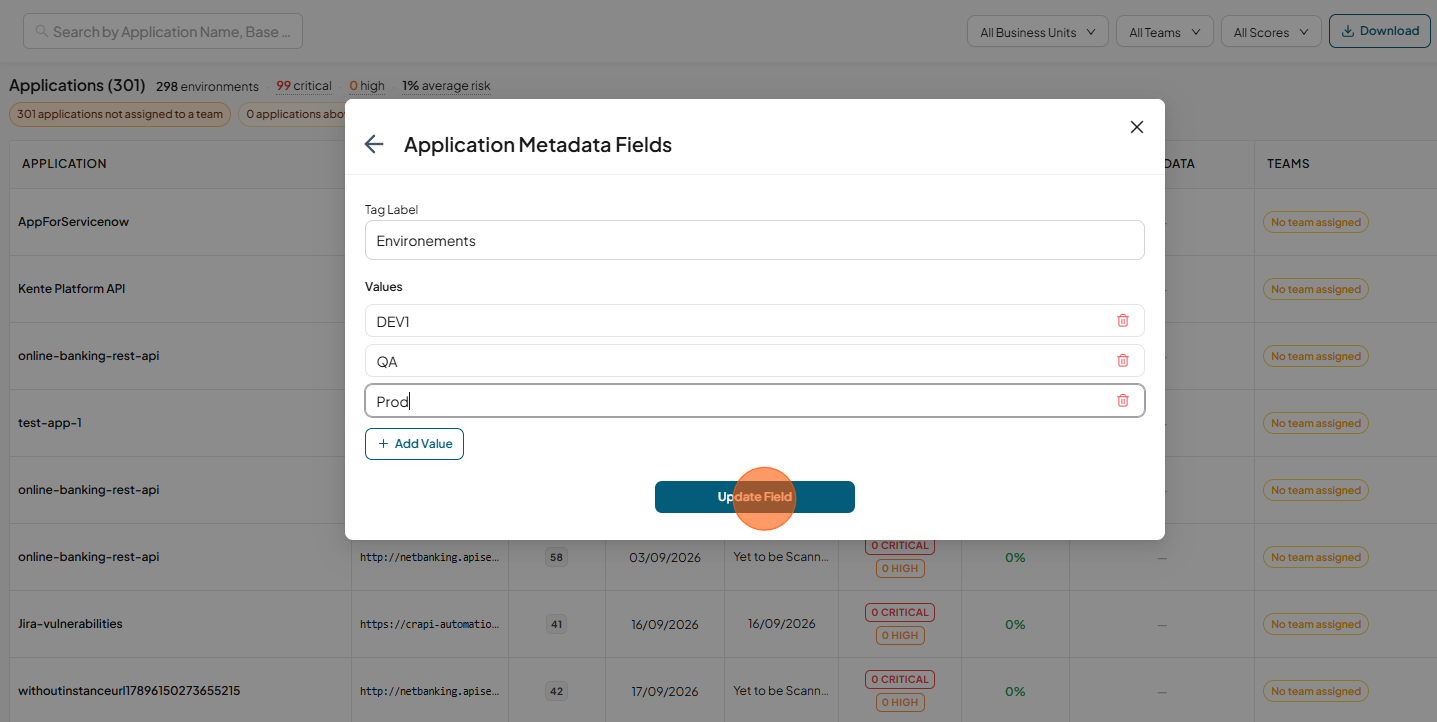
Rename a value: edit the text and click Update Field .
-
A Metadata field updated successfully. message confirms it.
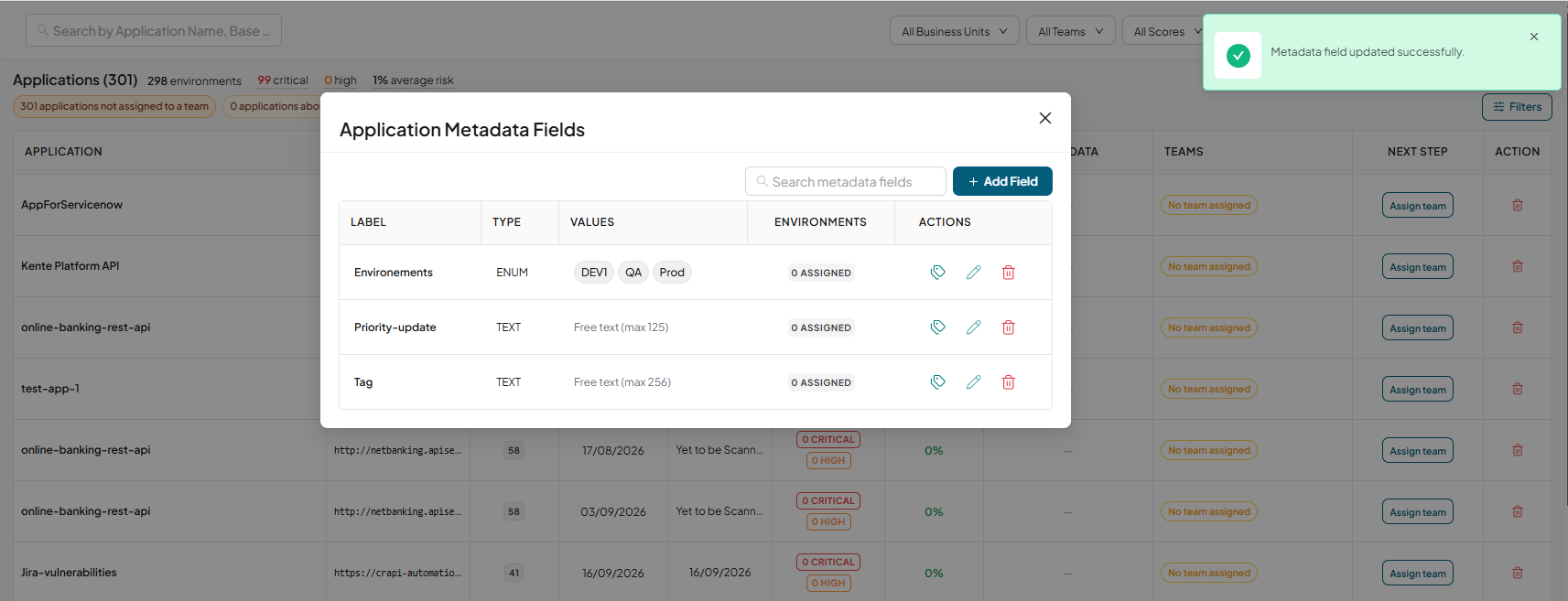 Note: Environments that already use the value keep it under the new name.
 -
Remove a value: click Delete icon of value.
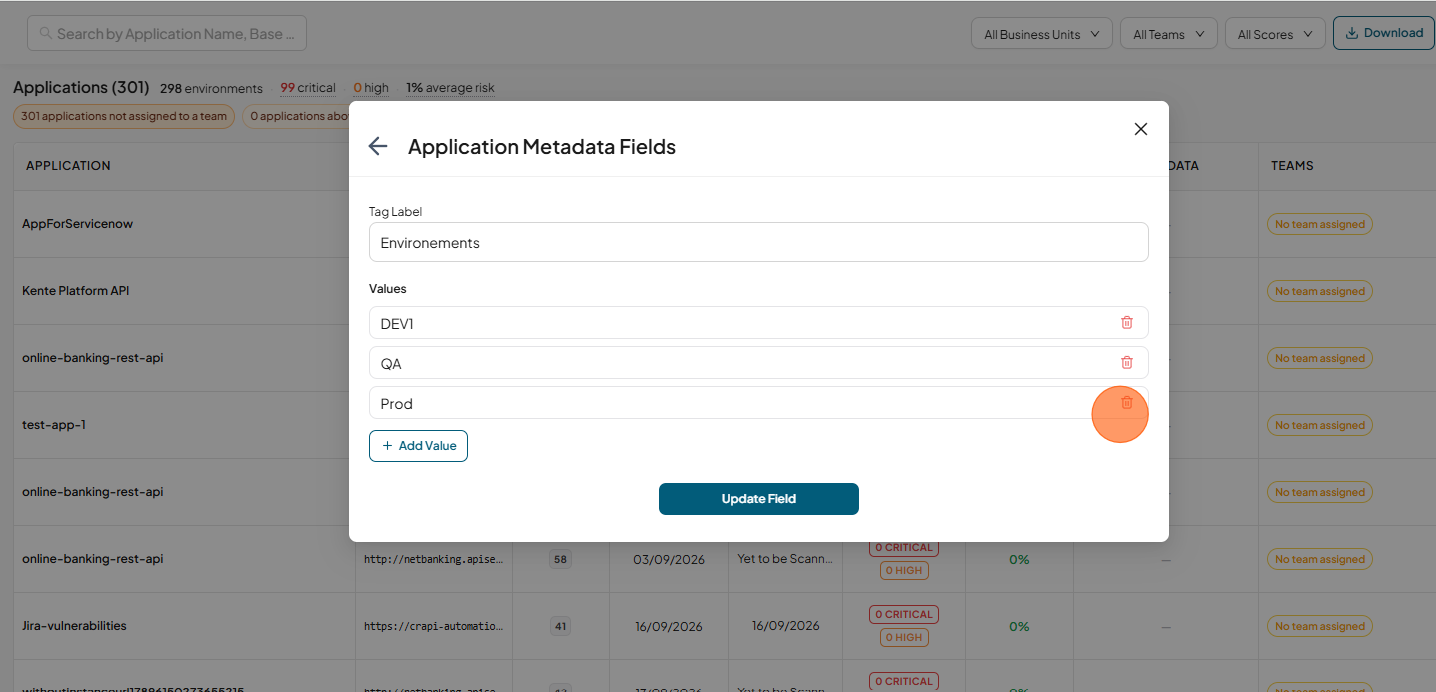
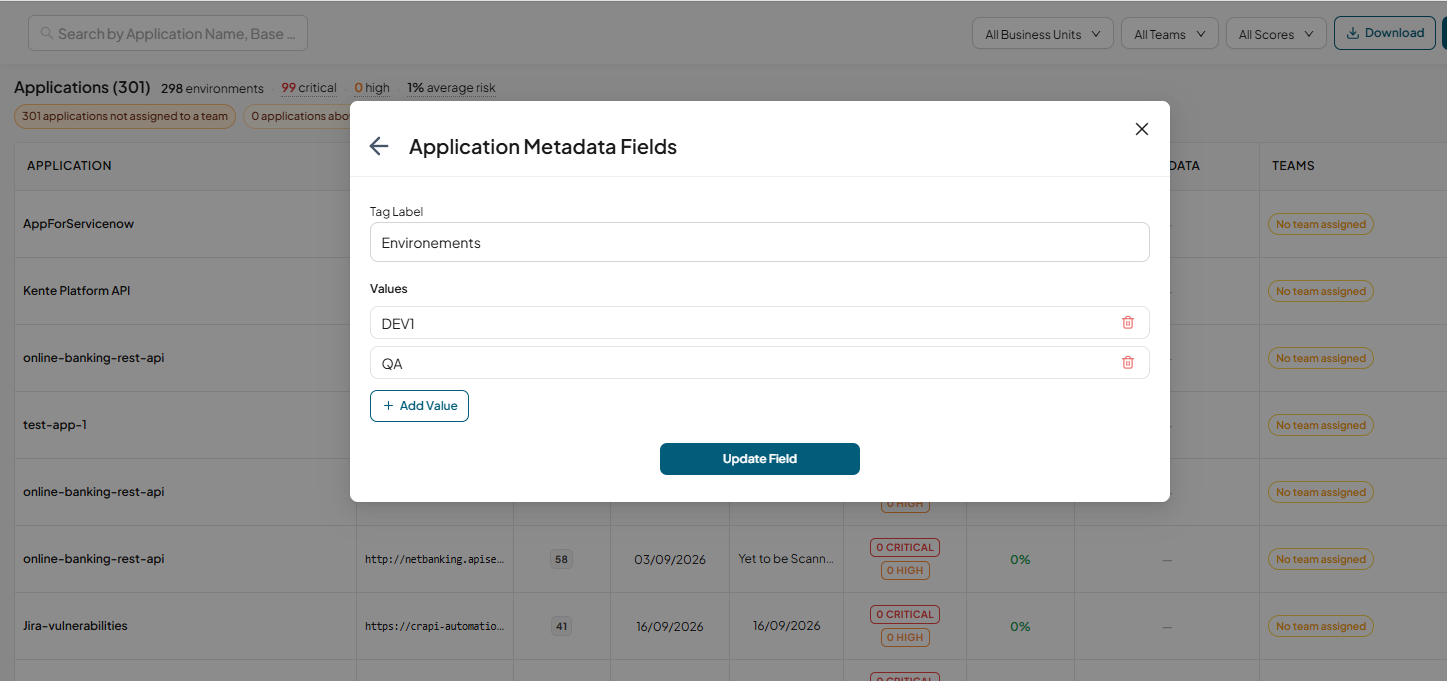
Note: It is deleted at once and removed from any environments that had it.
5.4 Delete a field
- Click the Delete icon on the field's row.
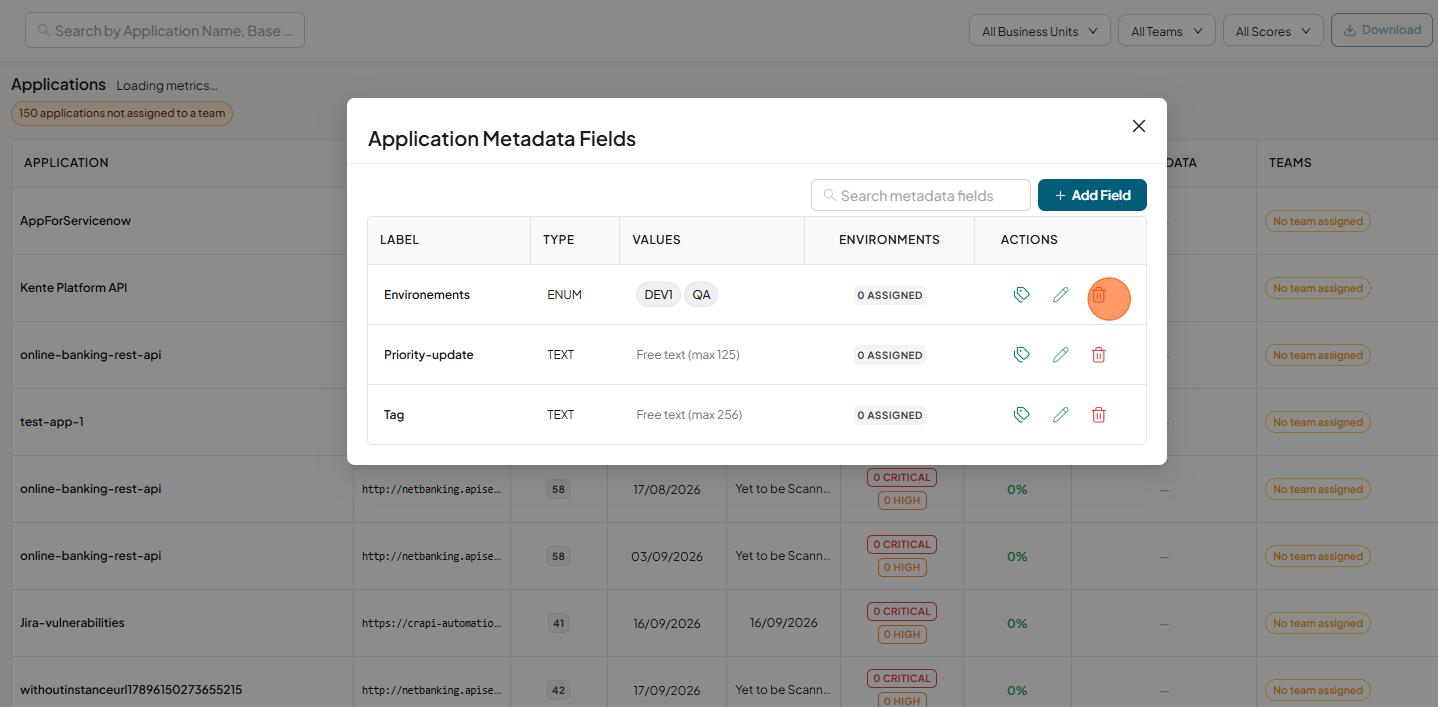
- Confirm in the Confirm Delete dialog. Deleting cannot be undone.
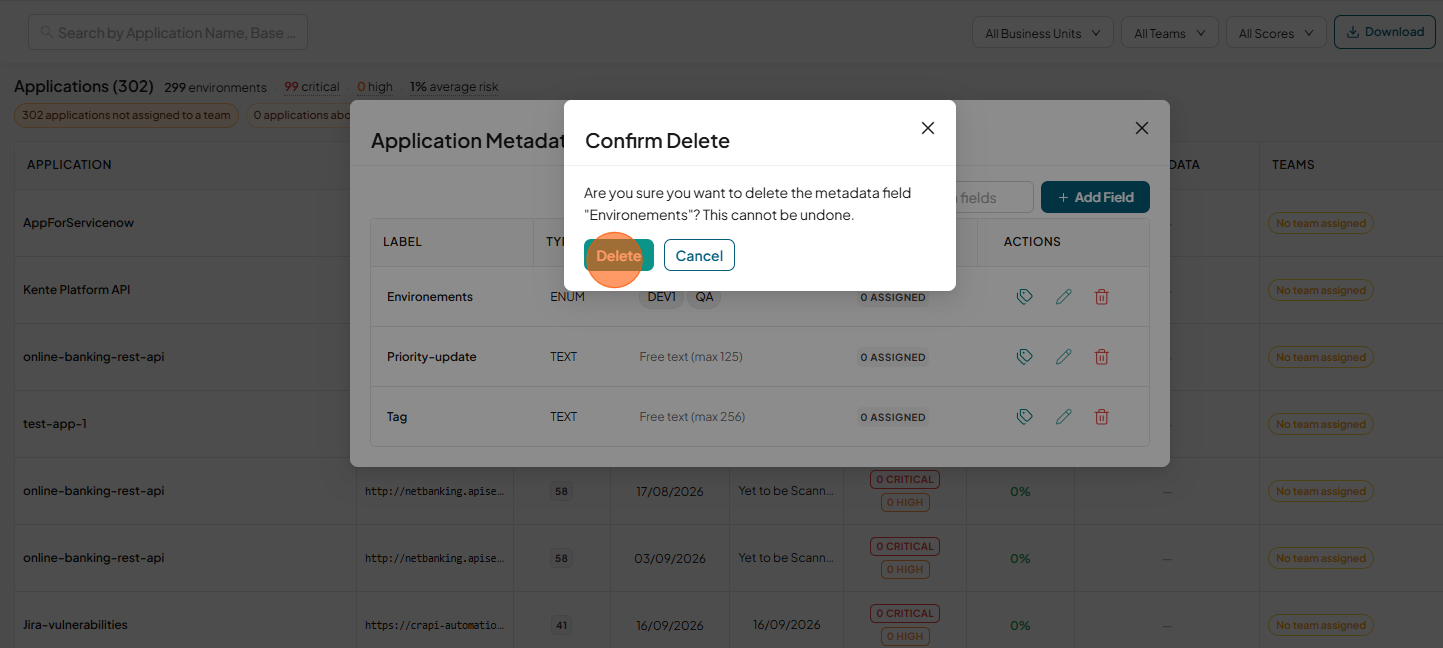
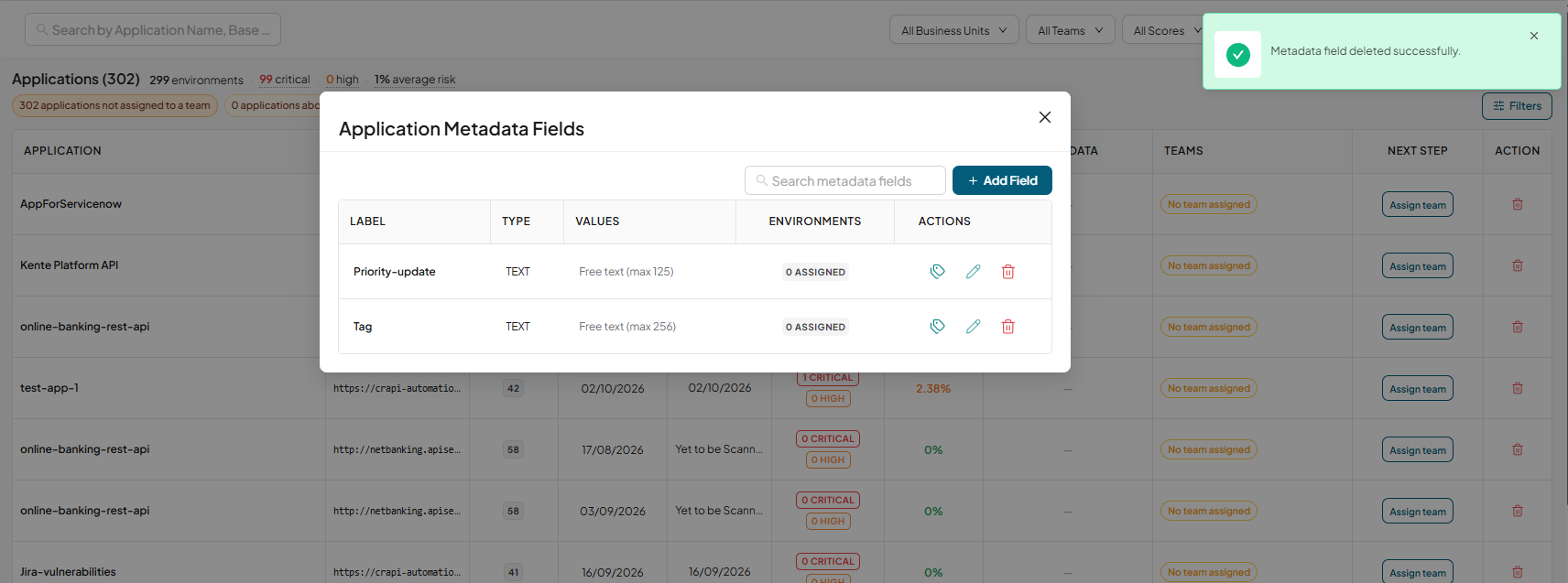
- A Metadata field deleted successfully. message confirms it.
- You cannot delete a field while any environment has a value for it. The Delete button is disabled with the tooltip "Cannot delete while assigned to application environments".
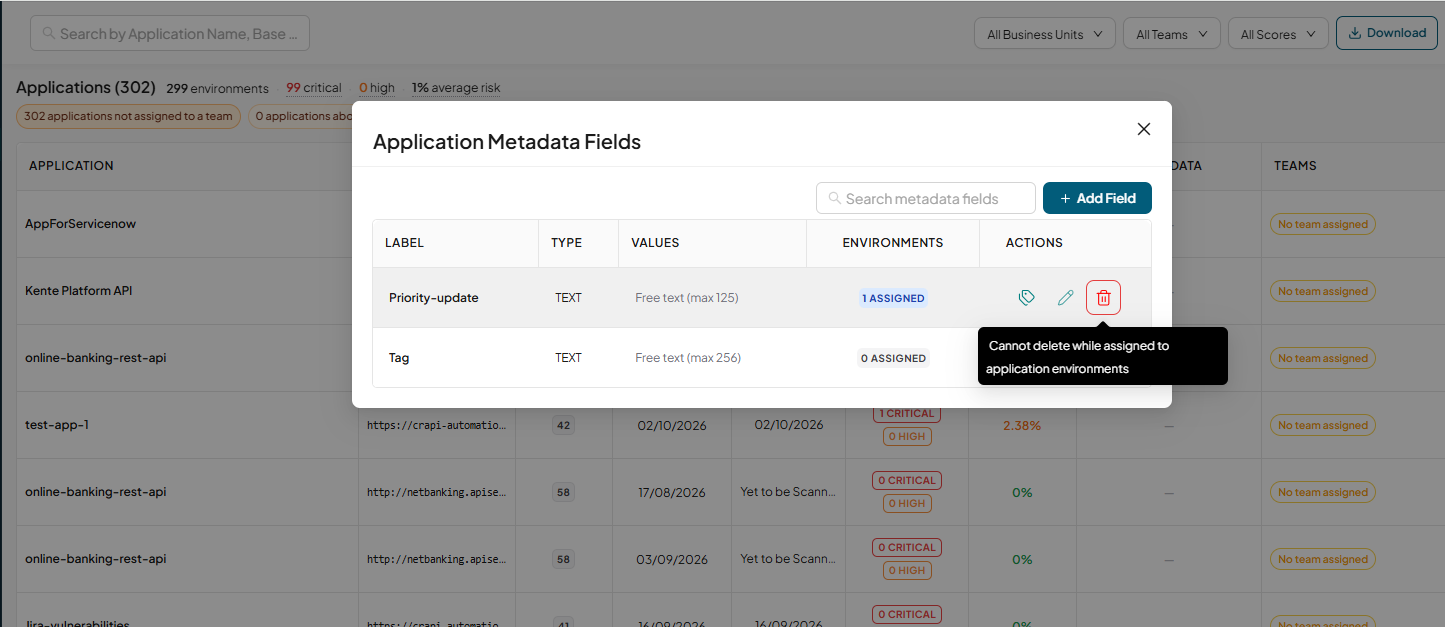
Remove the field from all environments first (section 6.3).
5.5 Validation rules
| Rule | Message shown |
|---|---|
| A Tag Label is required | Tag Label is required. |
| Tag Labels are unique, ignoring case | A metadata field named "X" already exists. |
| A new ENUM field needs at least one value | Add at least one Value. |
| Every value row needs a name | Every Value needs a name (or remove empty rows). |
| Values in a field are unique, ignoring case | Values must be unique ("X" is duplicated). |
| TEXT max length is at least 1 | Max length must be at least 1. |
5.6 Search fields
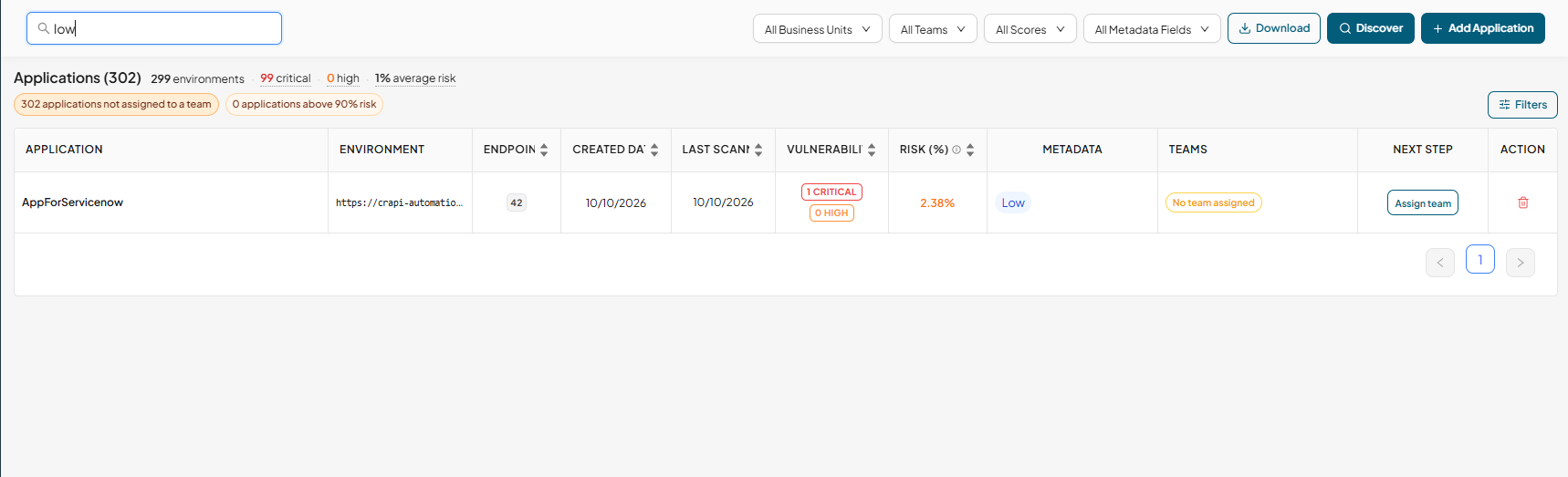
Use Search metadata fields at the top of the window. It matches field labels and their values, so searching "Low" finds the Priority field.
6. Assigning Fields to applications
Admins assign one field at a time to many environments in a single step, using the assign dialog.
6.1 Open the assign dialog
-
Click Manage Tags
-
In the Application Metadata Fields window, either click the Assign (tag) icon on the field's row,
-
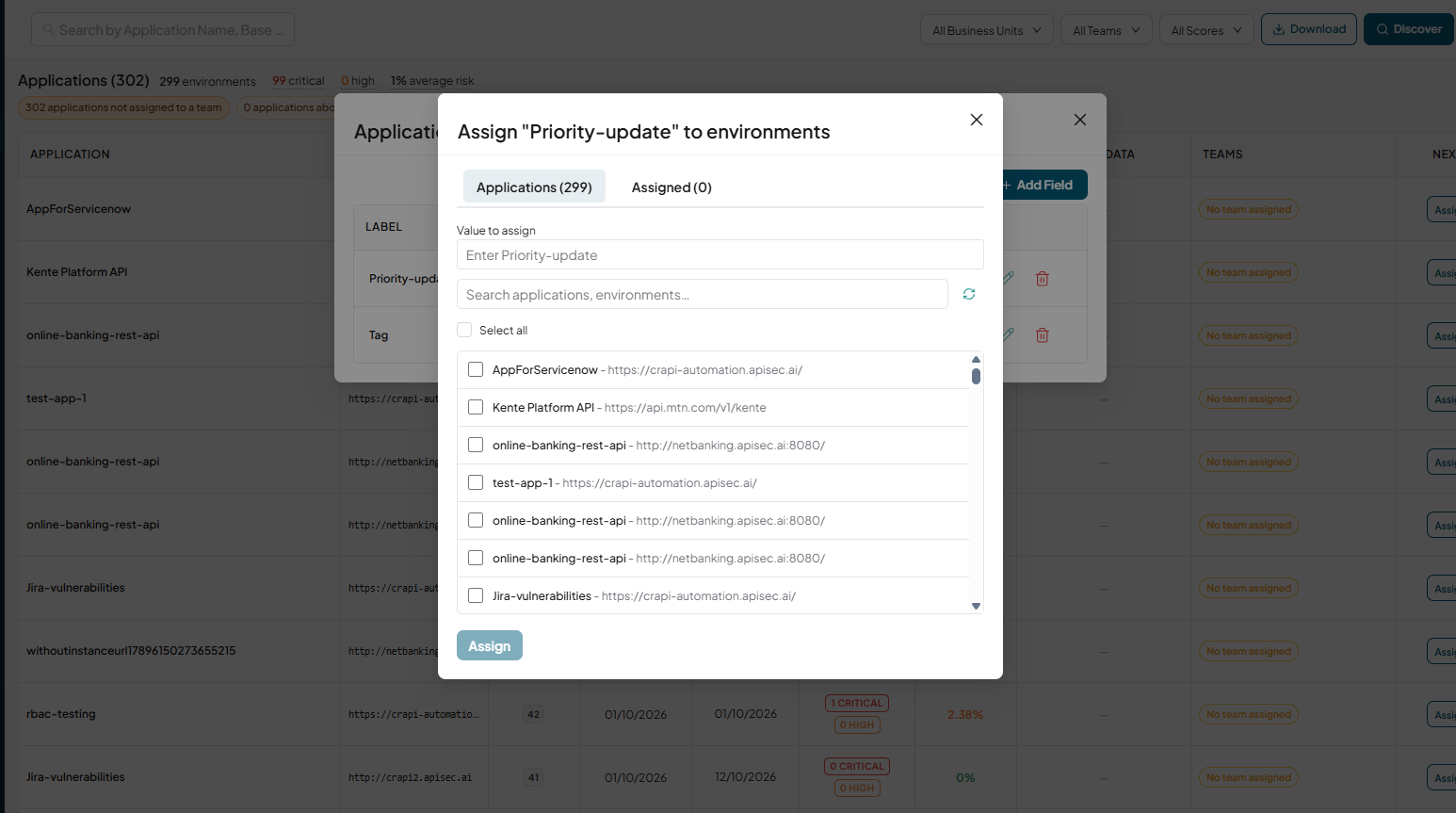
The dialog Assign "<field>" to environments opens with two tabs:
-
On the Applications tab, choose what to assign:
- ENUM: pick one or more values from the values dropdown.
- TEXT: type the value in the Enter <field> box.
-
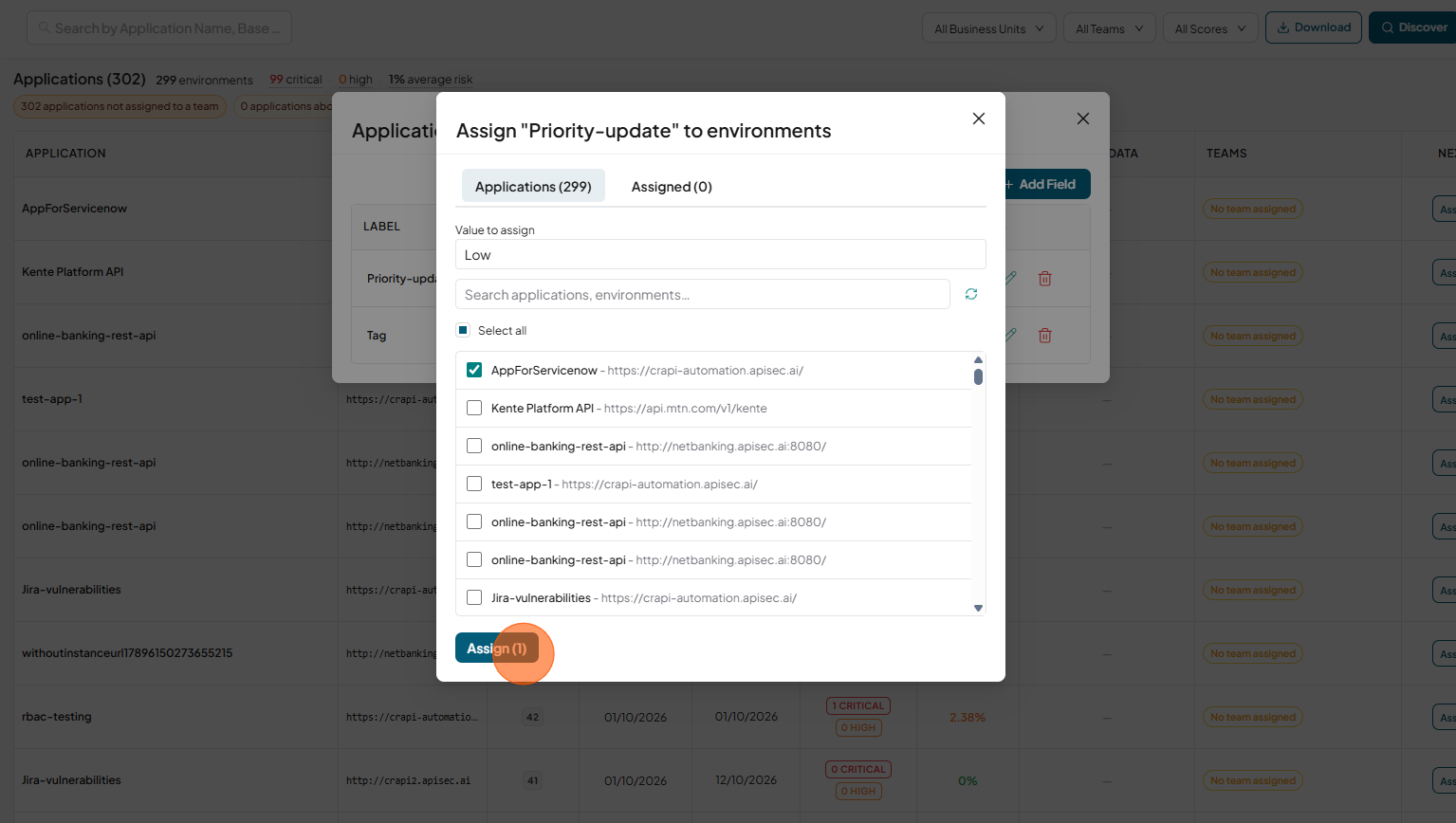
Tick the environments to update. Use search to narrow the list; the select-all box selects only the environments currently shown.
-
Click Assign
-
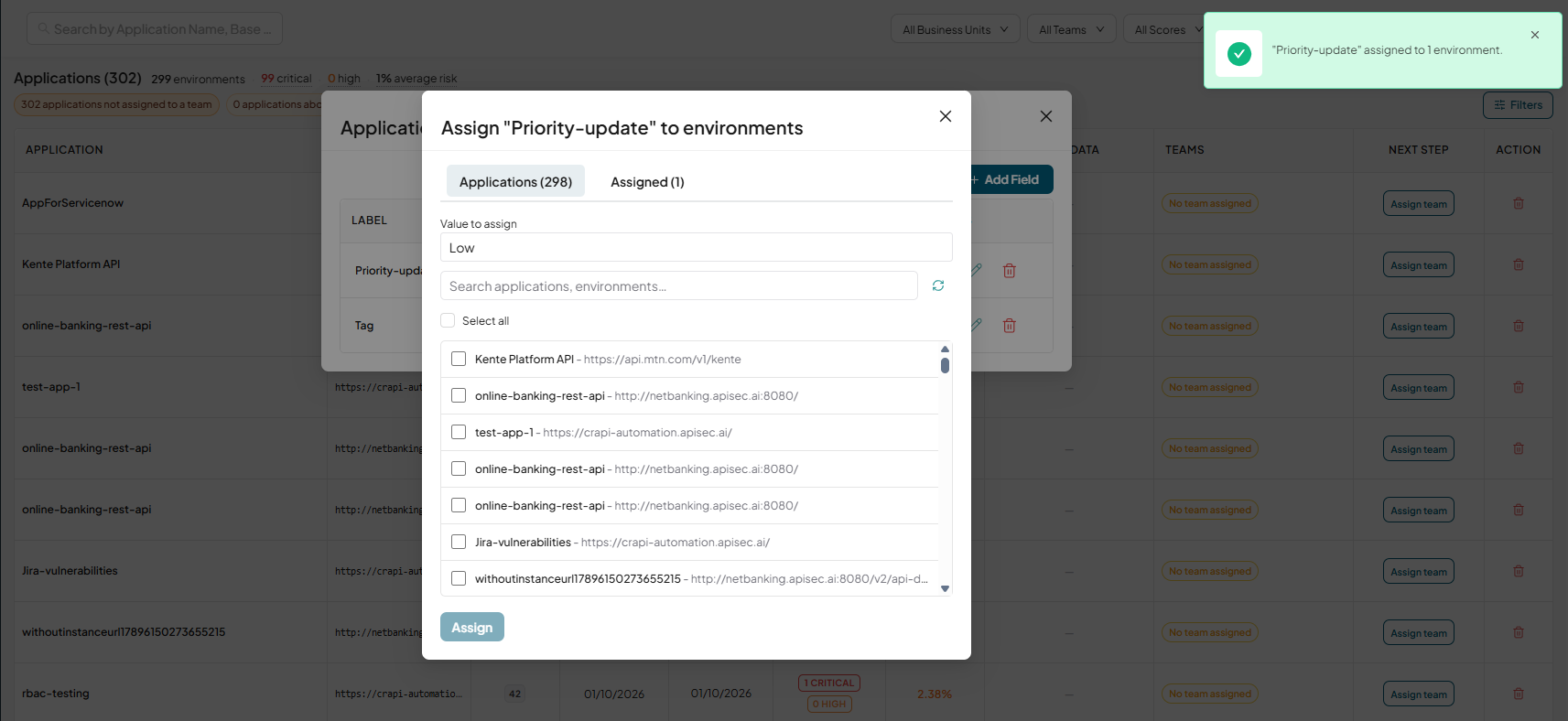
A message confirms it,
6.2 Remove Fields from applications
-
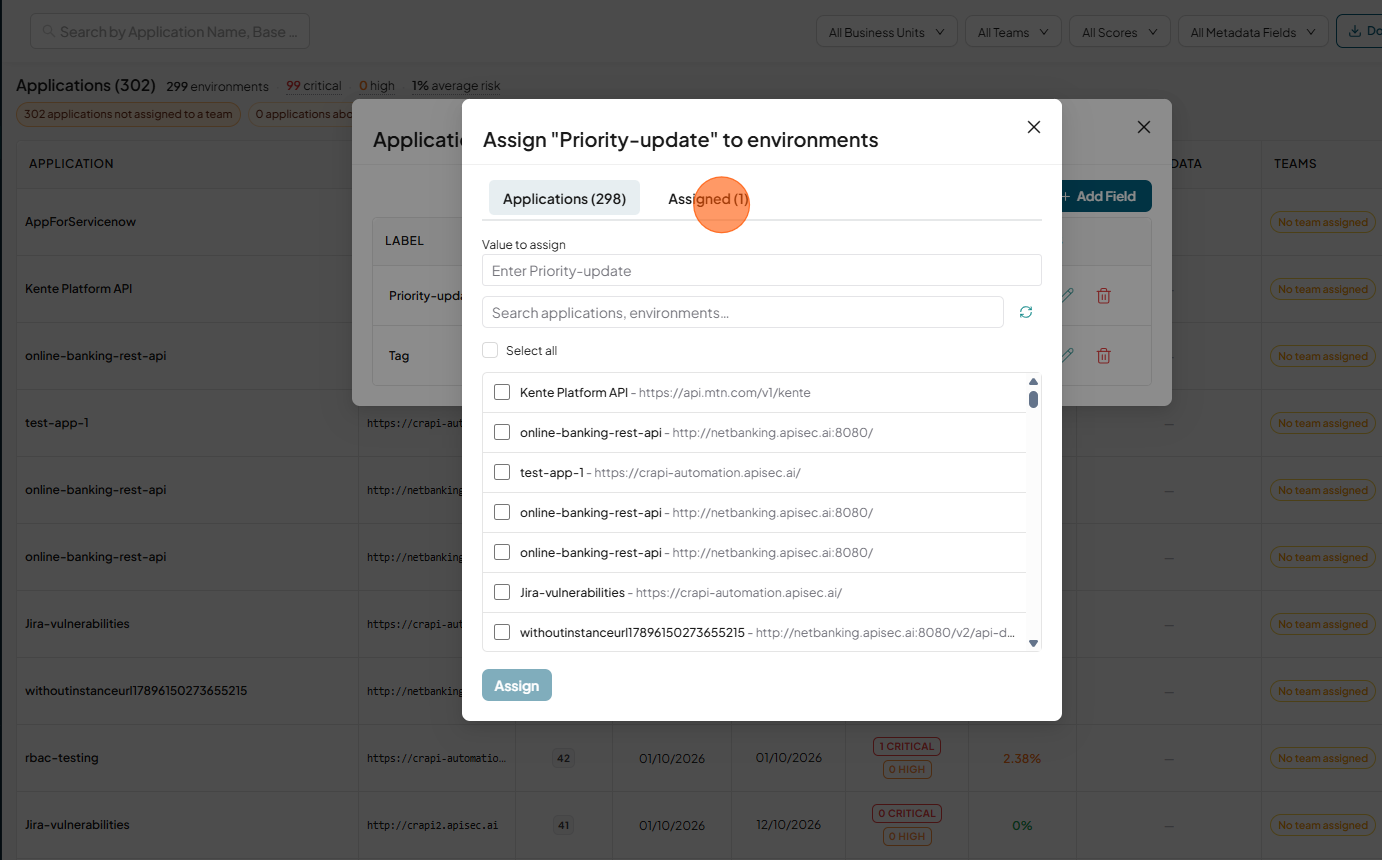
Click Assigned tab view the number of applications associated with the selected field.
-
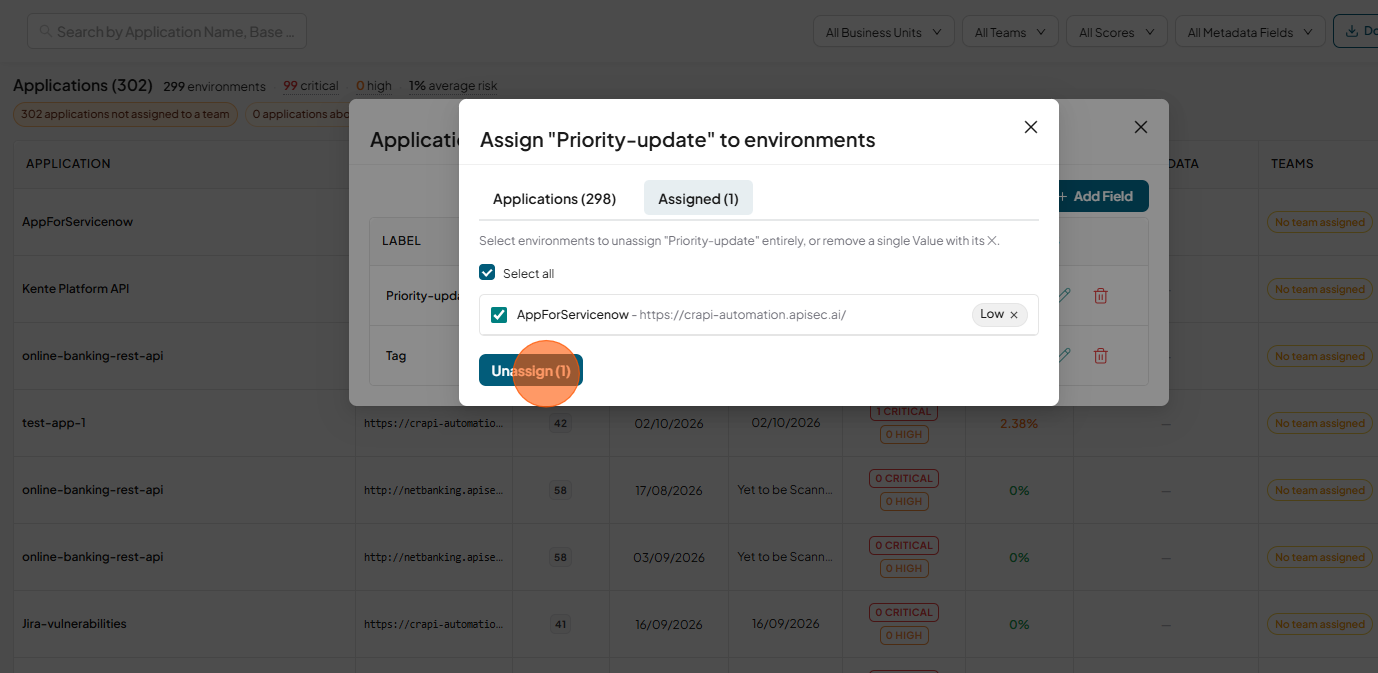
To Remove the field from environments: on the Assigned tab, tick the environments and click Unassign.
-
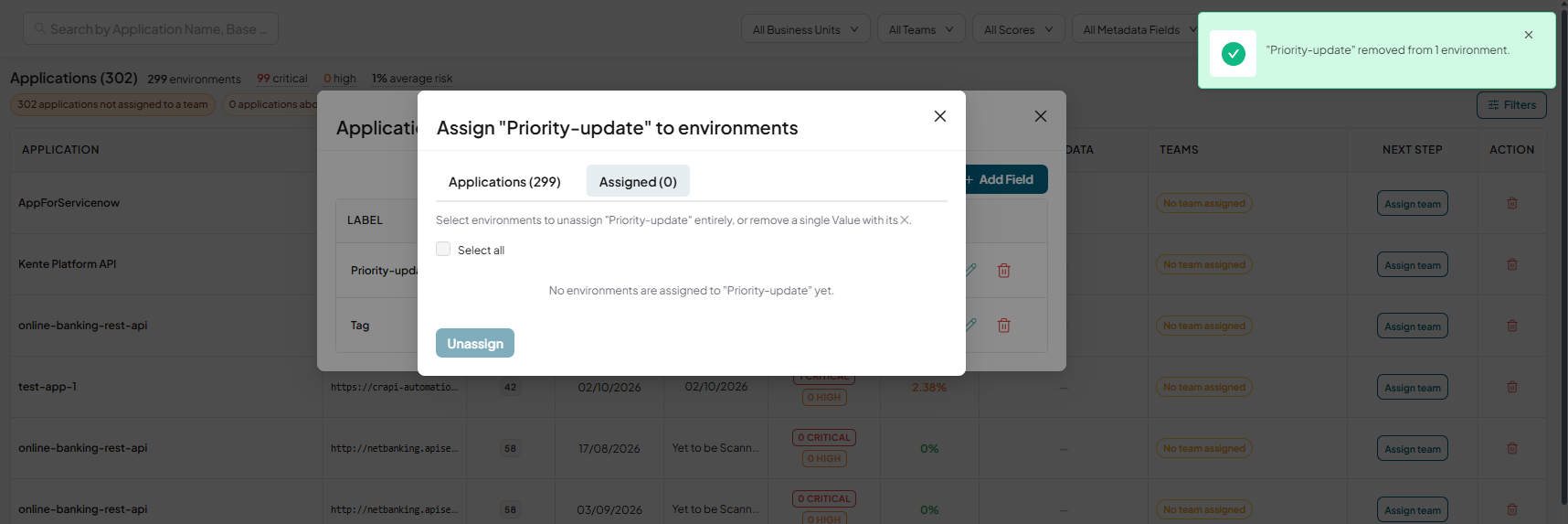
The message confirms, field removed from environment.
7. Using tags on the Applications page
Once values are assigned, every user can see them on the Applications page and use them to find environments.
7.1 Metadata column
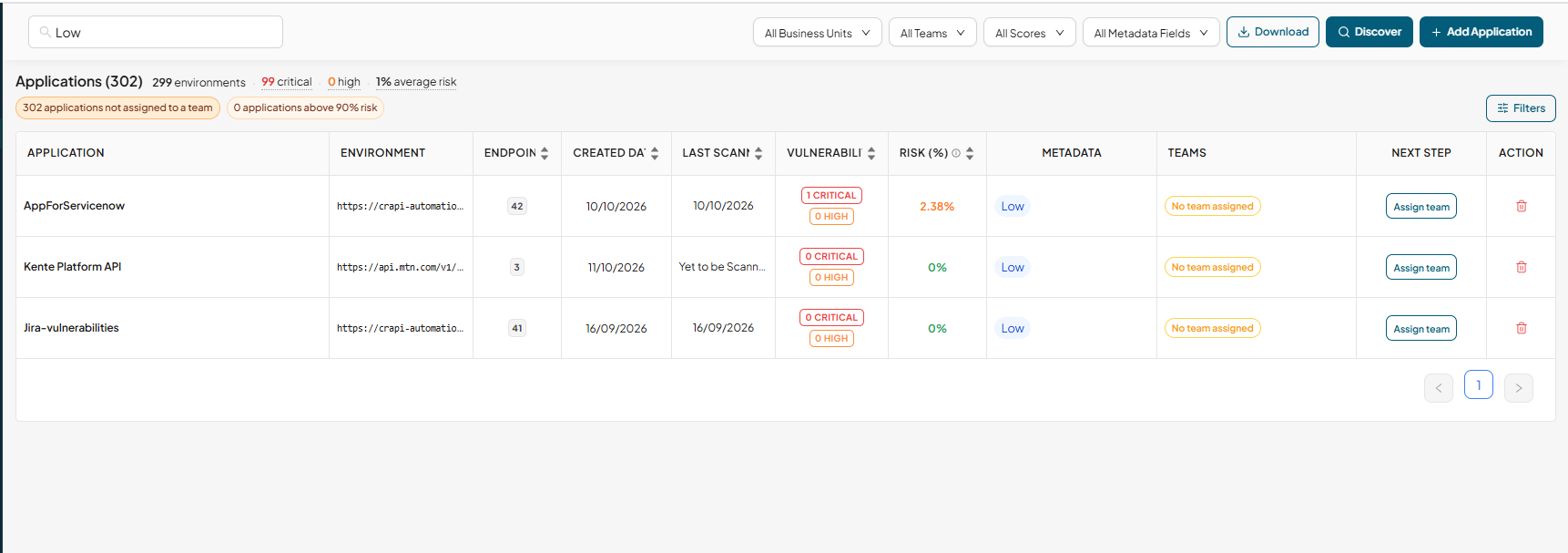
The Metadata column shows each environment's values as chips. Up to 3 chips are shown; hover a chip to see which field it belongs to. A dash (—) means no values are assigned.
7.2 Filter by metadata
- Open the All Metadata Fields filter and pick a field.
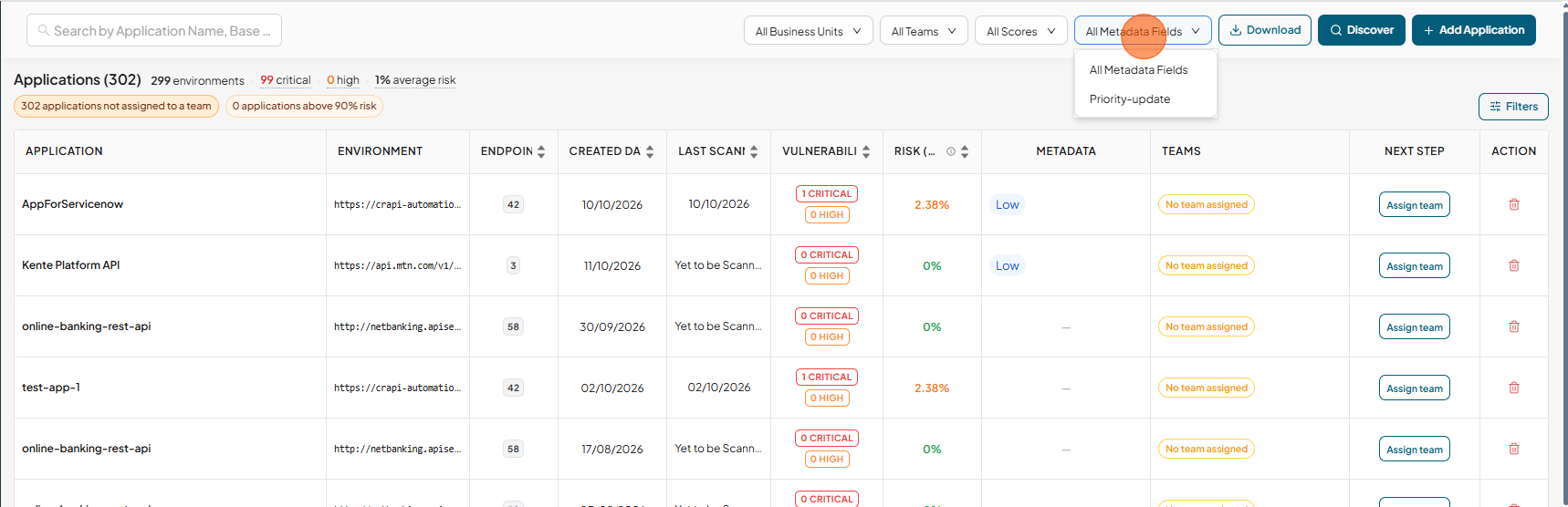
- Narrow it down:
- ENUM: tick one or more values. Environments with any of the ticked values are shown.
- TEXT: type text. Environments whose value contains that text are shown.
- To clear the filter, choose All Metadata Fields again.
The filter only appears when at least one field has assigned values.
7.3 Search
The main search box also matches metadata. Searching "High" finds environments tagged with that value.
7.4 CSV export
Exports from the Applications page include a Metadata Tags column. Each cell lists the environment's tags as Field: value1, value2.
8. Jira integration: custom fields
You can fill Jira custom fields on tickets automatically from an environment's metadata tags. For example, map Jira's "Team" field to the Owner tag, and every ticket created for that environment carries the owner's name.
8.1 Map a Jira custom field to a tag
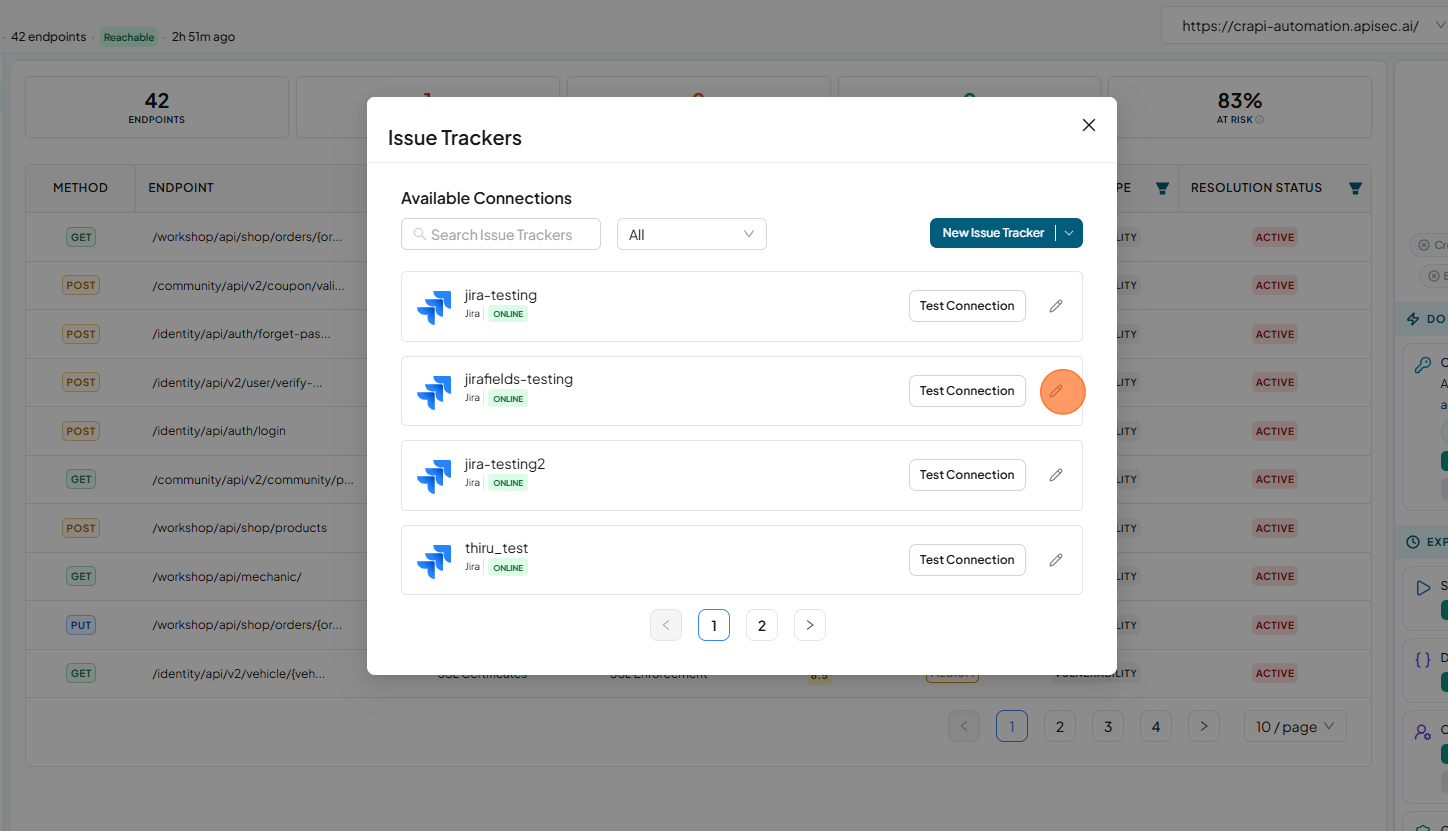
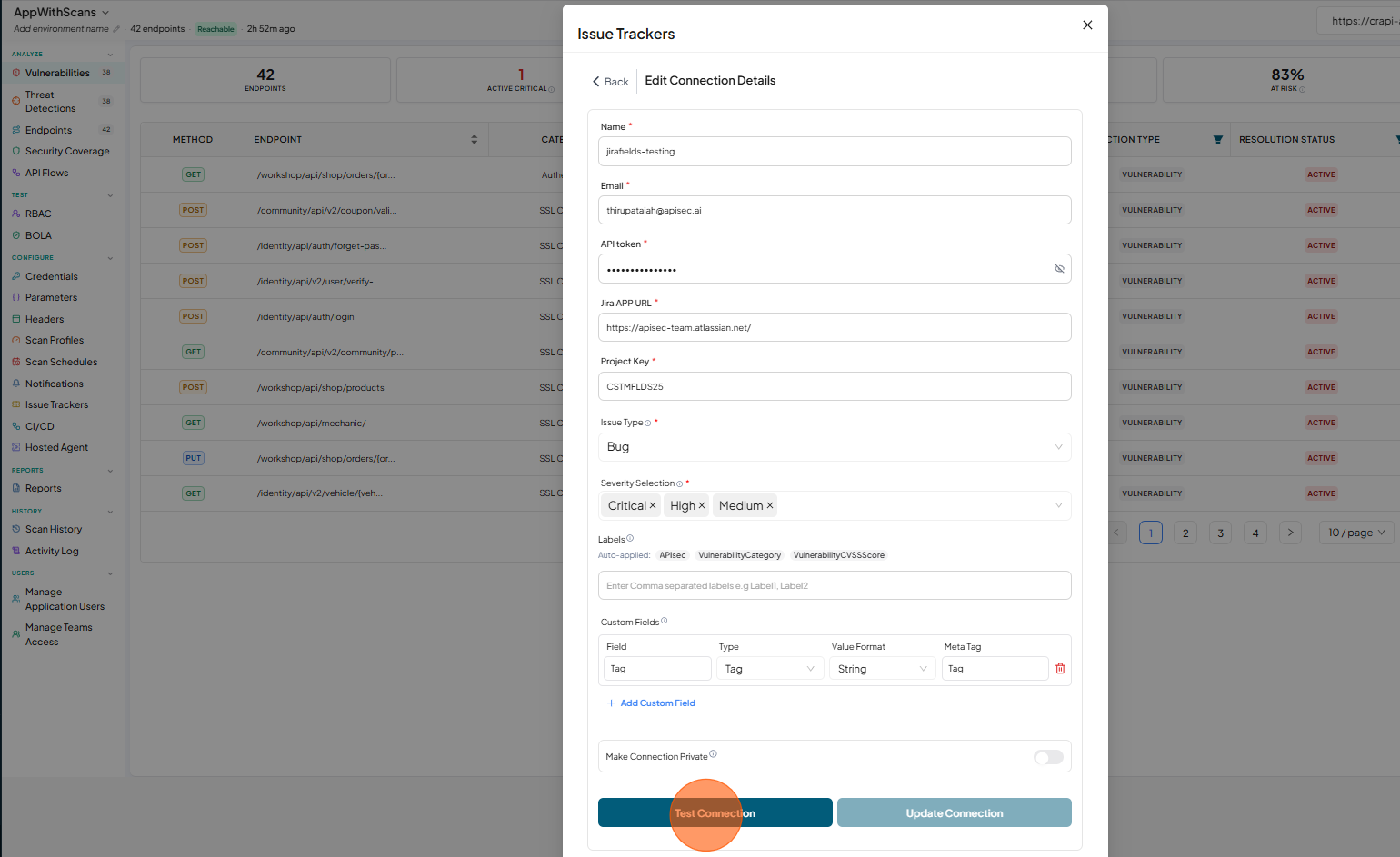
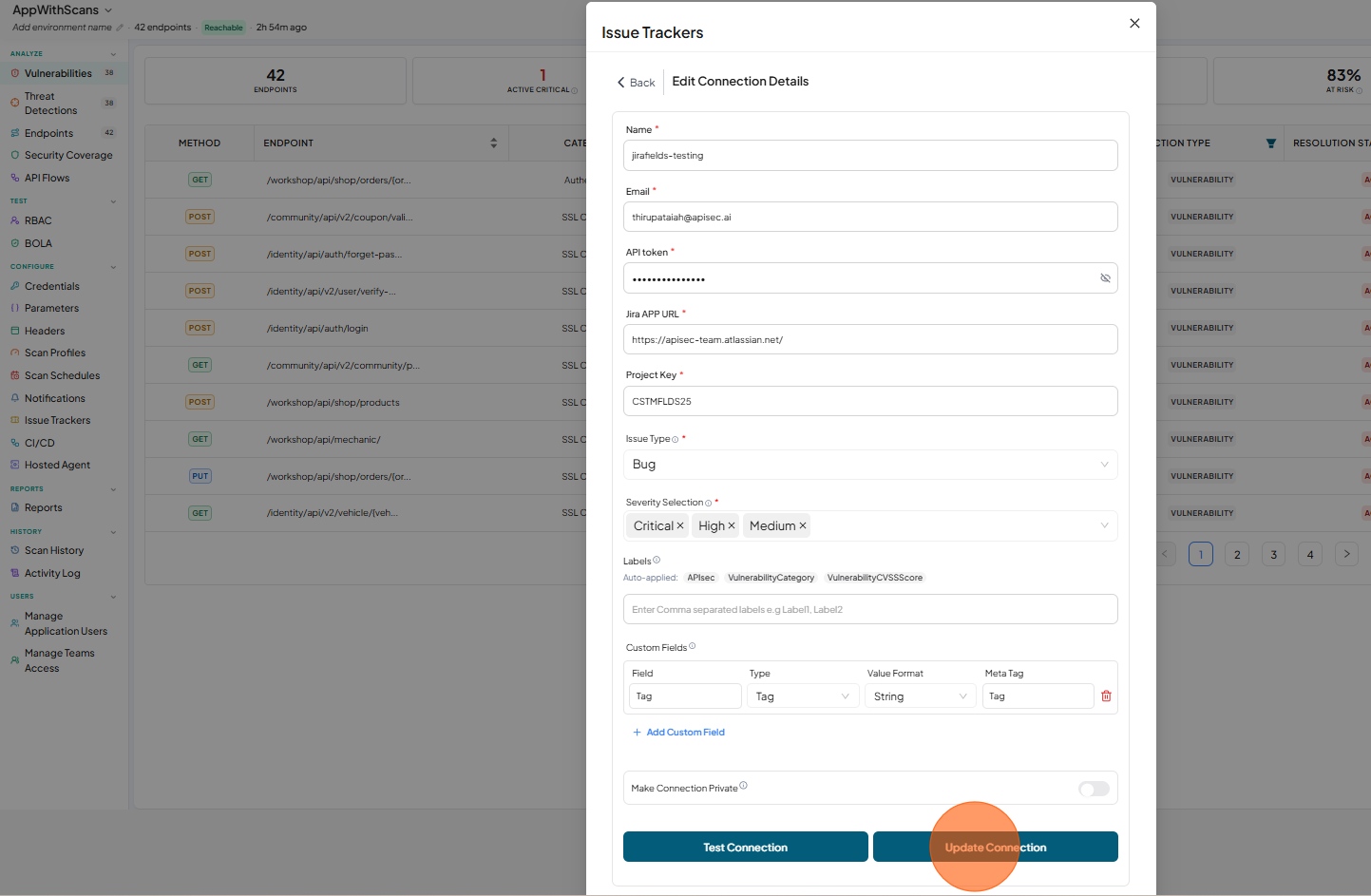
- Open the application, select the environment and go to its Issue Trackers integration.
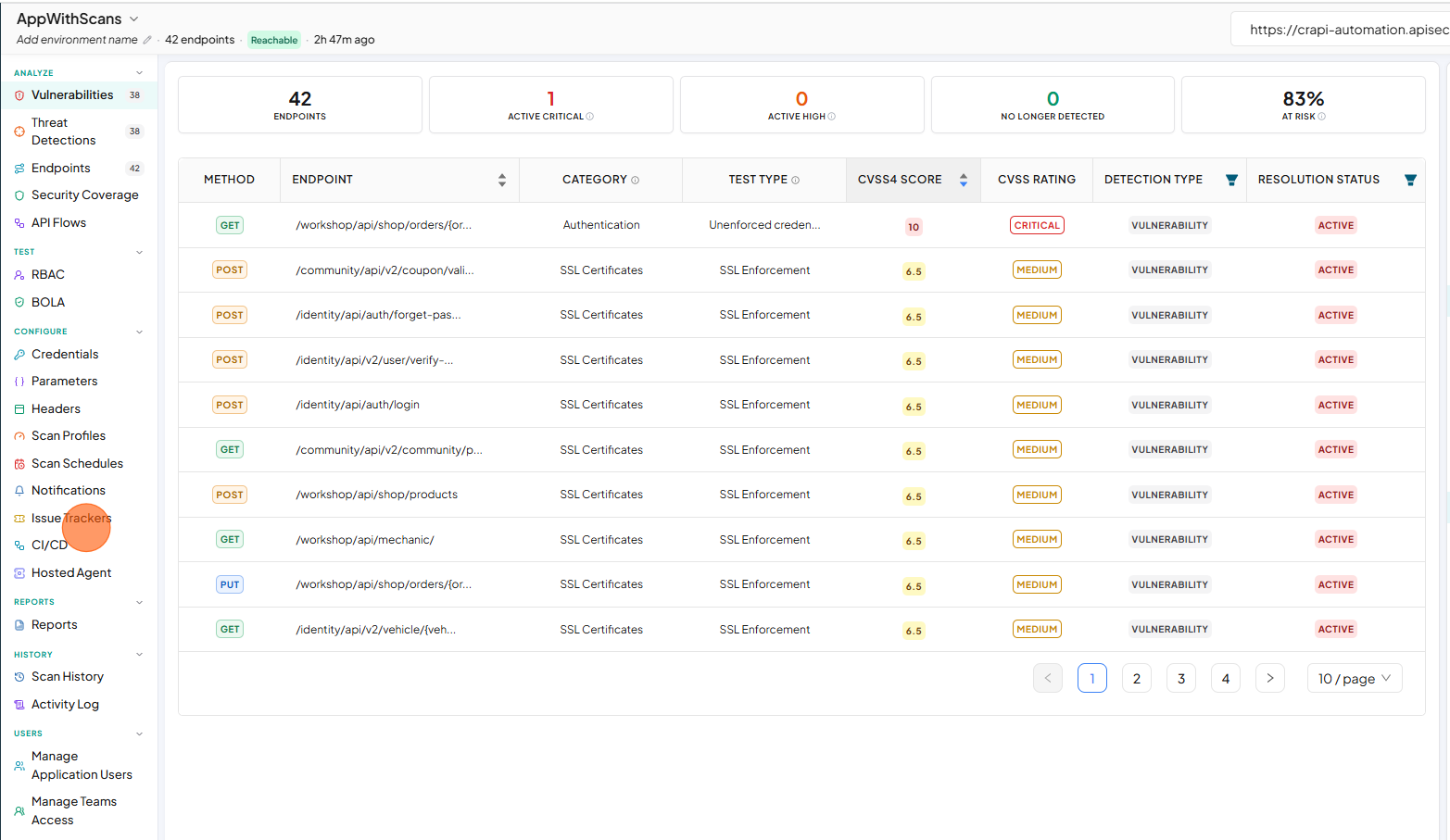
- Create or edit a Jira connection and open the custom field mappings.
- Add a mapping and enter the Jira field name.
- Choose the source:
- Constant: a fixed value used on every ticket.
- Tag: a metadata field whose value is read when the ticket is created.
- For Tag, pick the field from Select a meta tag. The list shows the fields assigned to this environment.
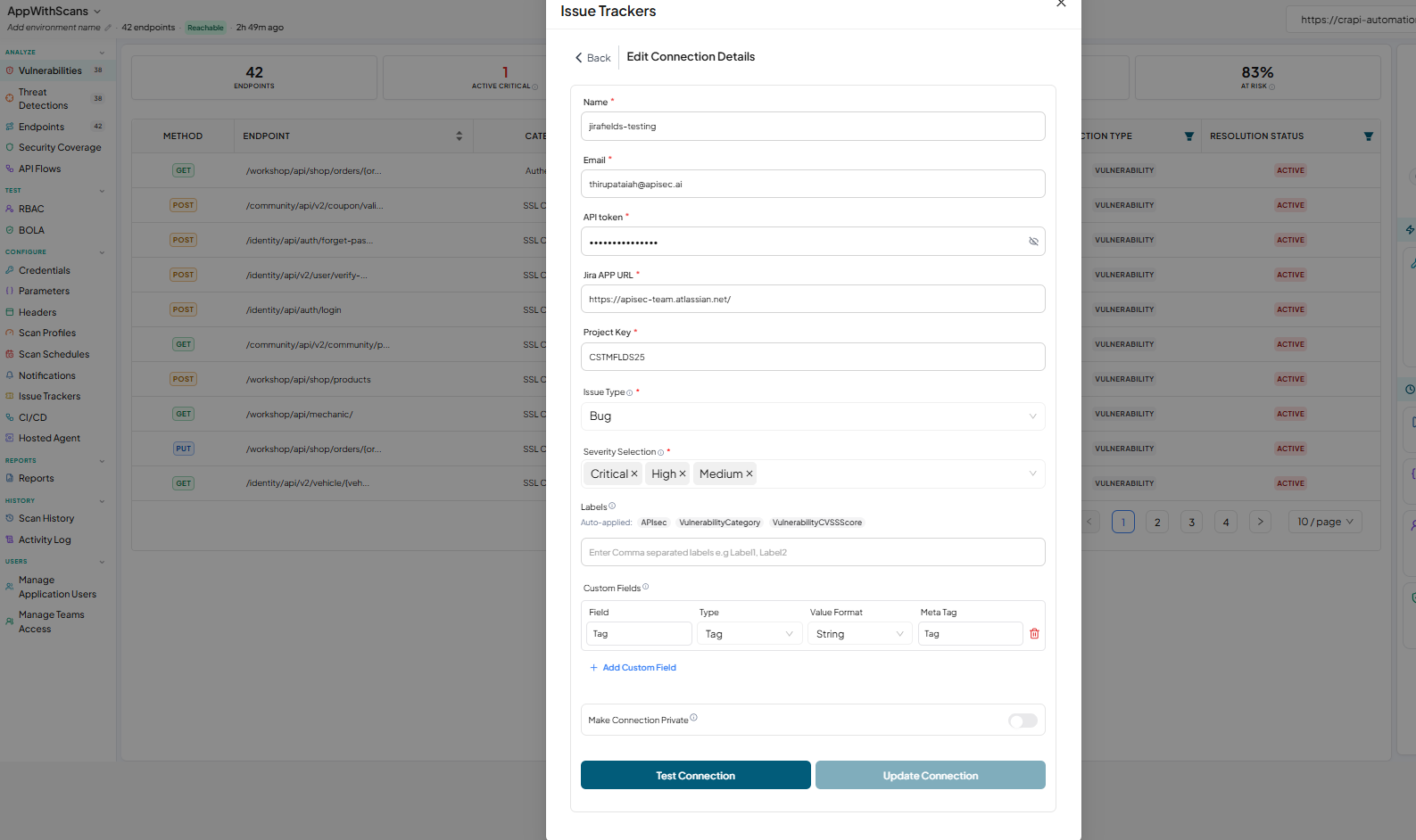
- Click Test connection.
- Click Update connection
8.2 How the value is chosen
- The value is read from the environment at the moment the ticket is created, so later changes to the tag are picked up by new tickets.
- If the field has several values (multi-value ENUM), the first value is used.
- If the environment has no tags yet, the dropdown is replaced with a text box. Type the field name exactly as it appears in Manage Tags, for example "Team".
- A mapping saved earlier stays selectable even if the field is later removed from the environment.
8.3 Validation
| Rule | Message shown |
|---|---|
| Every mapping needs a Jira field name | Field is required |
| Jira field names in a connection are unique, ignoring case | Duplicate field |
| A Tag mapping needs a metadata field | Meta tag is required |
| A Constant mapping needs a value | Value is required |