Notifications
Notifications send you email when something needs your attention — a scan fails, or a token is about to expire. Configure them under Notification Preferences, where you control which events you receive and how often.
These settings control email only. Slack and Microsoft Teams notifications are configured separately under Integrations.
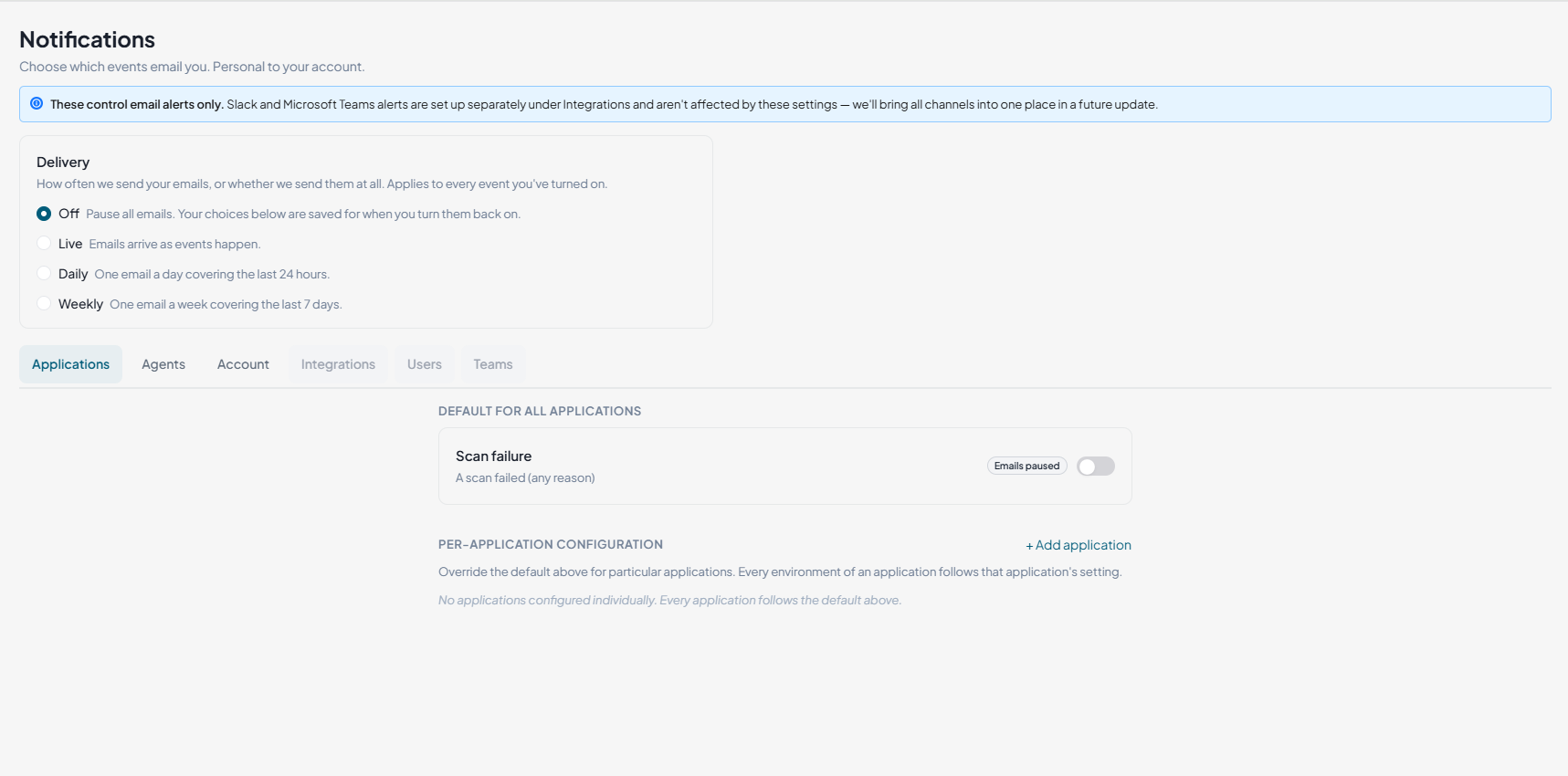
Delivery frequency
Delivery controls how often enabled notifications reach your inbox.
| Option | What it does |
|---|---|
| Off | Pauses all email notifications. Your preferences are saved and restored when you turn delivery back on. |
| Live | Sends an email as soon as a configured event occurs. |
| Daily | Sends one email covering the previous 24 hours. |
| Weekly | Sends one email covering the previous 7 days. |
Applications
The Applications tab configures notifications about your applications. You can set a default that covers every application, or override it for a specific one.
Set the default for all applications
The default applies to every application in your account.
-
Go to Notifications.
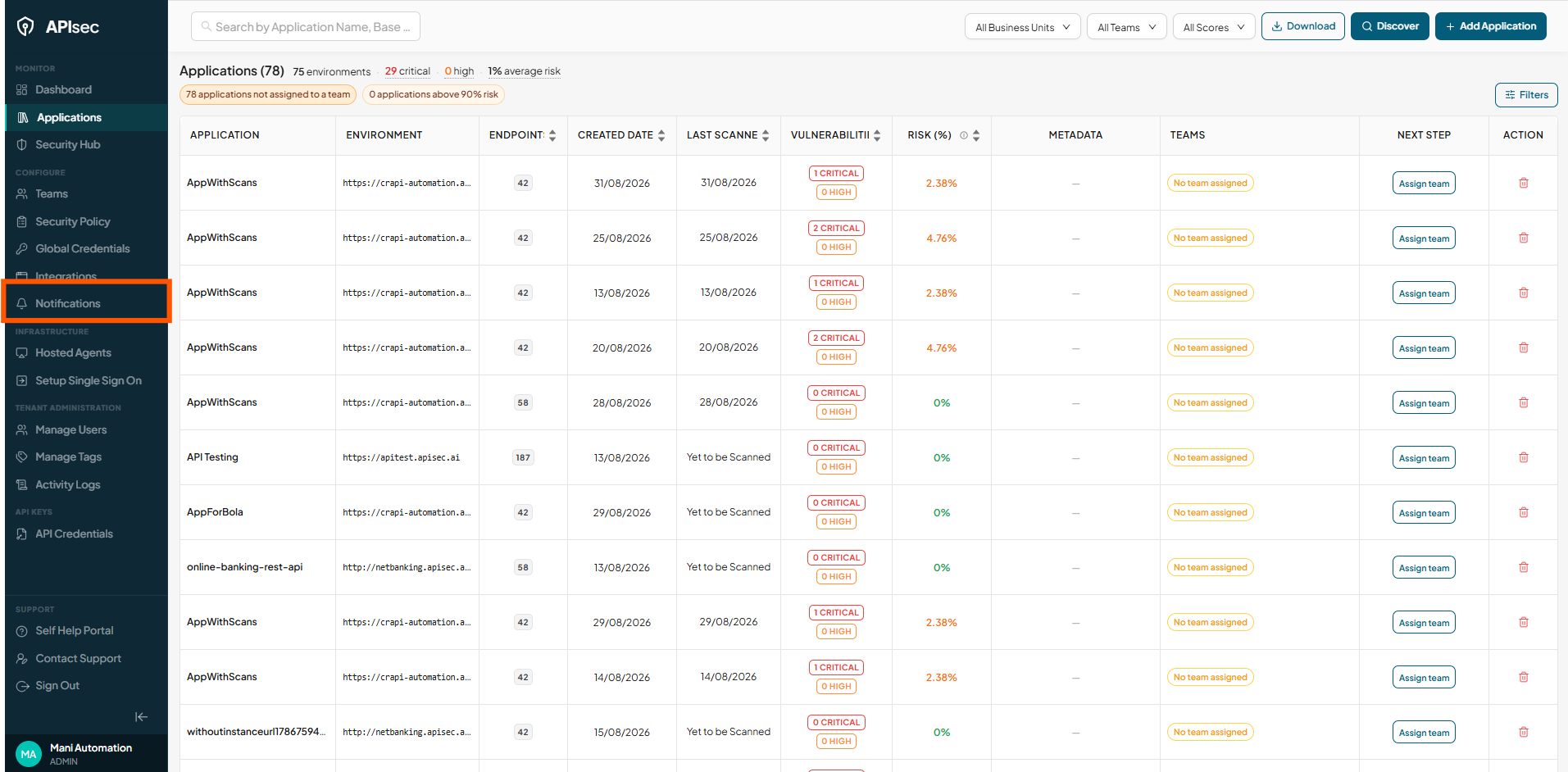
-
Select a delivery frequency: Live, Daily, or Weekly.
-
Open the Applications tab.
-
Under Default for All Applications, find the event — for example Scan failure.
-
Turn the toggle on.
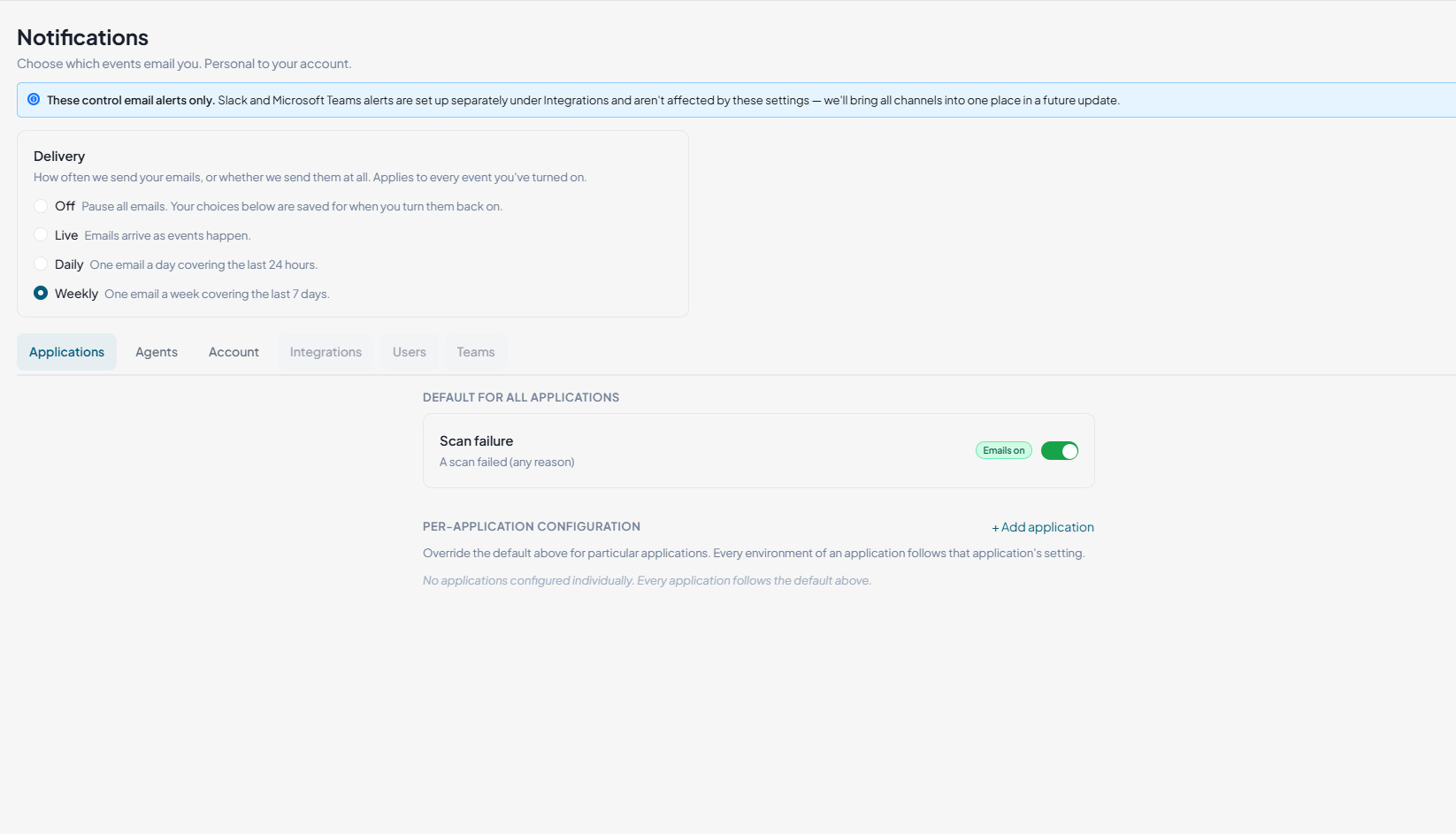
The setting becomes the default for every application. Enabling Scan failure here, for example, turns on scan-failure email for all applications except those with their own configuration.
Override it for one application
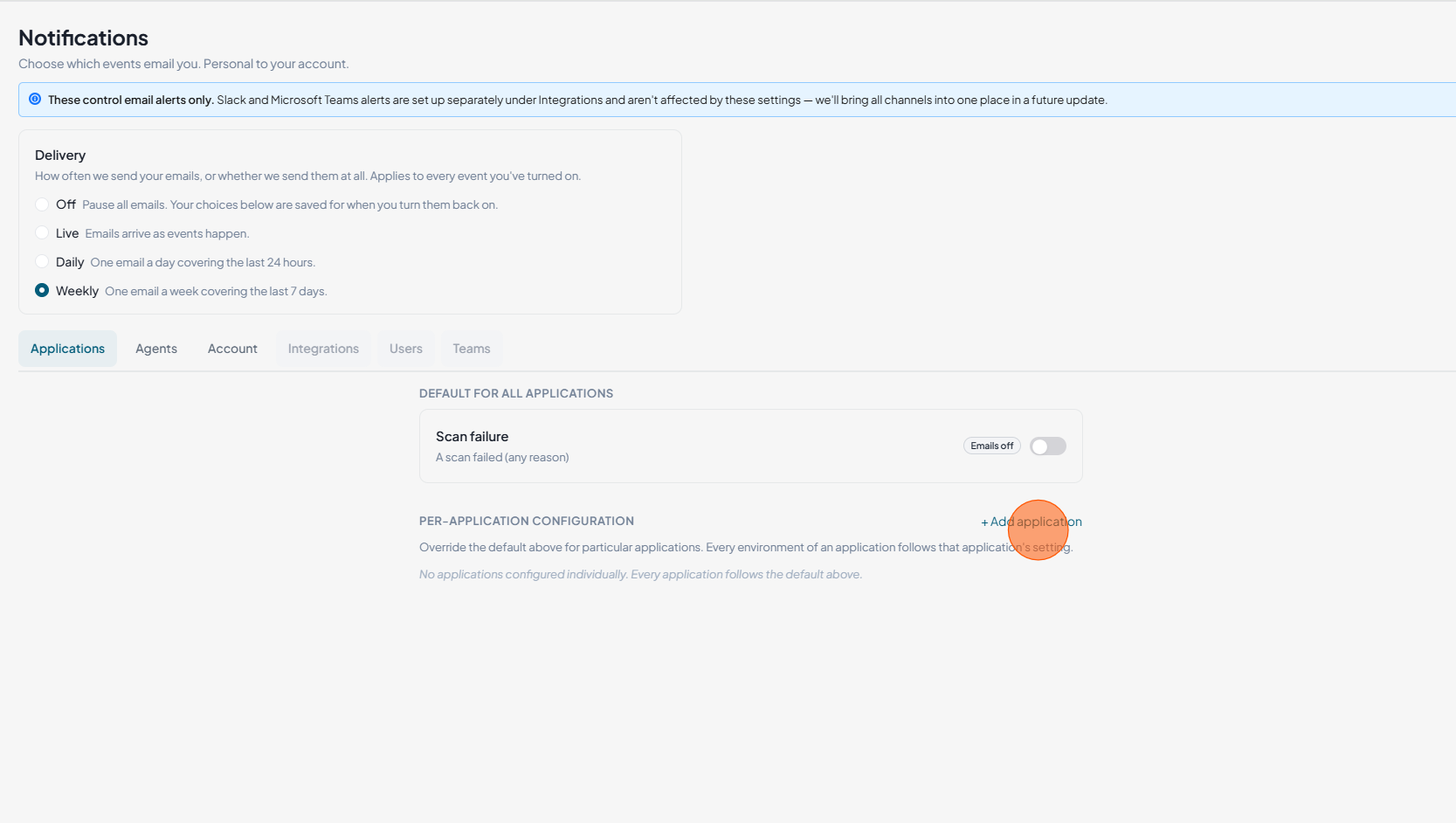
Use a per-application configuration when one application needs different settings from the default.
-
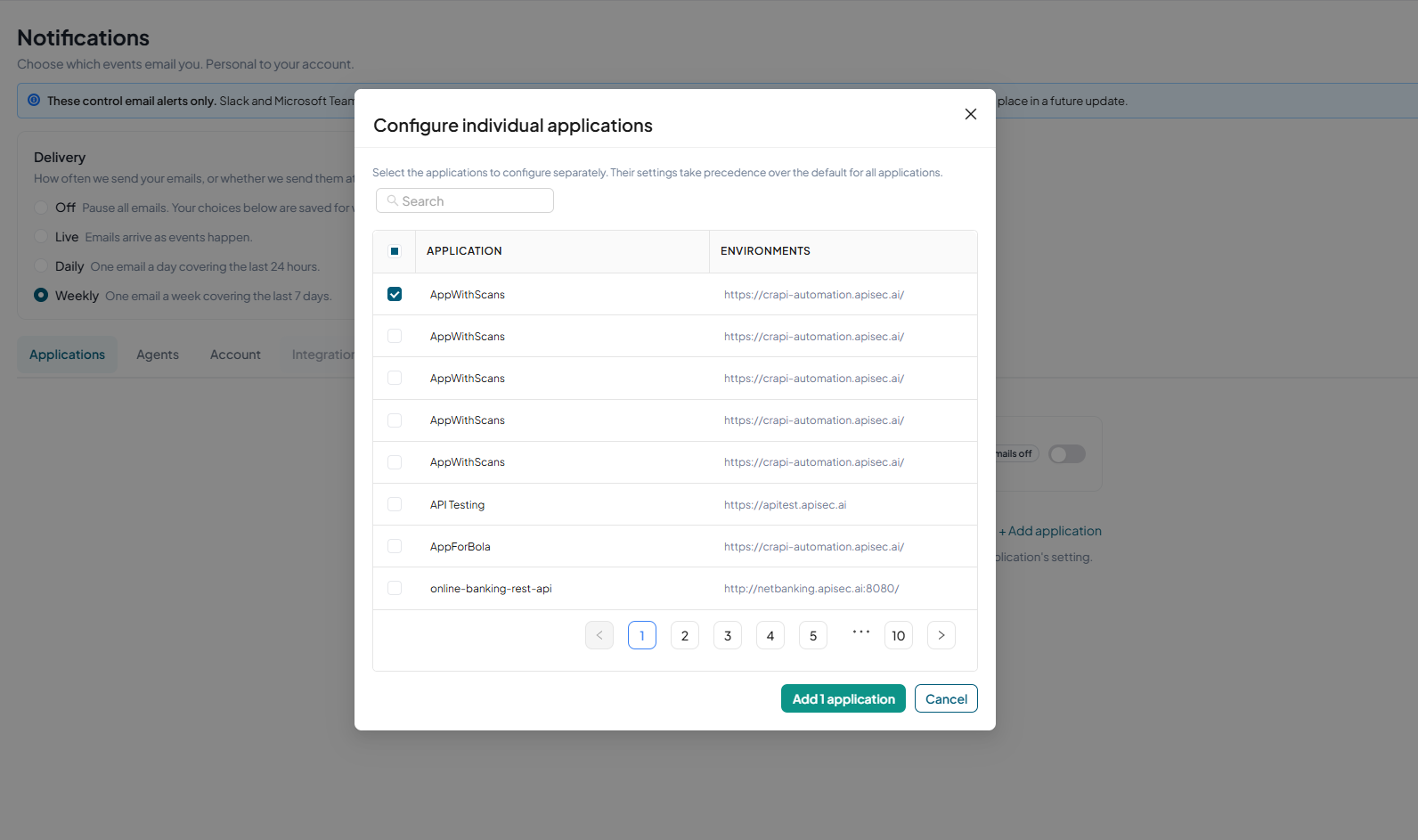
Click Add application.
-
Select the application and click Add application.
-
Configure that application's notifications independently of the default.
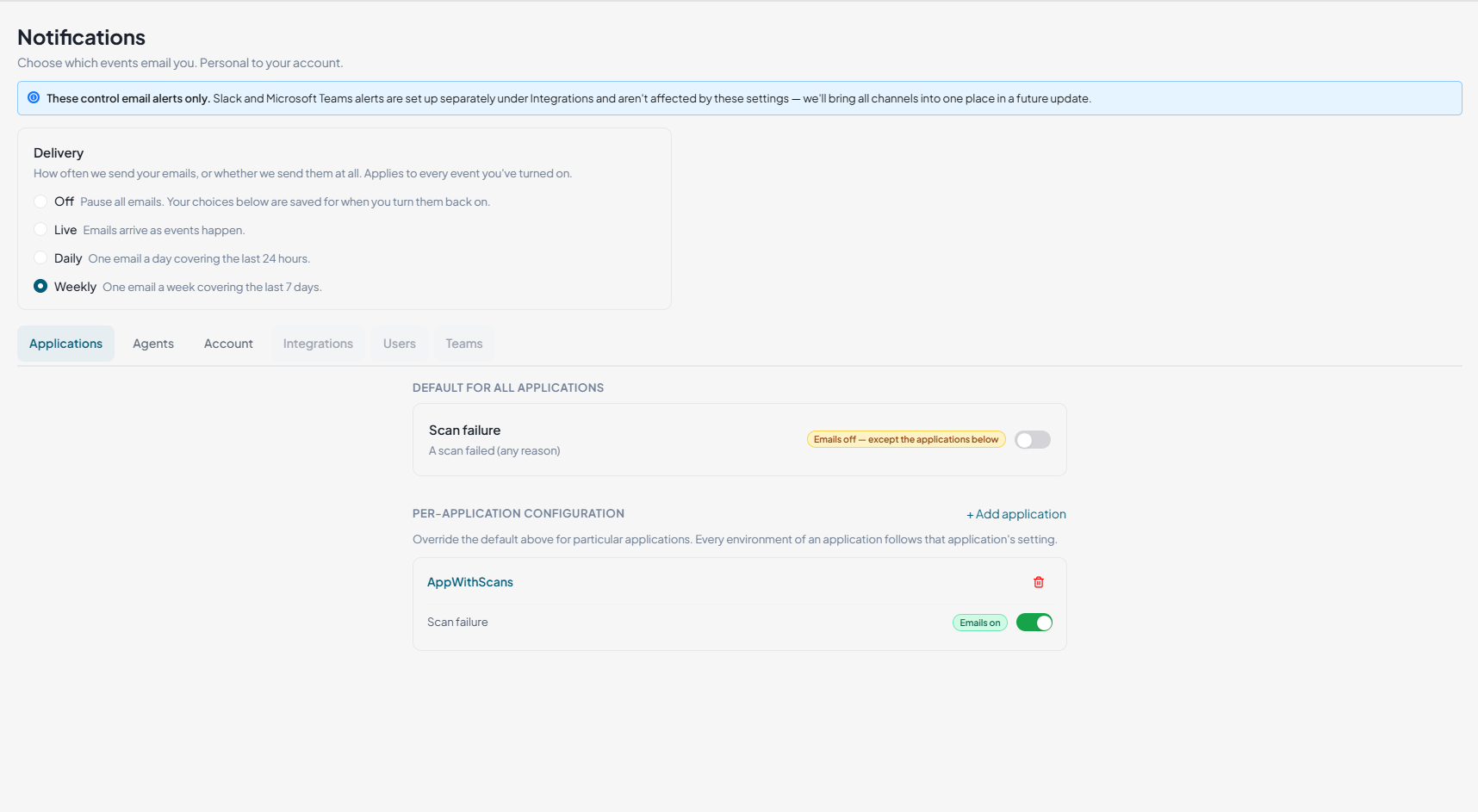
Use the toggle to enable or disable each notification, or the delete icon to remove the application-specific configuration and fall back to the default.
Agents
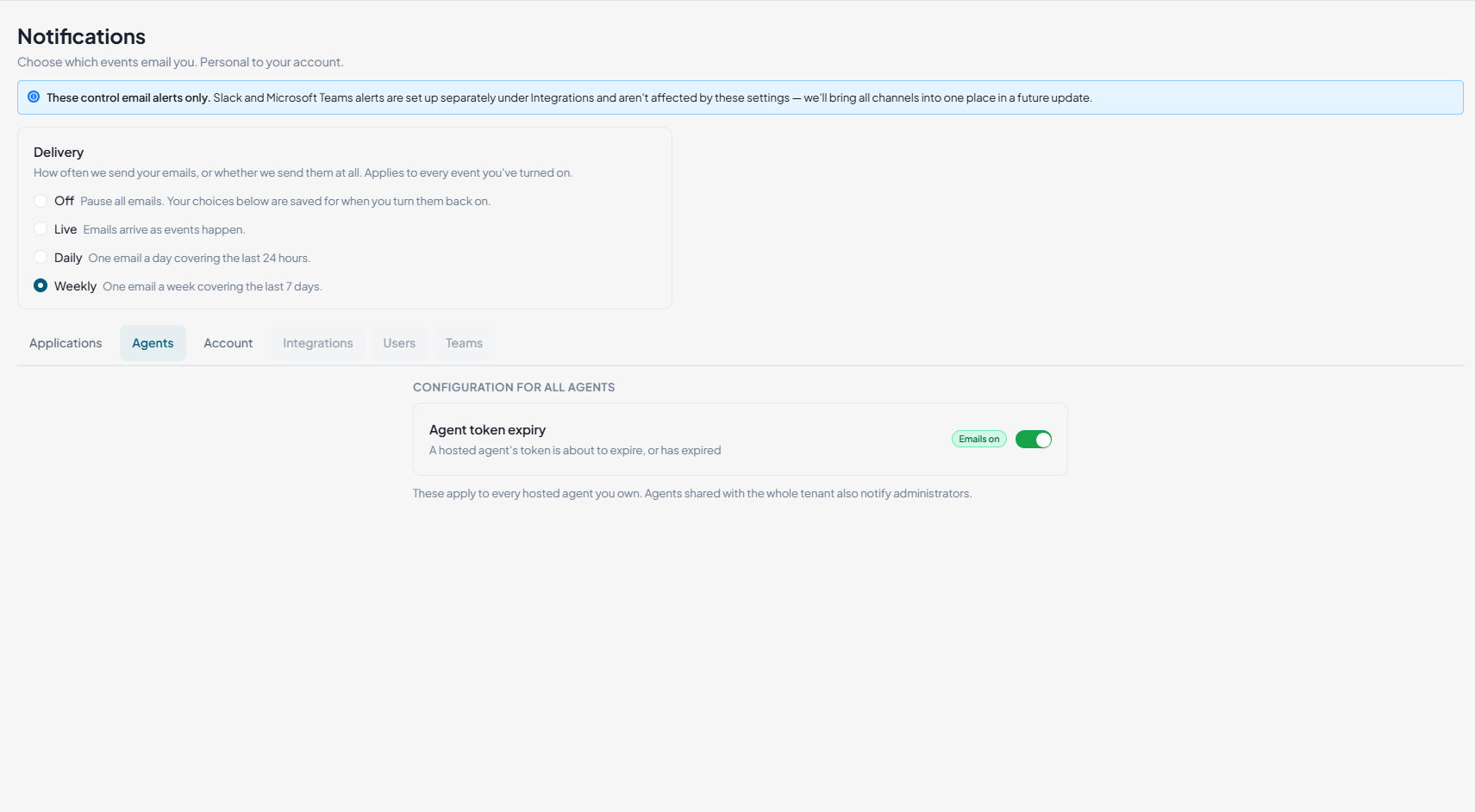
The Agents tab manages email for hosted agent token expiry. Enable Agent token expiry to be alerted when an agent's token is close to expiring or has already expired.
Account
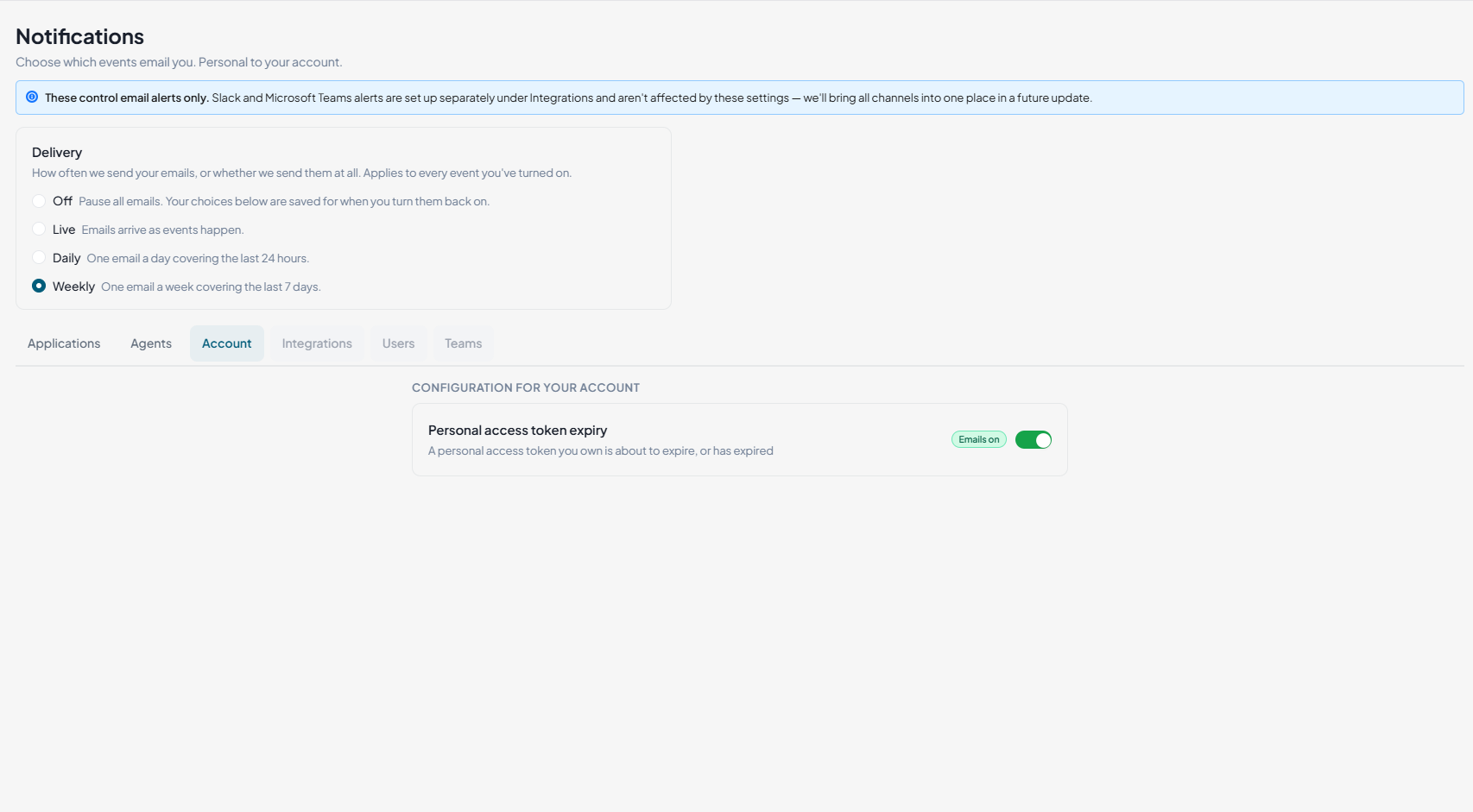
The Account tab manages email for Personal Access Token expiry. Enable Personal access token expiry to be alerted when your token is close to expiring or has already expired.
Related
- API Credentials — create and rotate the tokens these alerts track.
- Integrations — Slack and Microsoft Teams notifications.