About APIsec Browser Bolt
The Browser Bolt Integration simplifies and accelerates application onboarding by capturing and updating parameters and payloads directly from your web application. It reduces the effort required to configure endpoints and ensures they are automatically test-ready. Additionally, it enhances security coverage throughout the onboarding process.
Install and Configure Browser Bolt Plugin
Follow these steps to set up and use the Browser Bolt plugin for capturing parameters and payloads:
Download the Extension
- Visit the Chrome Web Store and install the APIsec Bolt browser extension. APIsec Browser Bolt
Verify Installation and Use the Plug-in
-
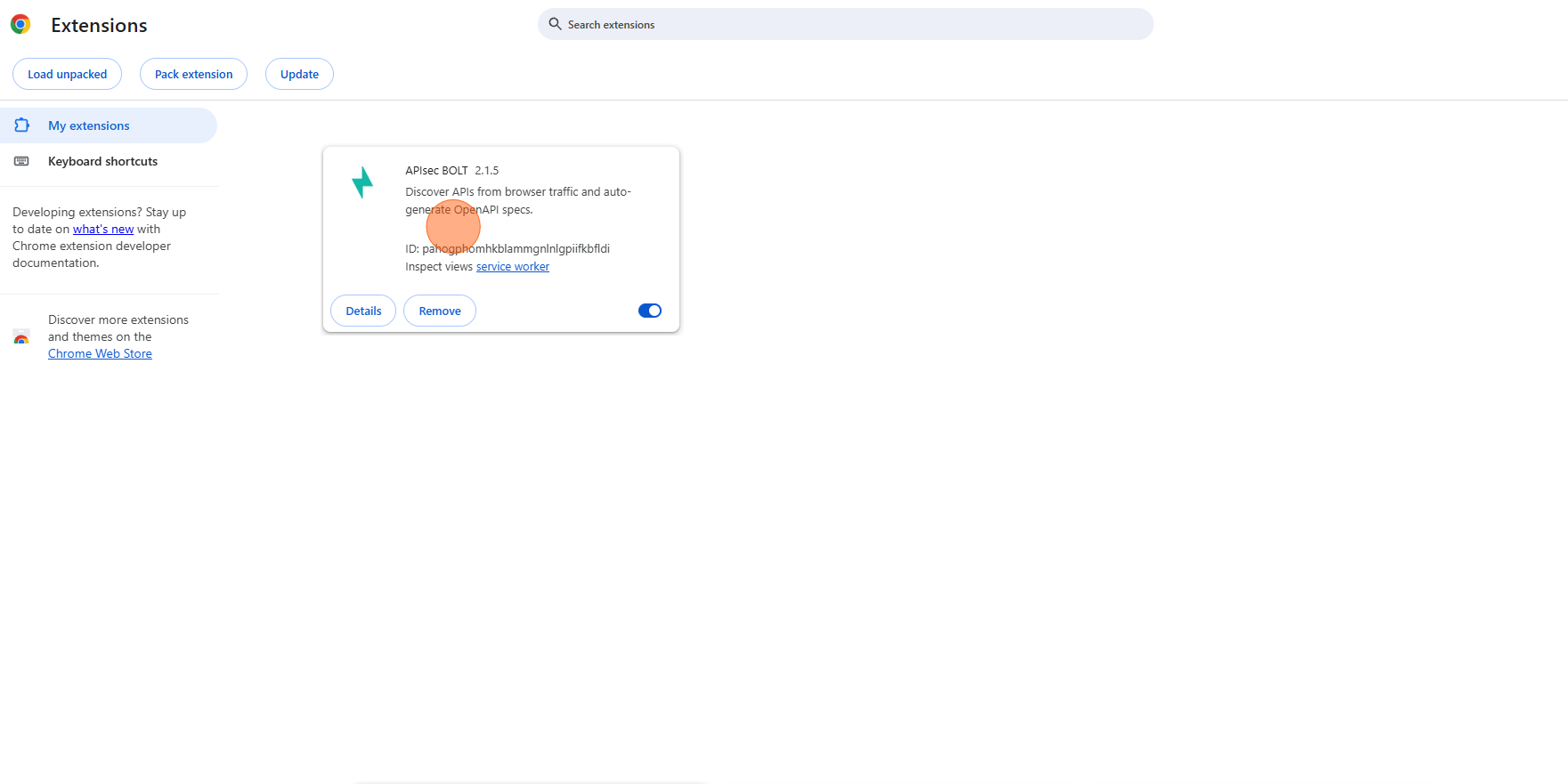
Confirm that the extension appears in your Extensions list and is enabled.
-
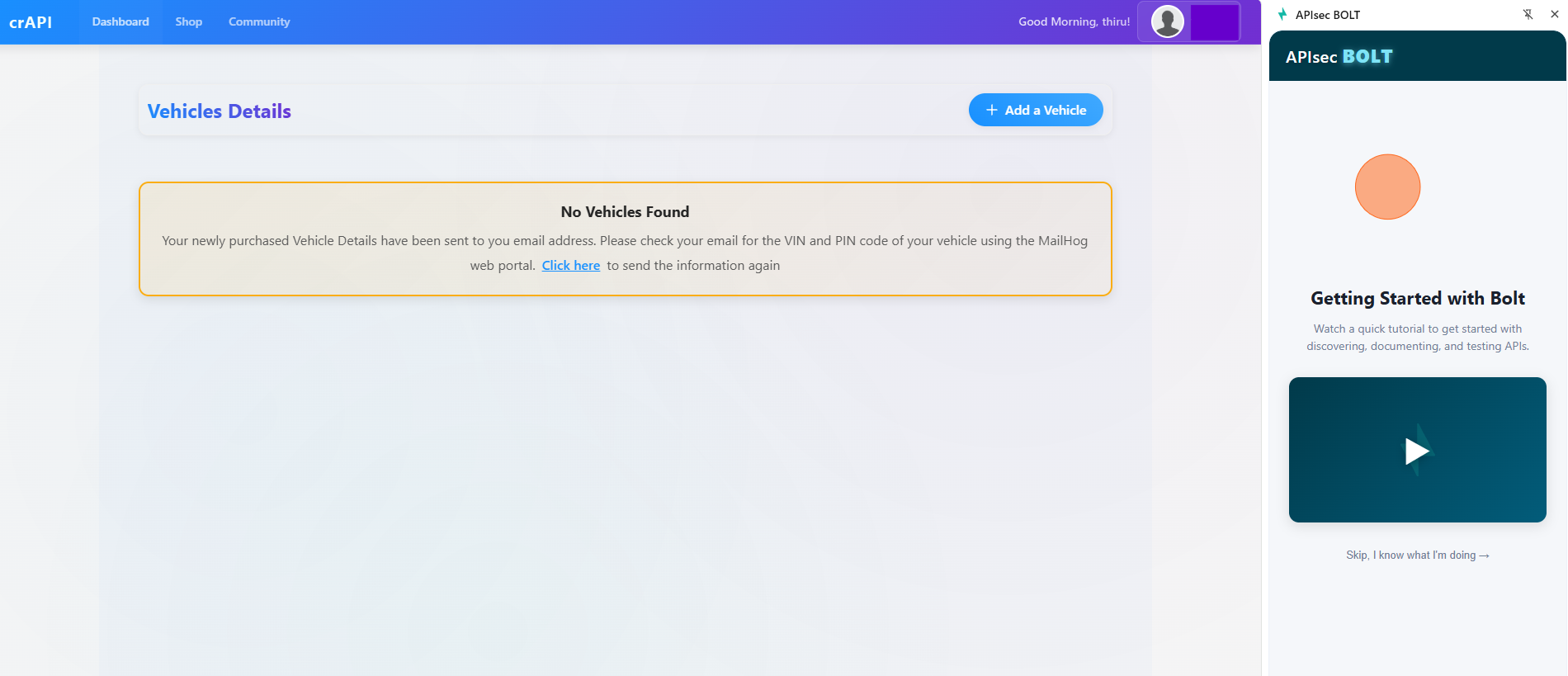
Launch the Browser Bolt Plugin.
-
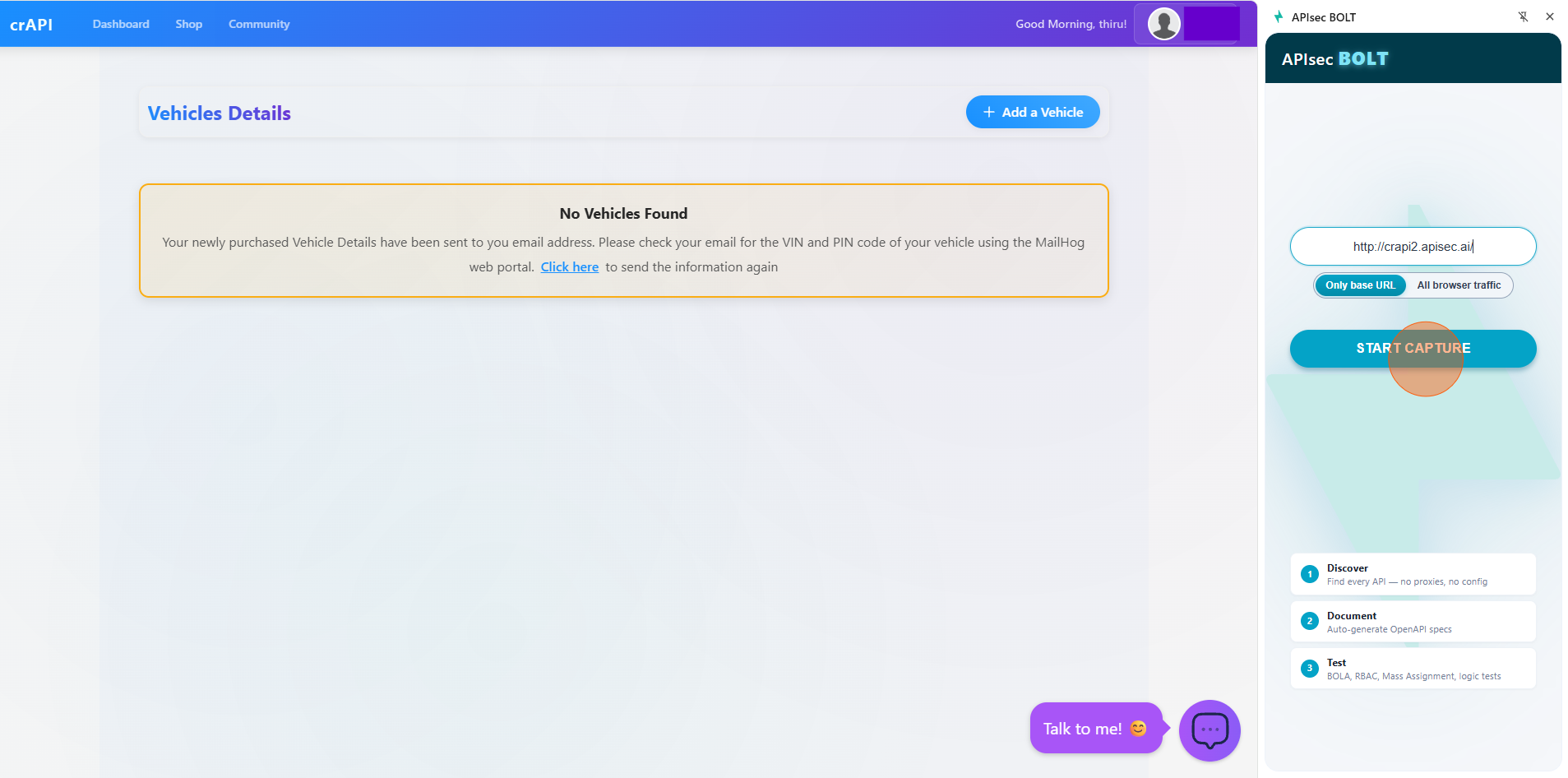
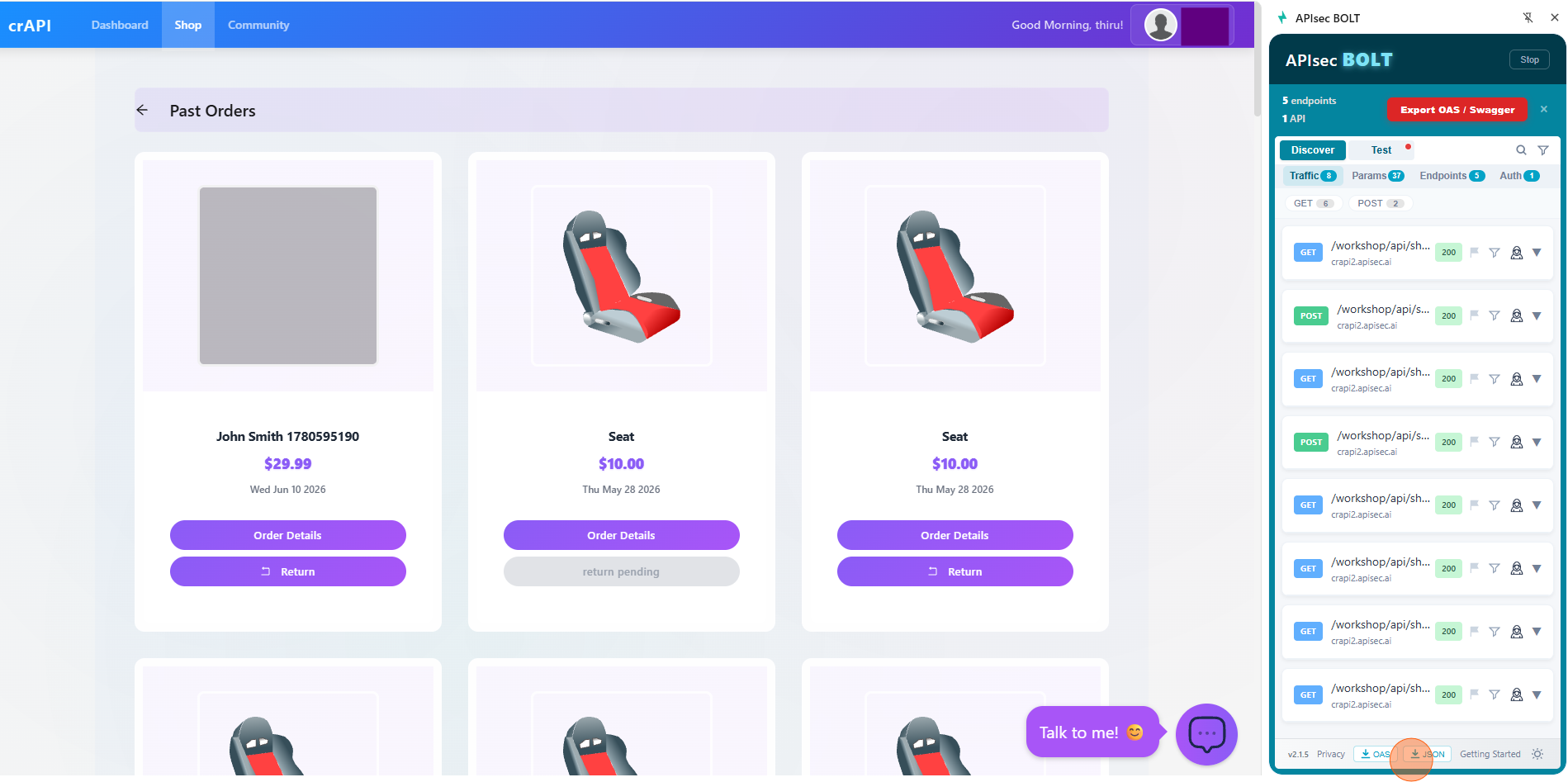
Enter base URL and click START CAPTURE. The plug-in will start capturing requests.
-
Interact with the web application to generate and capture API requests.
-
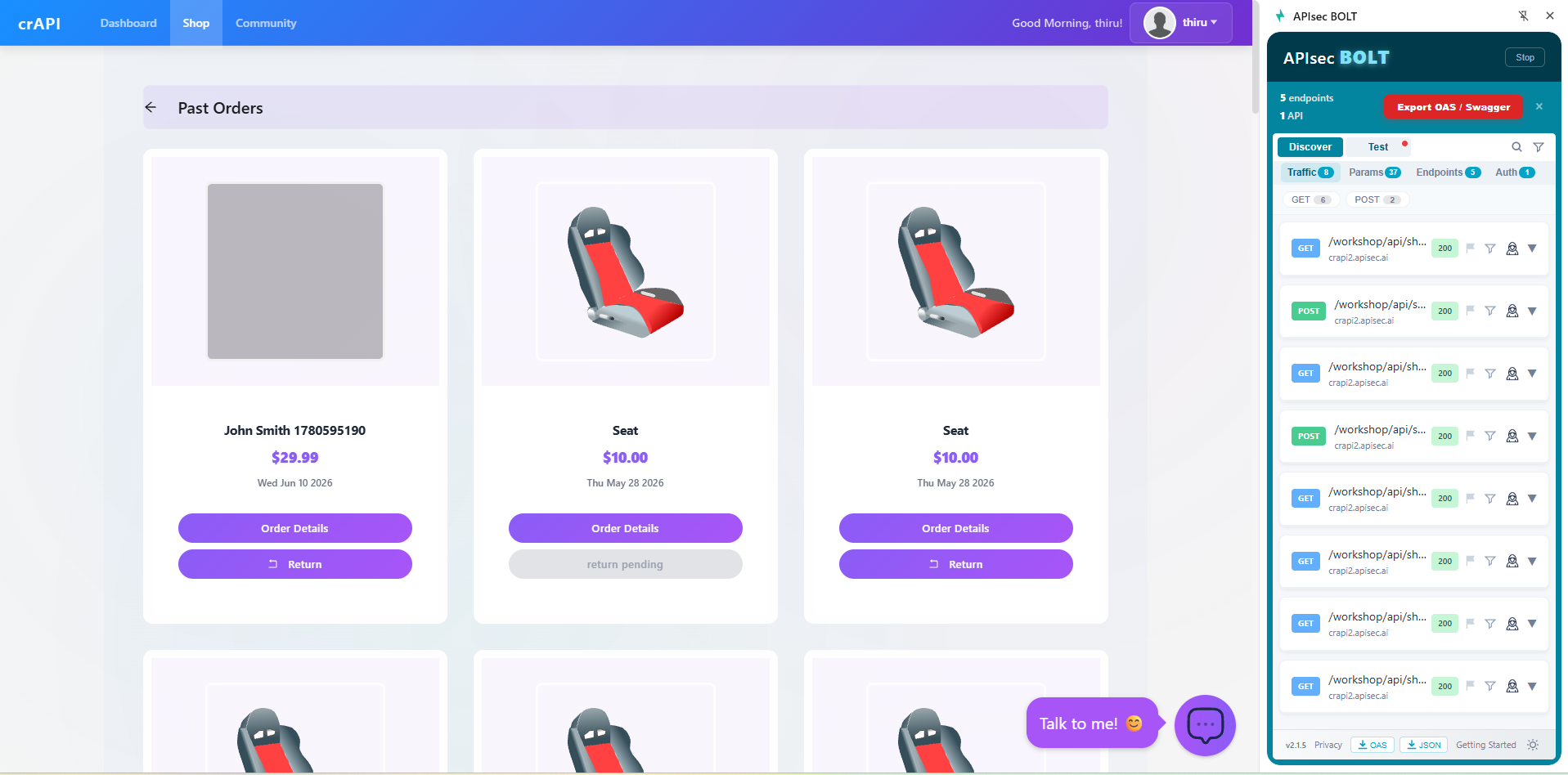
Perform the desired actions and workflows in the web application. APIsec Bolt automatically captures the corresponding API traffic and lists the discovered endpoints, methods, and requests in real time.
-
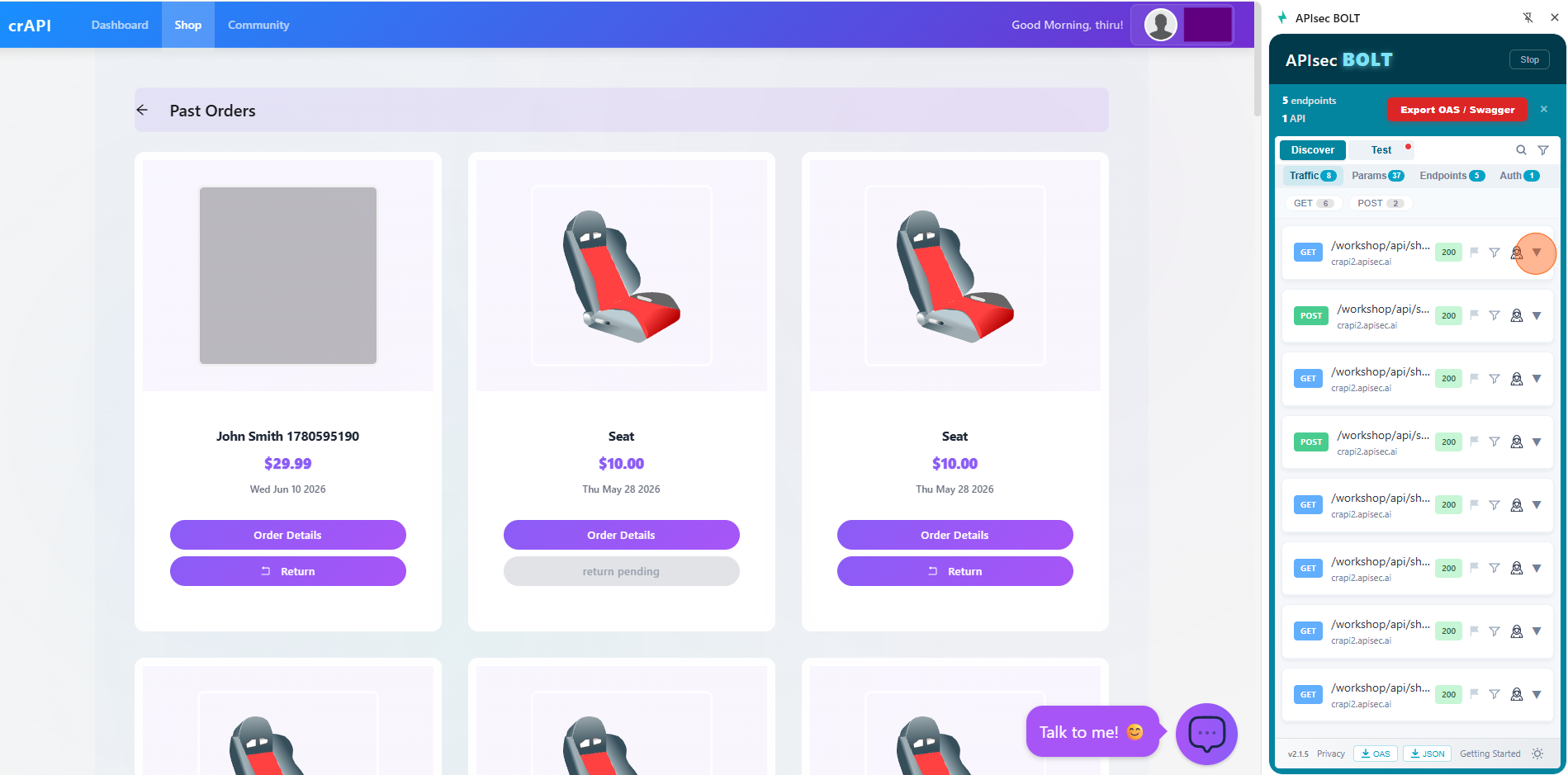
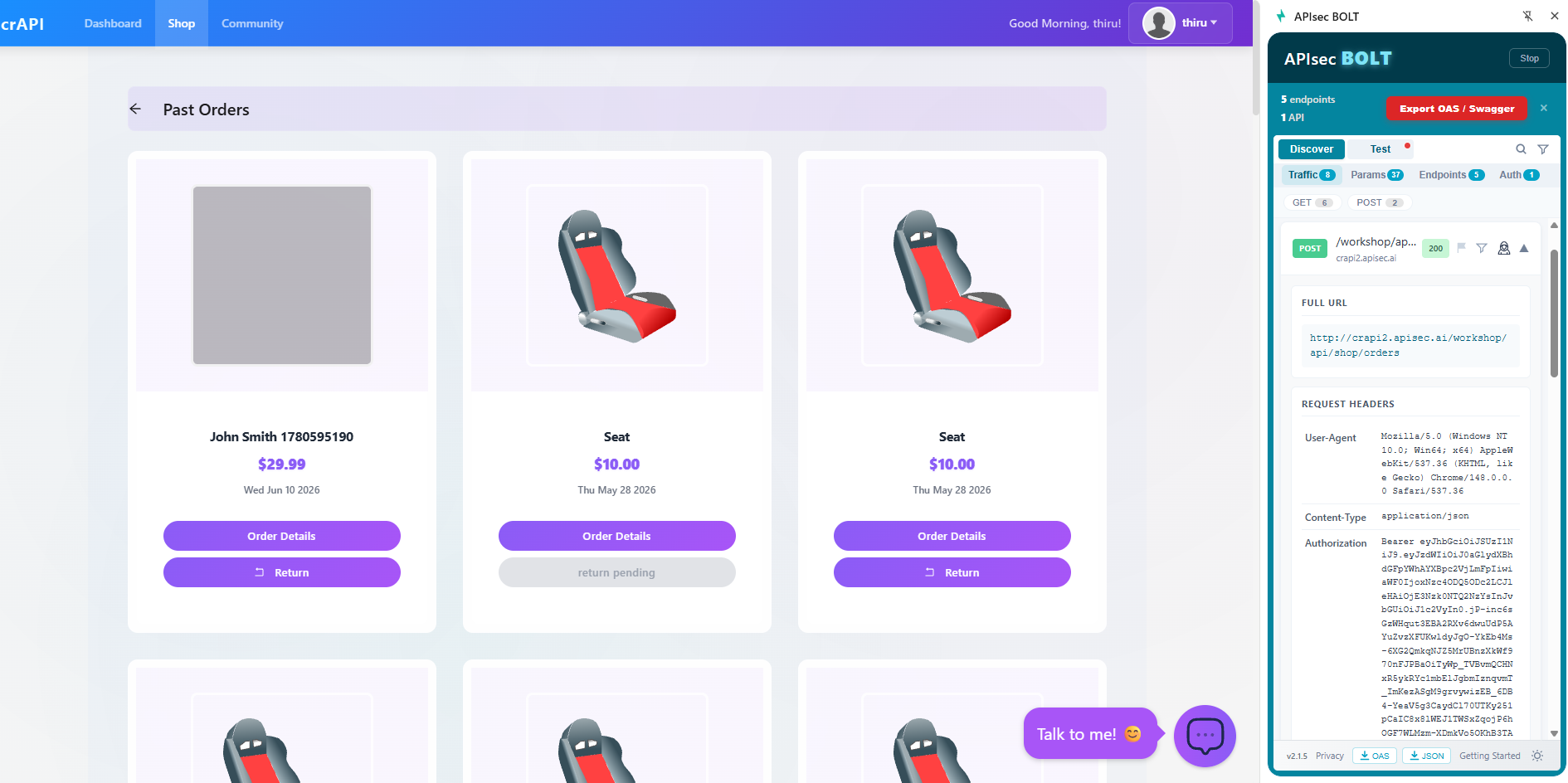
Click the down-arrow icon next to a captured endpoint to view additional request details, including the full URL, request headers, authentication information, and other metadata captured by the APIsec Bolt extension.
-
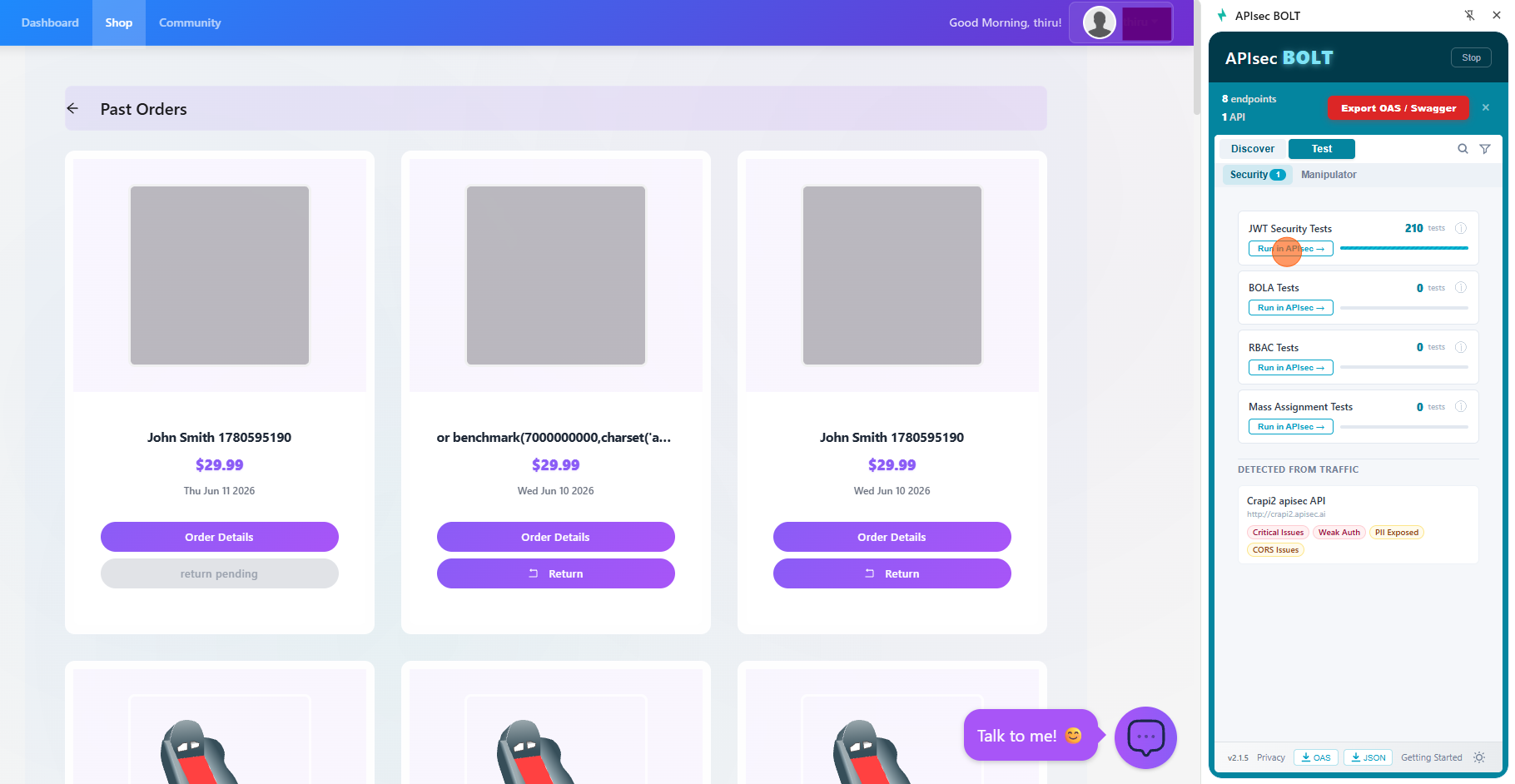
Once the endpoints have been discovered, click the Test tab to view the available security tests. Select the desired test category and click Run in APIsec to initiate testing of the discovered API in APIsec.
-
Download the captured endpoints in your preferred format: OpenAPI Specification (OAS) or JSON.
Endpoint Schema Update via Browser Bolt
Parameters and payloads captured directly from the client's web applications using the Browser Bolt plugin can now be imported into the platform.By uploading a Browser Bolt file under the application’s Endpoints tab, the platform automatically matches and hydrates endpoints with valid data once confirmed.
-
Open your browser and visit: https://<your-tenant>.apisecapps.com
-
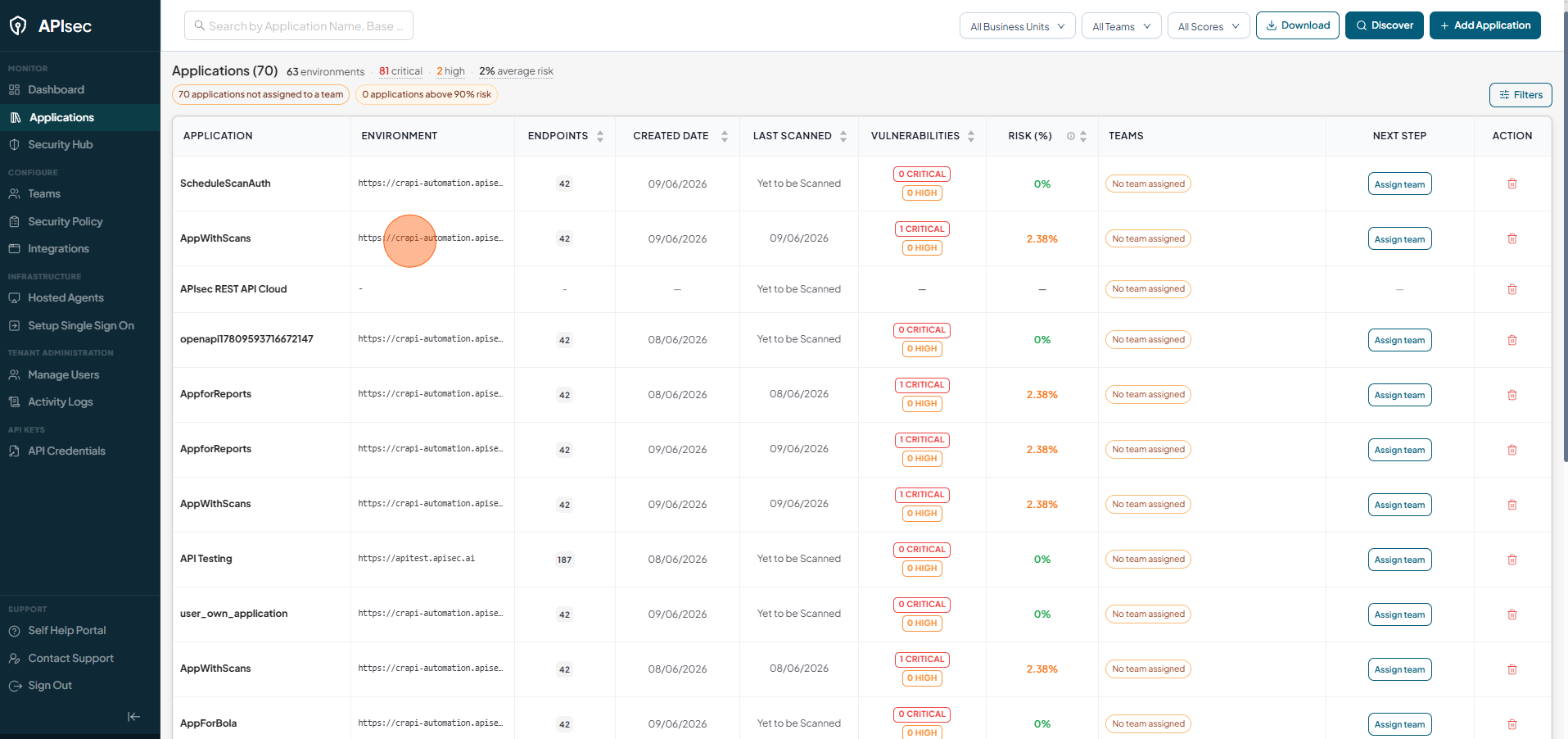
Click on selected application
-
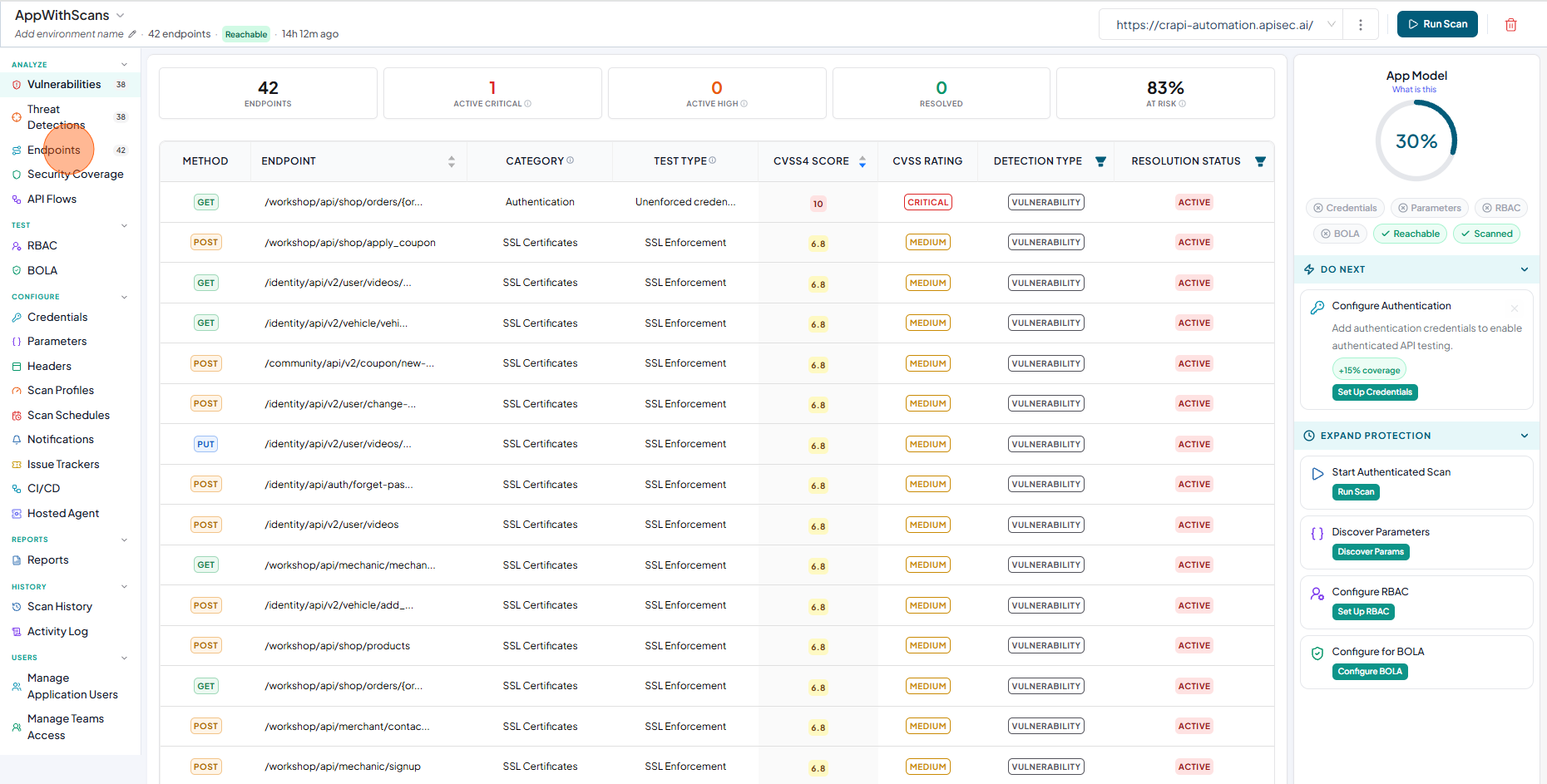
Navigate to Endpoints tab.
-
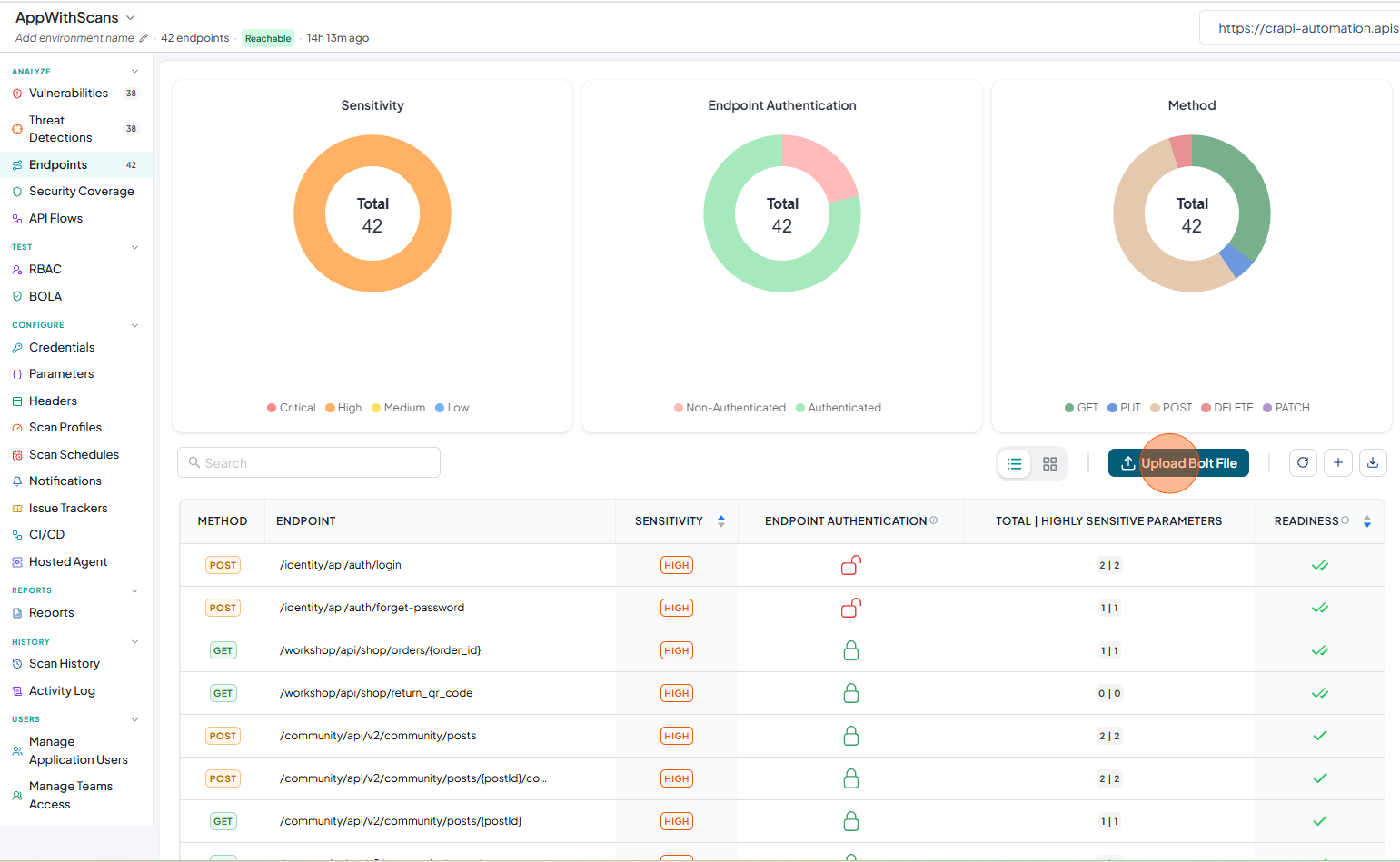
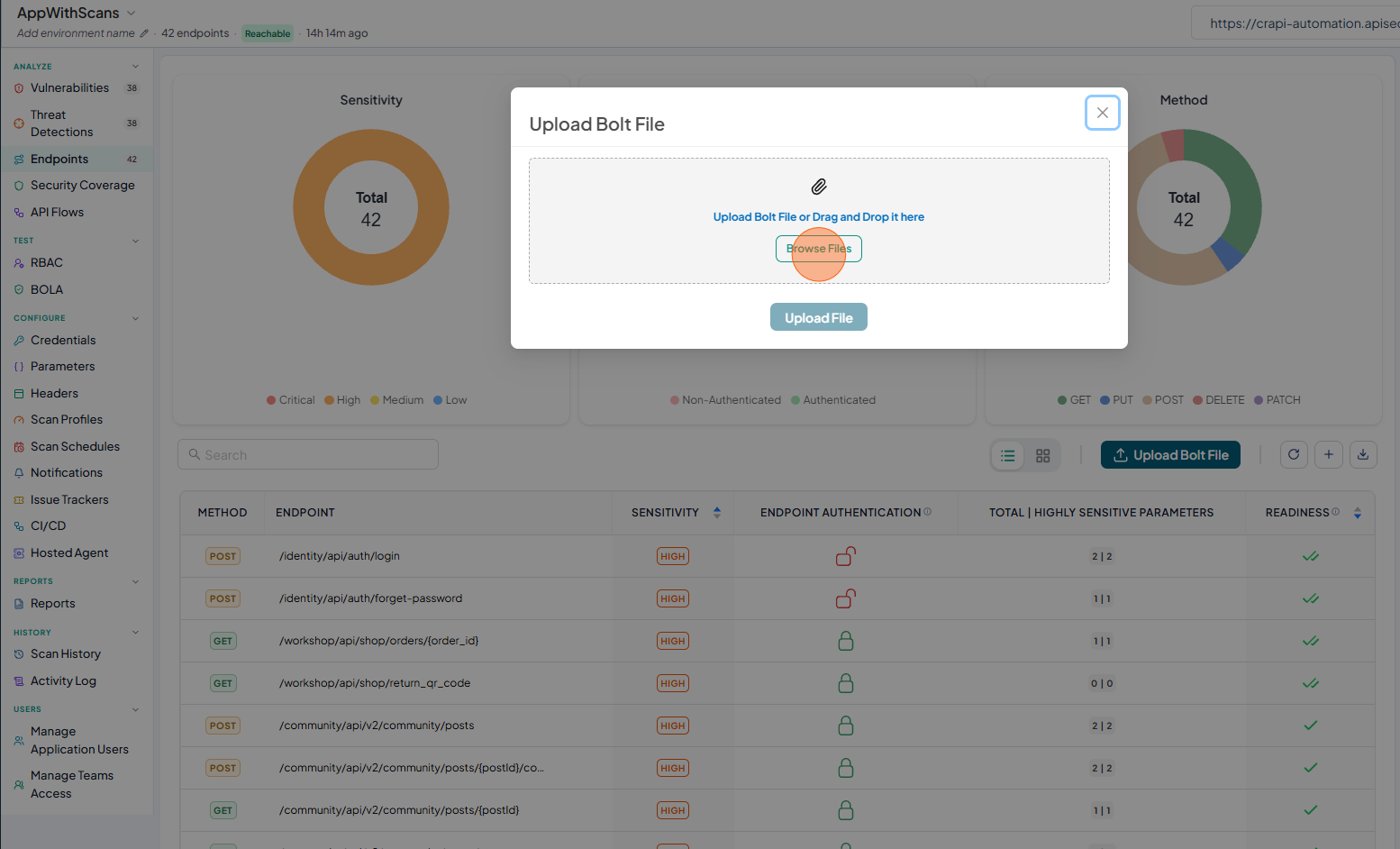
Now click the Upload Browser Bolt File button.
-
The Browse Files option allows you to upload your Browser Bolt file exported from the Browser Bolt plug-in.
-
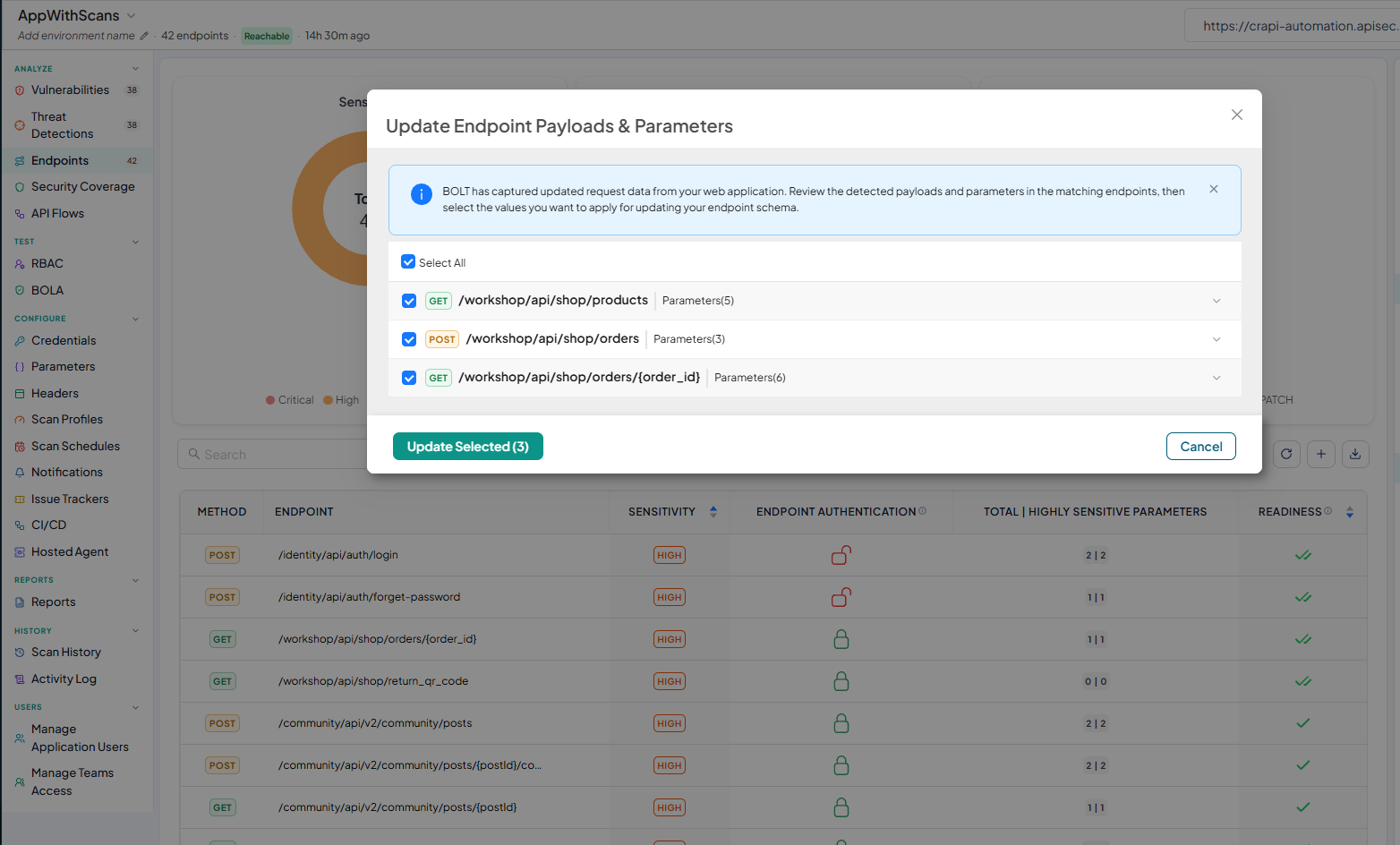
You will now see the detected payloads and parameters for the endpoints that exist in the application.
-
You can select the endpoints that you want to update with the latest parameters and payloads captured using the Browser Bolt Plug-in.
-
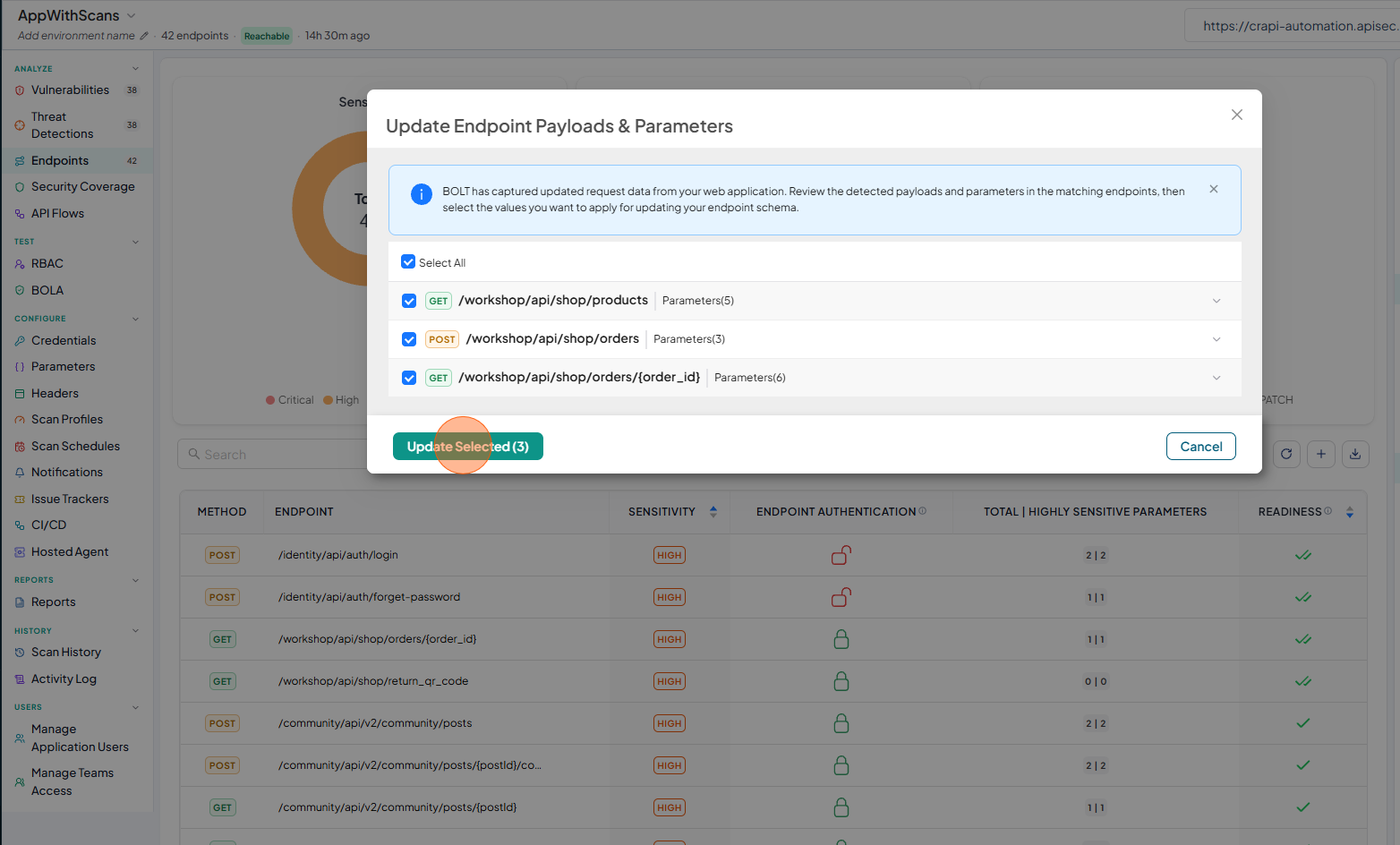
Now click the Update Selected button to complete the task.In the preview, you can review the updated values and see newly identified parameters, which are tagged as New.
-
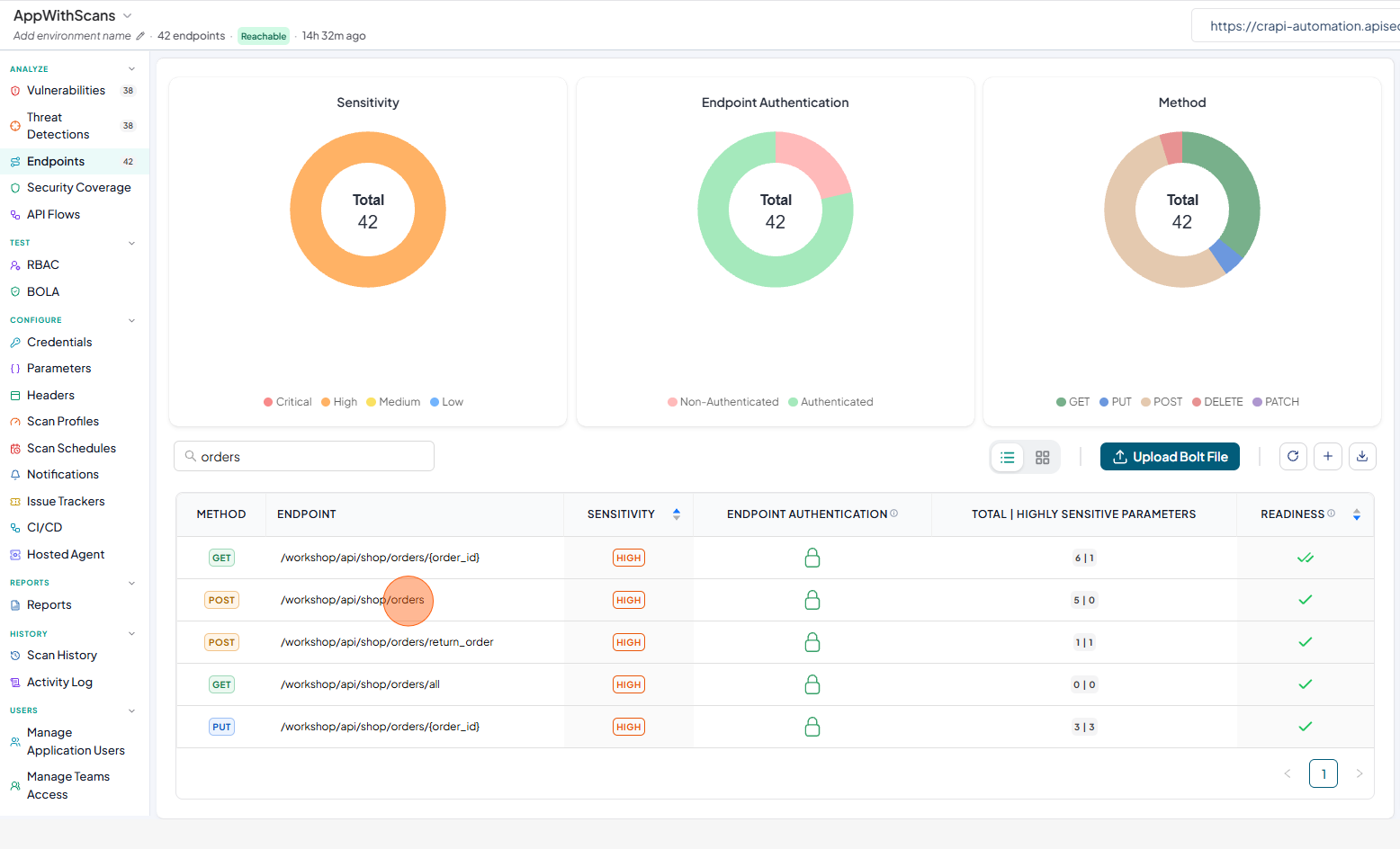
Click the selected endpoint from the list of endpoints to see the updated parameters.
-
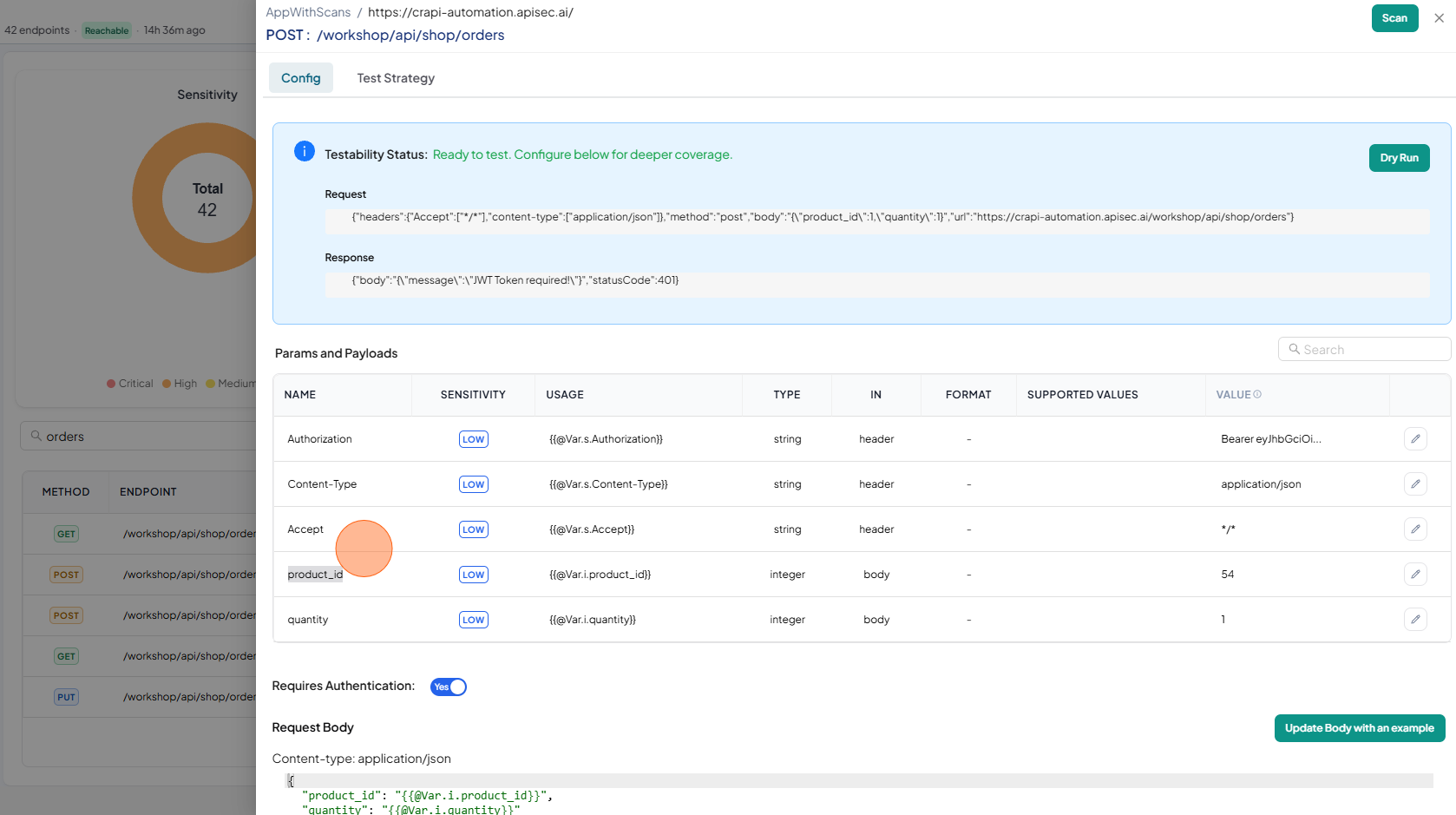
In the parameters configuration of the endpoint,
product_idvalue has been updated. -
In the parameters configuration of the endpoint,
acceptparameter has been newly added to the list.