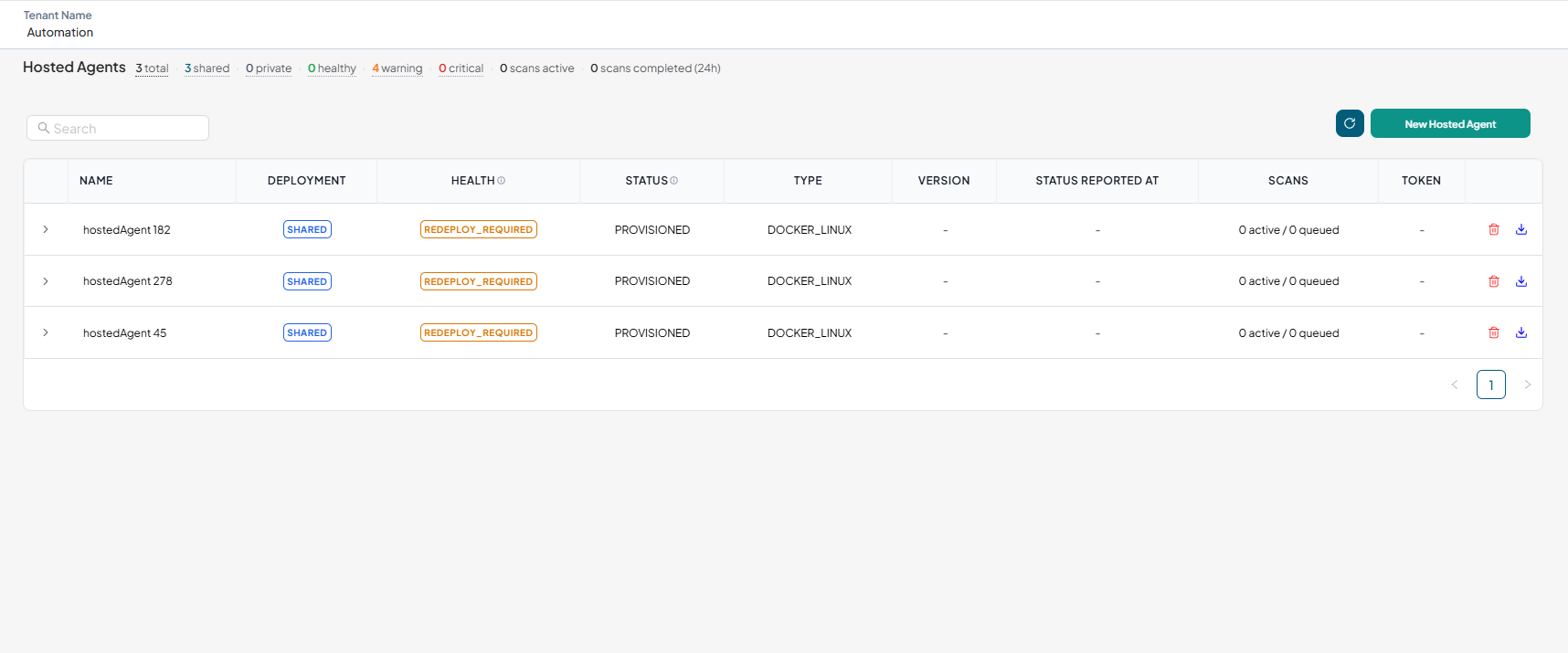
Create a Hosted Agent
A hosted agent is a lightweight component deployed within your environment that communicates with the APISec platform and performs API discovery, testing, and security scanning from inside the network boundary.
Hosted agents allow organizations to assess the security of private APIs without exposing them to the public internet, ensuring that sensitive applications remain protected while still benefiting from comprehensive API security testing.
Creating Hosted Agent
-
Navigate to URL
Open your browser and visit: https://<your-tenant>.apisecapps.com
-
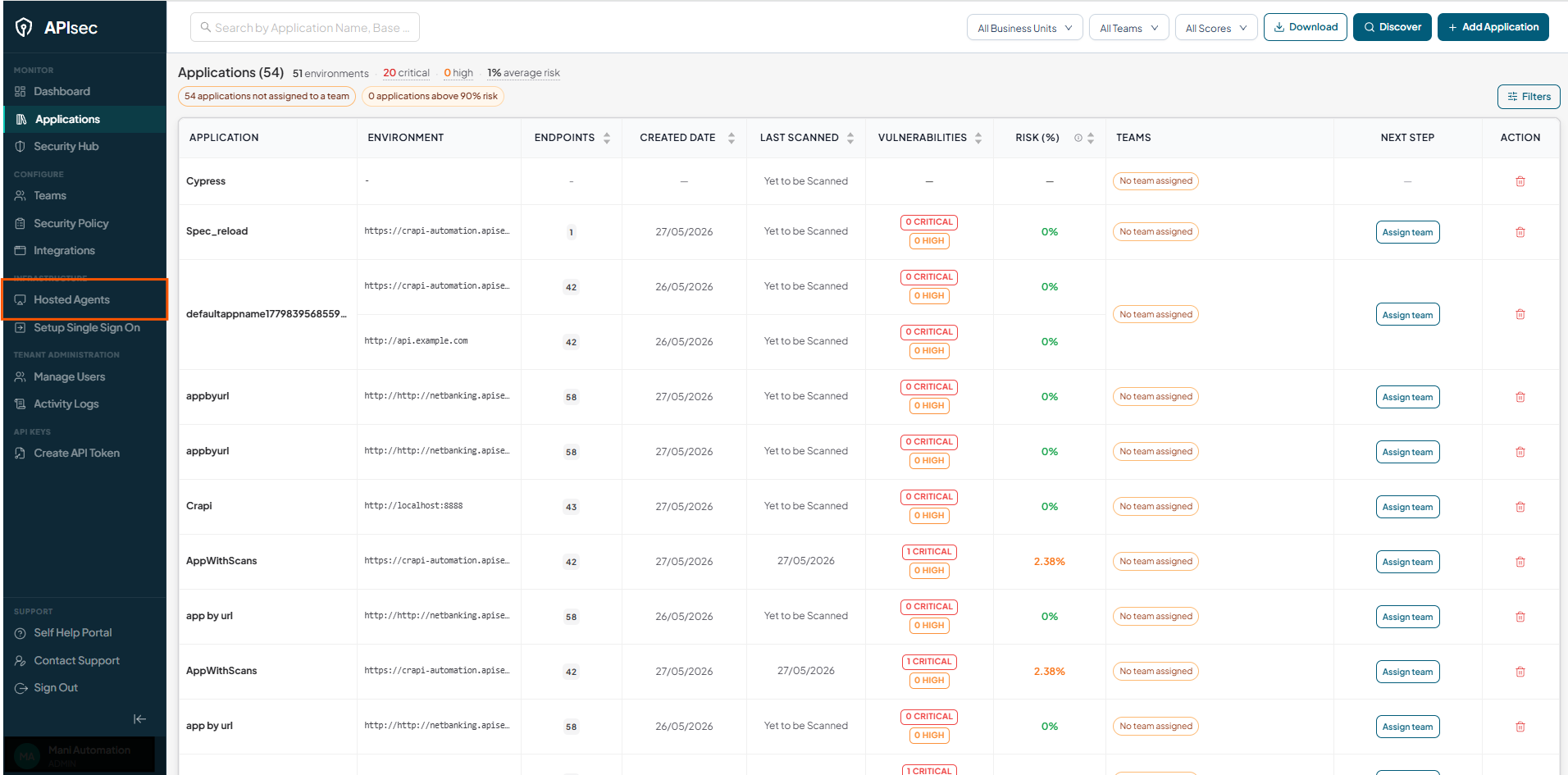
Click Hosted Agents.
-
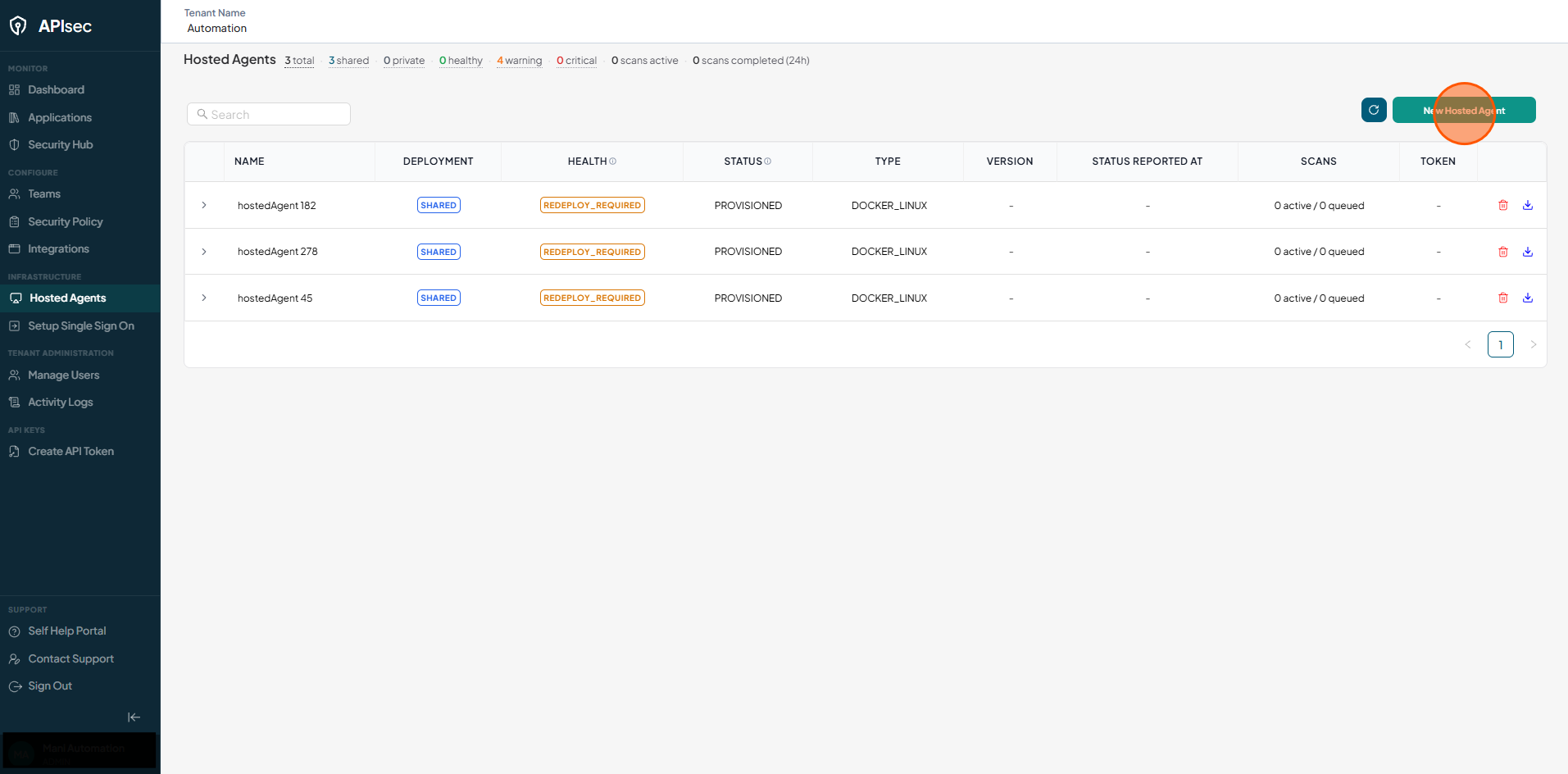
Click New Hosted Agent.
-
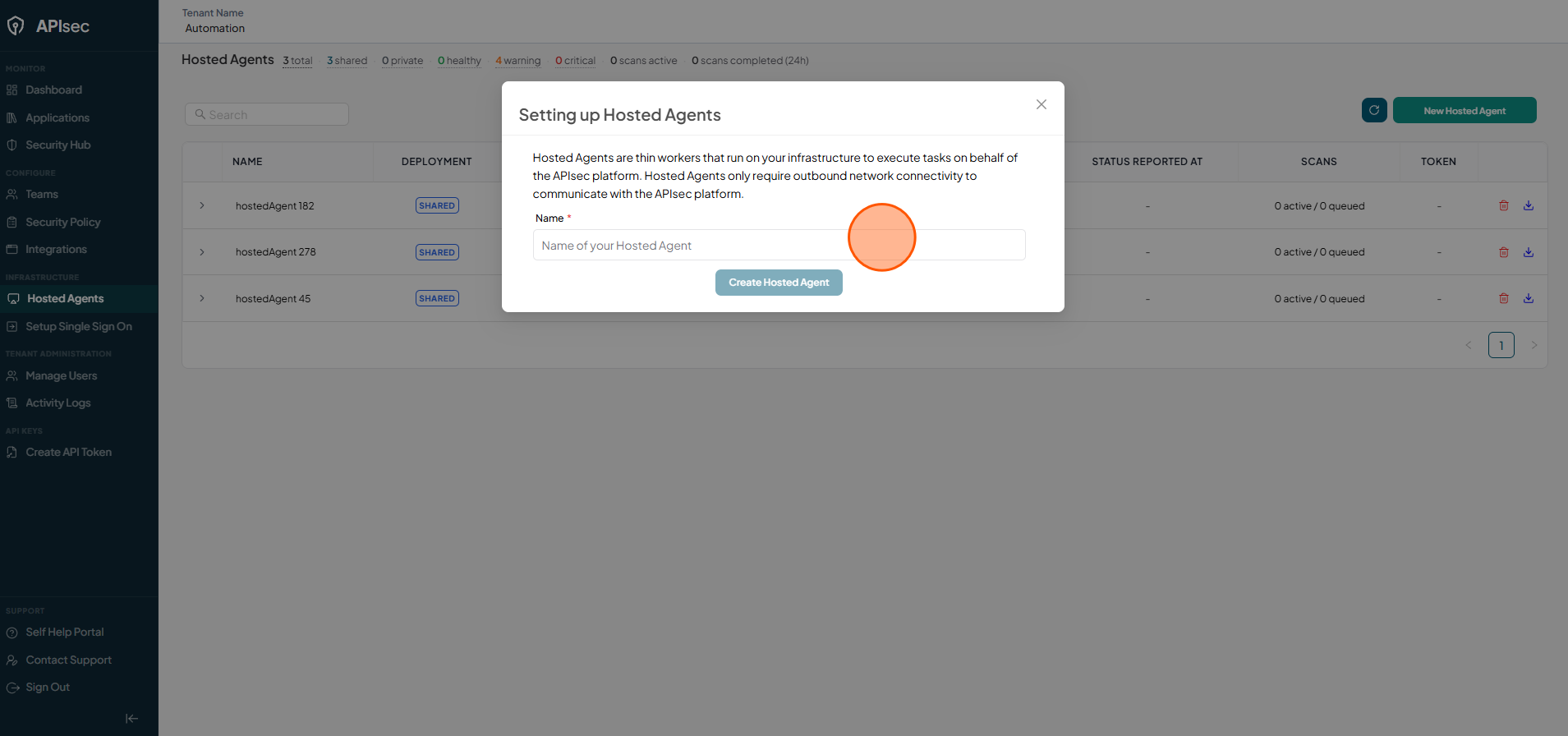
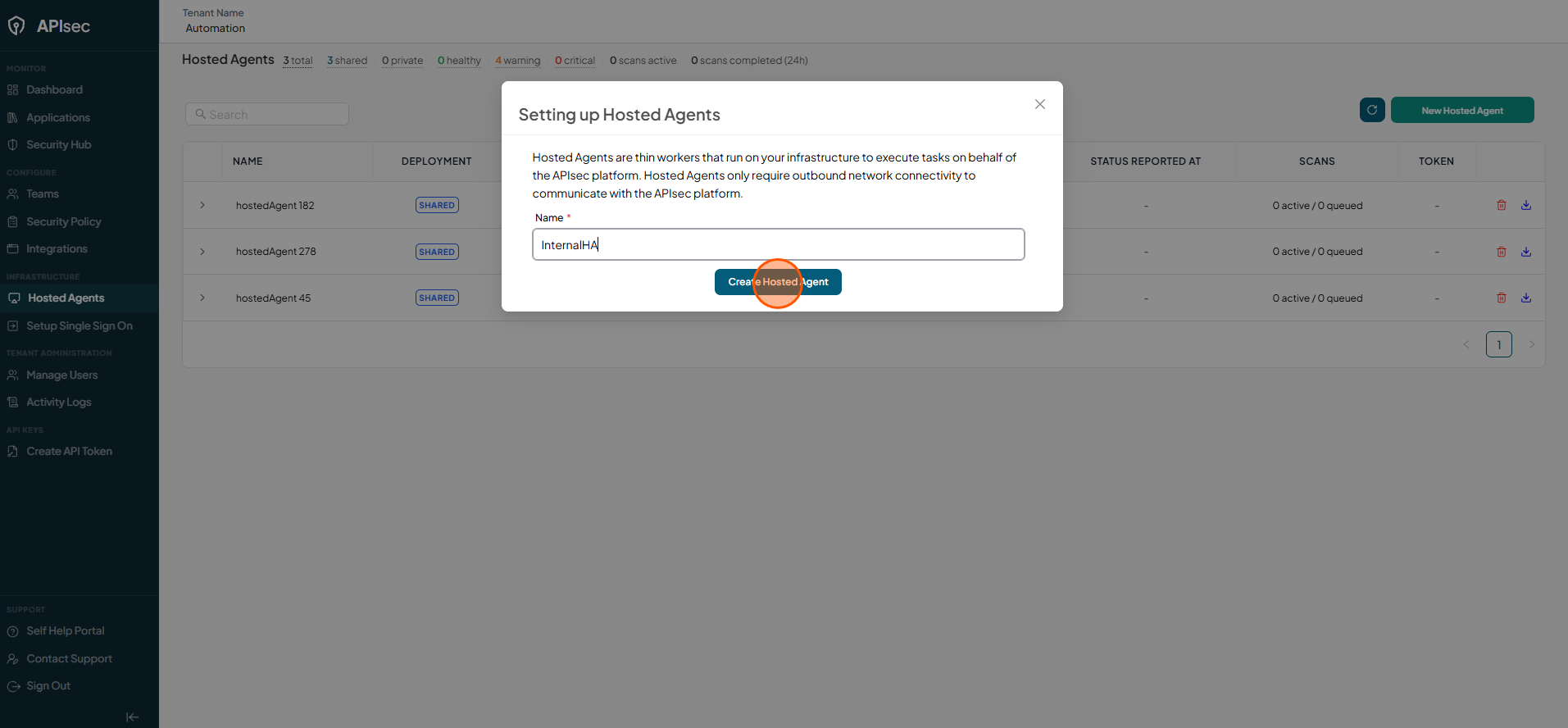
Enter the Name for the hosted agent.
-
Click Create Hosted Agent.
-
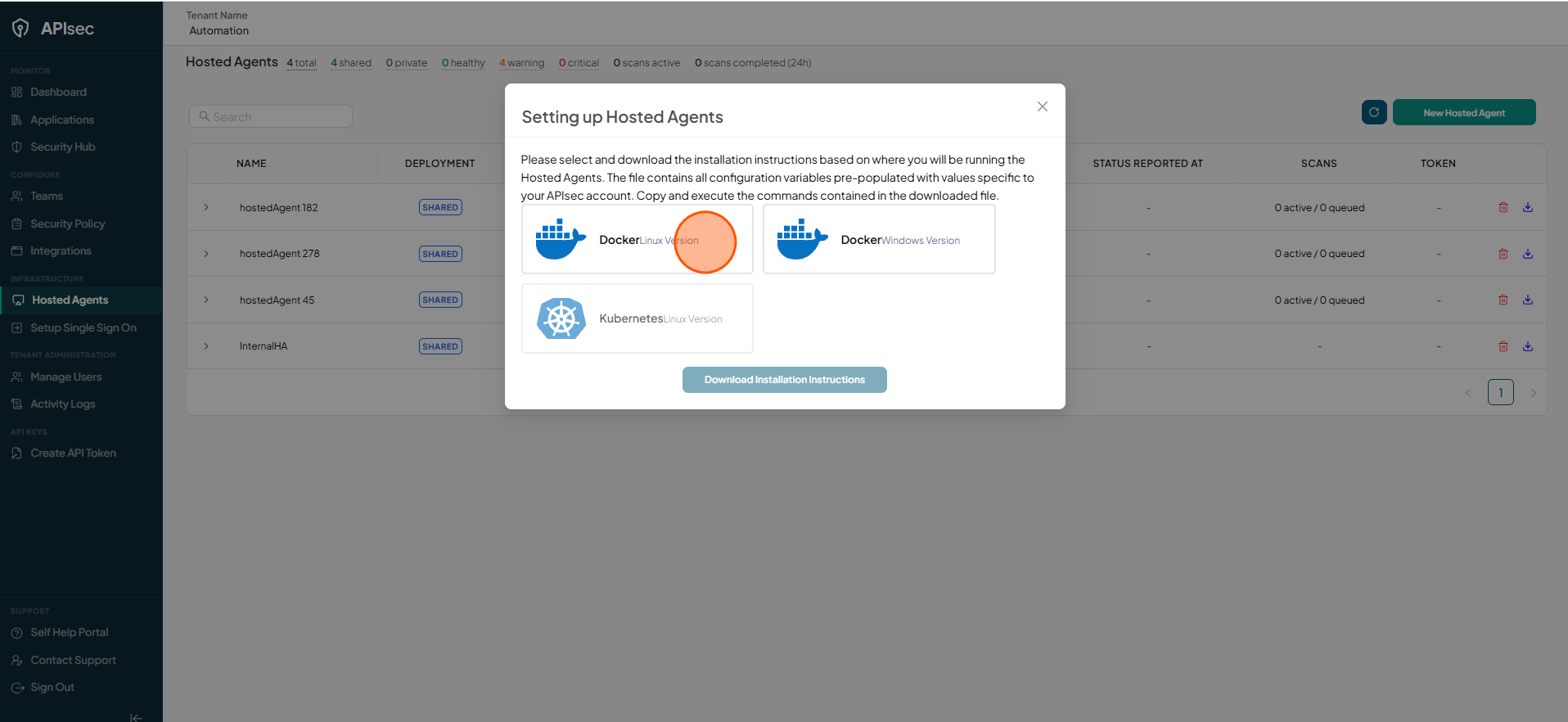
Select the specific instructions to download.
-
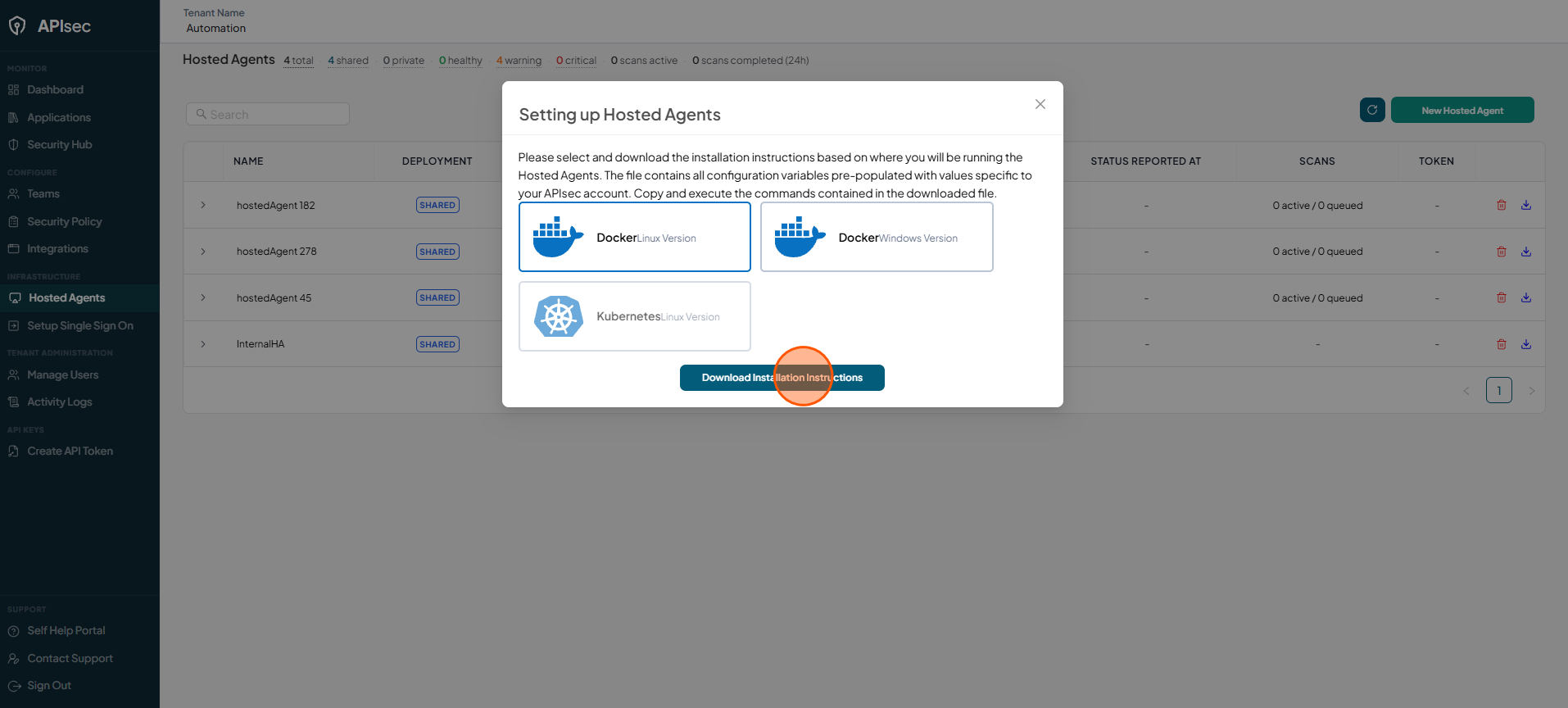
Click Download Installation Instructions and follow the downloaded instructions to install the agent.
-
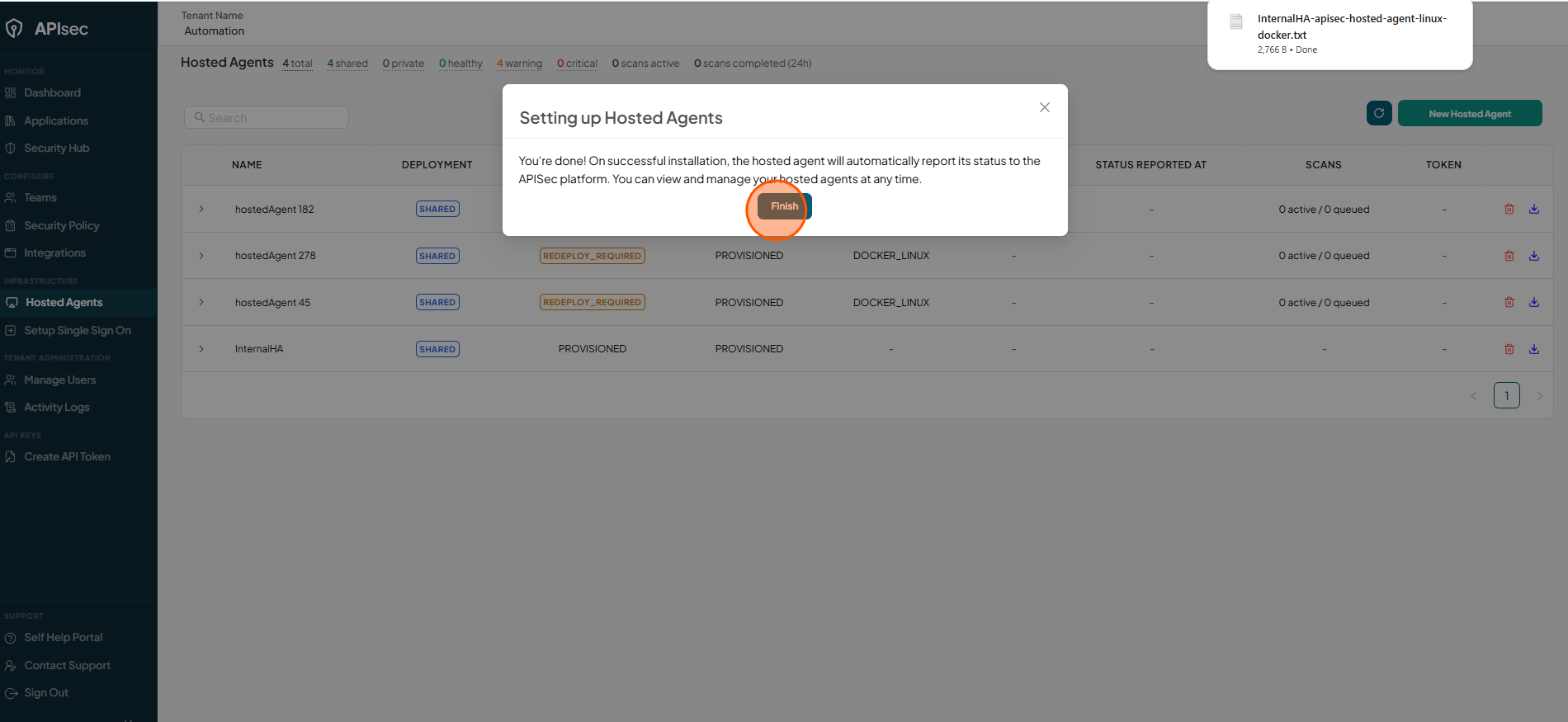
Click Finish to complete creating the hosted agent.
Download agent
-
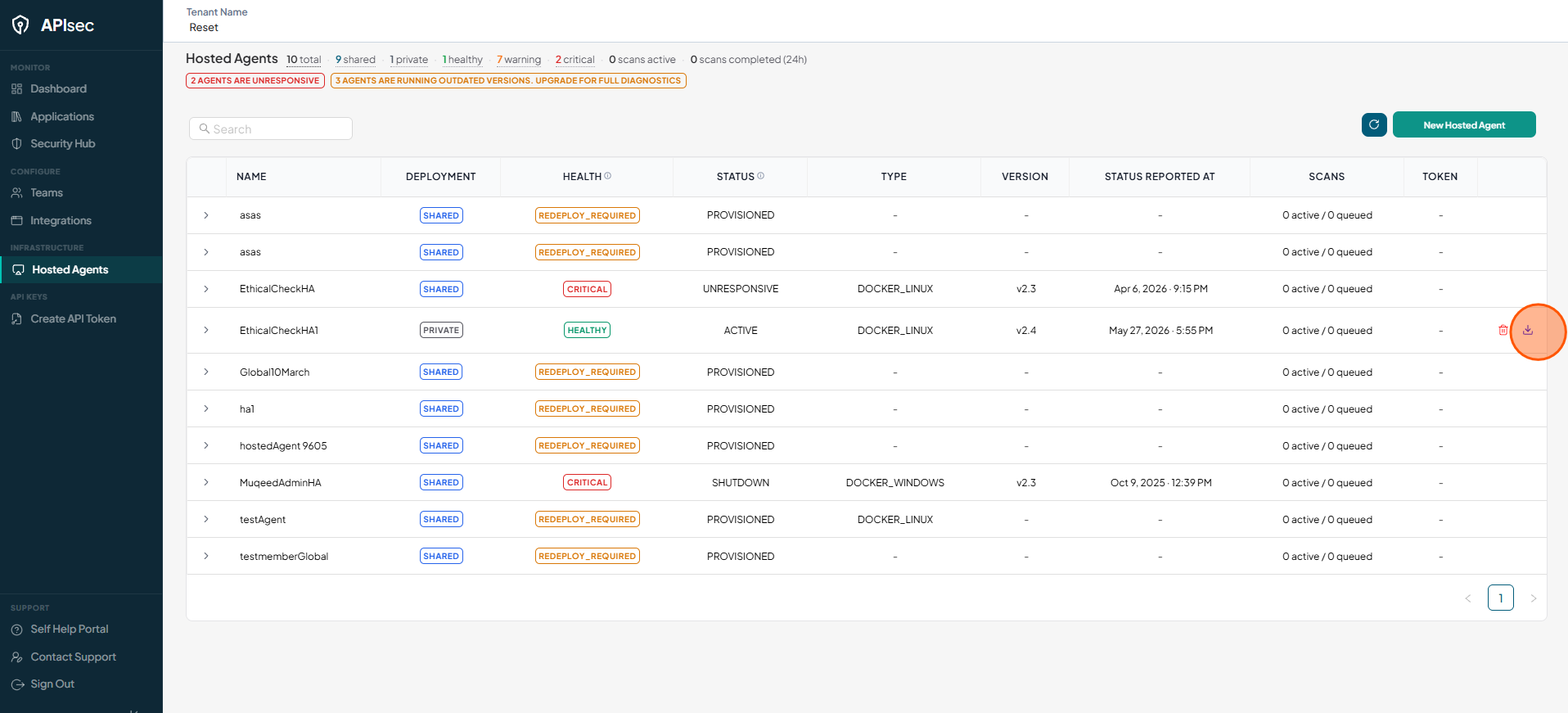
To obtain the installation script for an existing hosted agent, click the Download icon in the agent's row.
Hosted Agent Overview
-
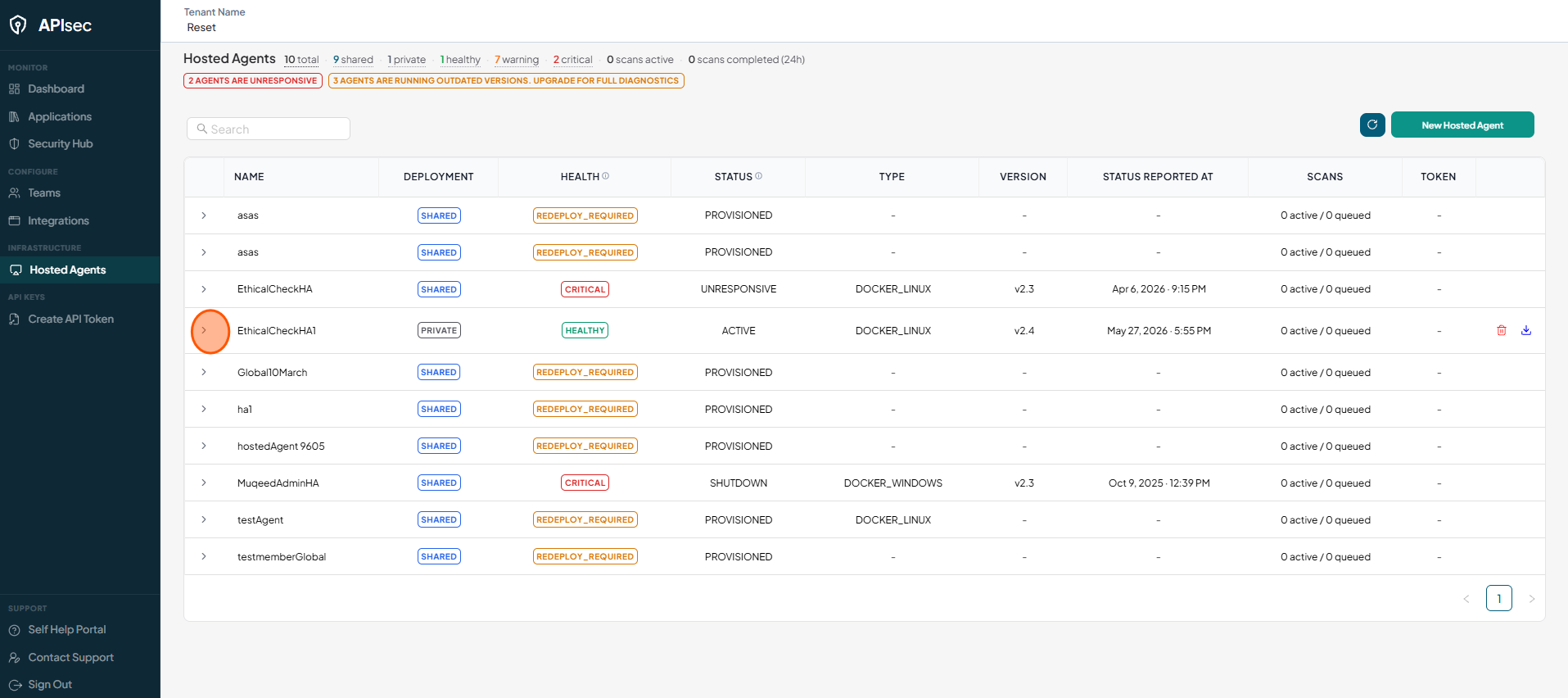
Click the expand arrow for the desired hosted agent to view its operational status, configuration, health information, deployment details, and scan activity.
-
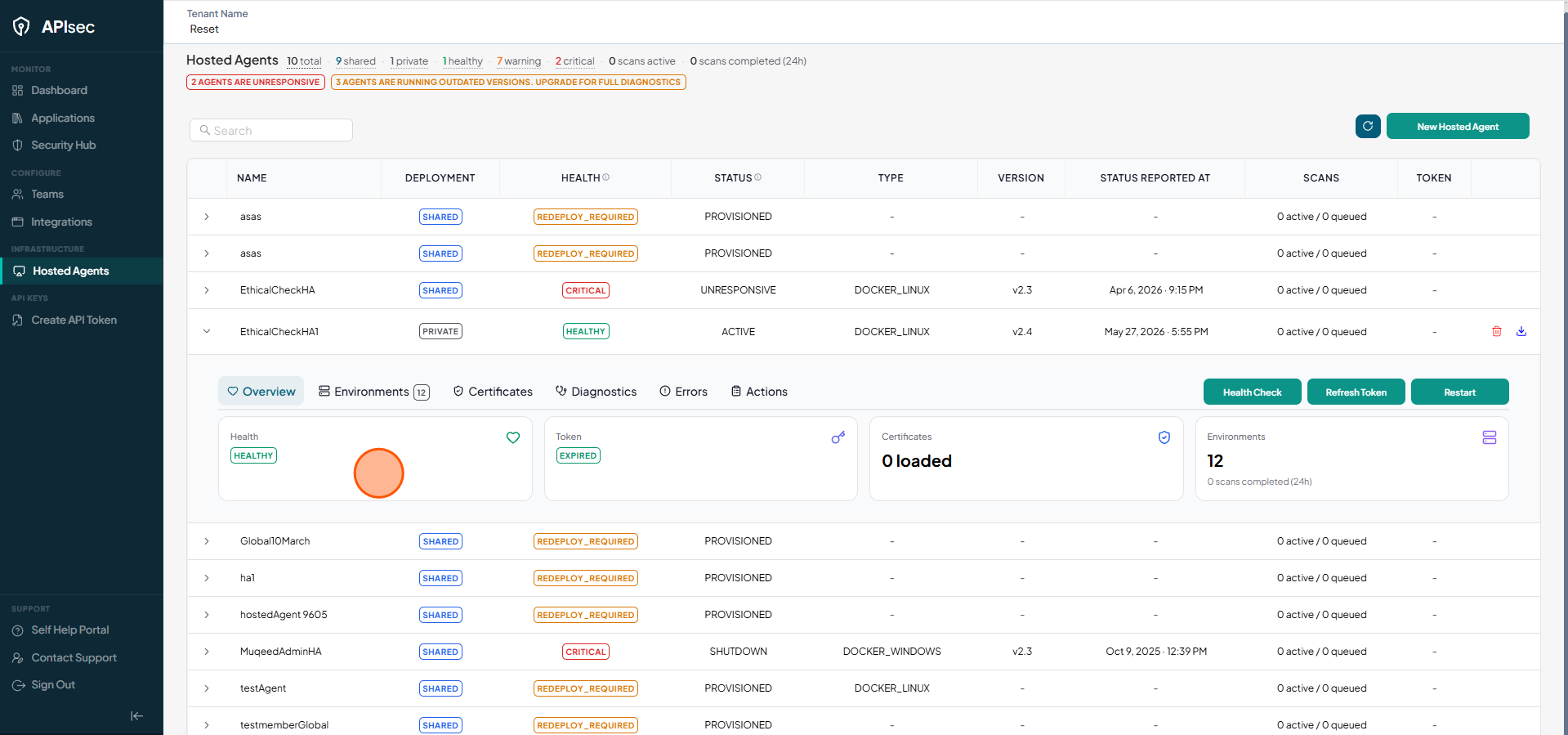
Review the status of the hosted agent.
-
Overview tab — reviews the key information about the hosted agent, including:
- Health – Indicates the current health status of the hosted agent. If issues are detected, the appropriate status (for example, Redeploy Required) is displayed.
- Token – Displays the agent registration token used for communication and authentication.
- Certificates – Shows the number of certificates currently loaded and available to the hosted agent.
- Environments – Displays the number of environments associated with the hosted agent and recent scan activity.
-
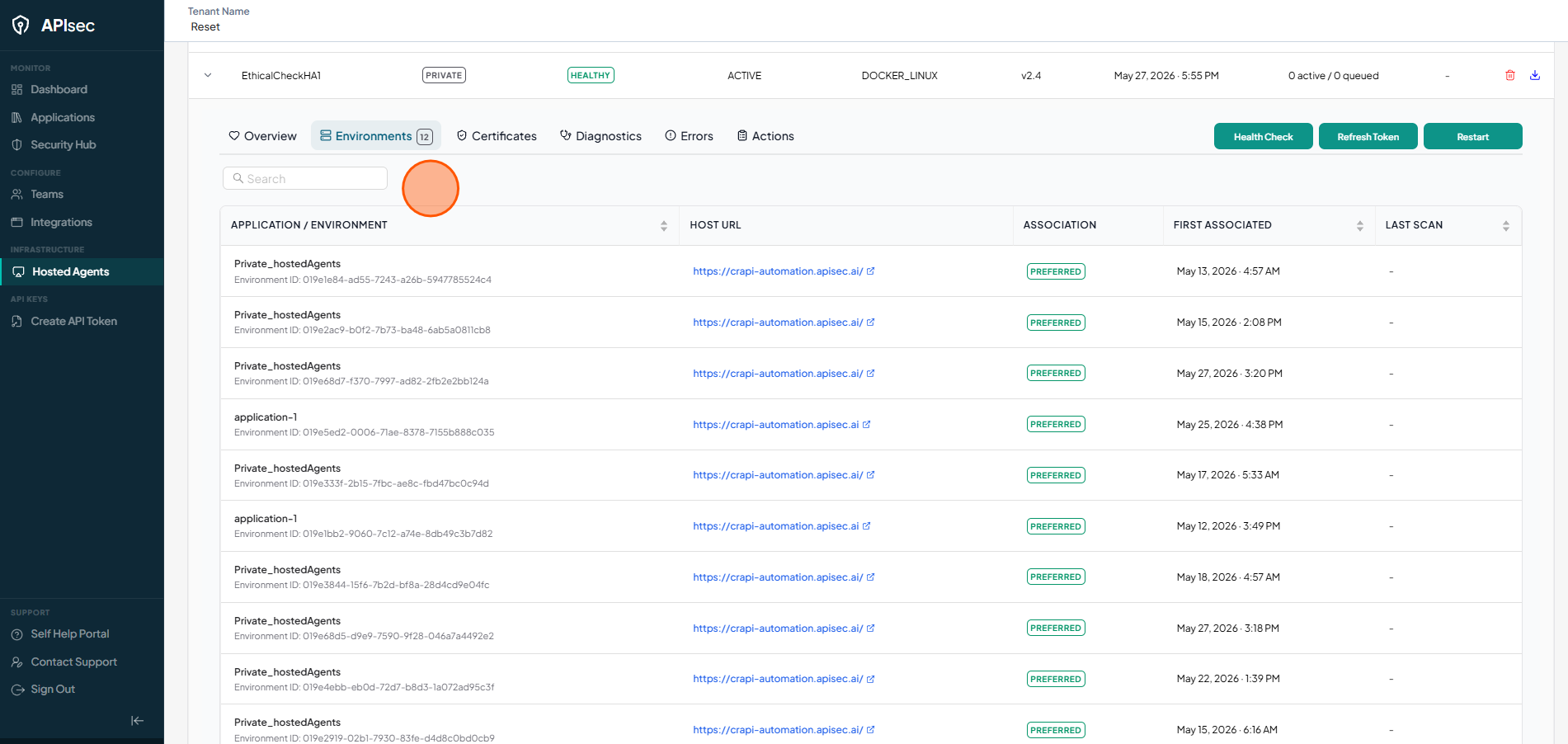
Environments — lists environments associated with the hosted agent.
-
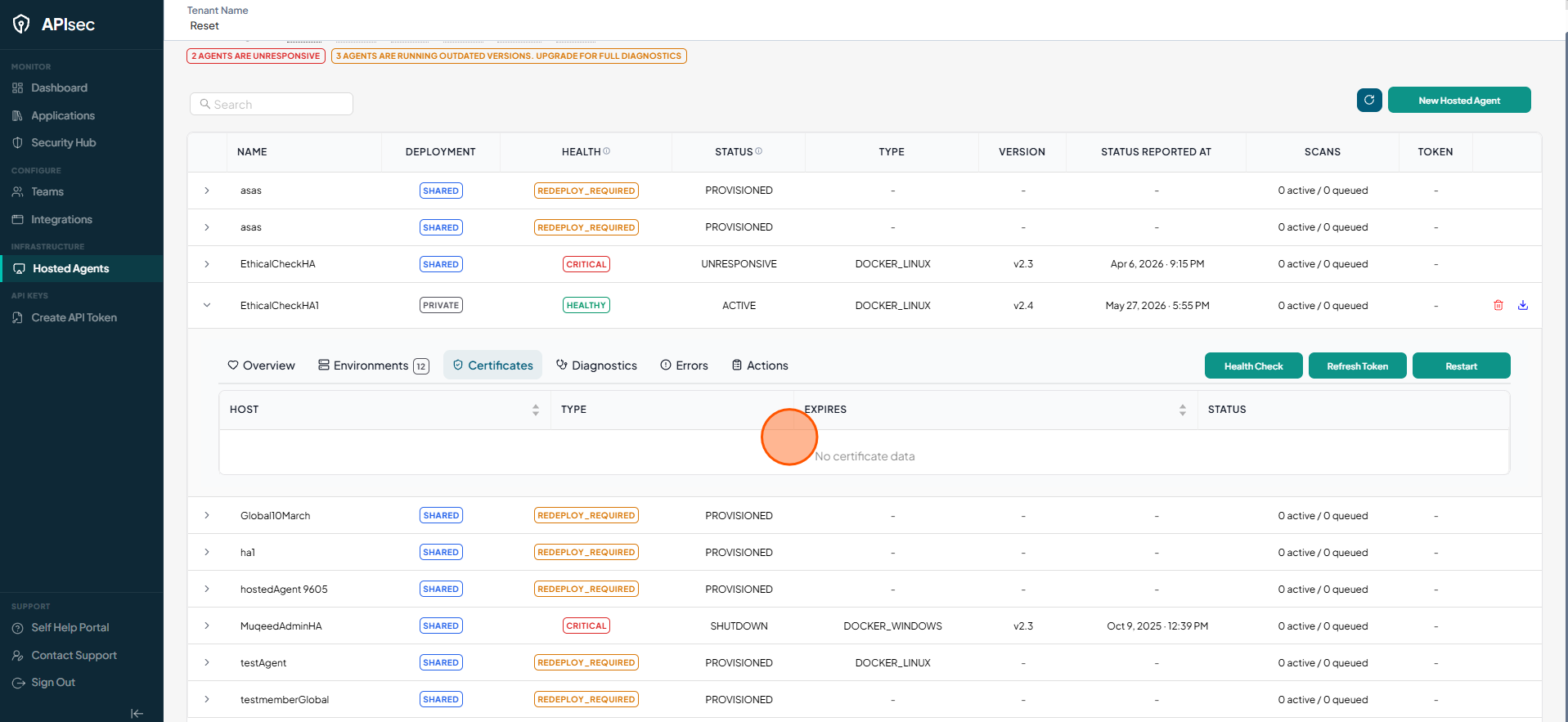
Certificates — displays certificates configured for the hosted agent.
-
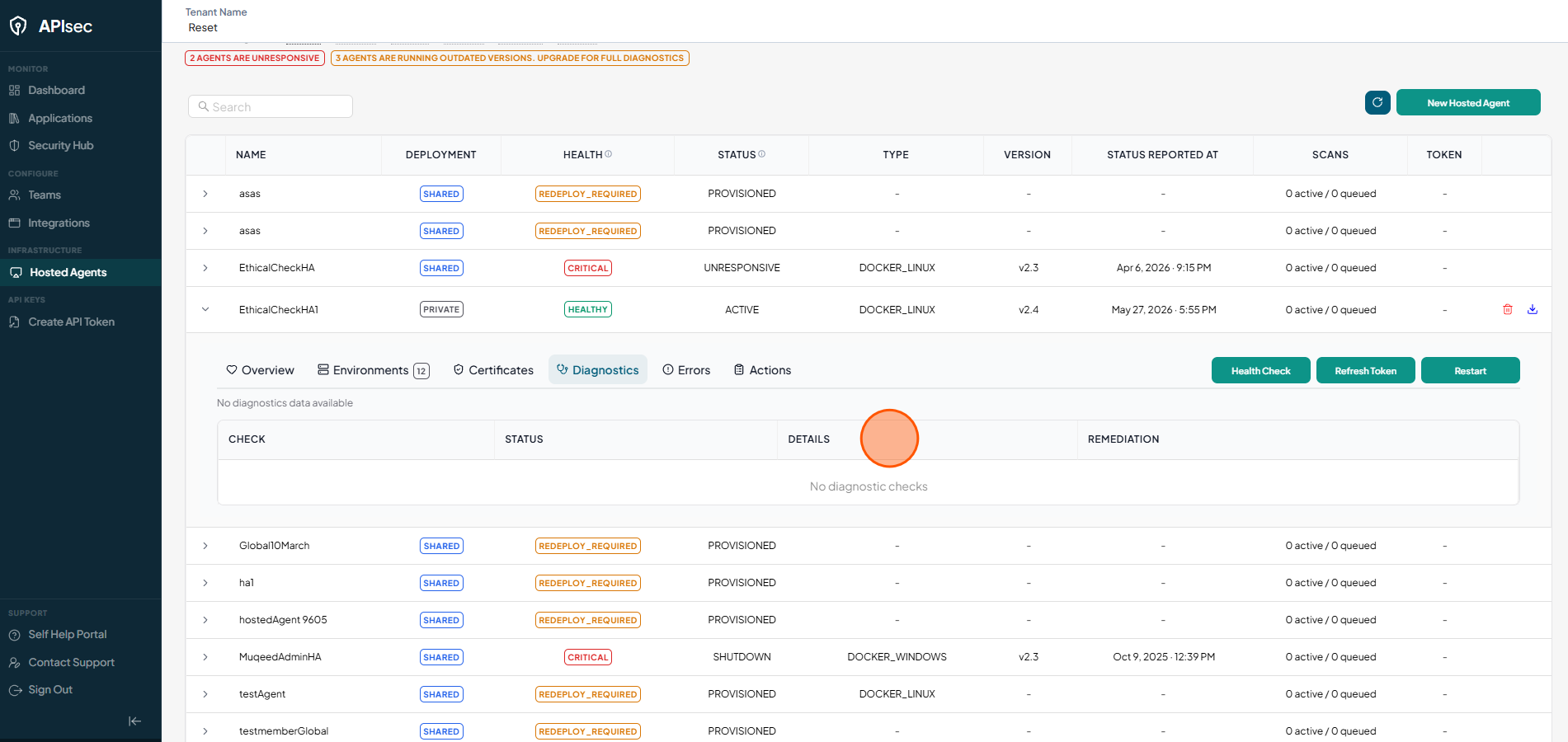
Diagnostics — provides diagnostic information for troubleshooting connectivity and operational issues.
-
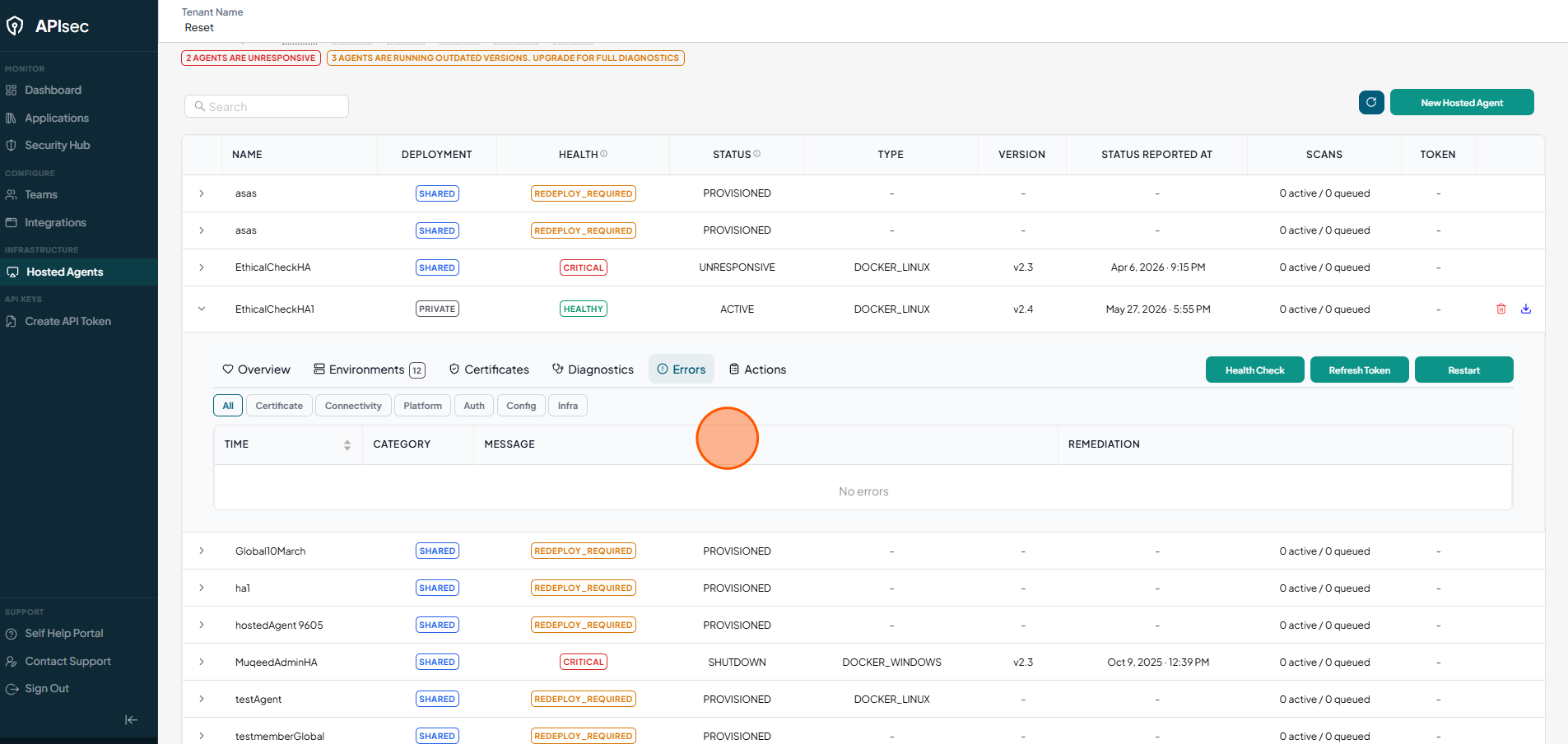
Errors — displays agent-related errors and failure information.
-
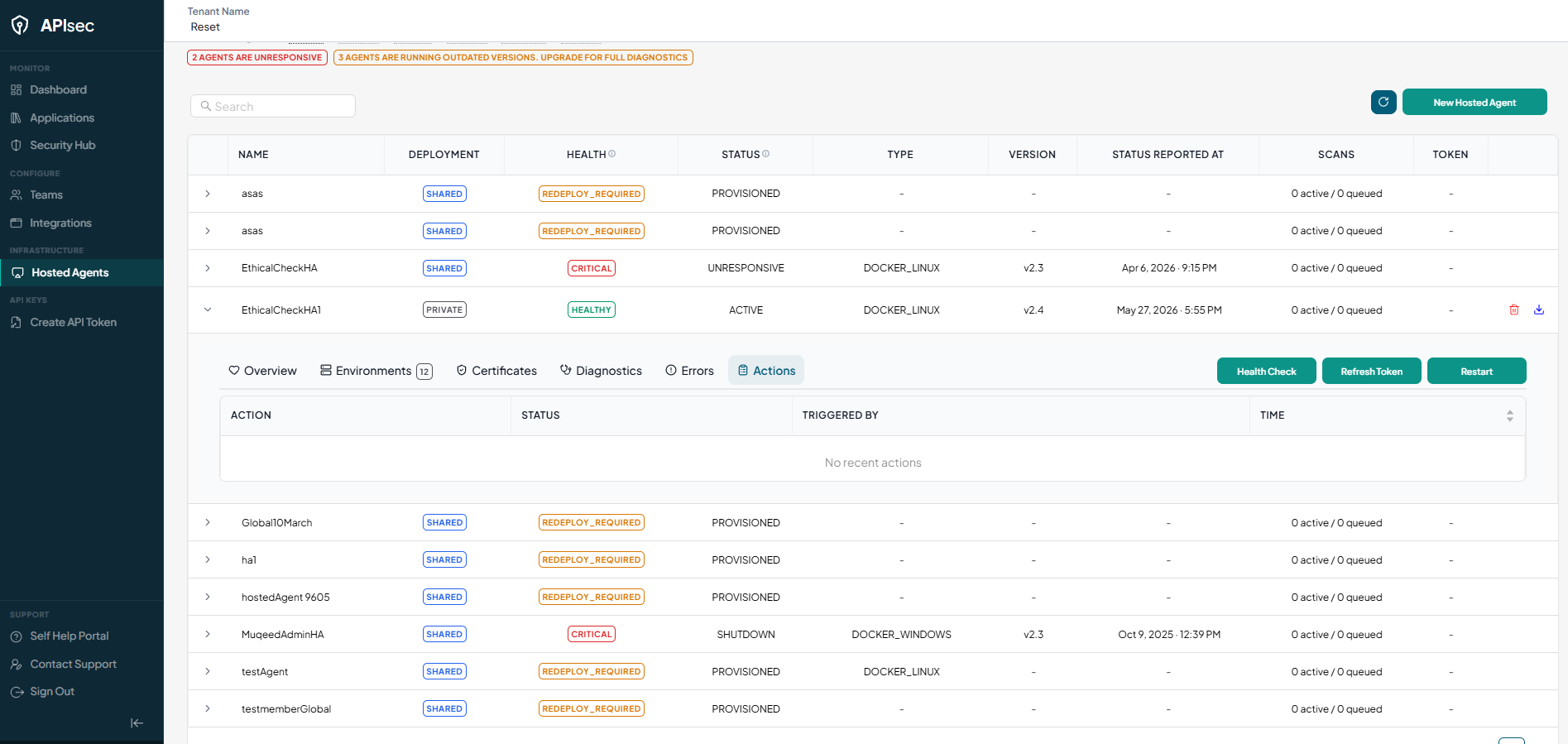
Actions — shows the history of administrative actions, including the action type, execution status, triggering user, and execution time.
-
Delete Agent
-
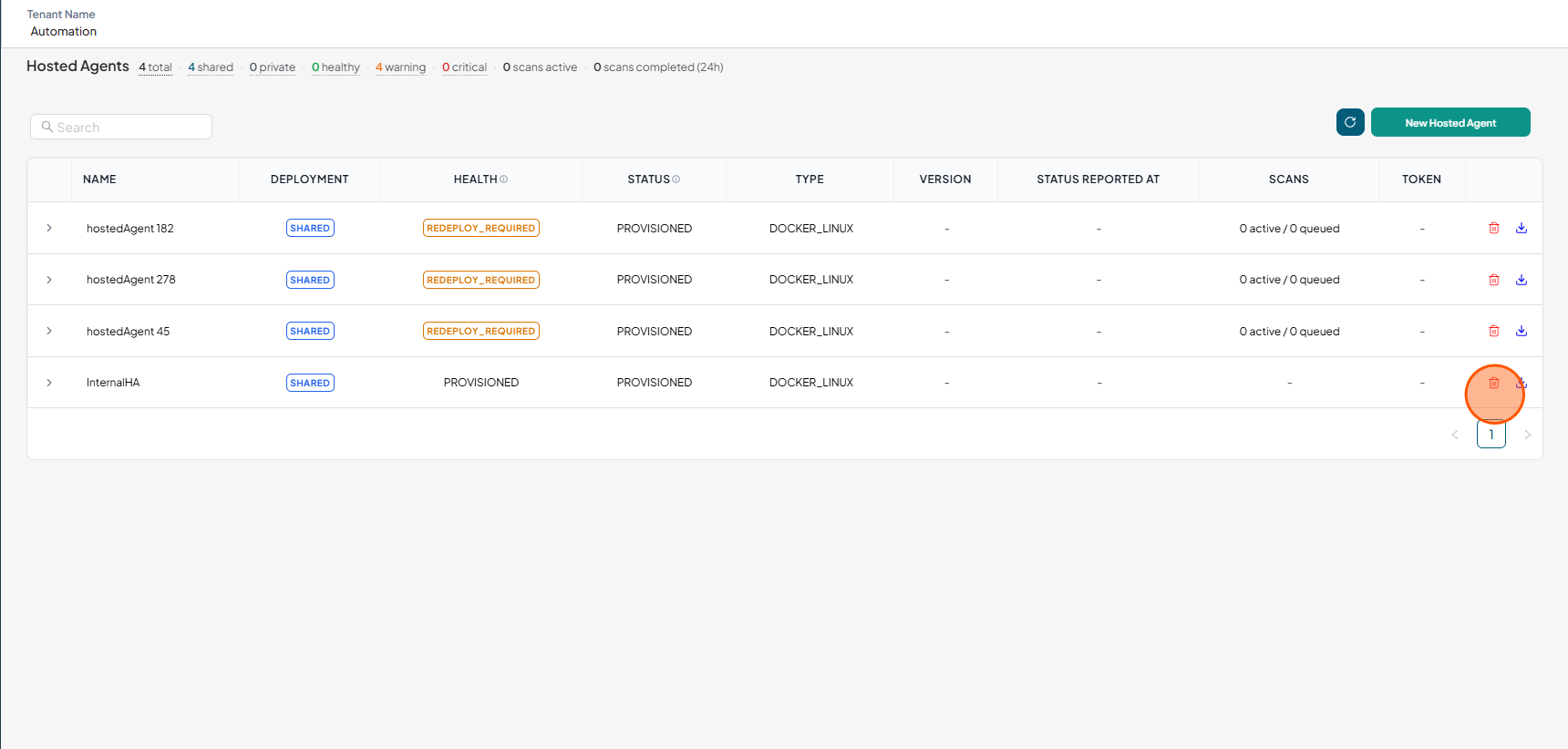
Click the Delete icon for the desired hosted agent to remove it from the tenant.
-
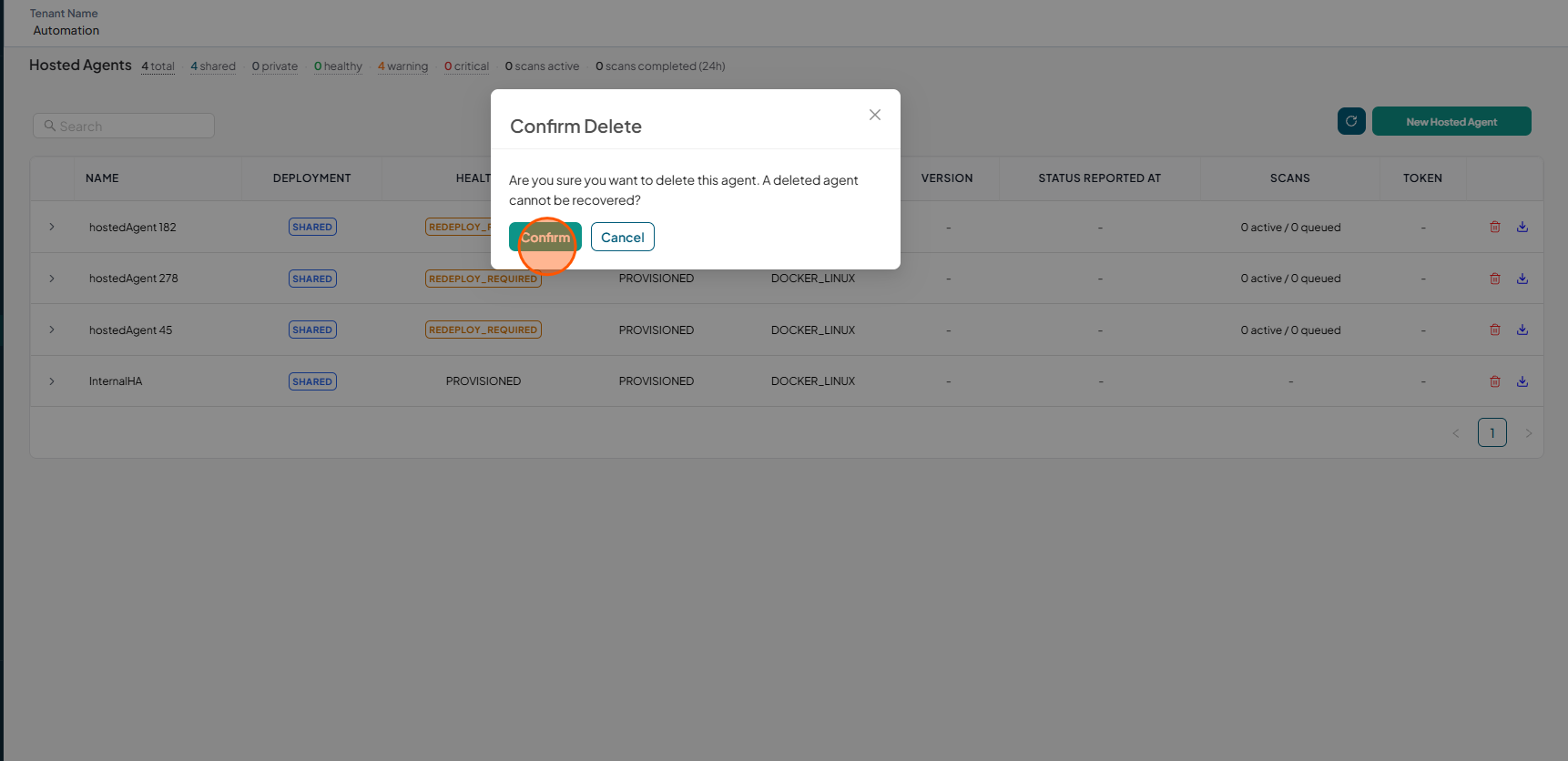
Click Confirm to delete.
-
Verify that the Hosted Agents table no longer contains the deleted hosted agent.