Integrate Jira issue tracking
Prerequisites
The APIsec platform needs the Email, API token, App URL, and Project Key to configure the Jira issue tracker.
-
Use the Email address of your Atlassian account (the one you use to log in to Jira)
-
Follow the steps below to obtain API token
- Log in to https://id.atlassian.com/manage-profile/security/api-tokens and complete the verification using the code received via email.
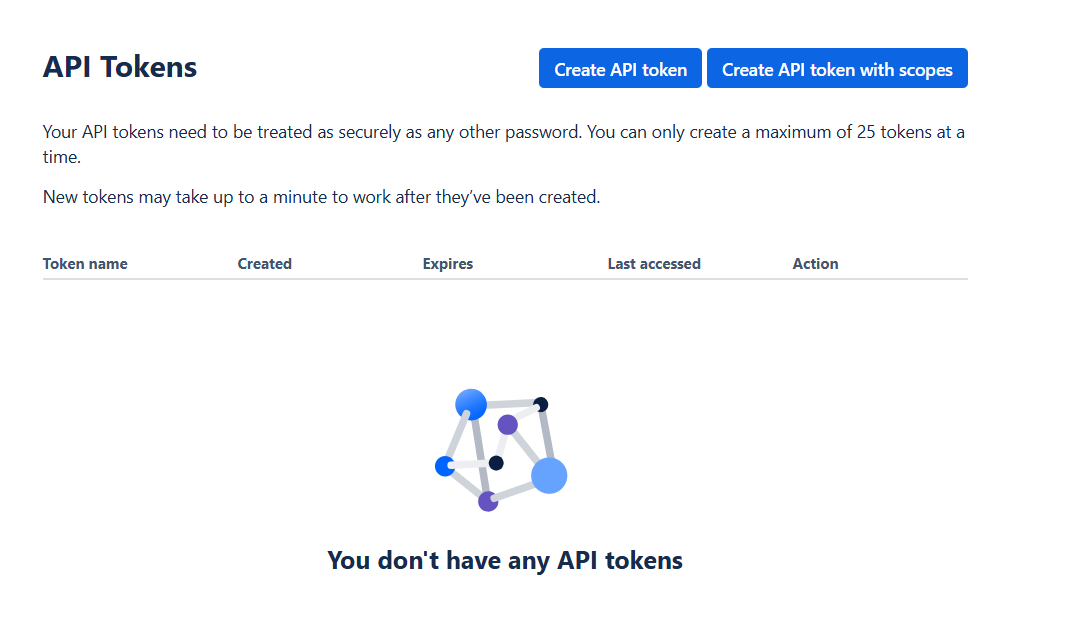
- Click on Create API token
-
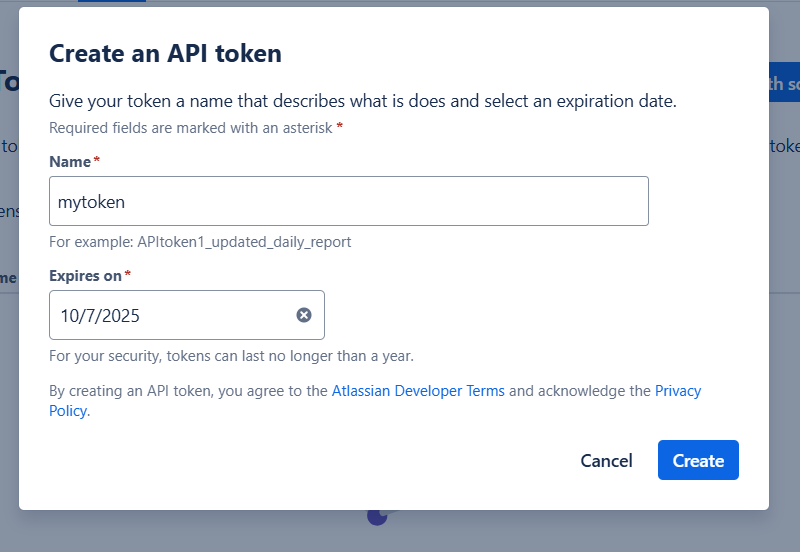
Give your token a Name that describes what it does, select an expiration date, and click Create.
-
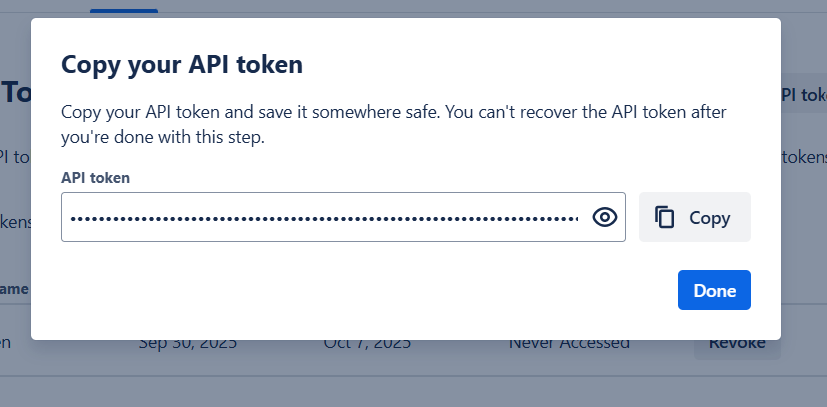
Copy your API token
-
Jira App URL: This is your Jira site URL, visible in the browser when you log in to Jira
-
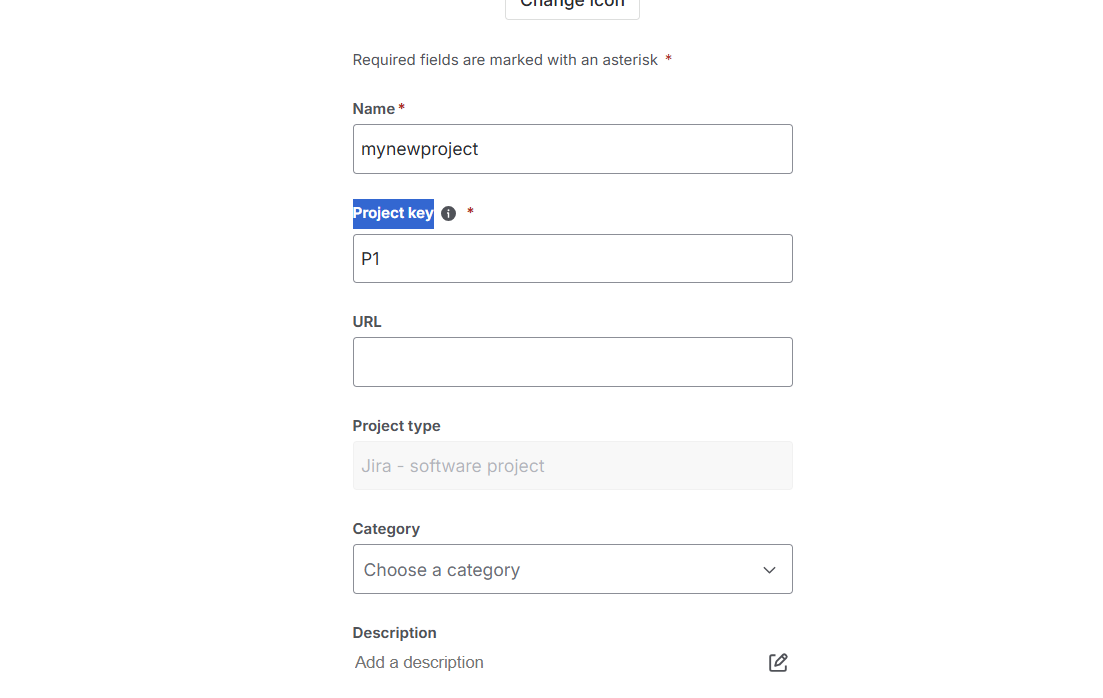
Project Key: Visit Project settings and get the Project key
Create a Jira connection
-
Open your browser and visit: https://<your-tenant>.apisecapps.com
-
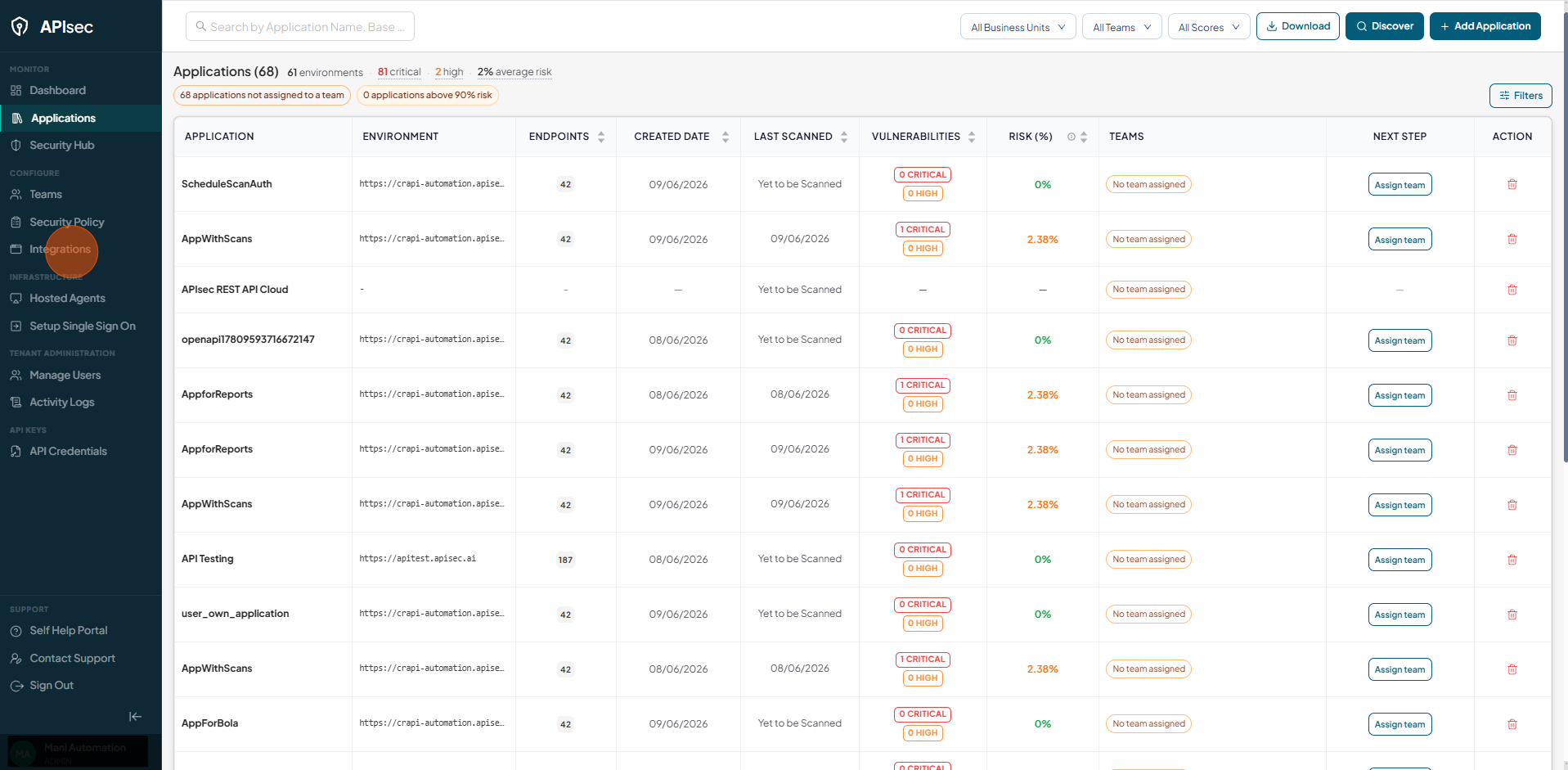
Click on Integrations
-
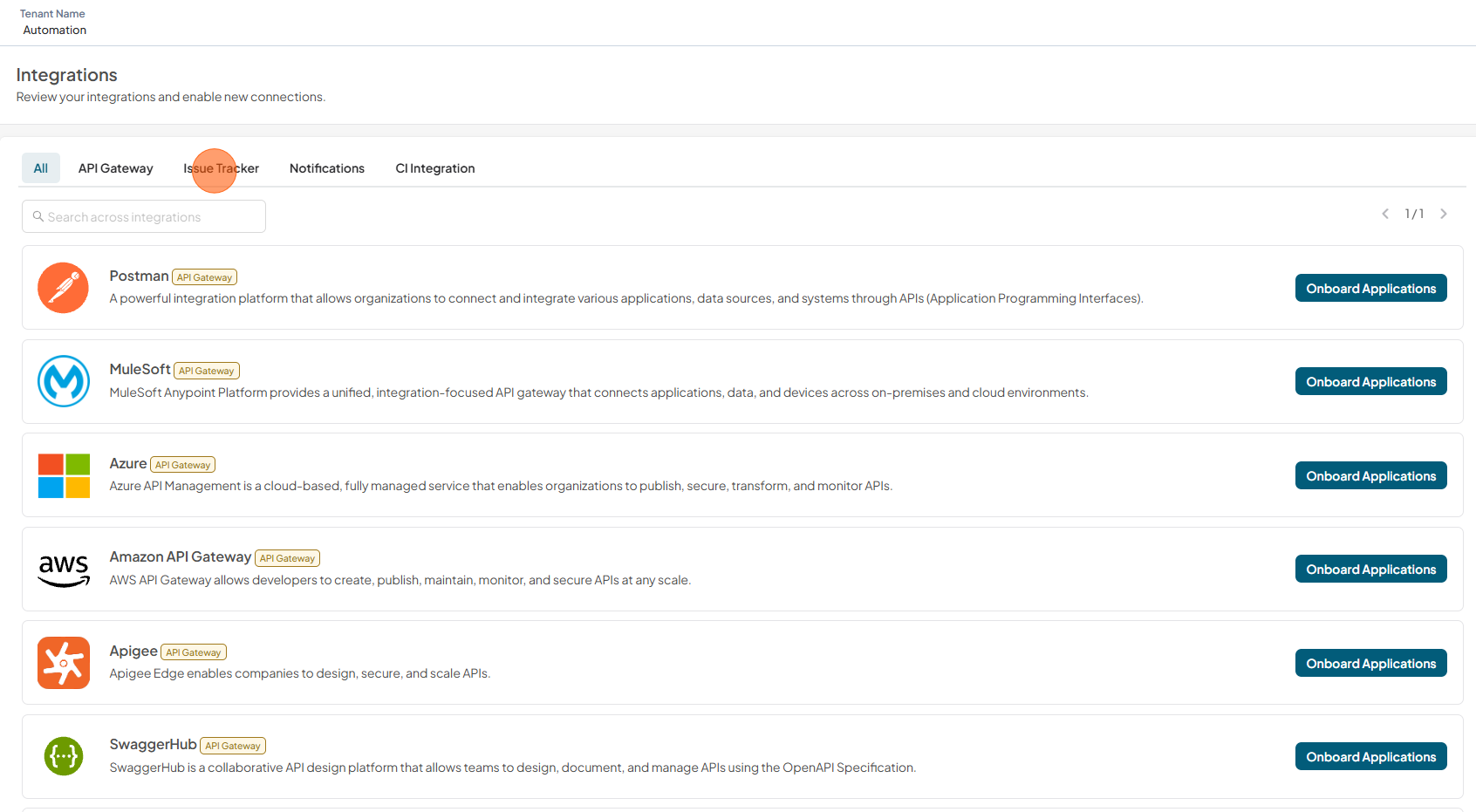
Click on the Issue Tracker tab
-
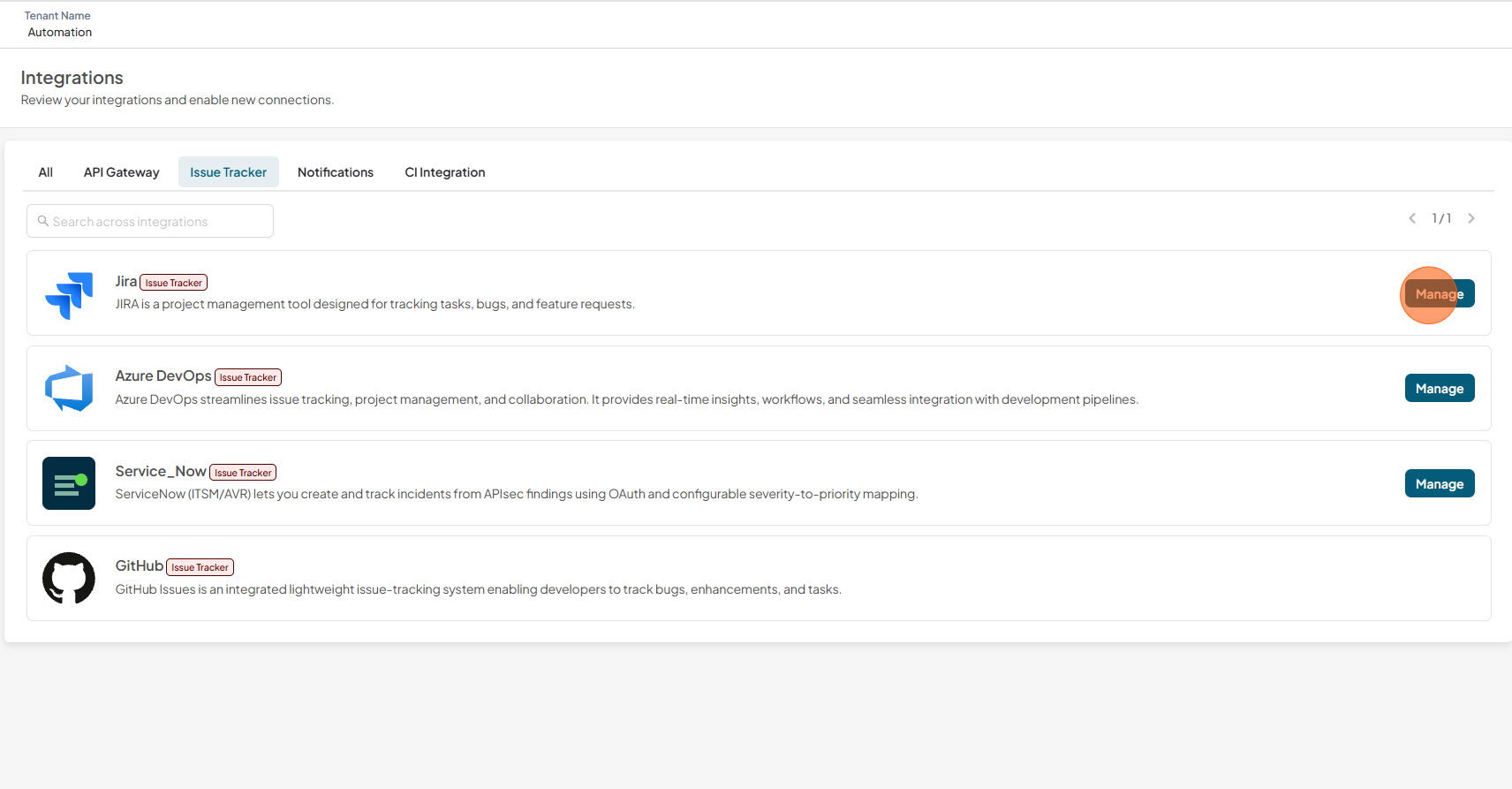
You can find the Jira Issue Tracker
-
Click Manage
-
There are two scenarios here. If Jira integrations already exist, they are listed along with a New Connection button
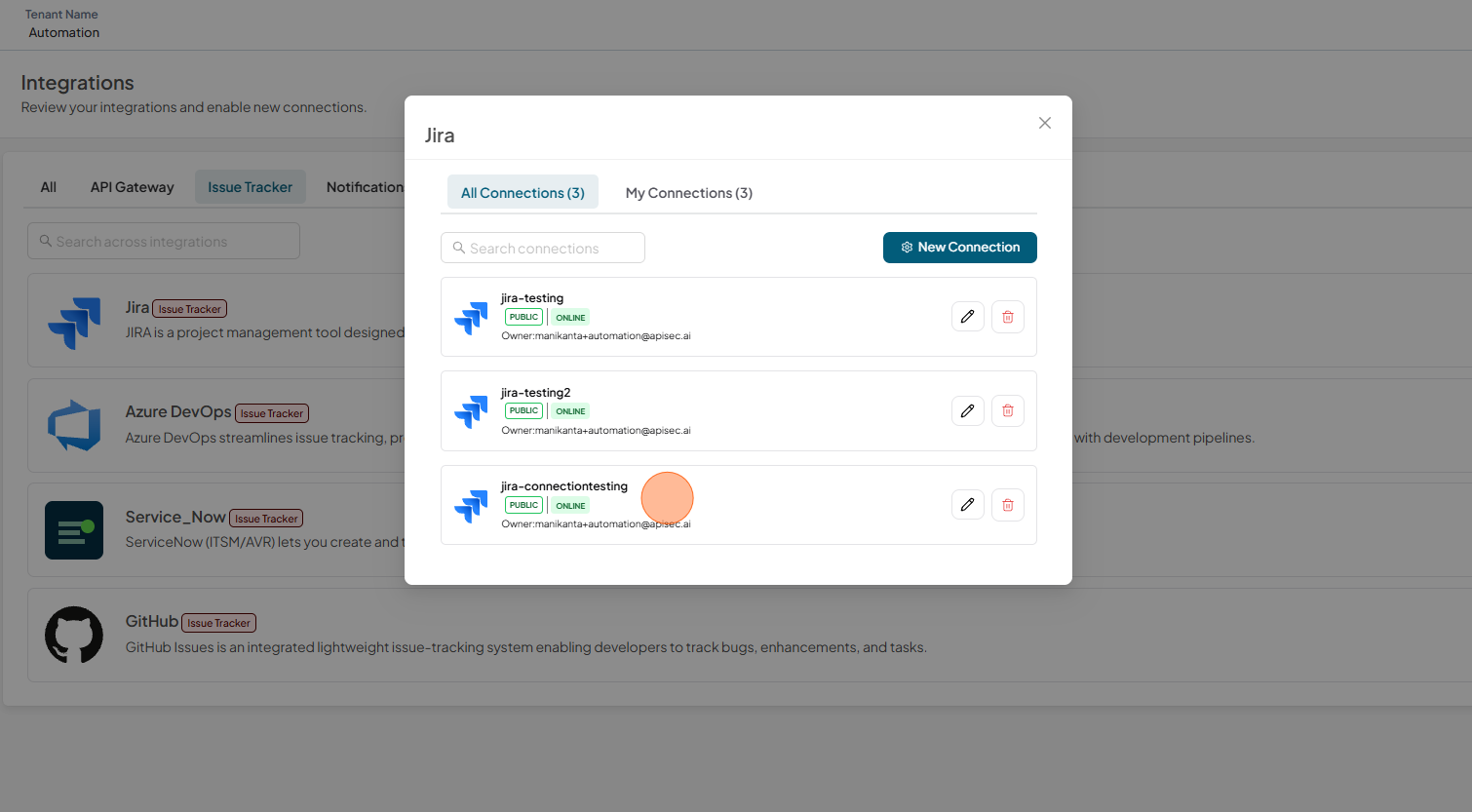
In this case, click New Connection.
-
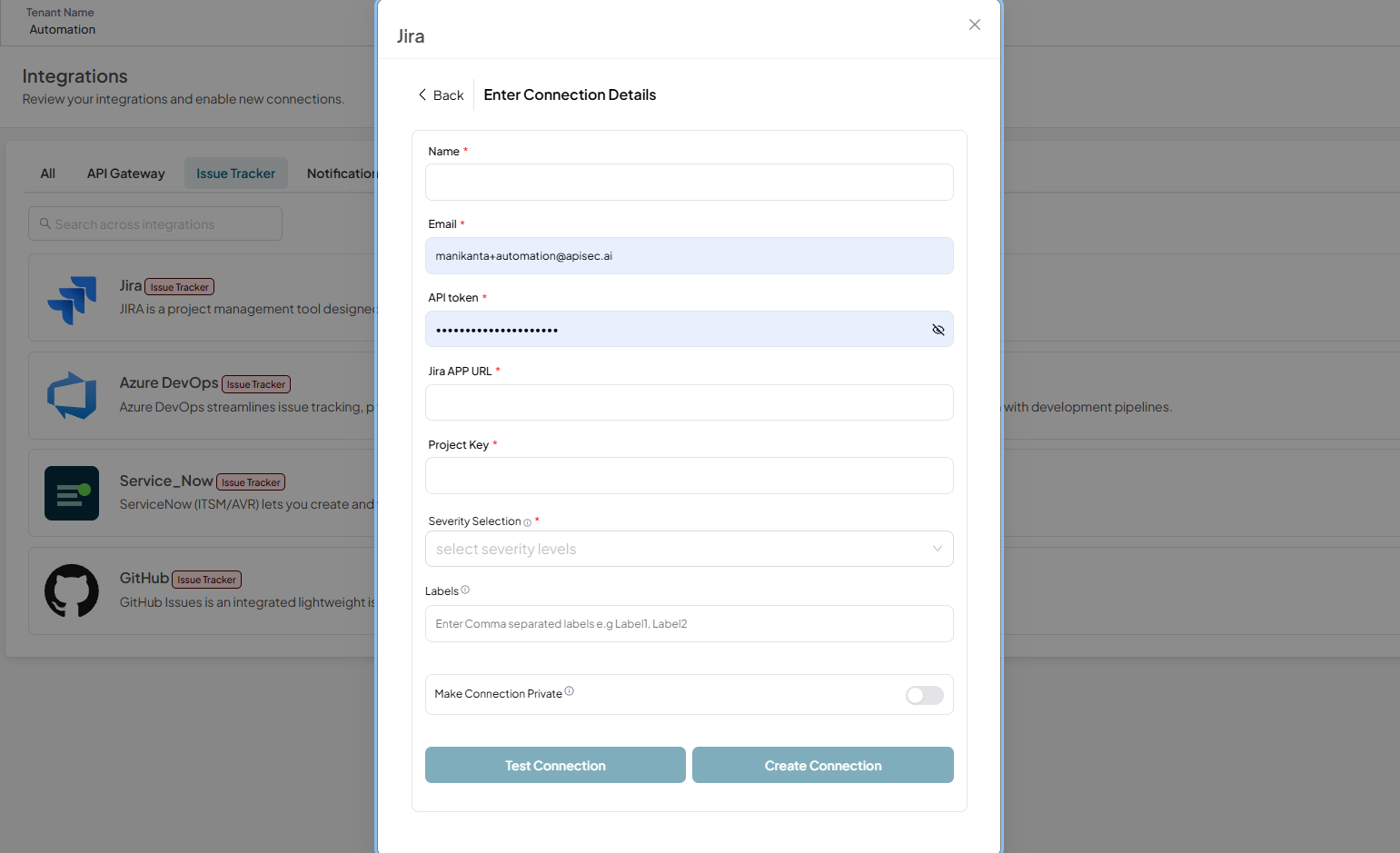
Otherwise, the form to create a Jira integration is displayed directly
-
Fill in the form with all the required fields.
- Name – Enter Name.
- E-mail – Enter E-mail.
- API Token – Enter API token for authentication.
- Jira App URL – Enter the URL of your Jira application.
- Project Key – Specify the key of the Jira project.
- Severity Selection – A multi-select dropdown with options Critical, High, Medium, and Low. This gives you control over which severity levels are synced to your issue tracker.
- Labels – Enter single-word labels without spaces. For multiple labels, separate them with commas (,).
-
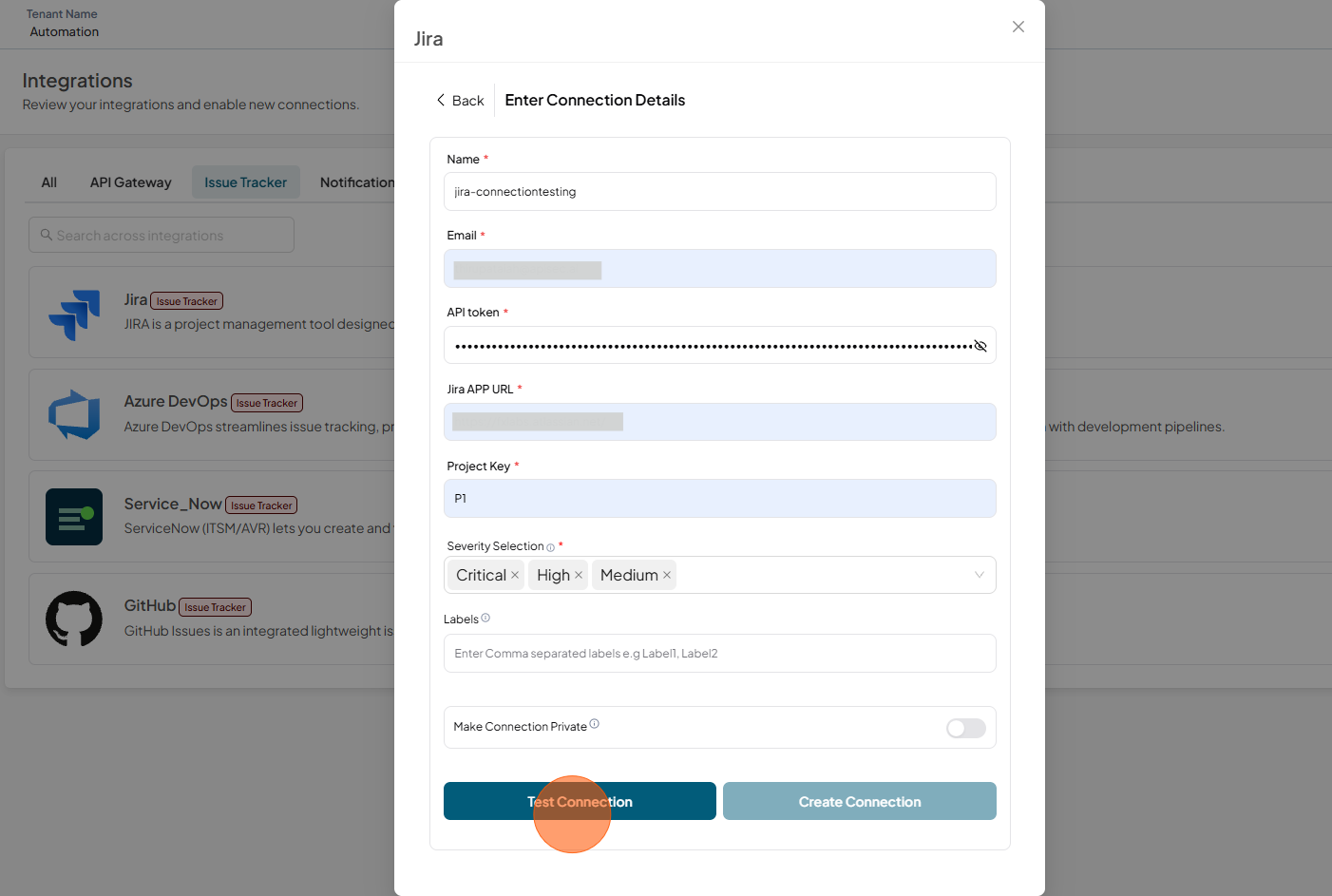
Click Test Connection
-
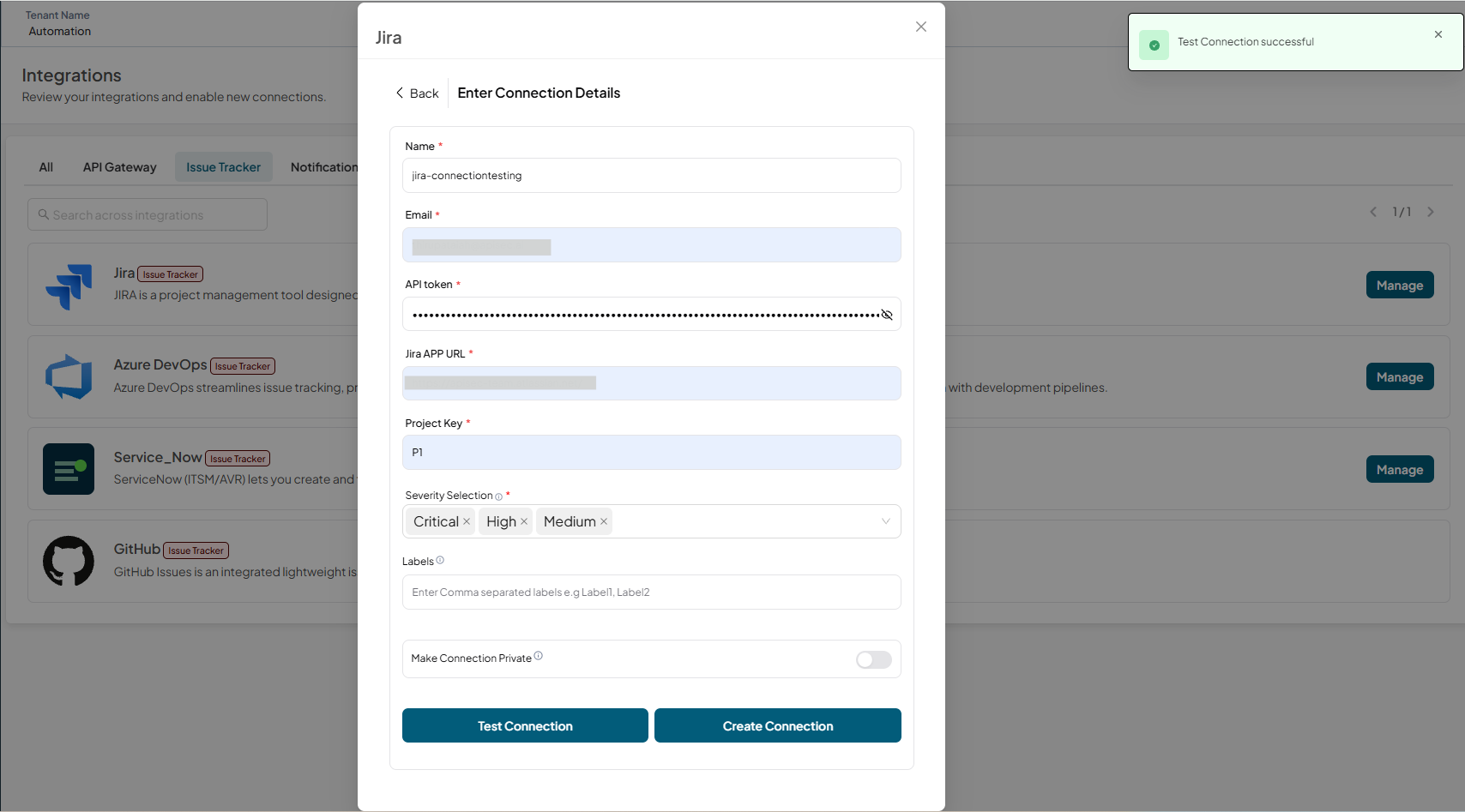
Test connection successful.
-
-
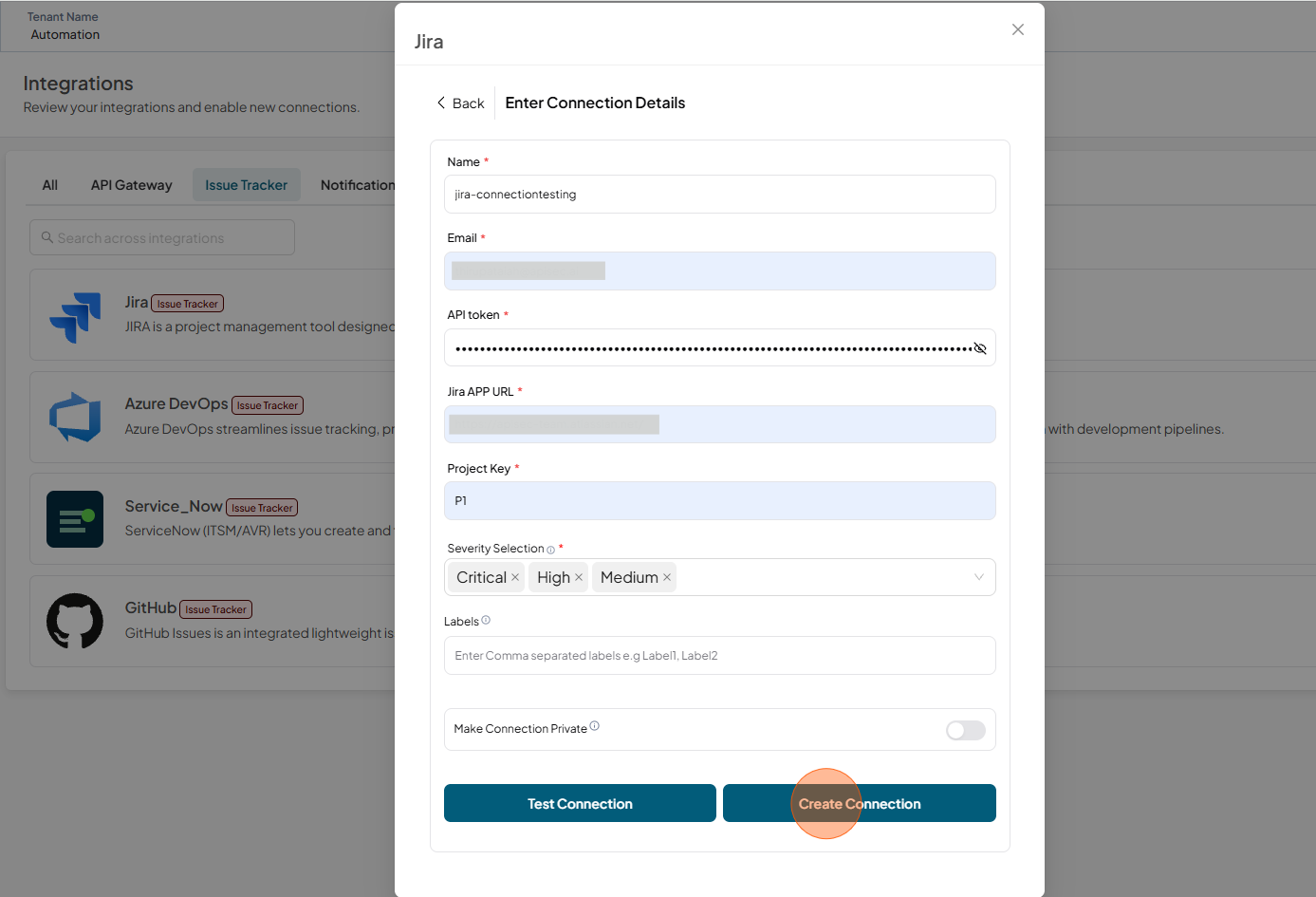
Click Create Connection
-
Check that the name is present in the integrations list
Edit a Jira connection
-
Open your browser and visit: https://<your-tenant>.apisecapps.com
-
Click on Integrations
-
Click on the Issue Tracker tab
-
You can find the Jira Issue Tracker
-
Click Manage
-
-
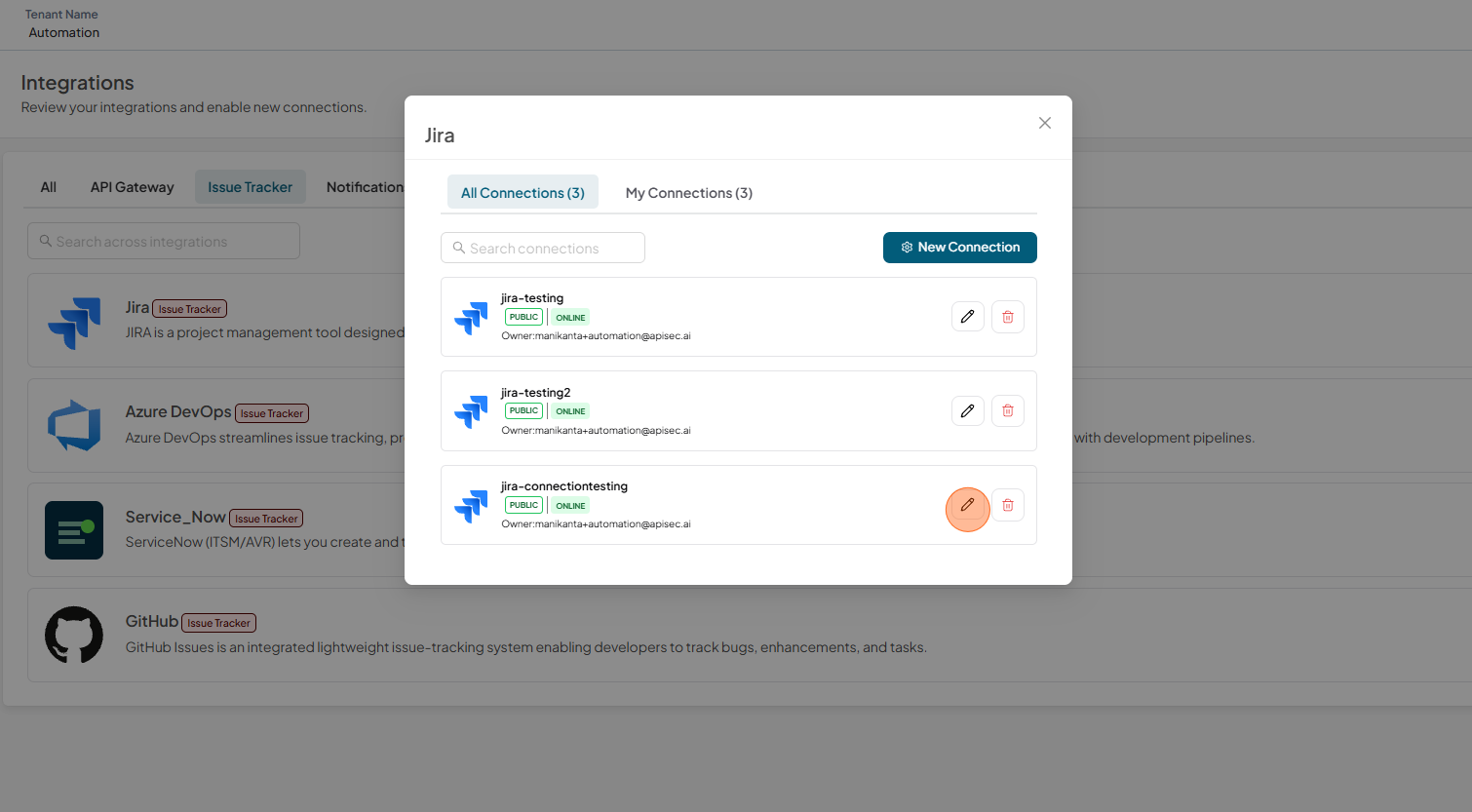
Select the Pencil icon next to the connection you want to edit.
-
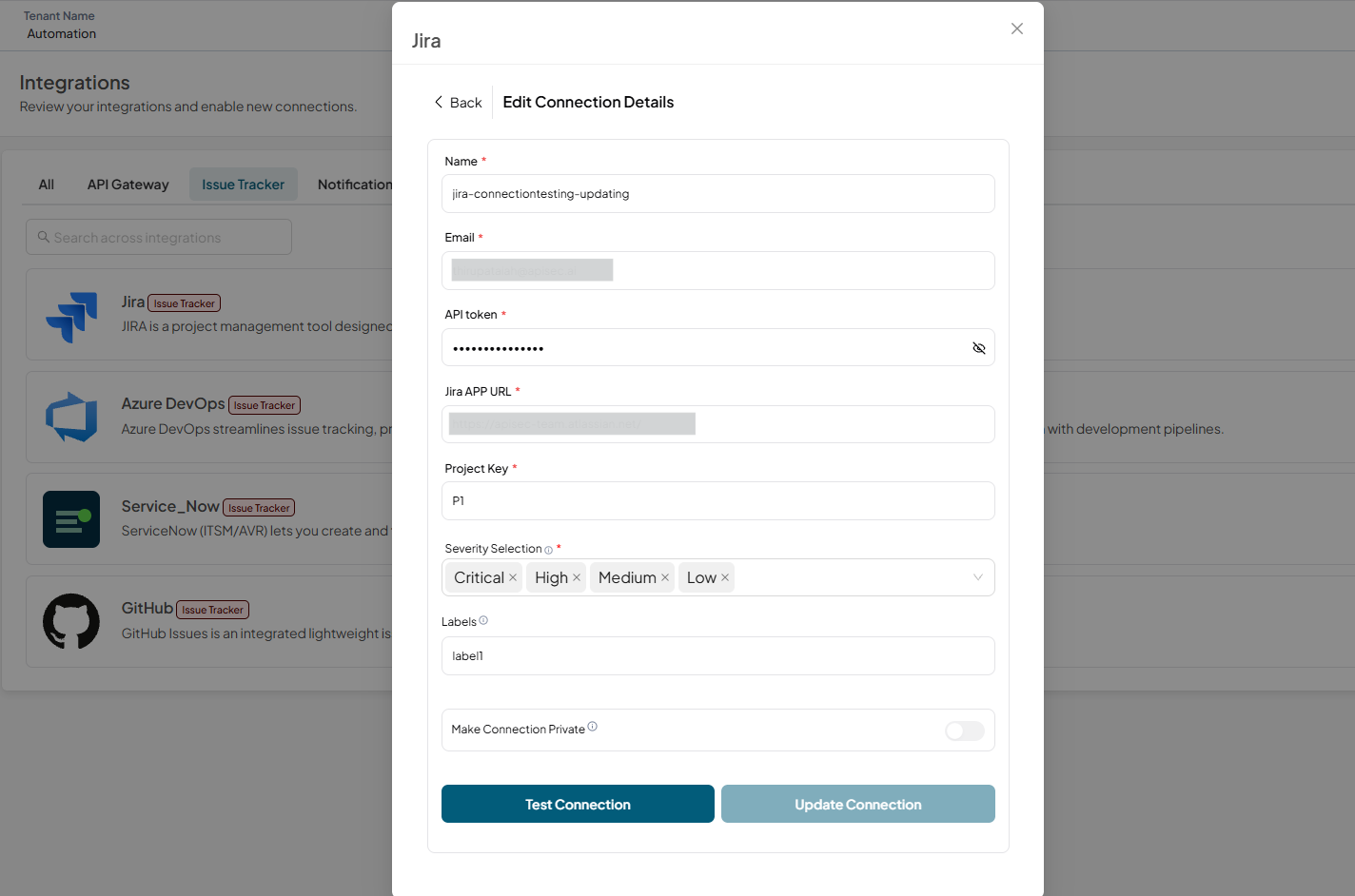
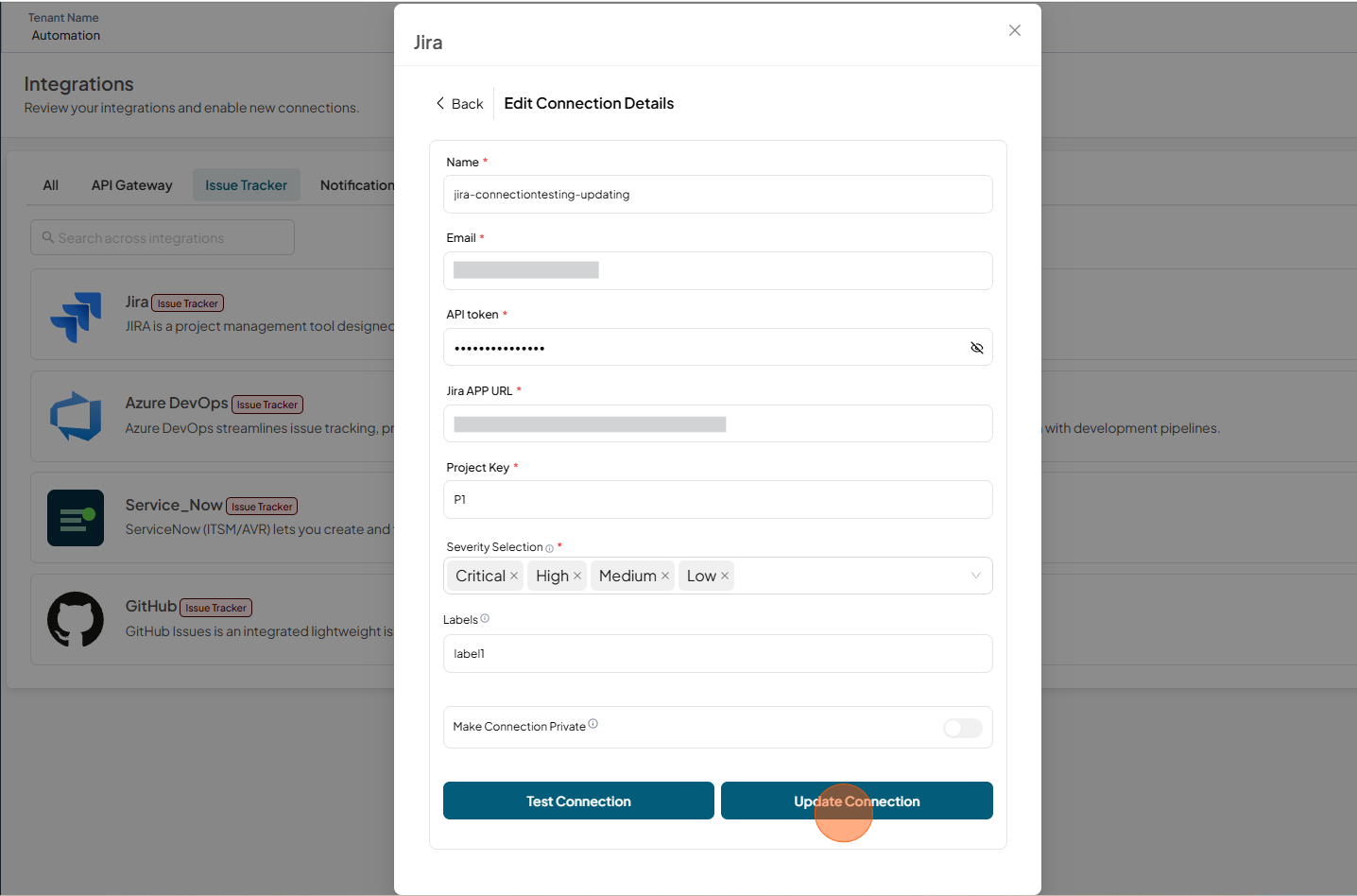
Edit the connection details. You can also update severity filters for the existing connection (if they are not updated). Changes apply to future scans and automatically close tickets that don't match the selected severities to maintain consistency. However, the corresponding vulnerabilities will still exist in the platform.
-
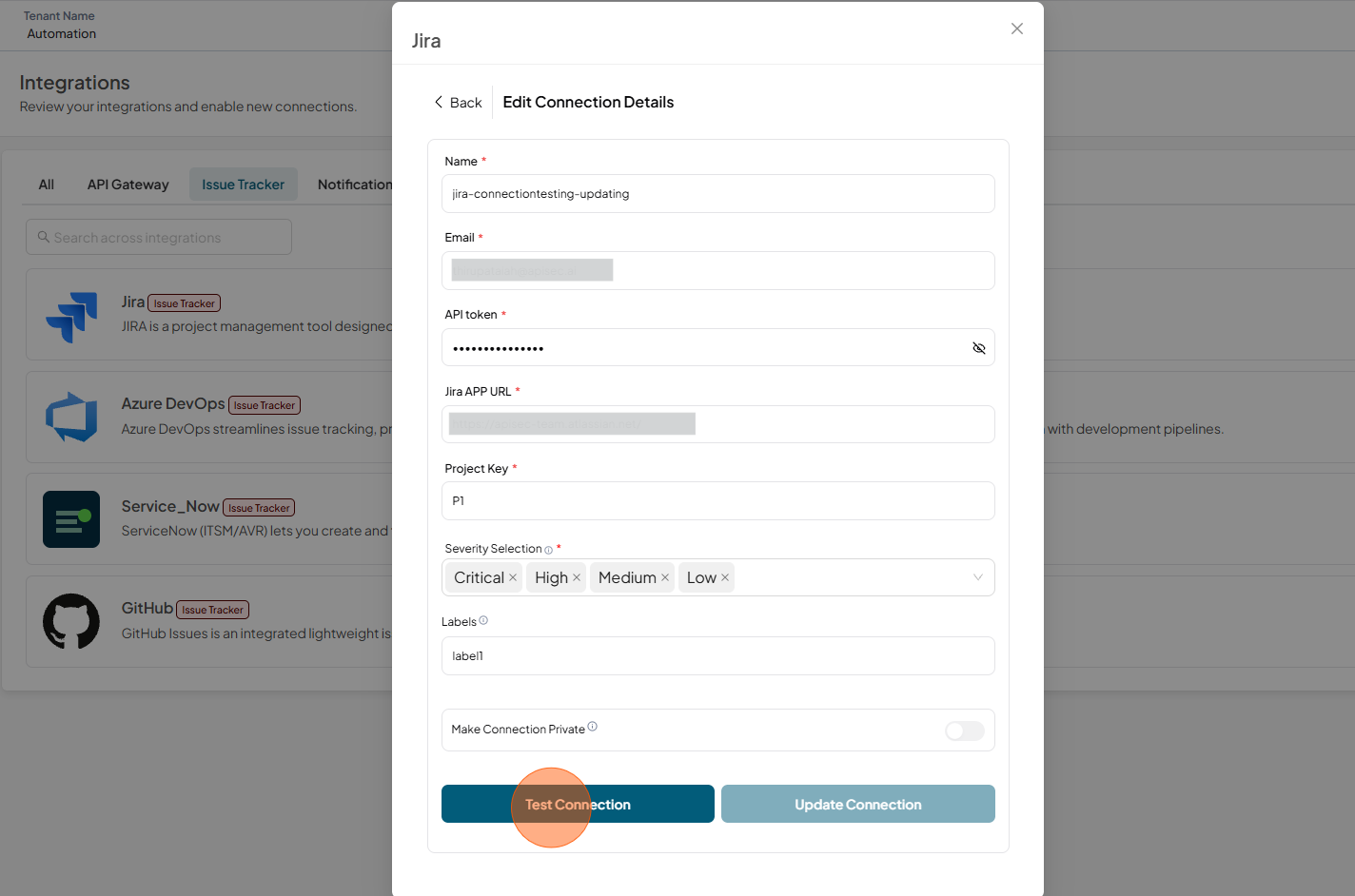
Click Test Connection
-
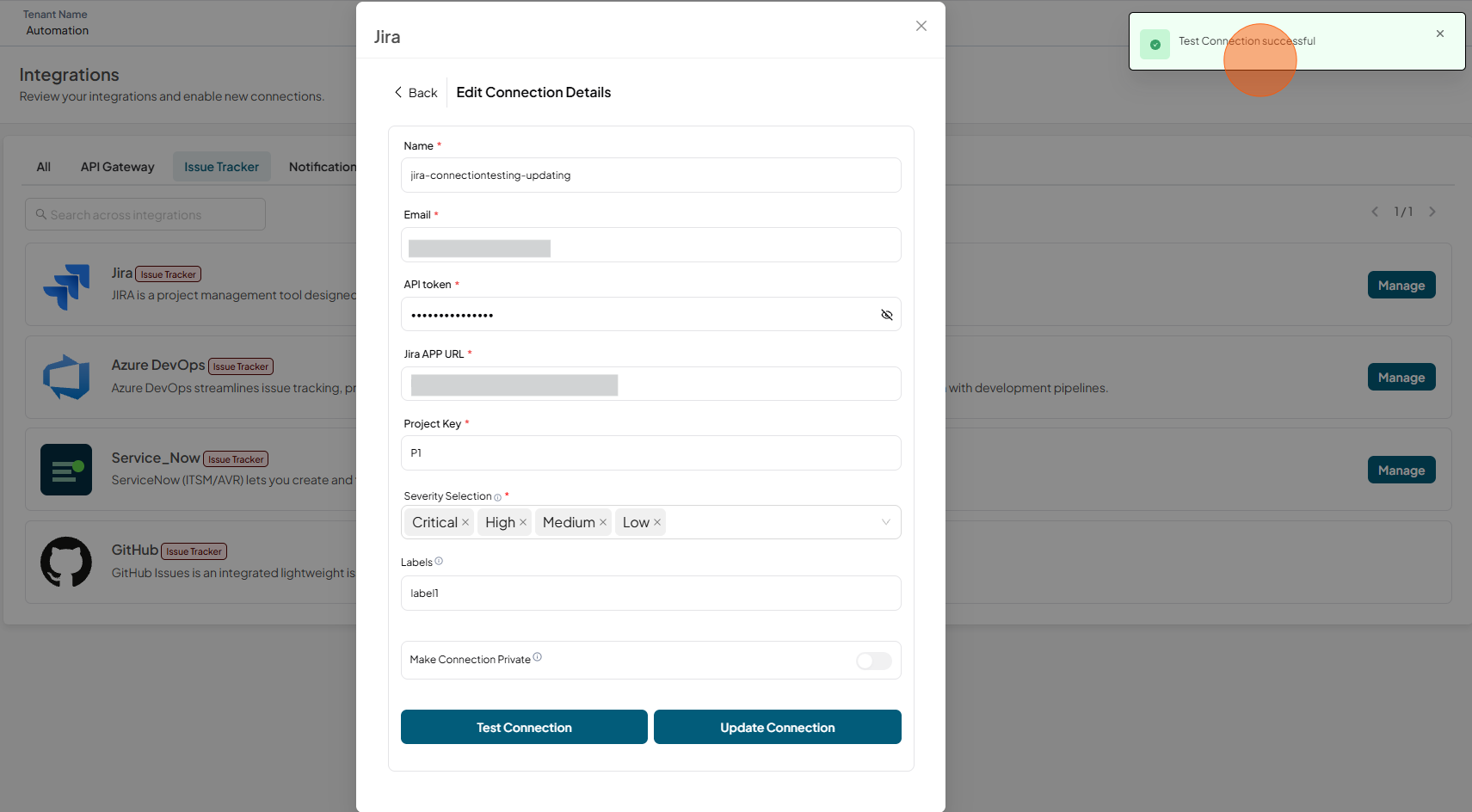
Test connection successful.
-
Click Update Connection
Delete a Jira connection
-
Open your browser and visit: https://<your-tenant>.apisecapps.com
-
Click on Integrations
-
Click on the Issue Tracker tab
-
You can find the Jira Issue Tracker
-
Click Manage
-
-
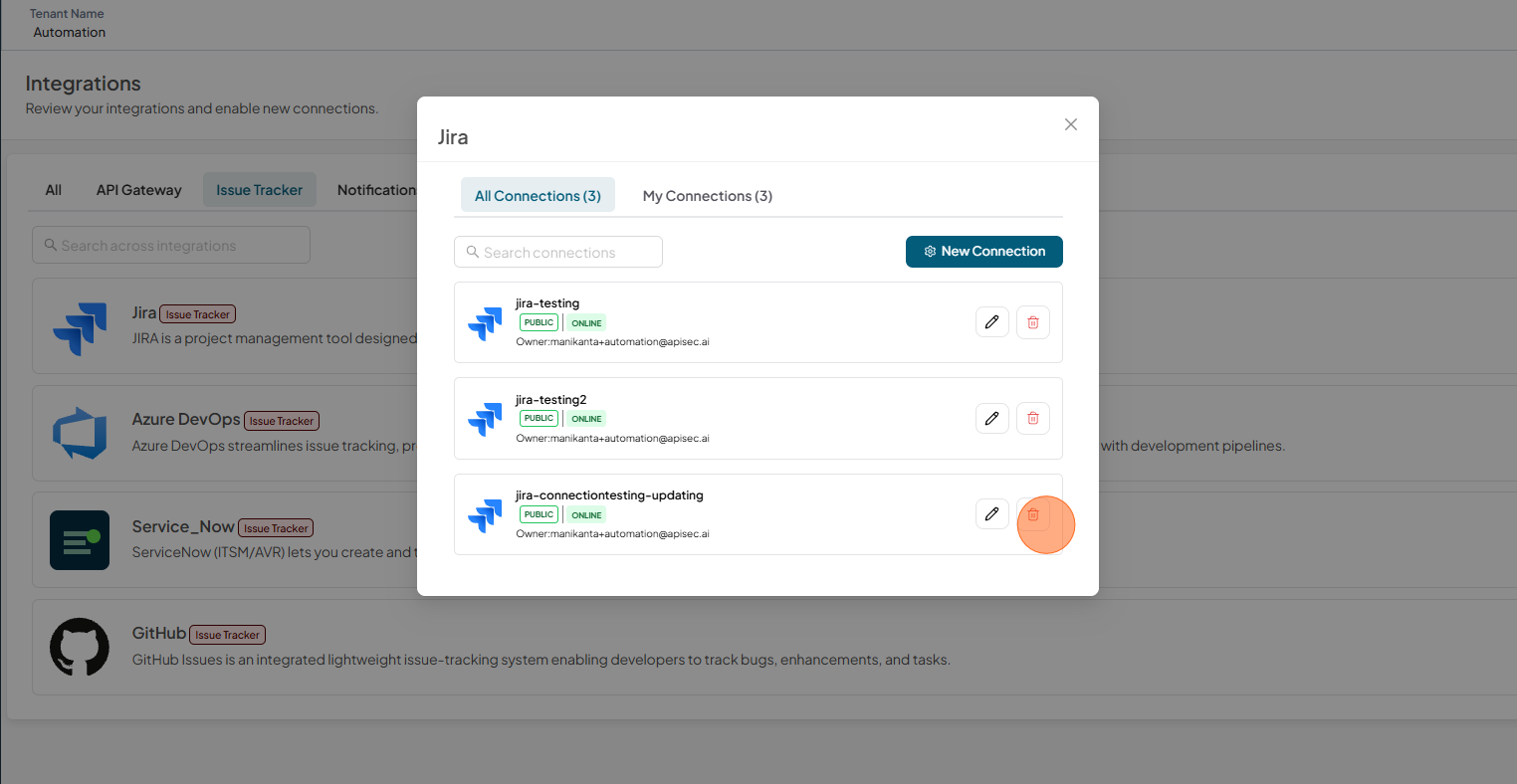
Click the Delete icon
-
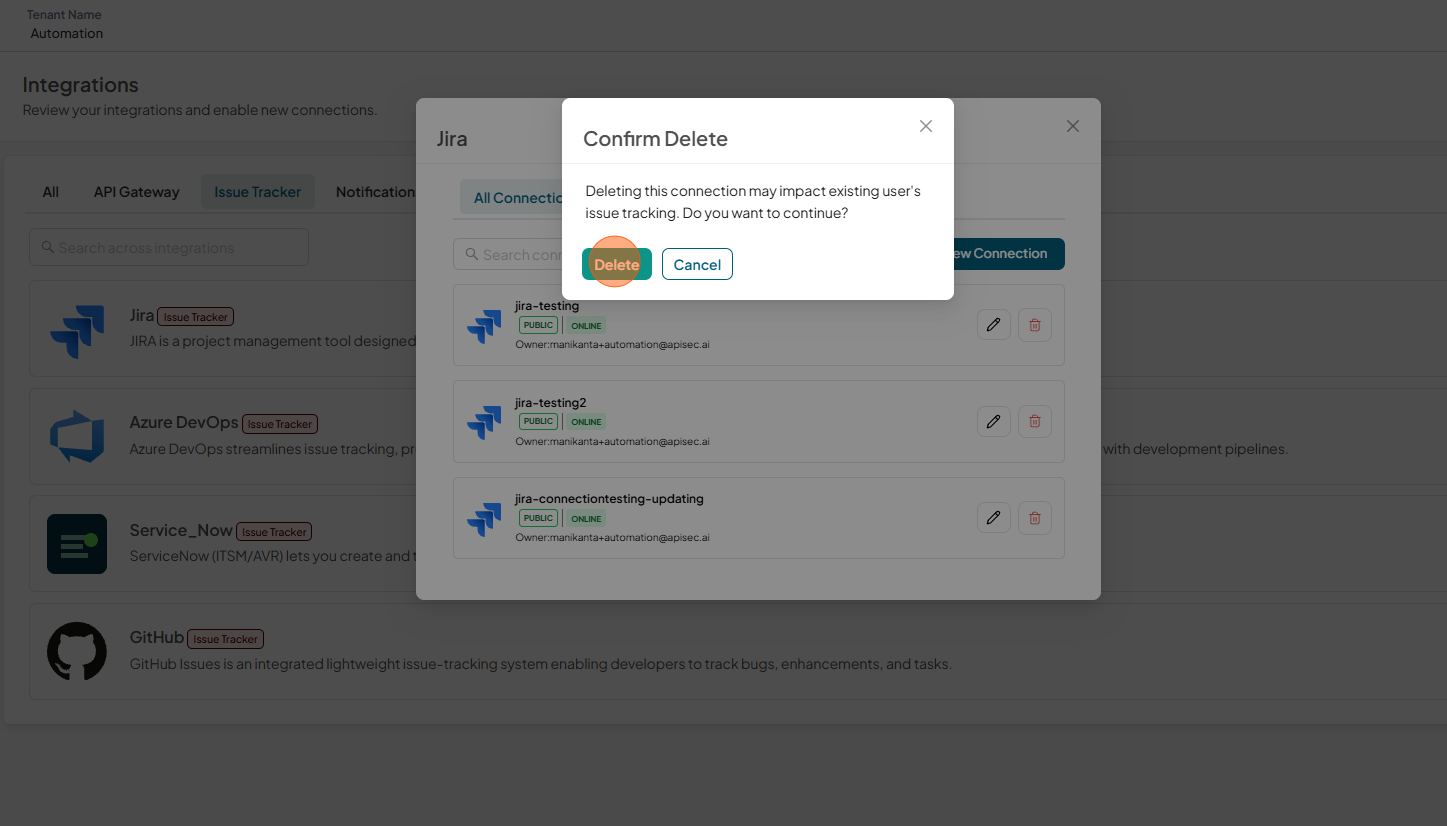
Click Delete to confirm
Set up a Jira connection with the application
You can integrate Jira with the application to automatically track and manage issues. This integration creates tickets in Jira for easier tracking and resolution.
-
Navigate to: https://<your-tenant>.apisecapps.com
-
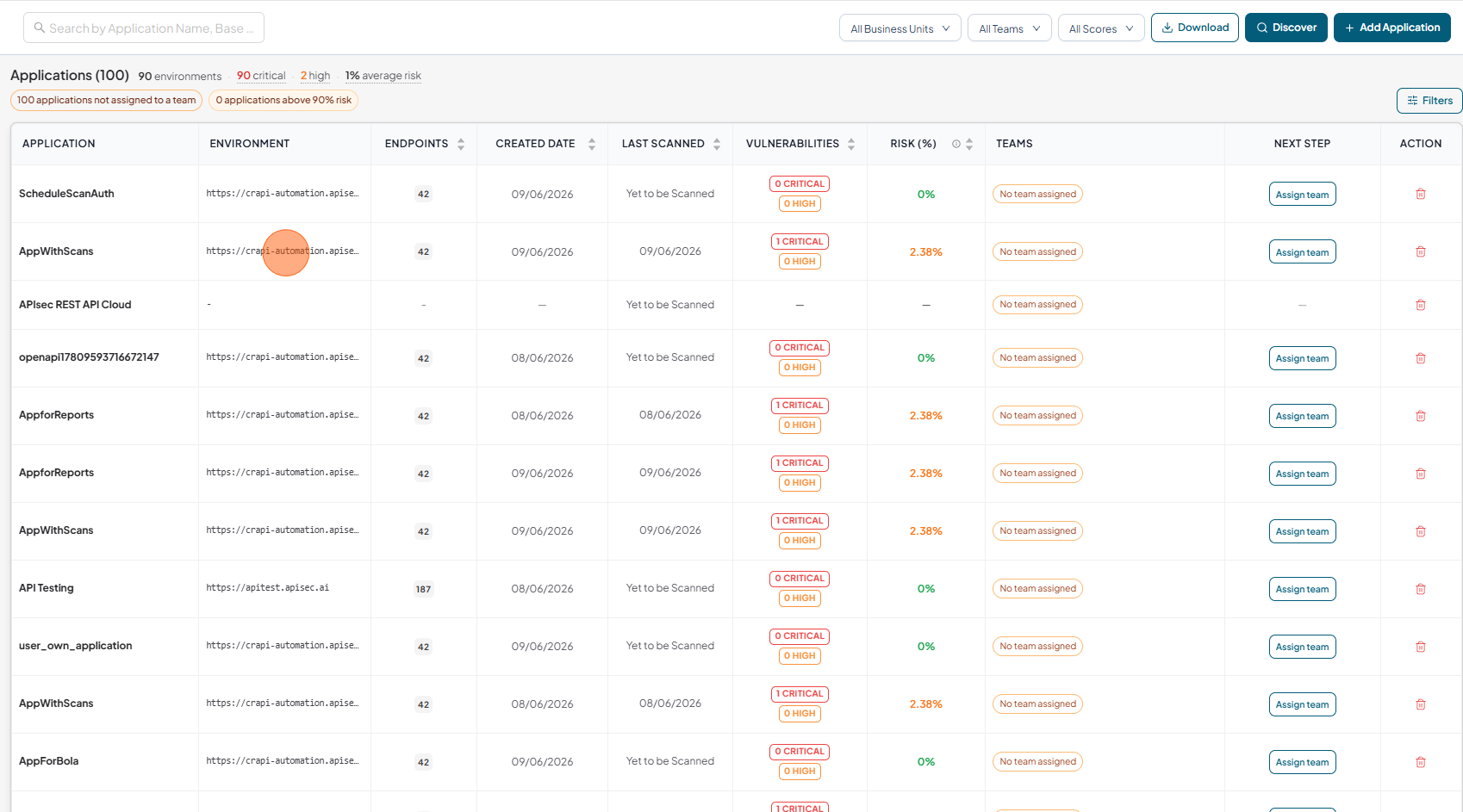
Click on Application
-
From the left navigation select Issue Tracker
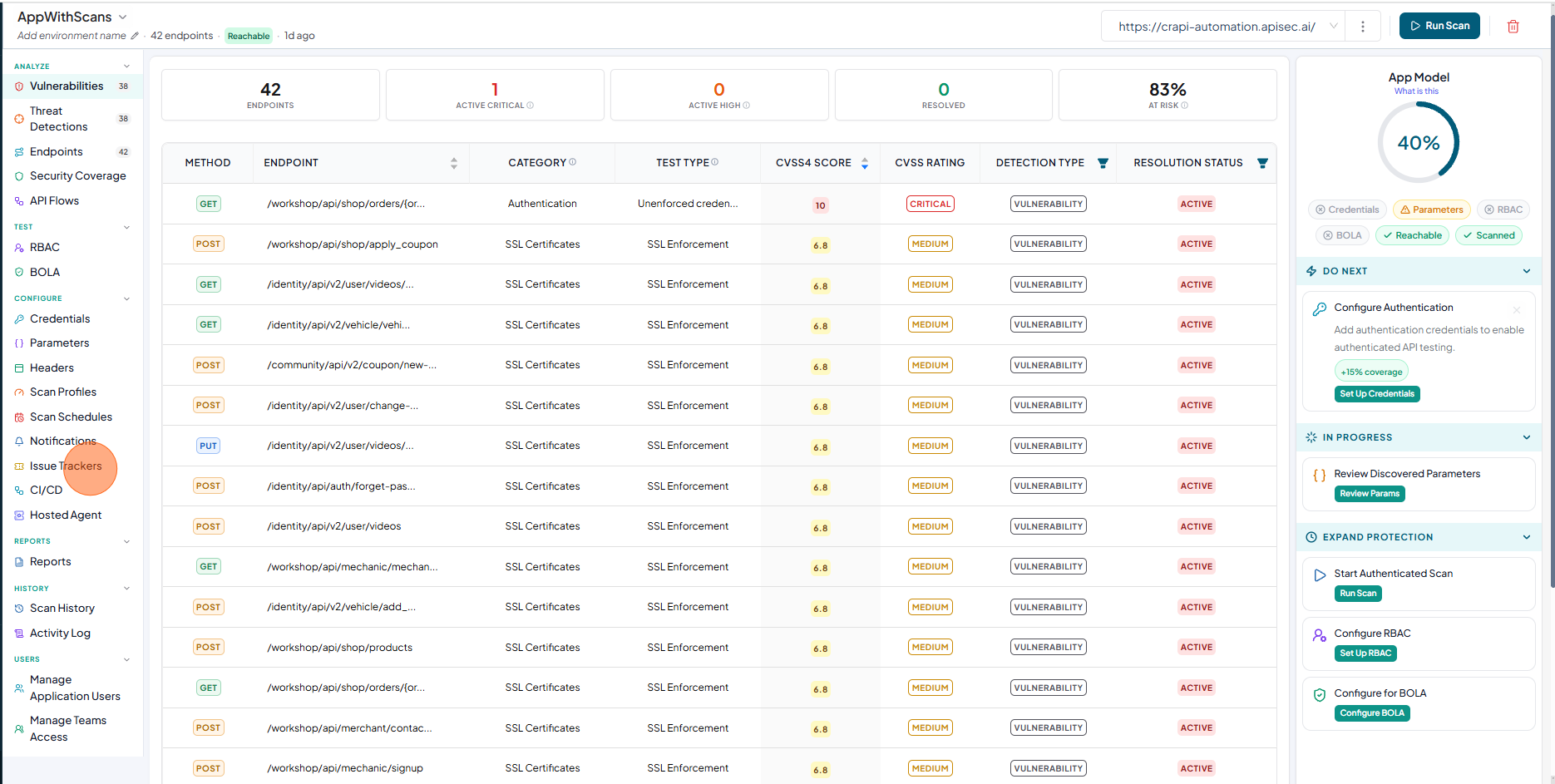
-
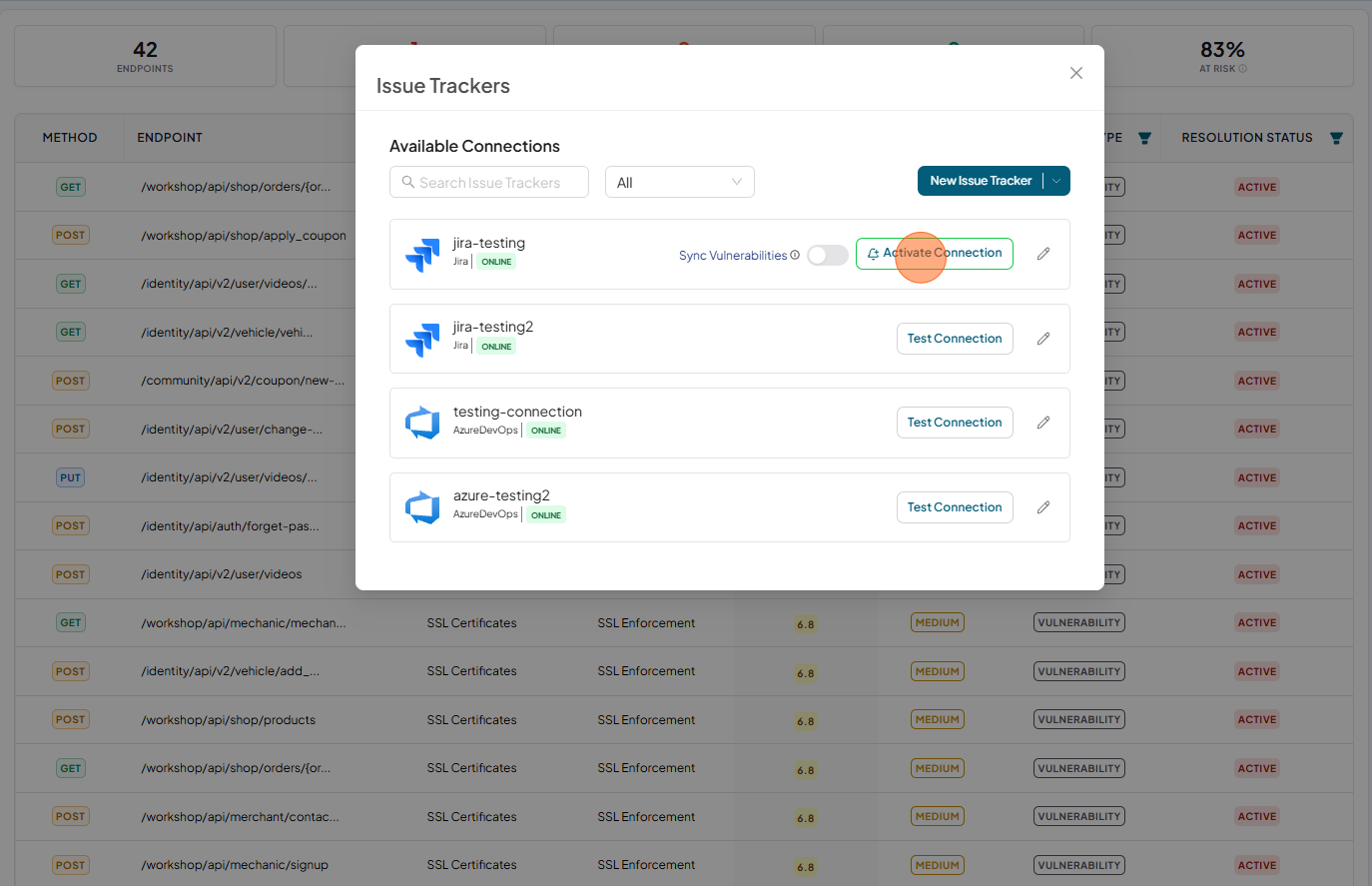
The list of Issue Trackers available in the tenant is displayed.
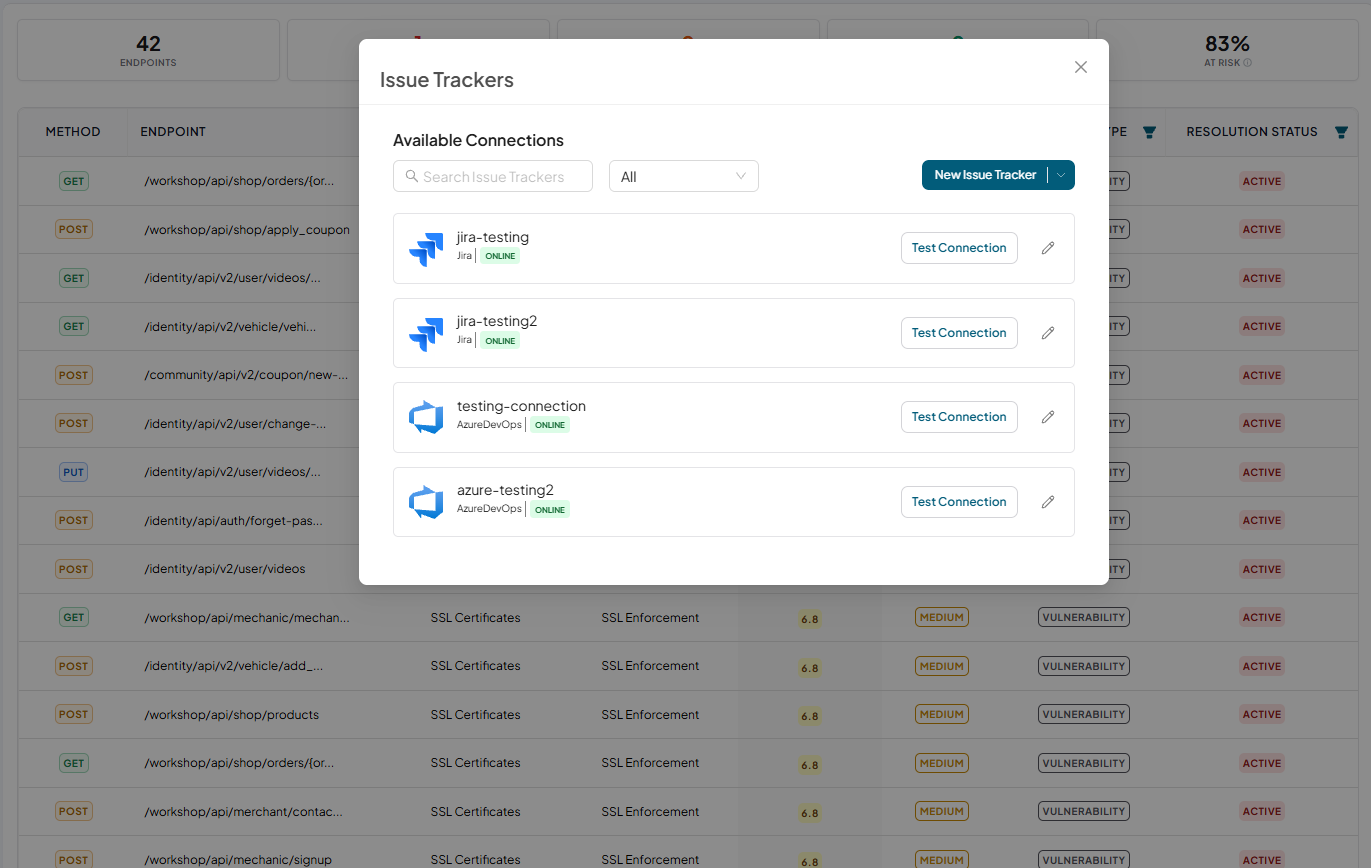
To create a new Jira connection from here, click New Issue Tracker, then select Jira to create a new connection.
-
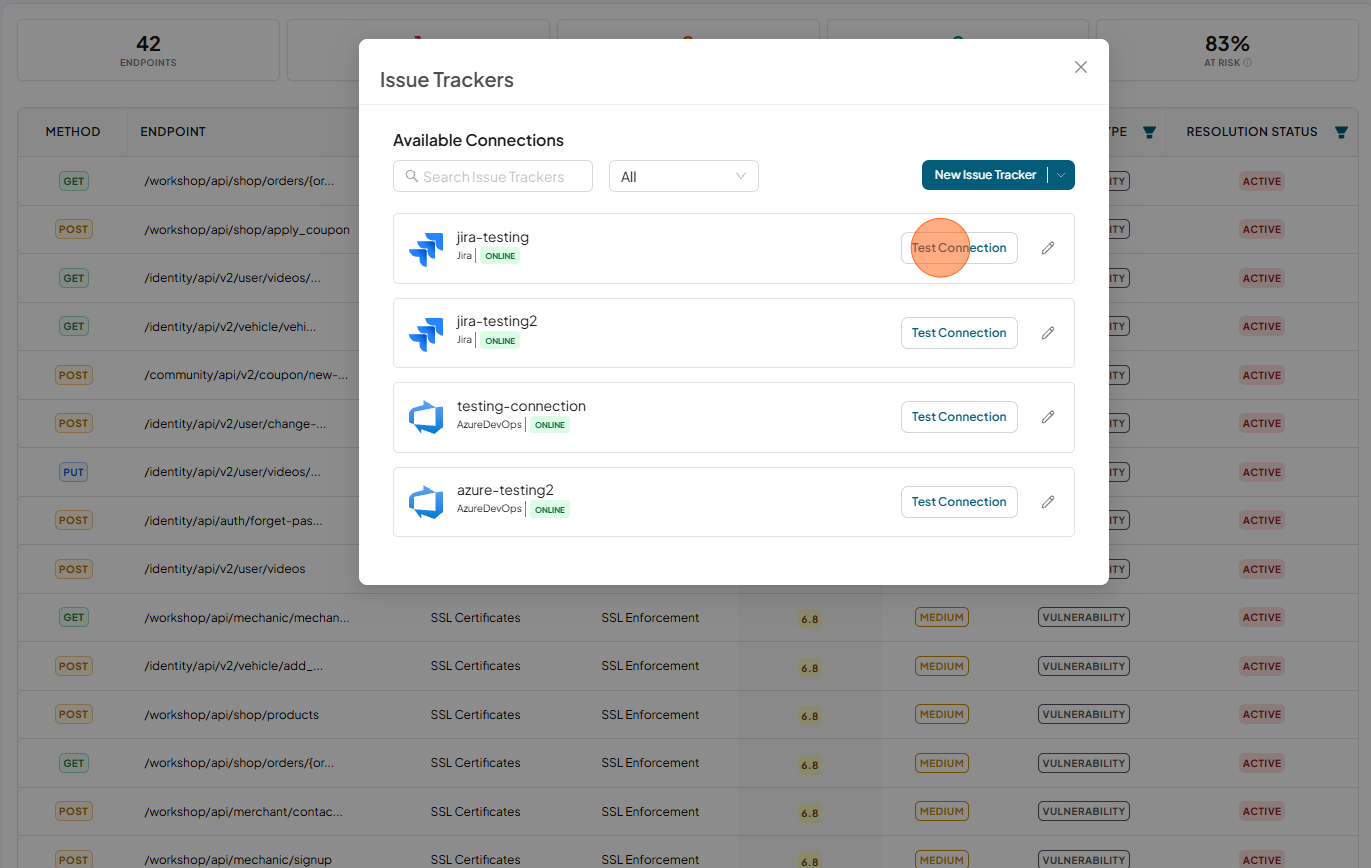
From that list, select the Jira connection and click Test Connection.
-
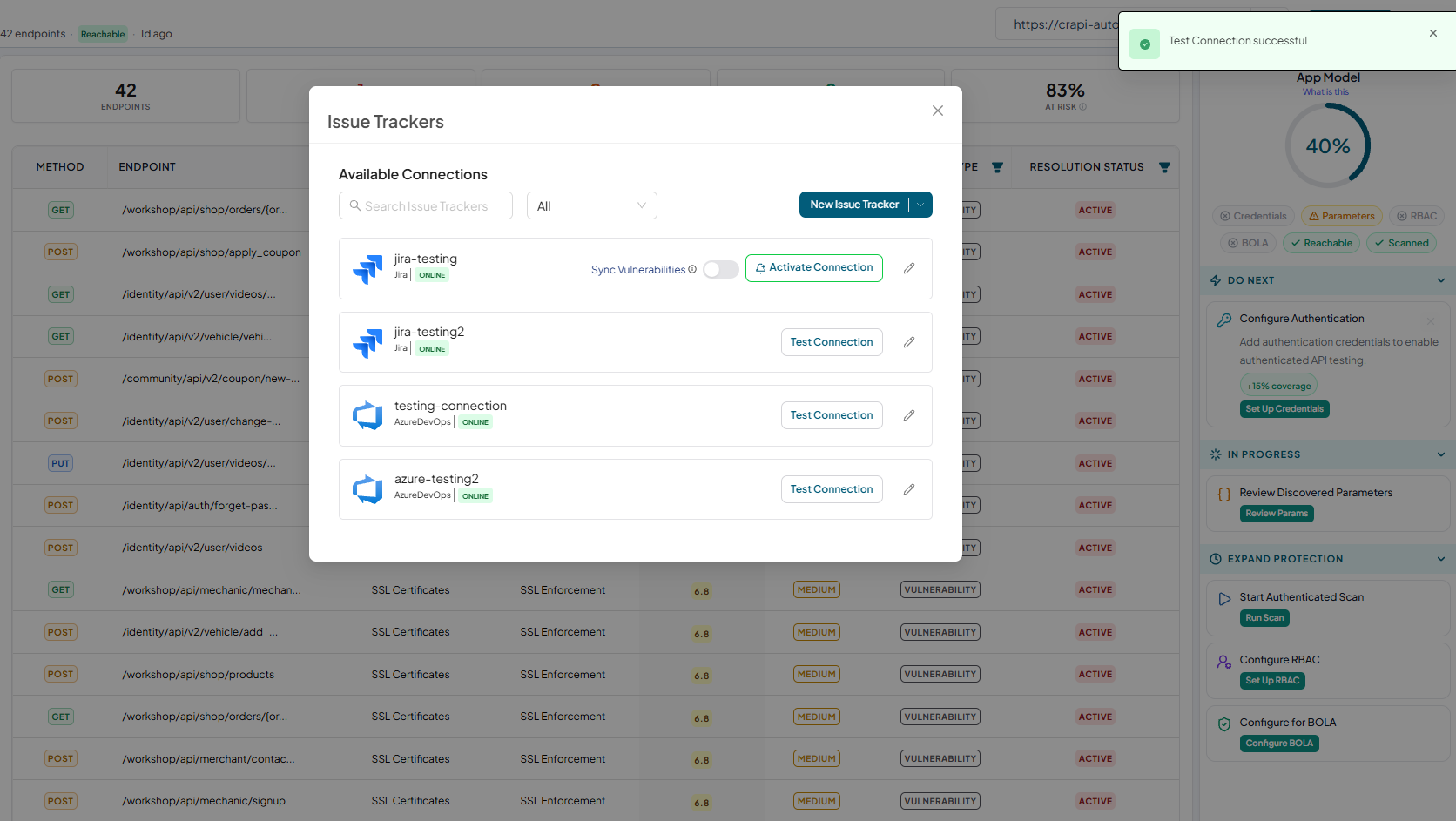
Test Connection successful
-
Now click on the Activate Connection
-
Connection activated
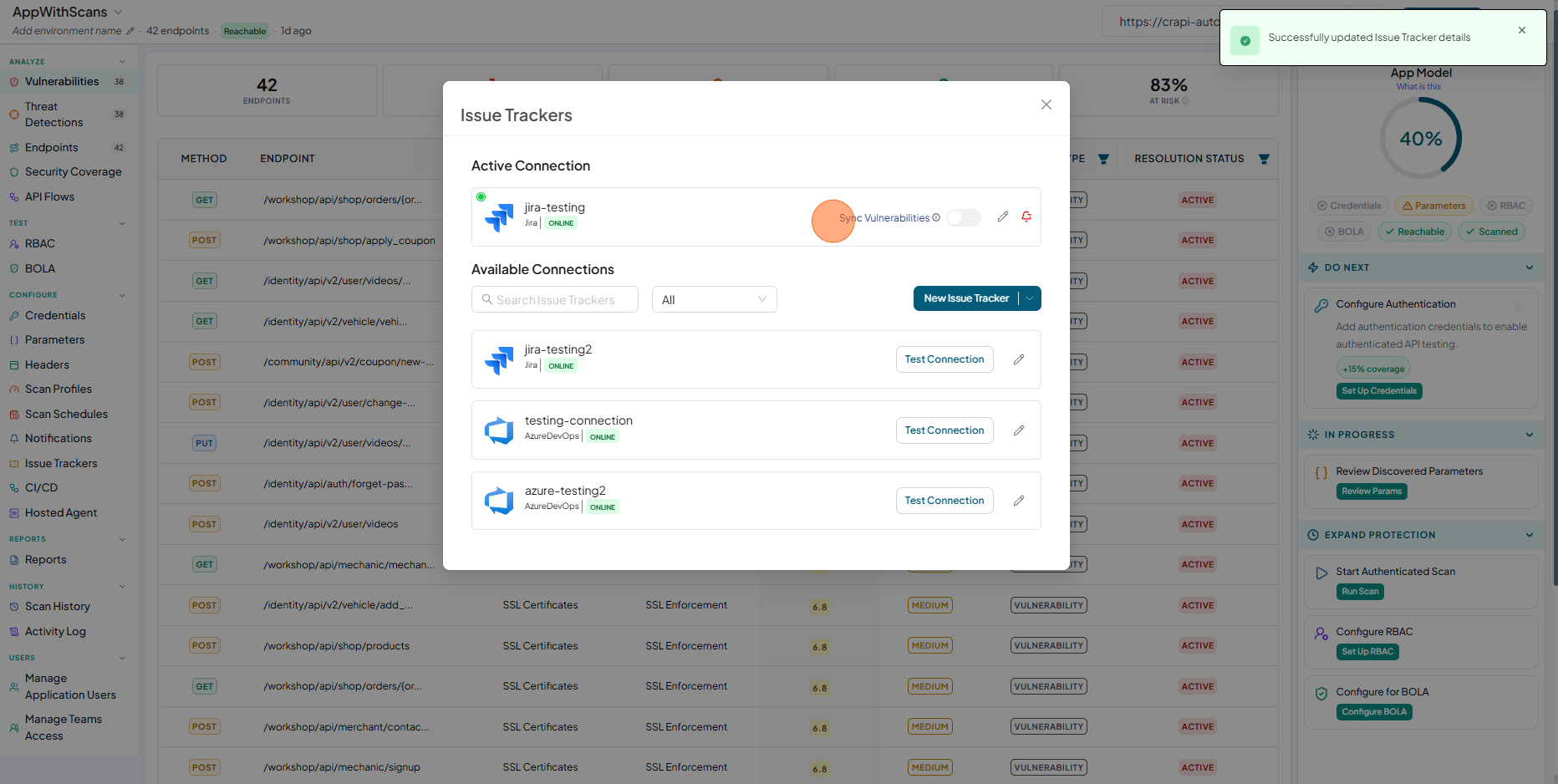
The configured connection appears in the list as First connection.
noteA user role with View permissions cannot configure the Jira issue tracker in a shared application.
-
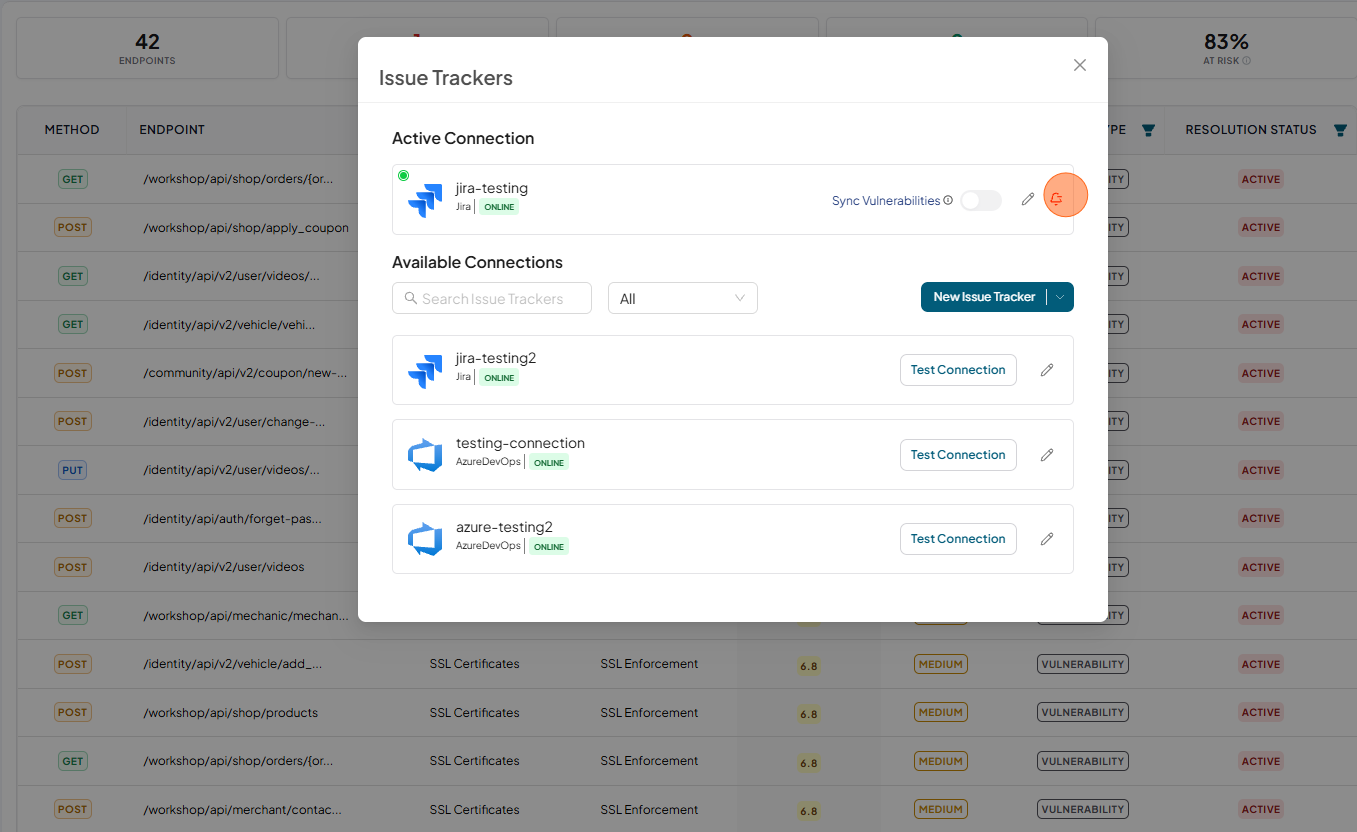
To remove the connection from the application, click the Delete icon beside the configured connection
-
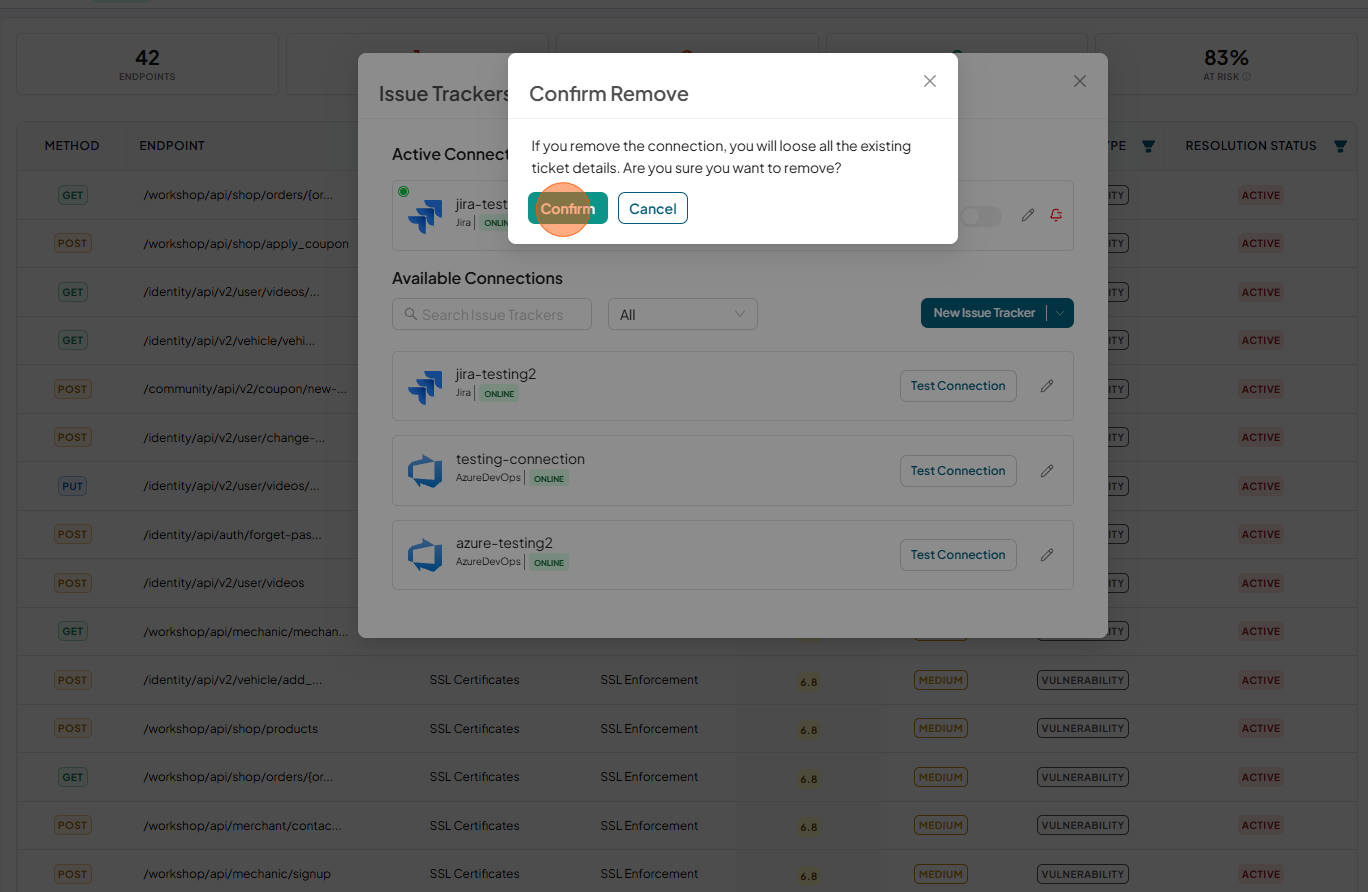
Click Confirm to remove the connection
 note
noteA user role with View permissions cannot remove the Jira issue tracker from a shared application.