Integrate Microsoft Teams notifications
Prerequisites
The APIsec platform needs a Webhook URL to configure Microsoft Teams
-
Follow the steps below to obtain the Webhook URL
- Log in to Microsoft Teams
- Click on "..." (More options) adjacent to channel name
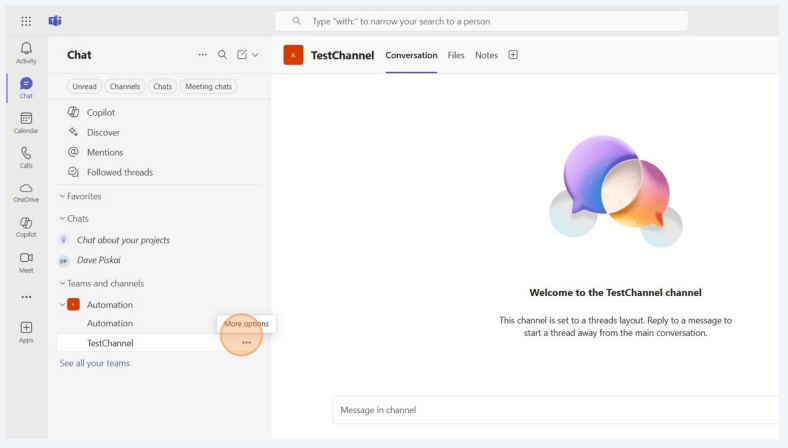
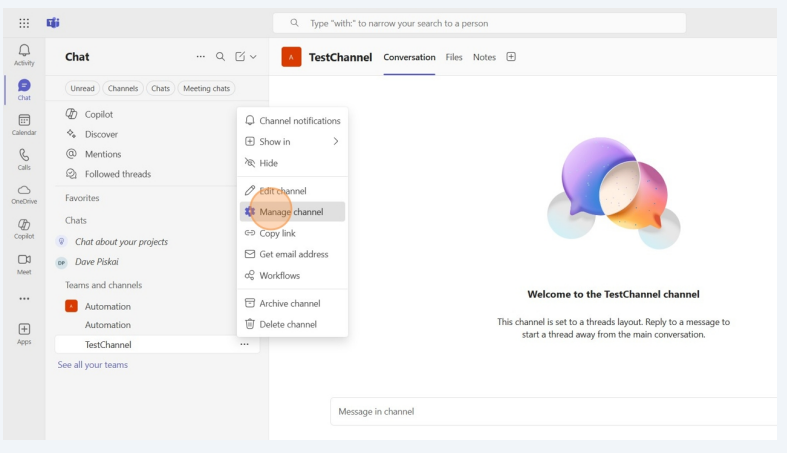
- Click on Manage Channel
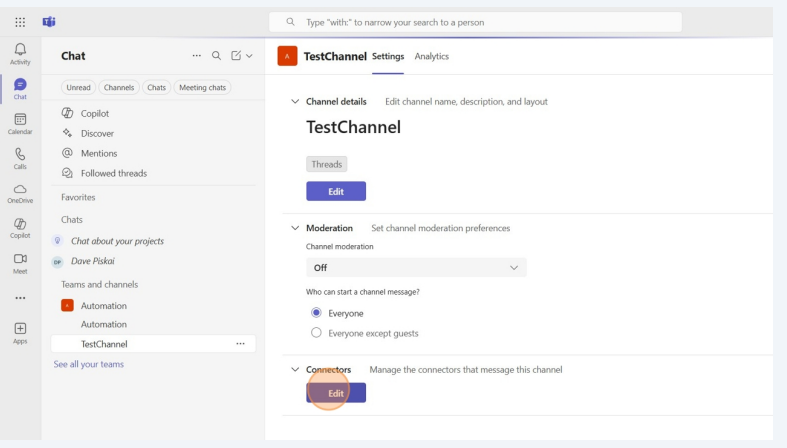
- Click on Edit
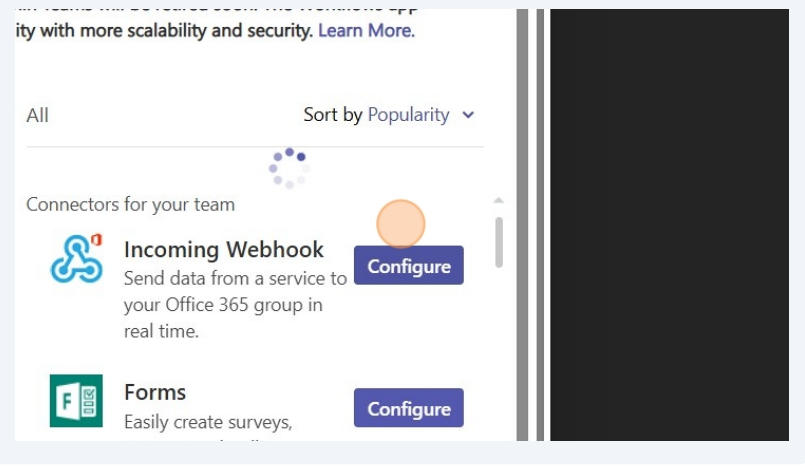
- Click on Configure adjacent to the Incoming Webhook
- Enter name
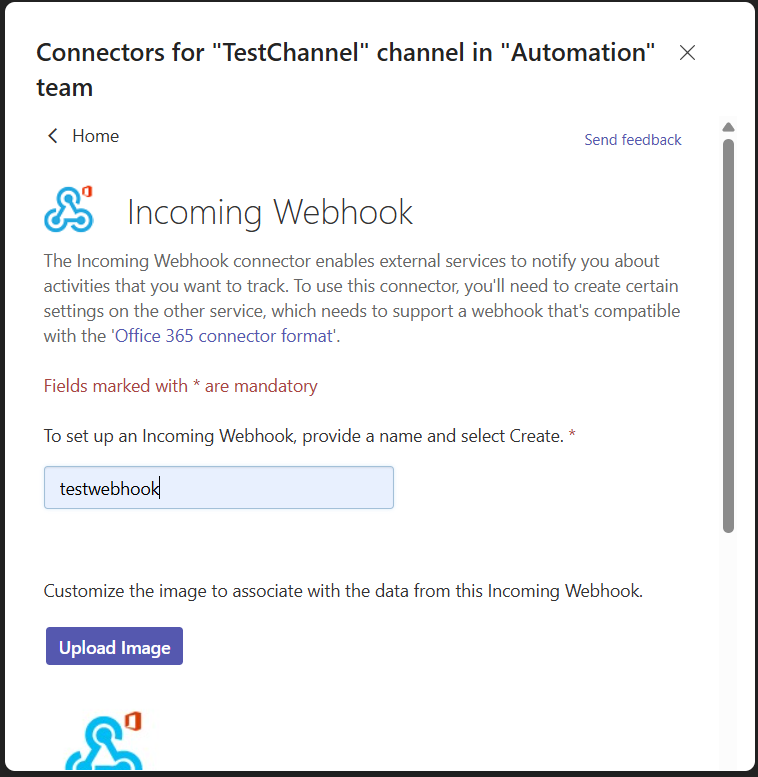
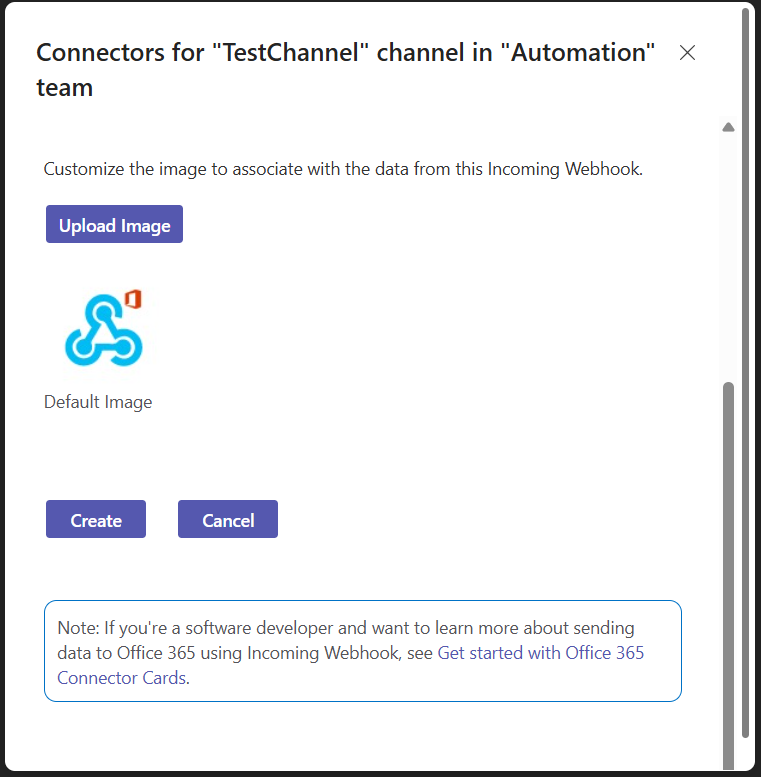
- Click on Create
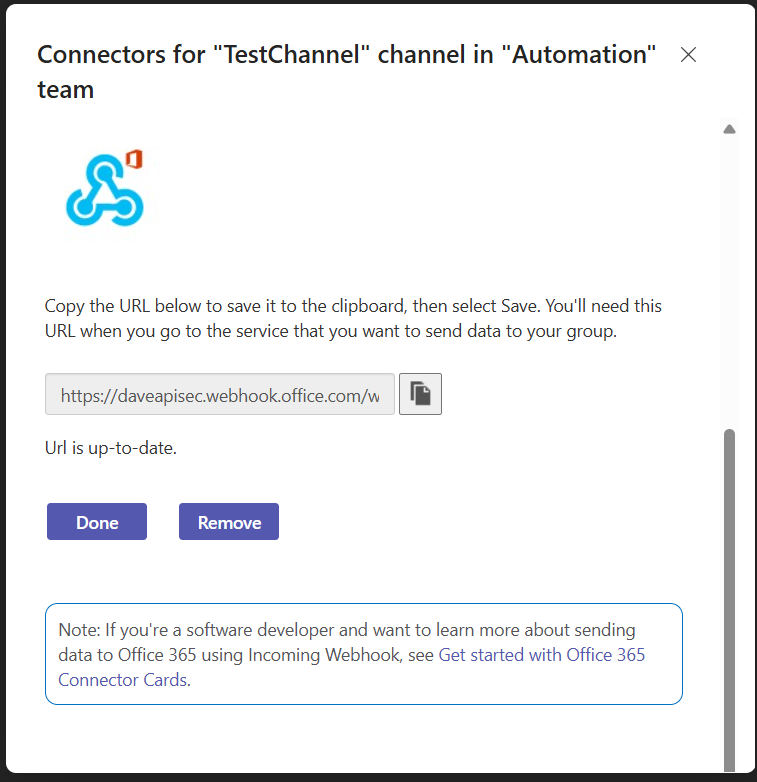
- Copy URL
Create a Microsoft Teams connection
-
Open your browser and visit: https://<your-tenant>.apisecapps.com
-
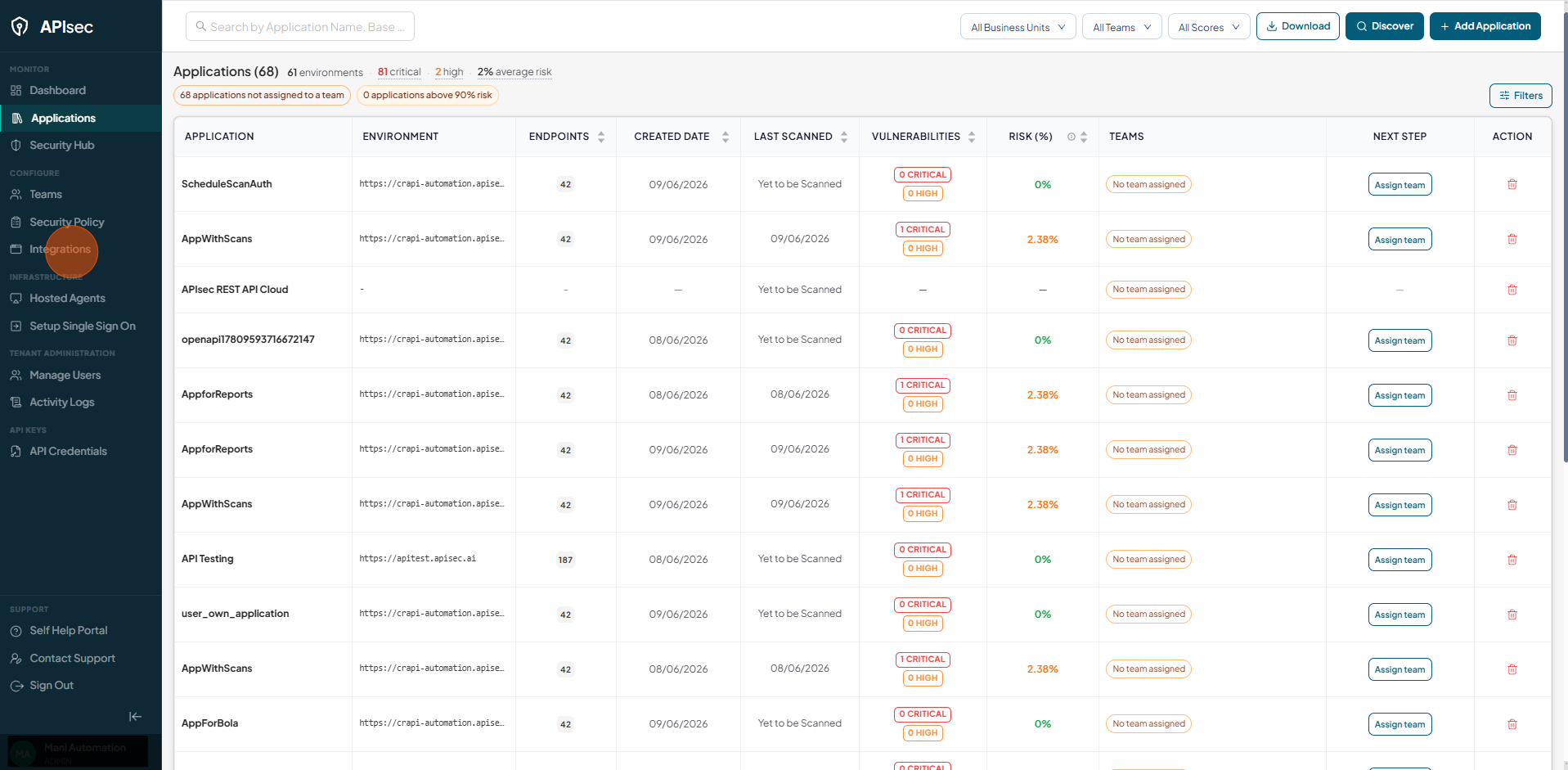
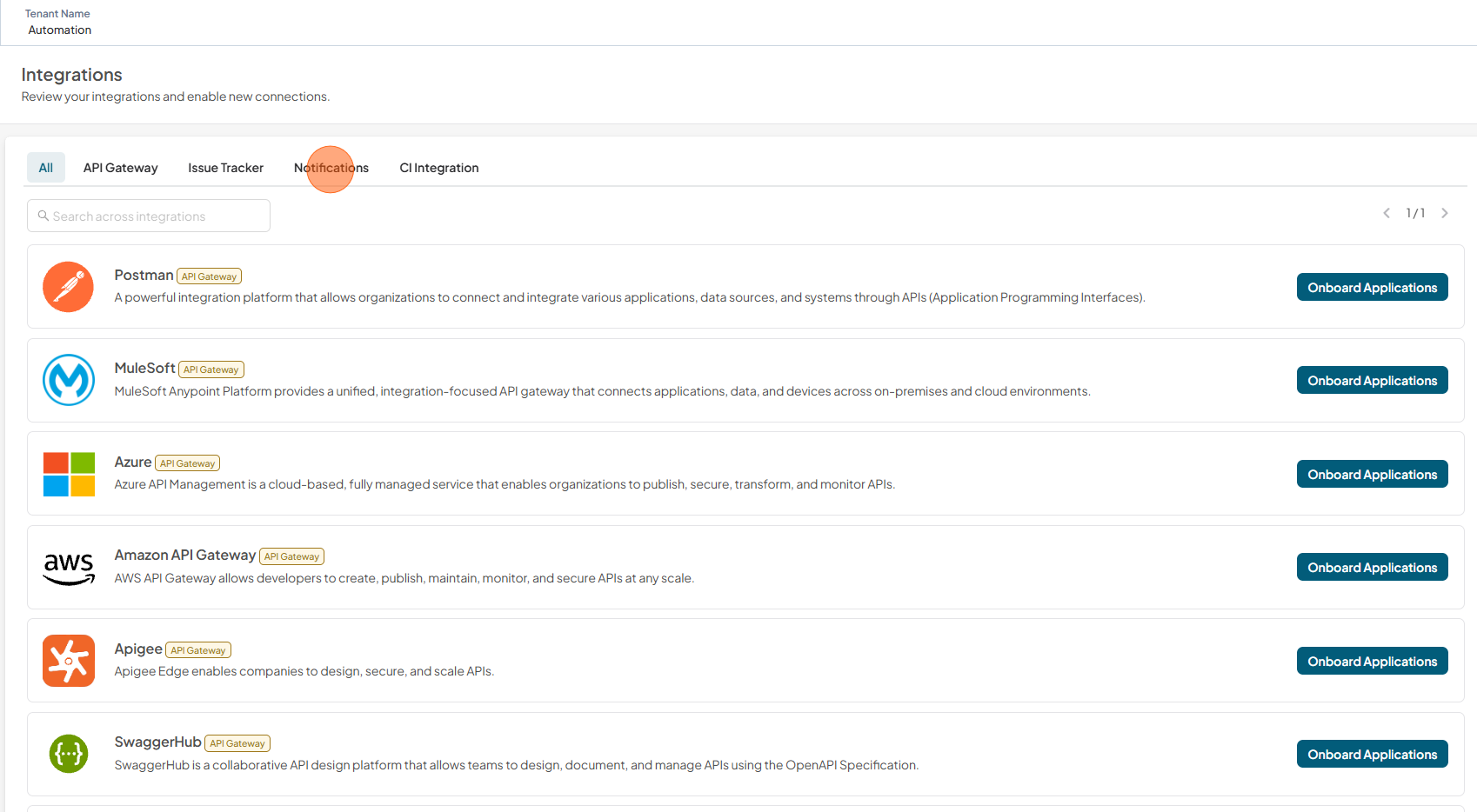
Click on Integrations
-
Click on Notifications tab
-
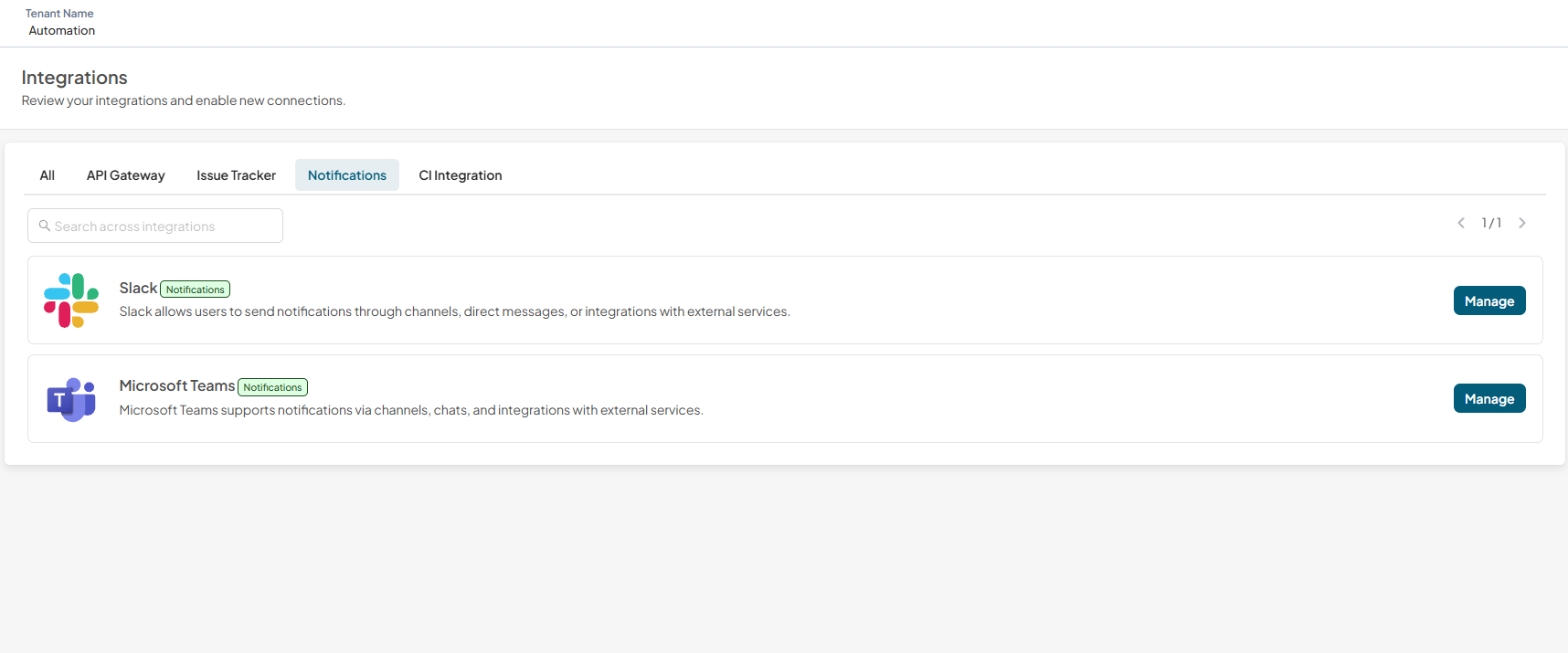
You can find the Microsoft Teams in the Notifications list
-
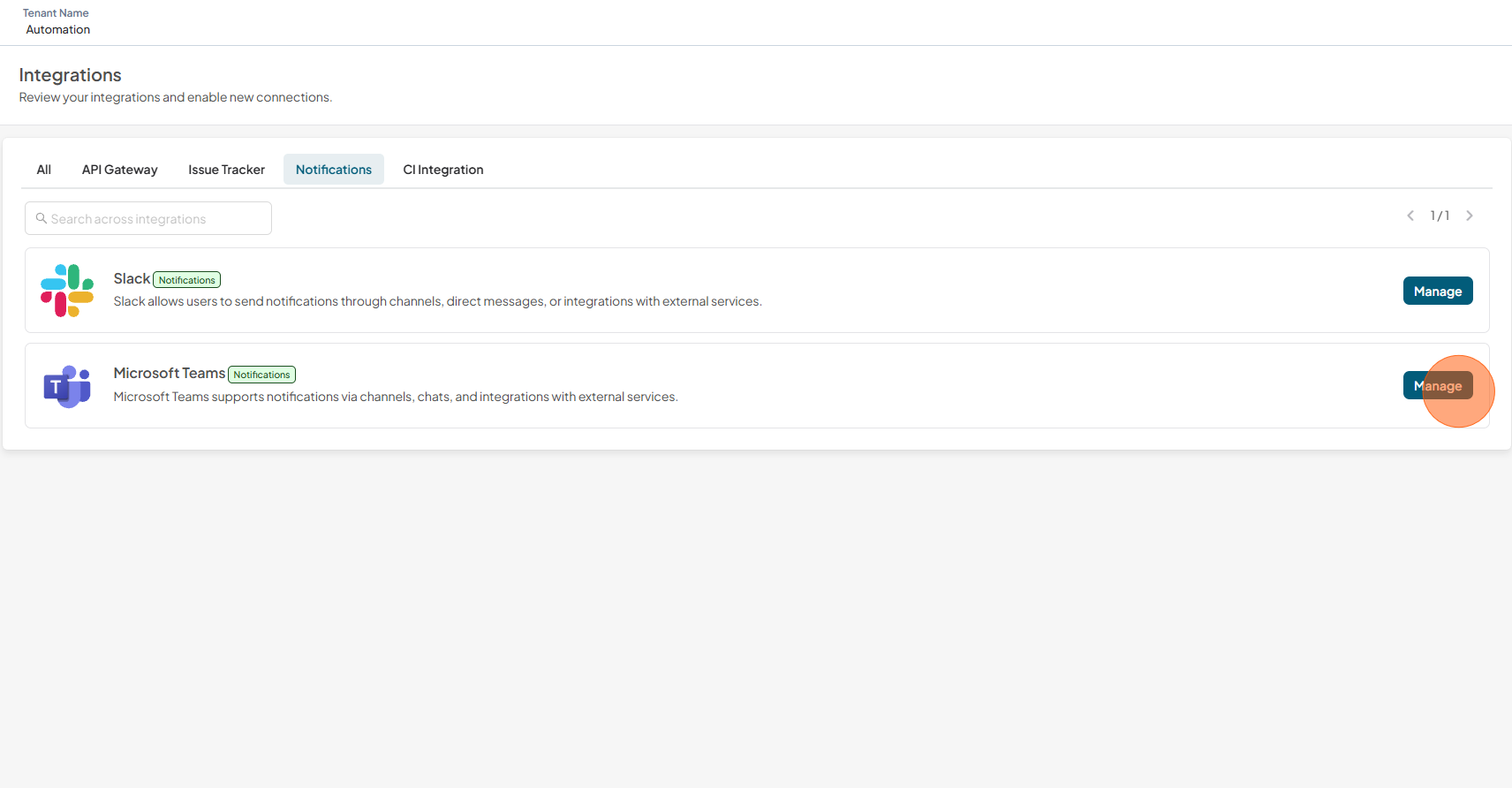
Click on Manage
-
If Microsoft Teams connections already exist, the existing connections will be displayed along with the New Connection option
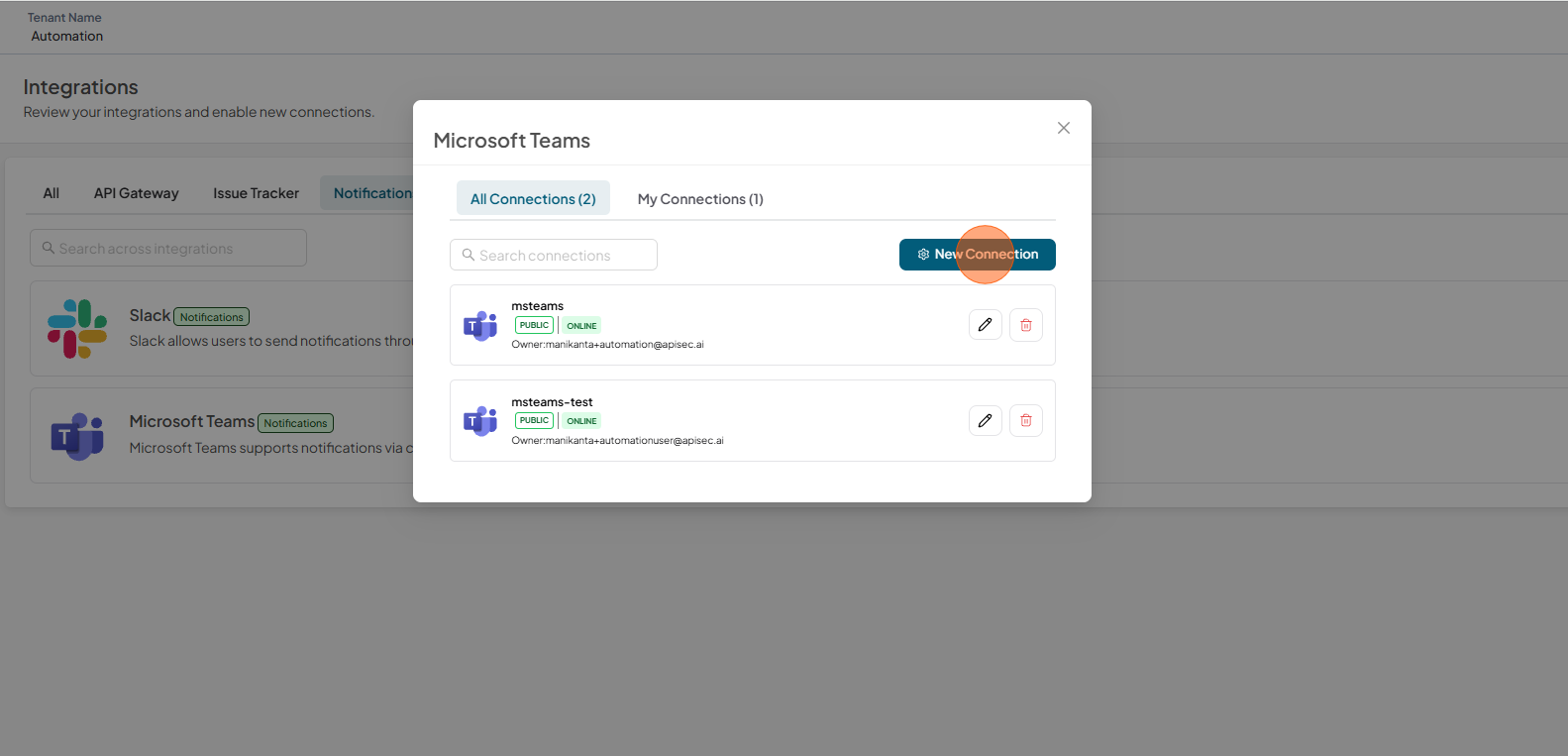
In this case, click New Connection.
-
Otherwise, the form to create a Microsoft Teams connection is displayed directly
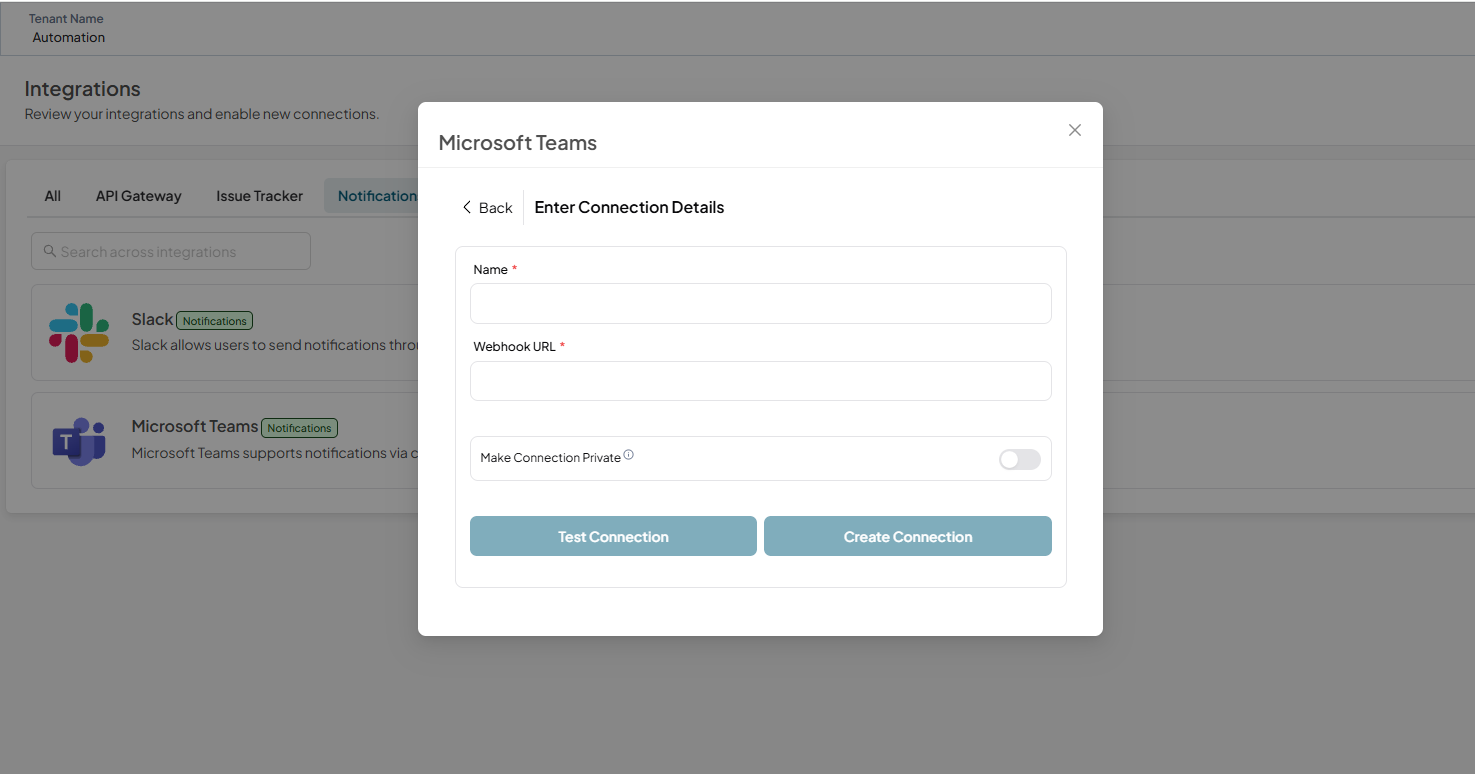
-
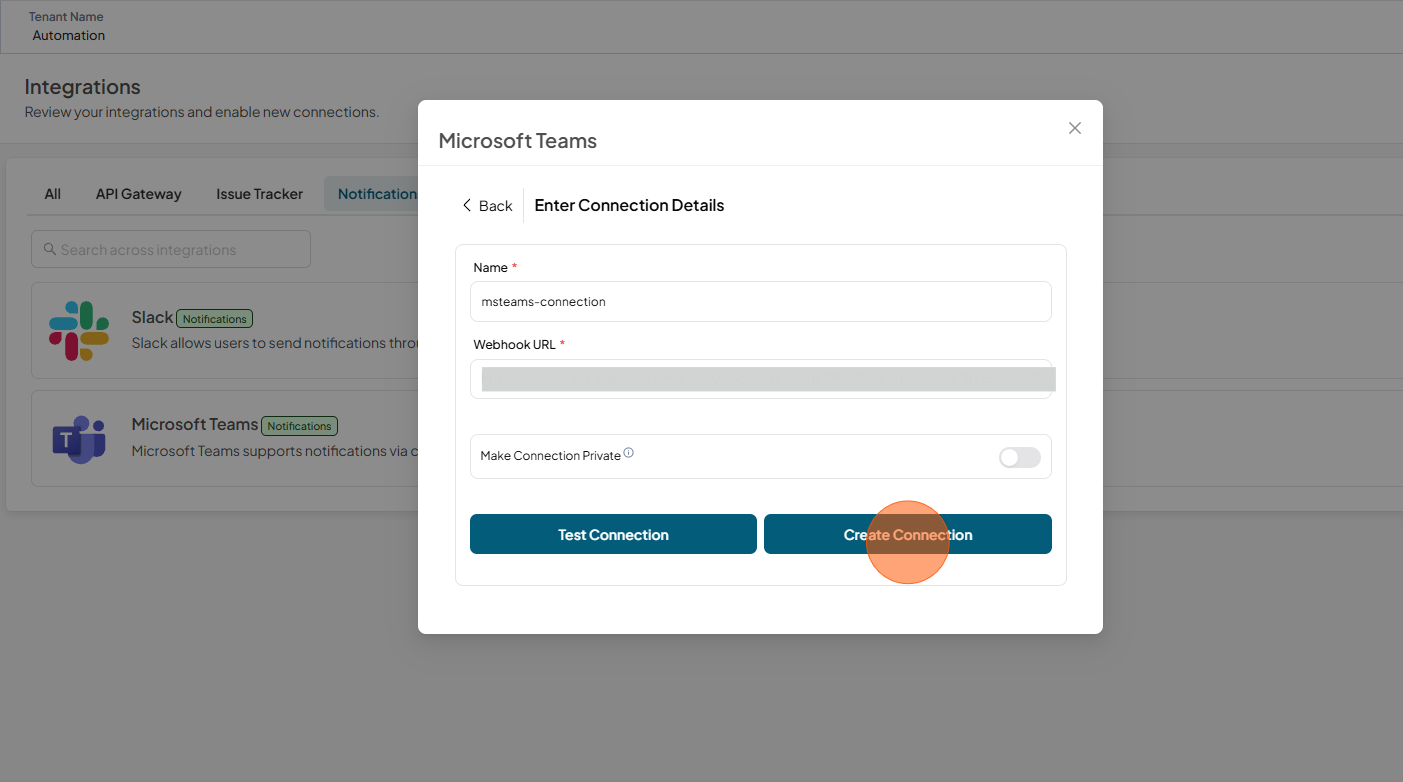
Fill in Name and Webhook URL
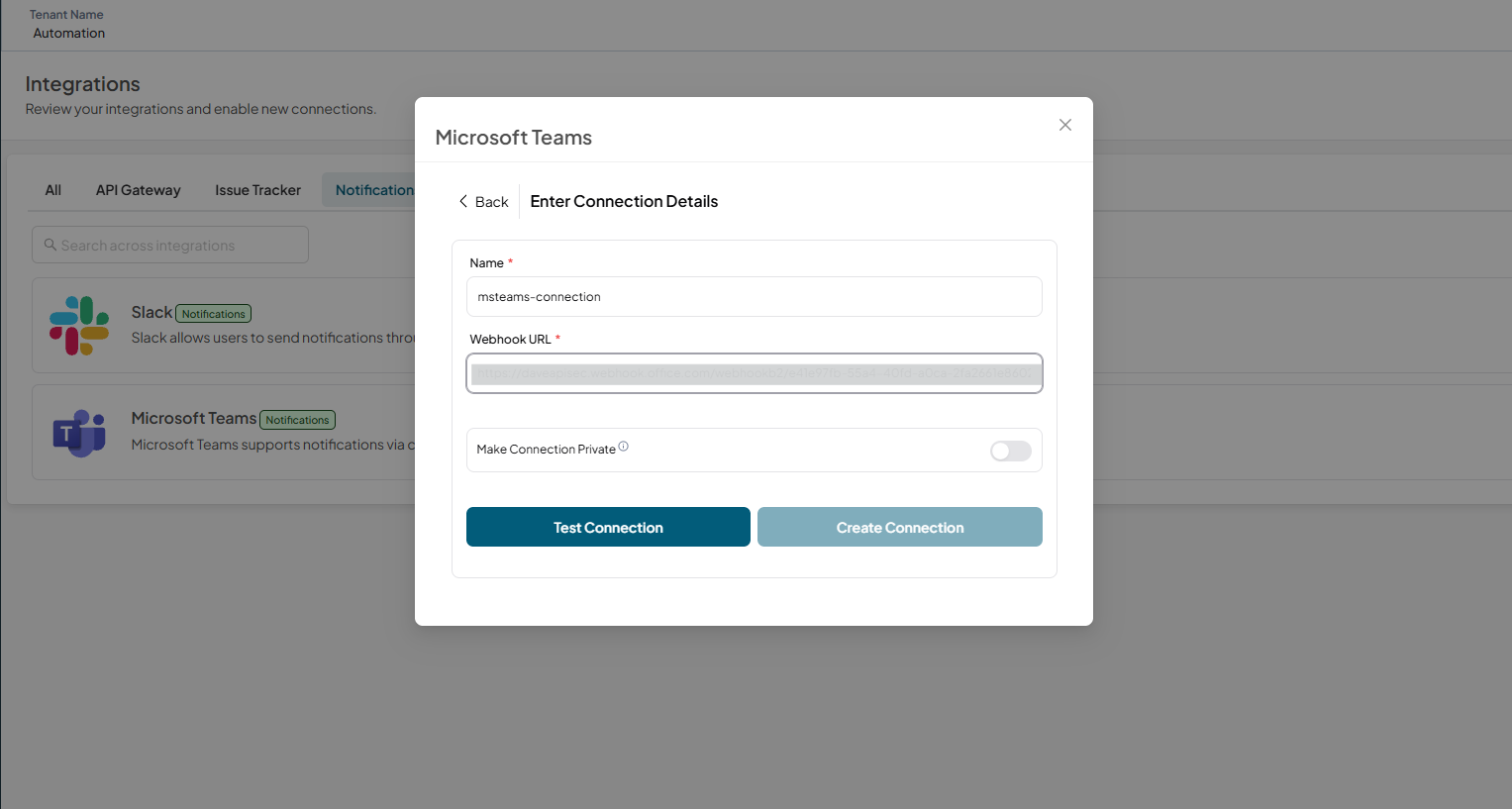
-
Click Test Connection
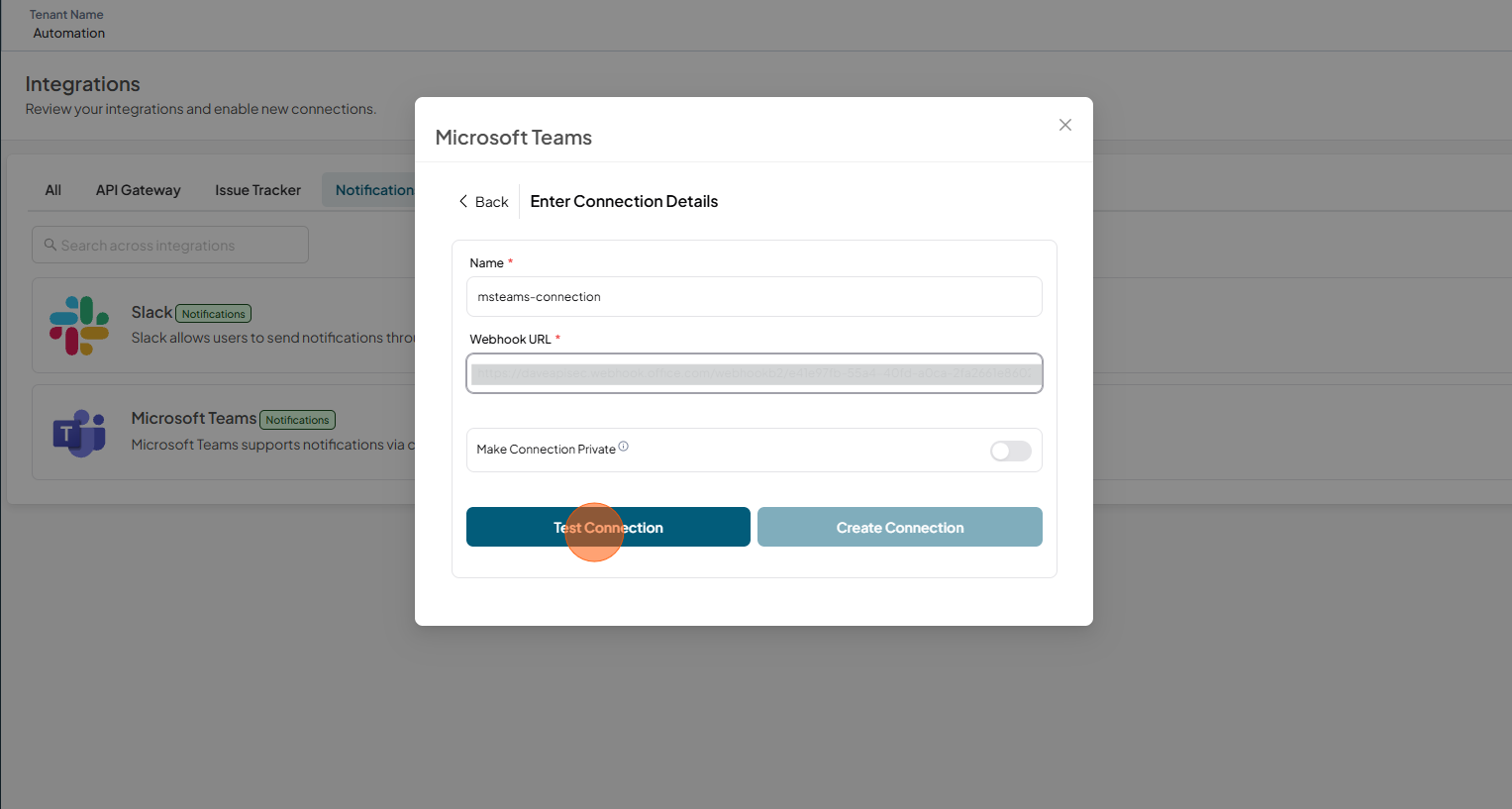
-
Test connection successful
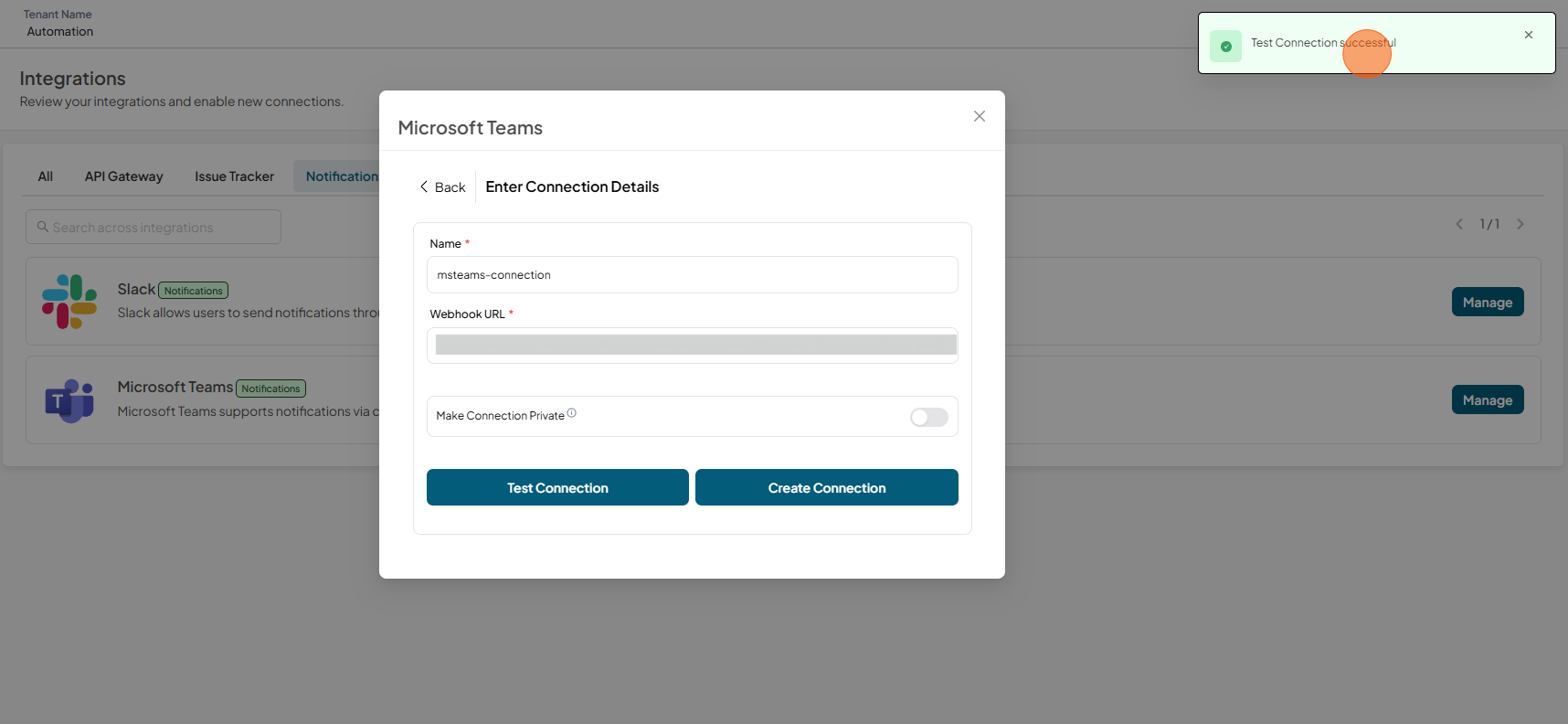
-
Click Create Connection
-
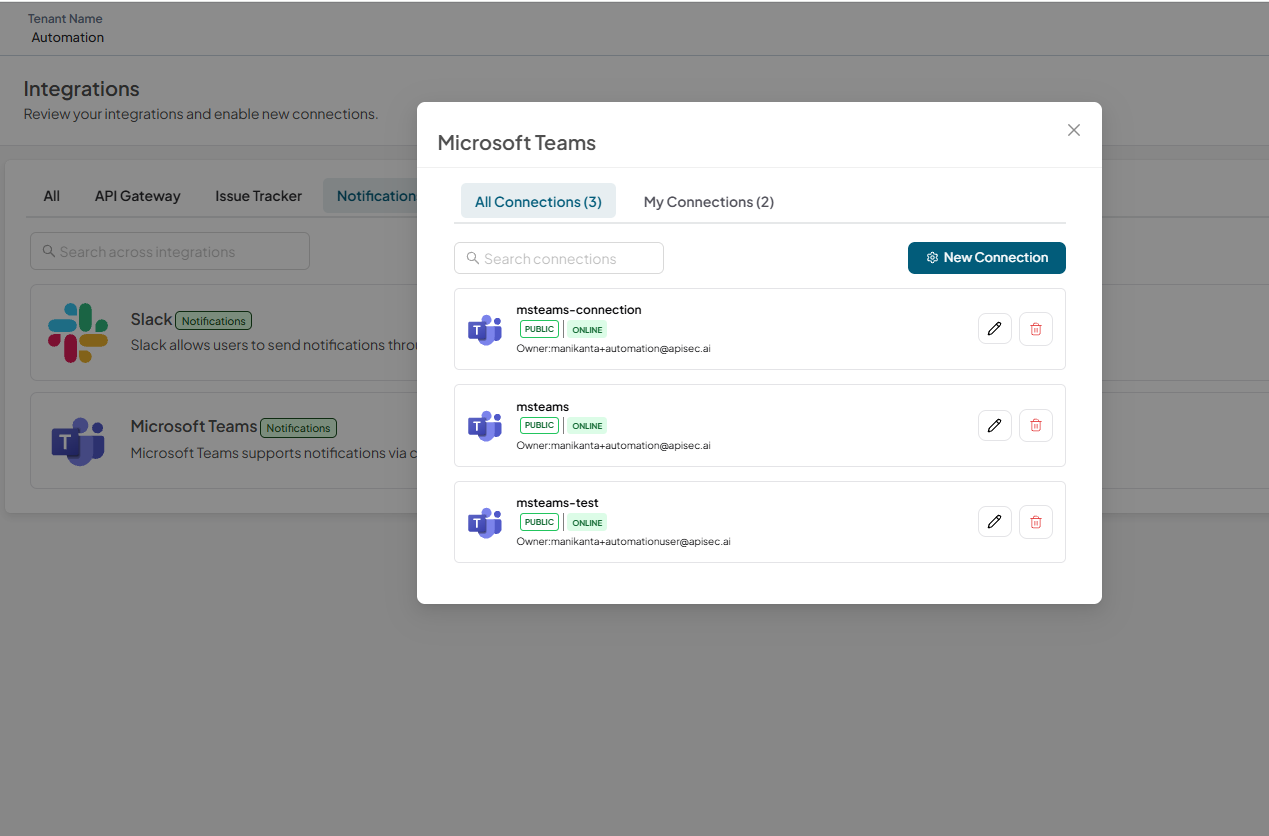
Verify that the connection name is displayed in the connections list.
Edit a Microsoft Teams connection
-
Open your browser and visit: https://<your-tenant>.apisecapps.com
-
Click on Integrations
-
Click on Notifications tab
-
You can find the Microsoft Teams in the Notifications list
-
Click on Manage
-
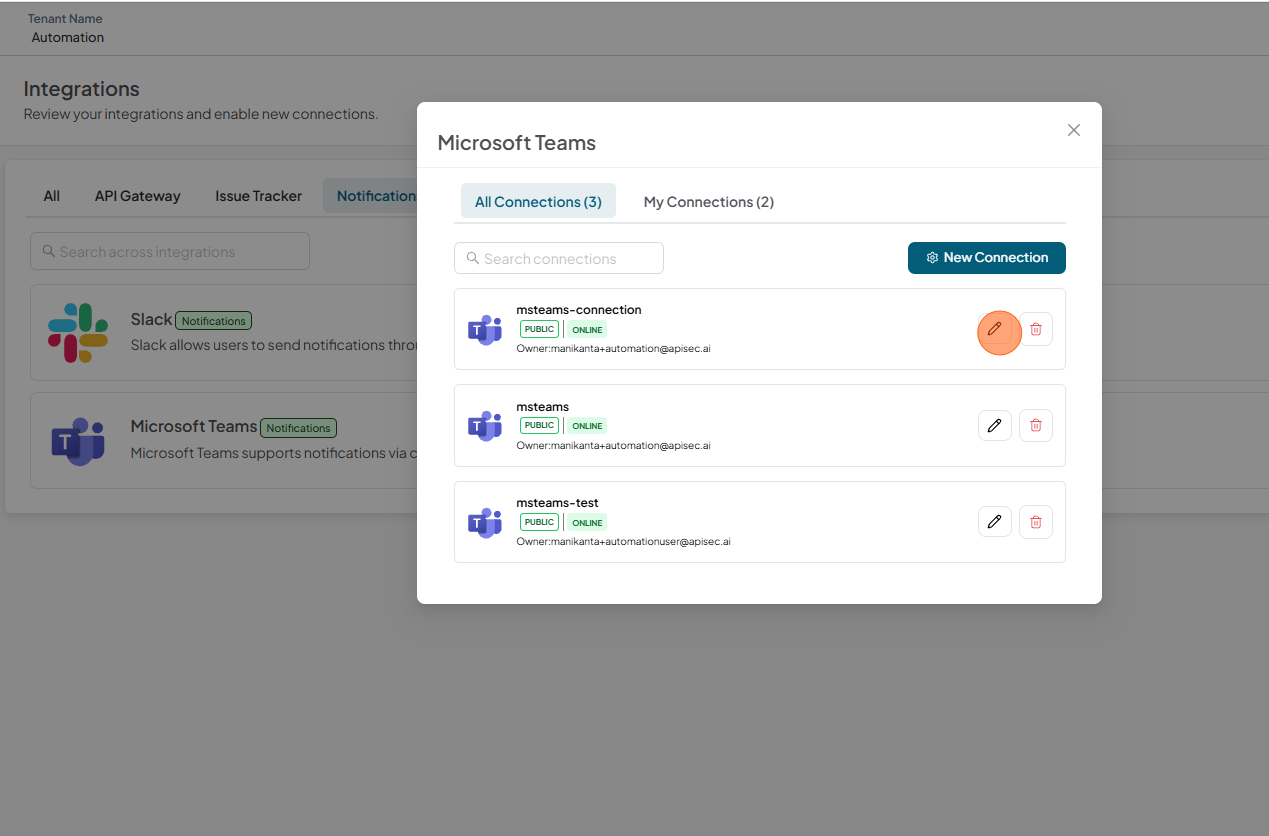
Select the Pencil icon next to the connection you want to edit.
-
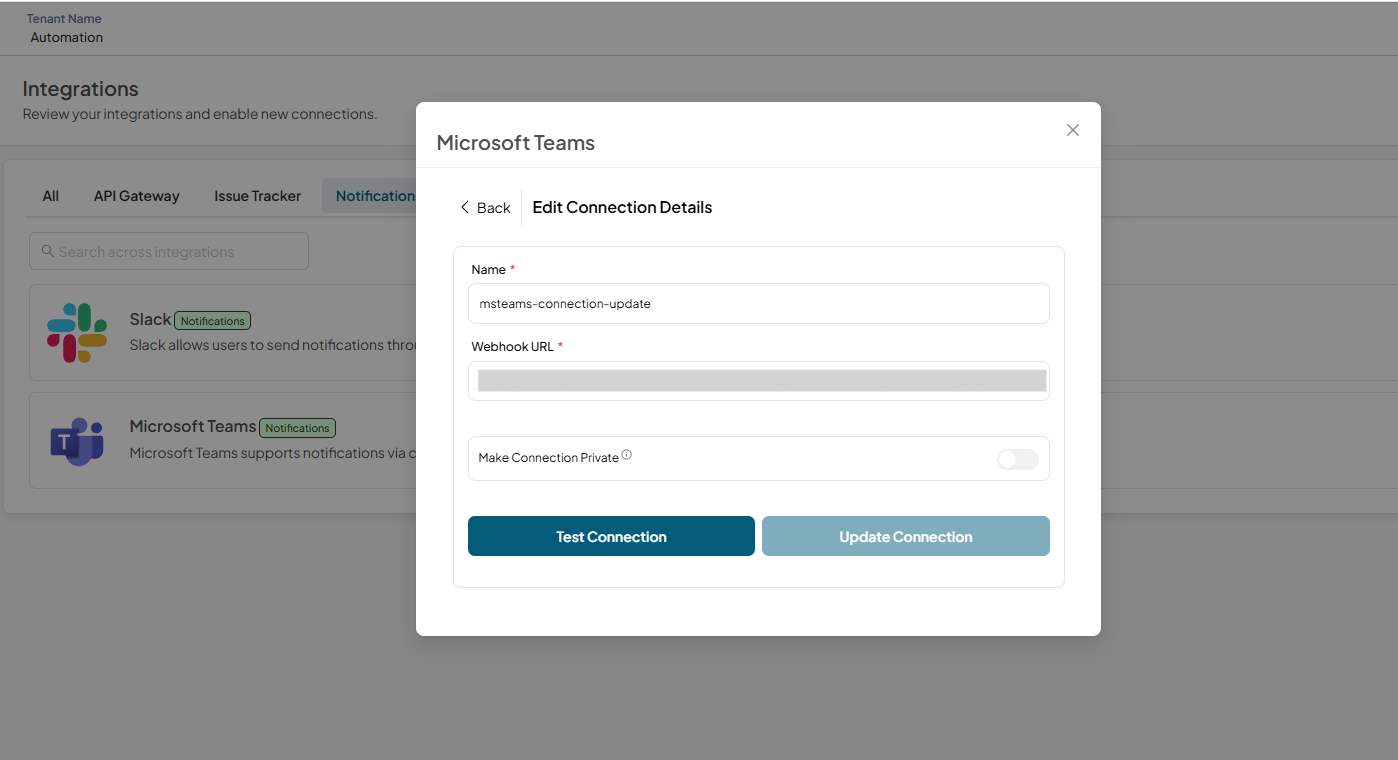
Update the details
-
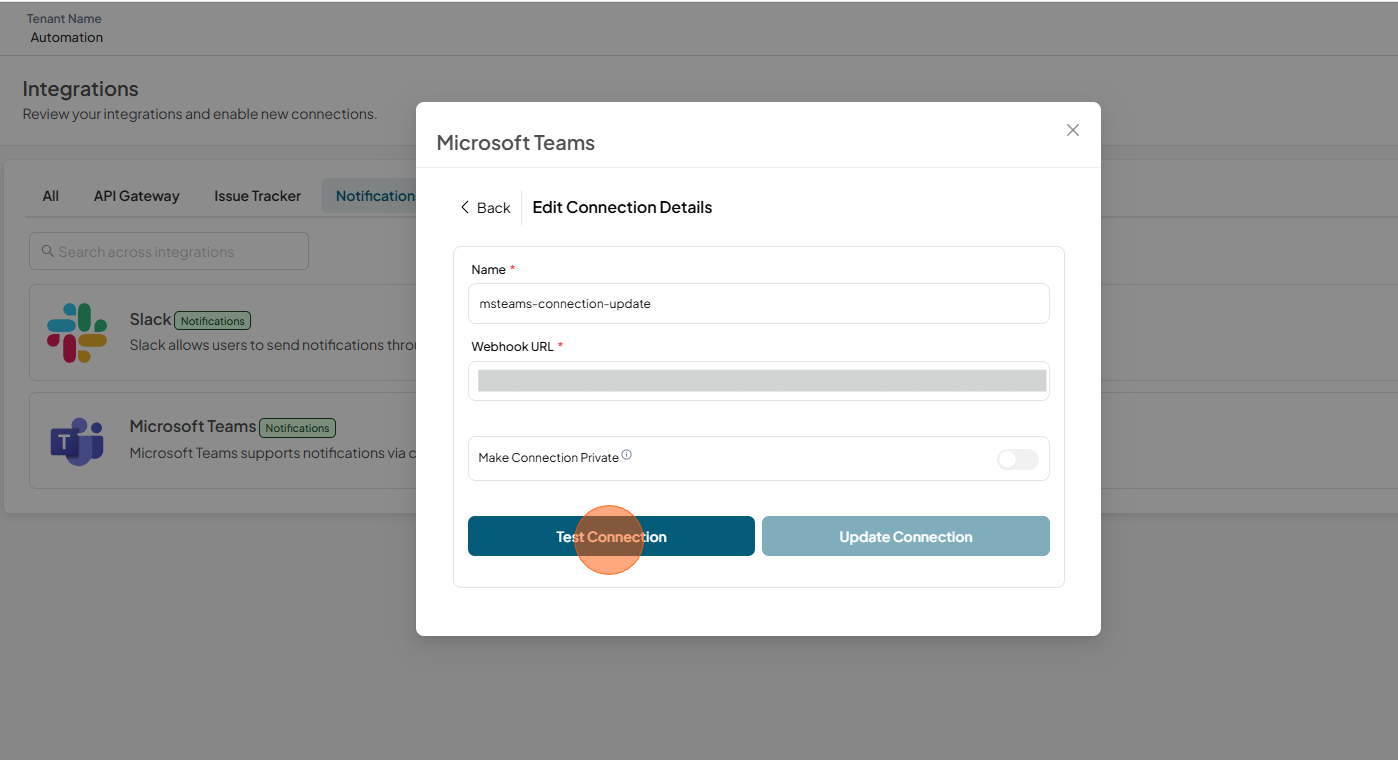
Click Test Connection
-
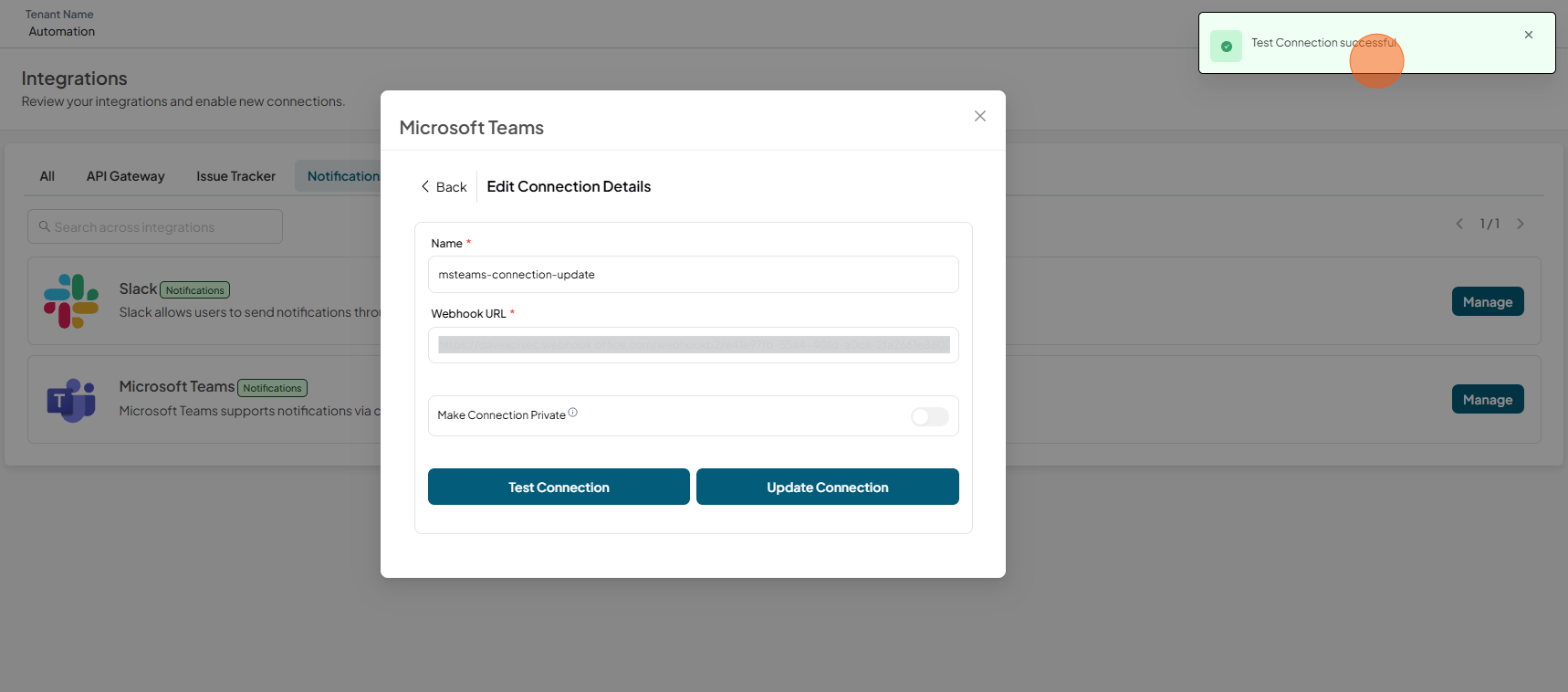
Test connection successful
-
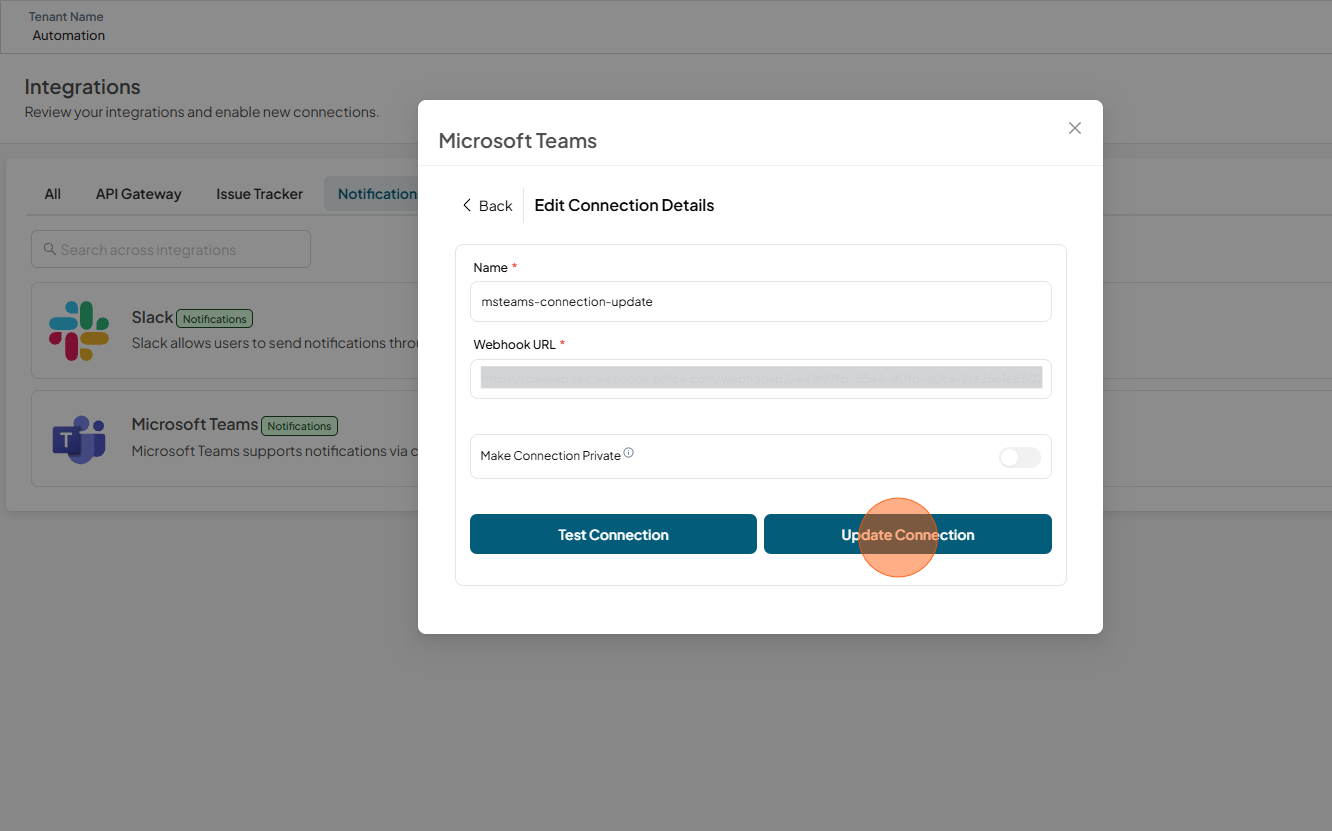
Click Update Connection
-
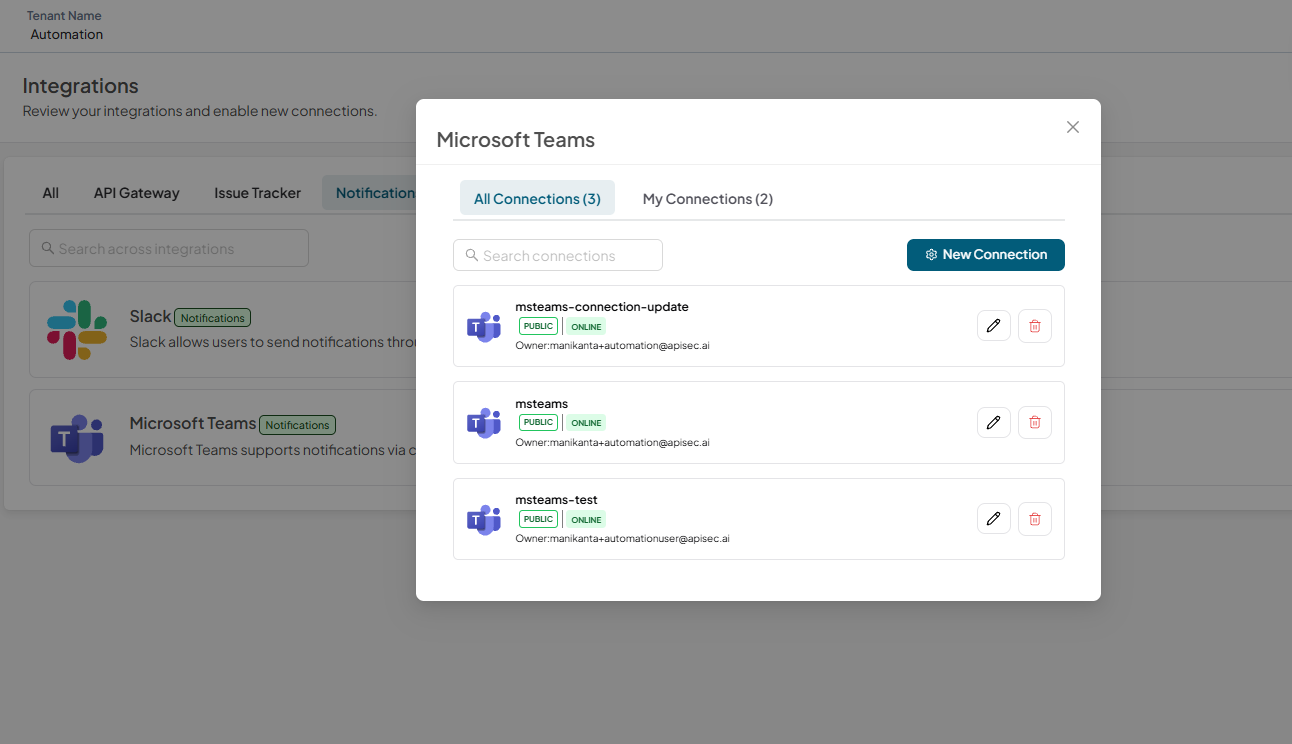
Check the updated list
Delete a Microsoft Teams connection
-
Open your browser and visit: https://<your-tenant>.apisecapps.com
-
Click on Integrations
-
Click on Notifications tab
-
You can find the Microsoft Teams in the Notifications list
-
Click on Manage
-
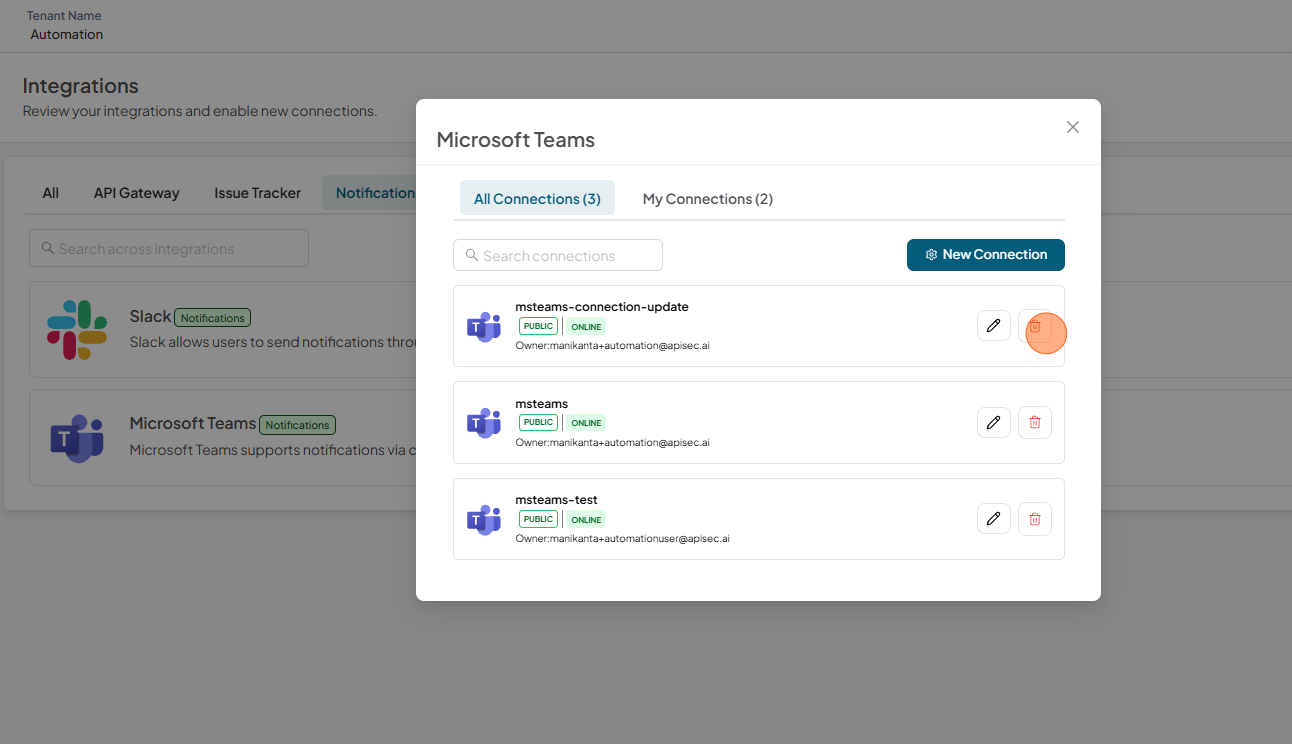
Select the required connection and click the Delete icon
-
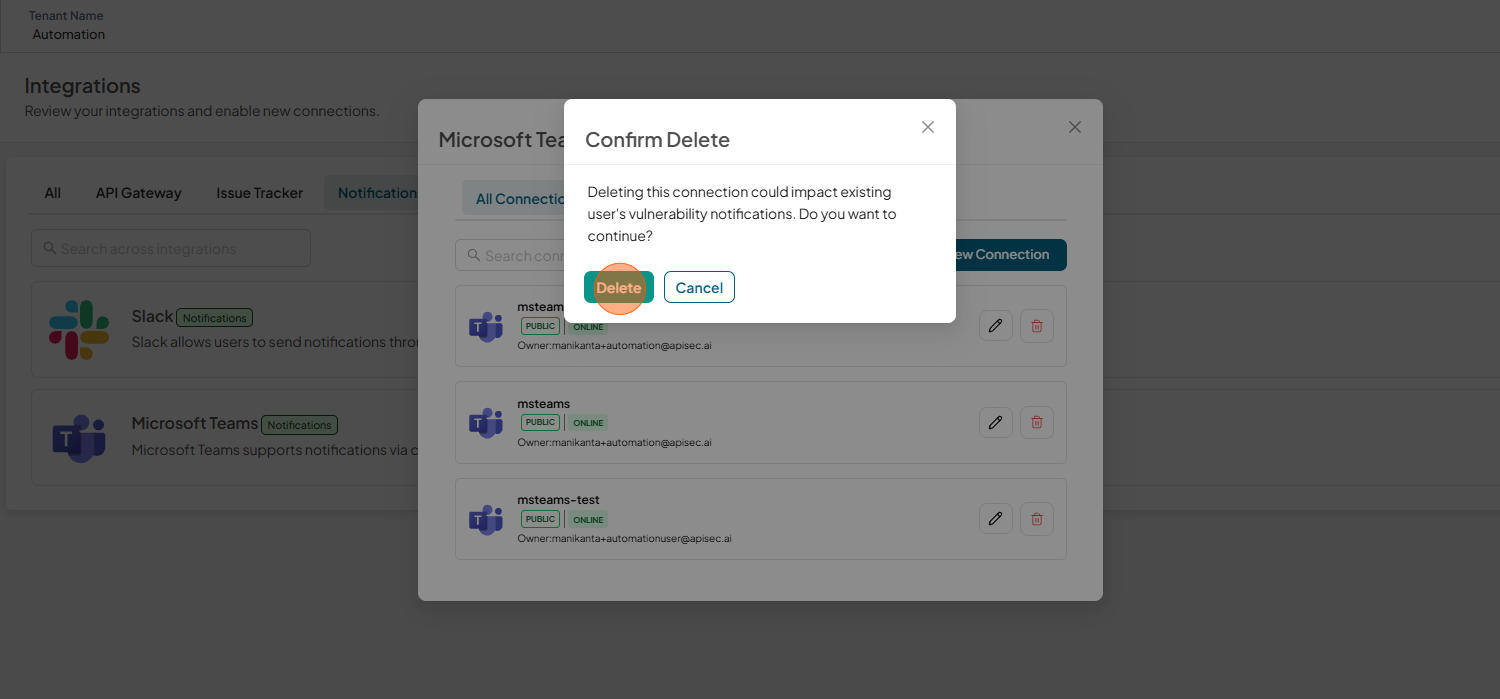
Click Delete to confirm
-
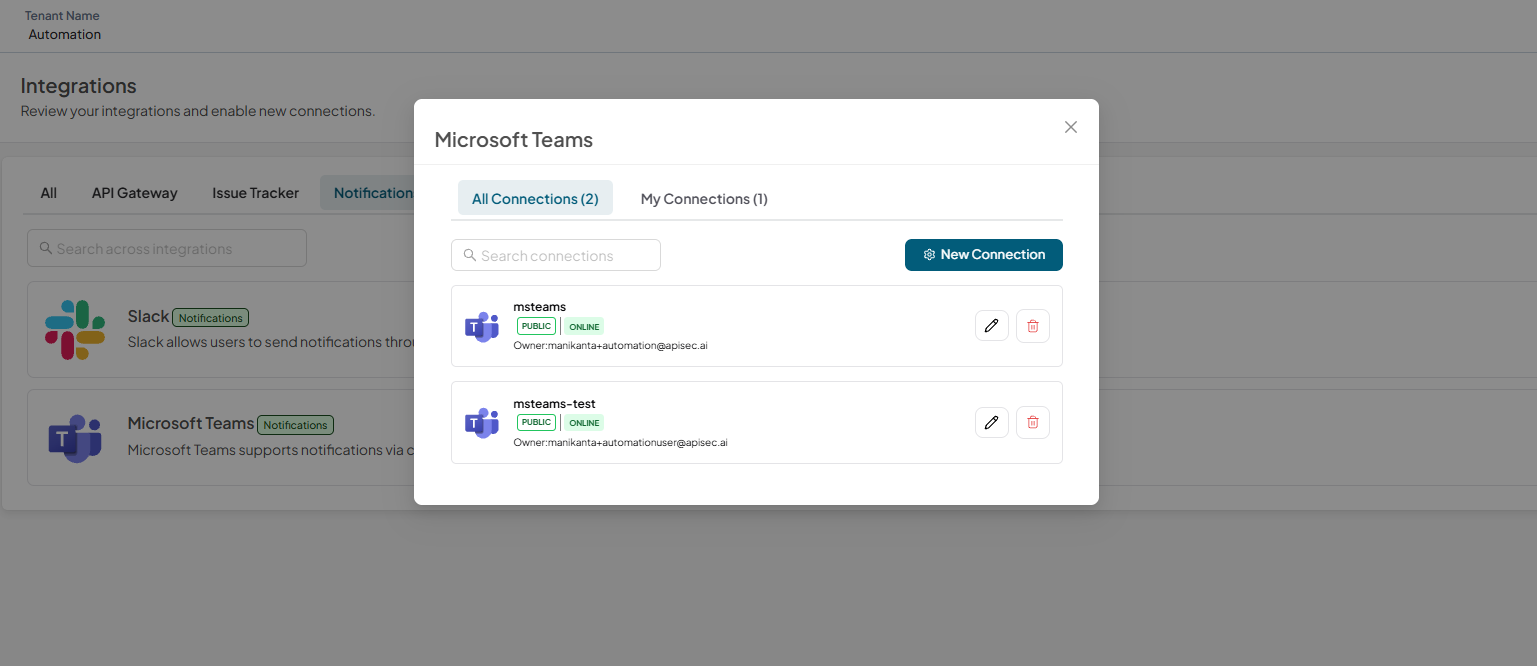
Check the Microsoft Teams connections list after deletion
Set up a Microsoft Teams connection with the application
You can integrate Microsoft Teams with the application to receive real-time notifications and updates. This integration helps you and your team stay informed about scans, issues, and activities directly within Microsoft Teams for easier tracking and faster response.
-
Navigate to: https://<your-tenant>.apisecapps.com
-
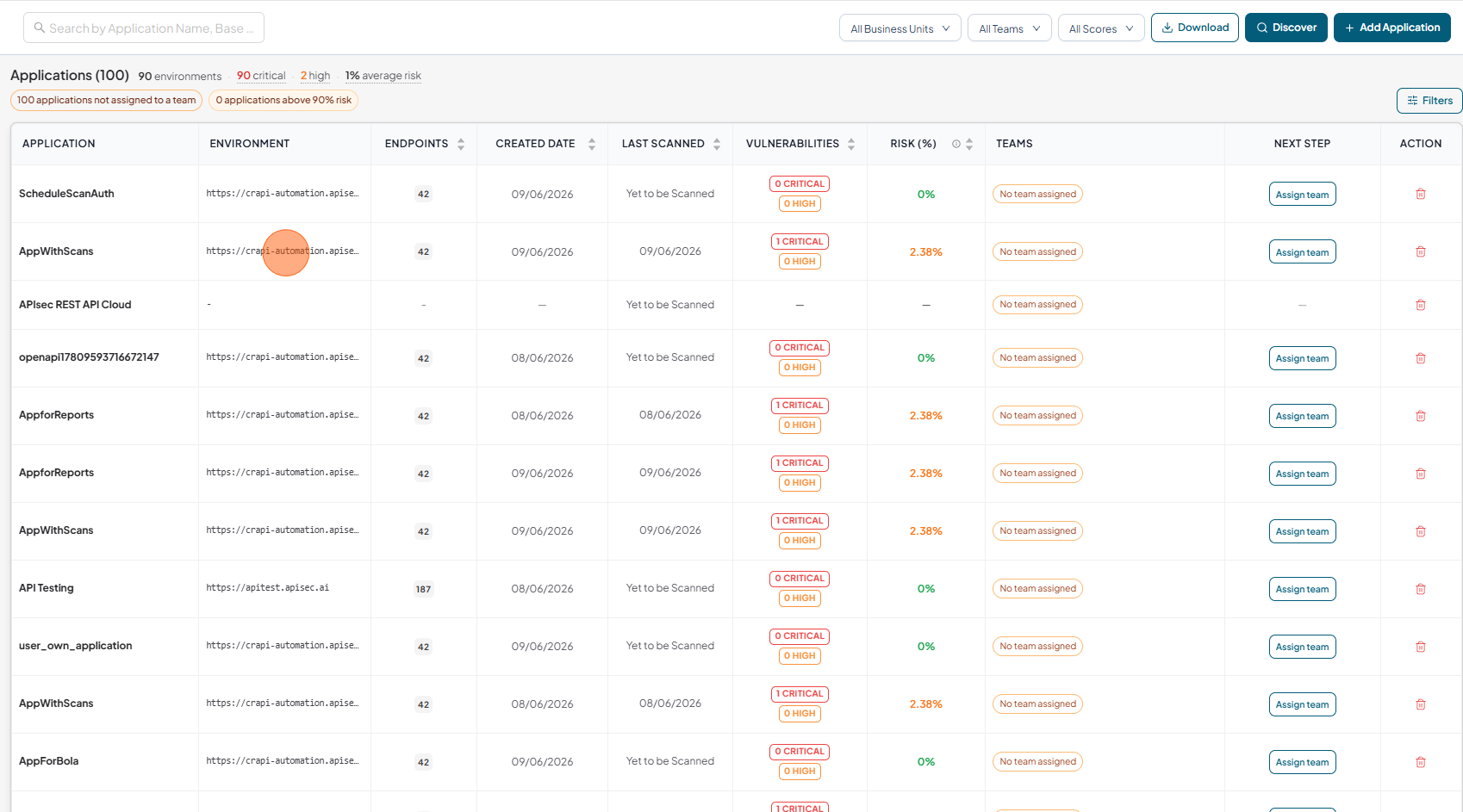
Click on Application
-
From the left navigation select Notifications
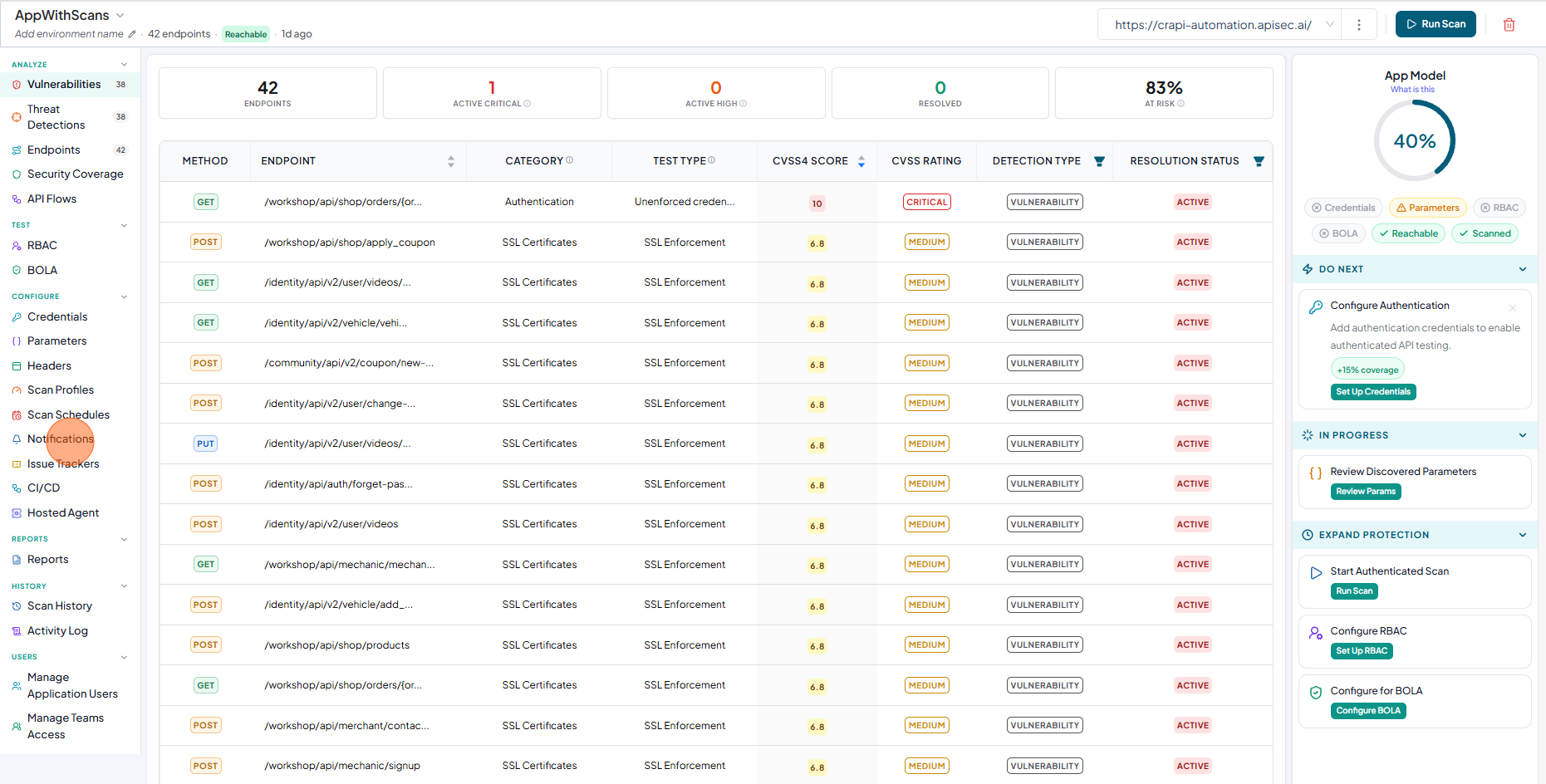
-
The list of Notifications available in the tenant is displayed.
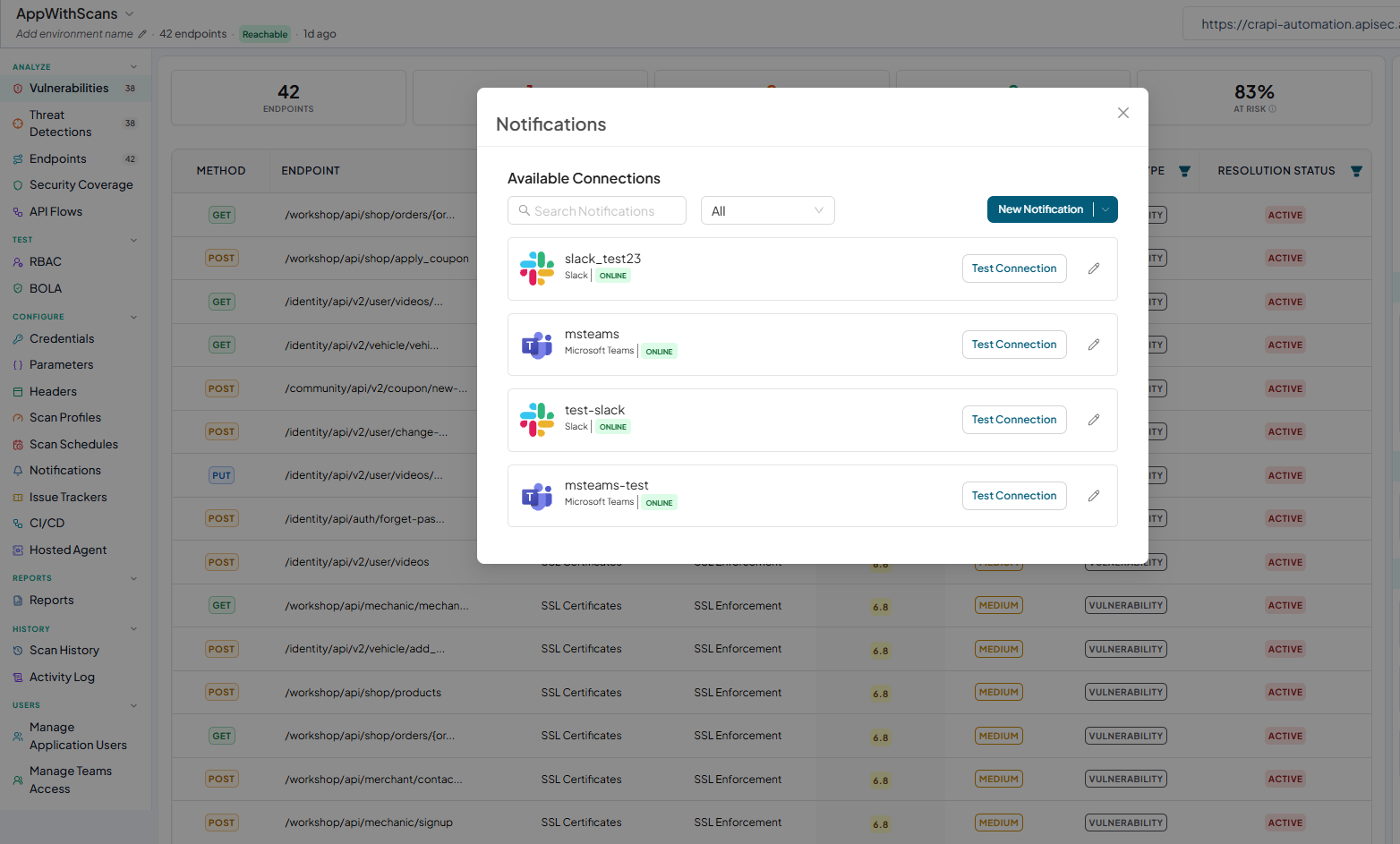
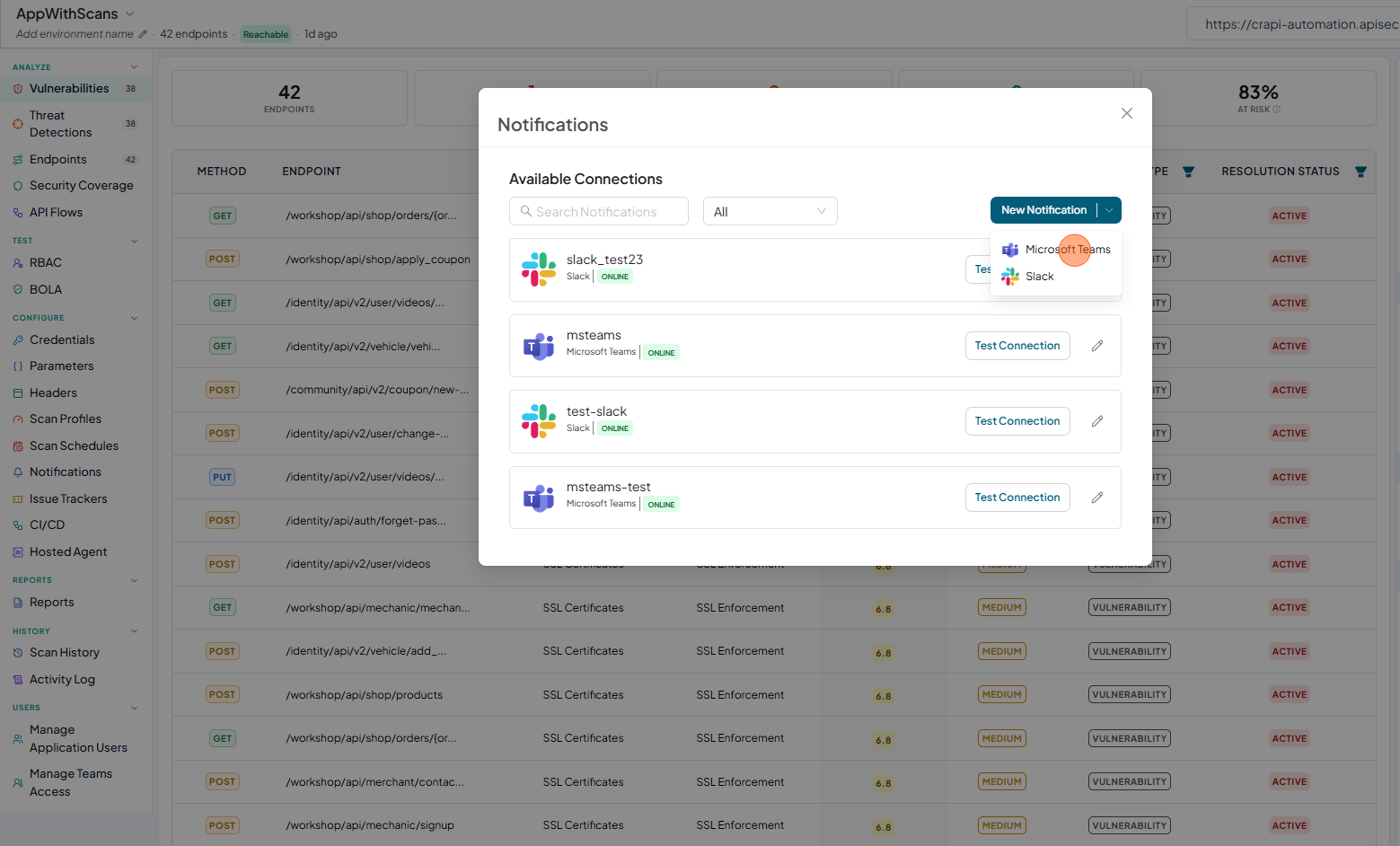
To create a new Microsoft Teams connection from here, click New Notification, select Microsoft Teams, and create a new connection.
-
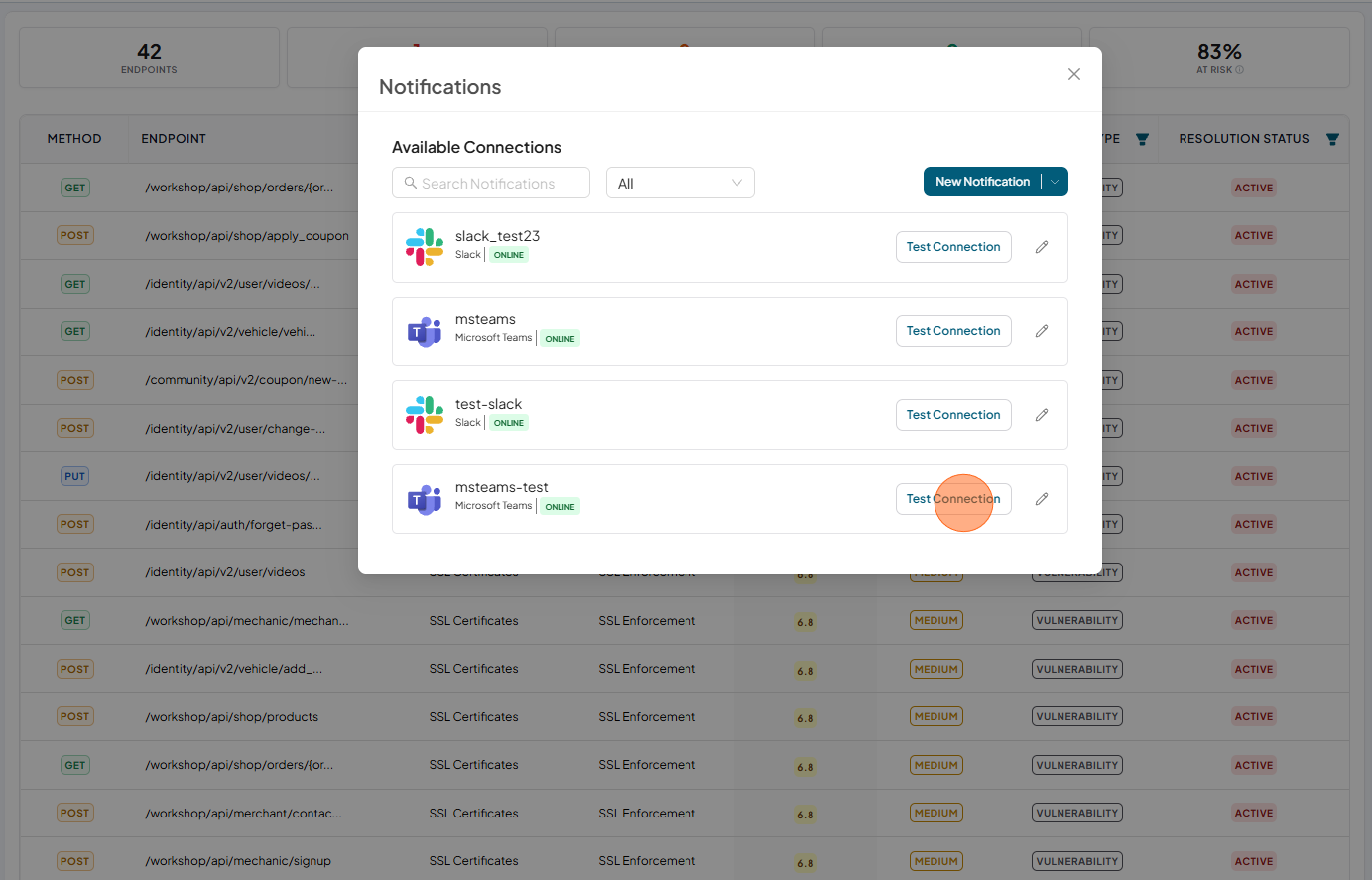
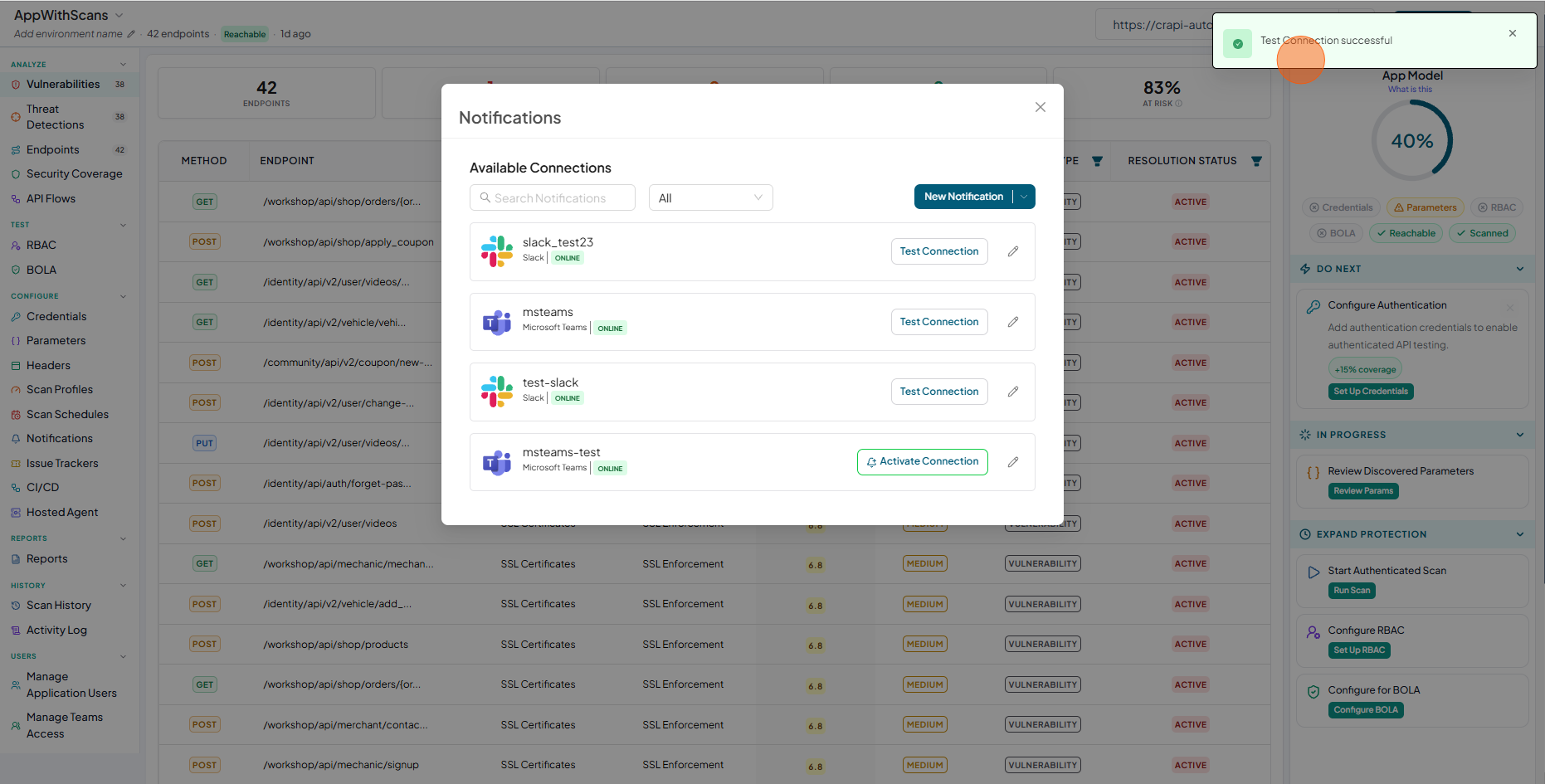
From that list, select the Microsoft Teams connection and click Test Connection.
-
Test Connection successful
-
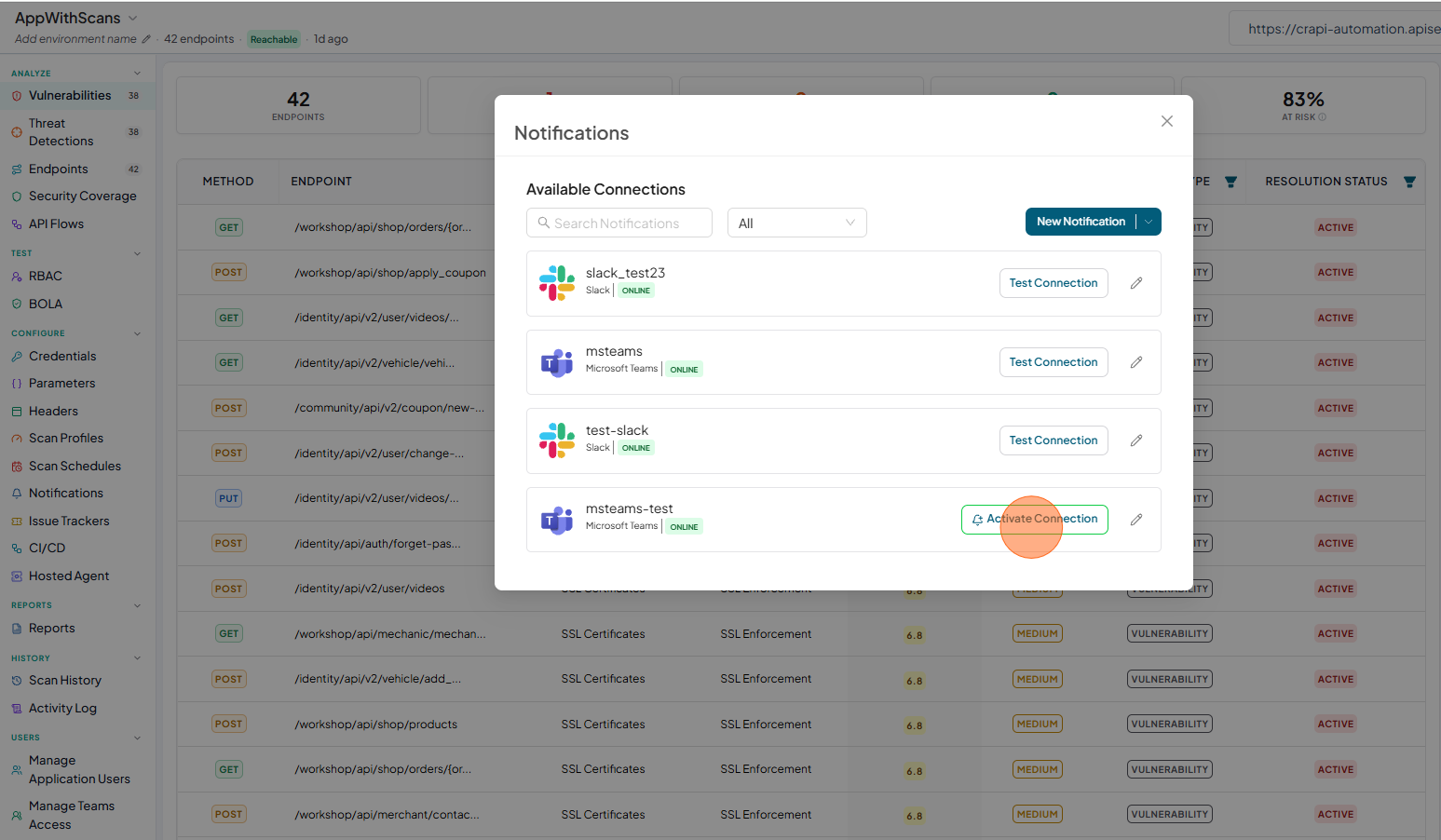
Now click on the Activate Connection
-
Successfully updated Notification details.
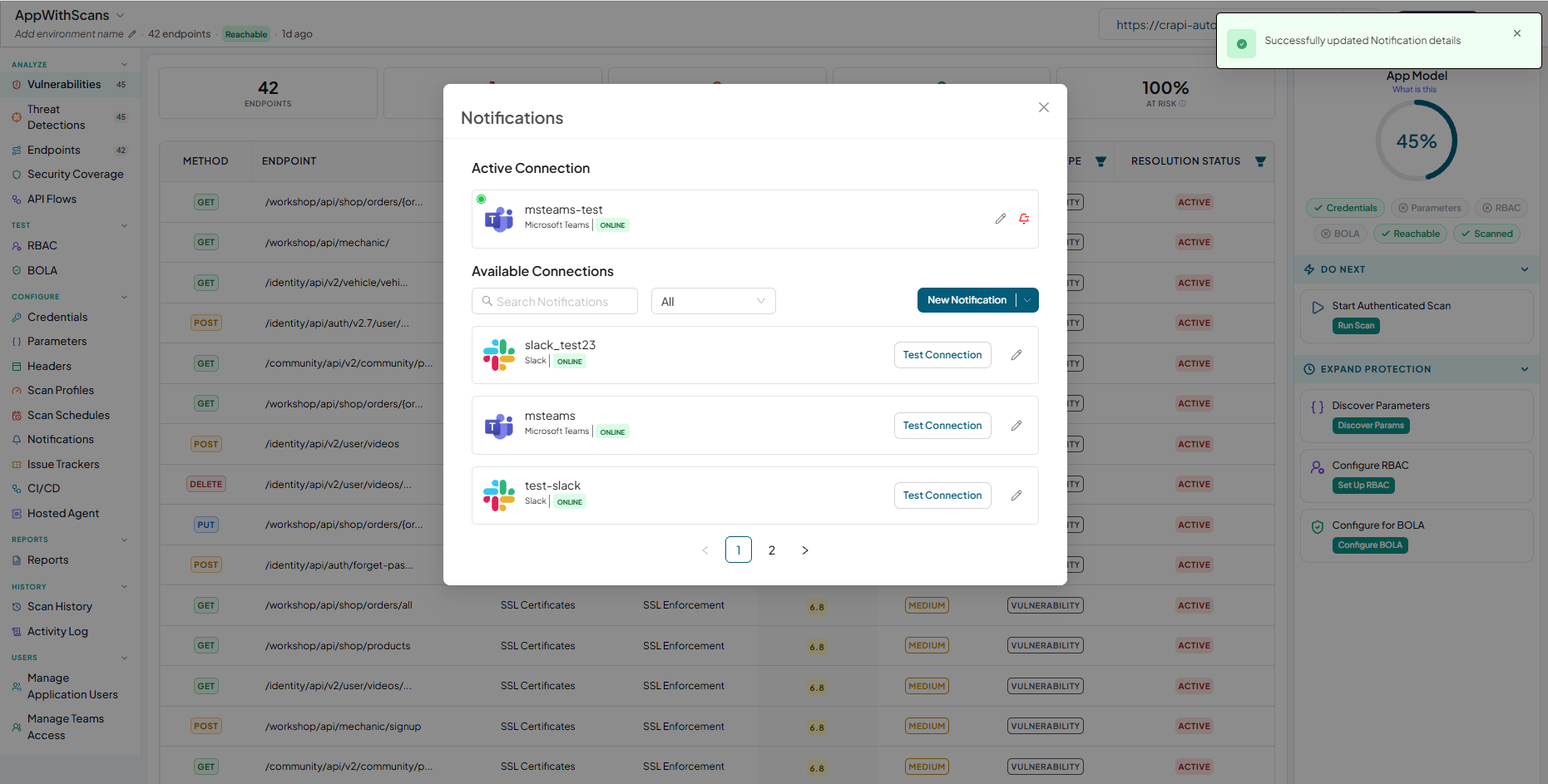
The configured connection appears in the list as First connection.
noteA user role with View permissions cannot configure a Microsoft Teams connection in a shared application.
-
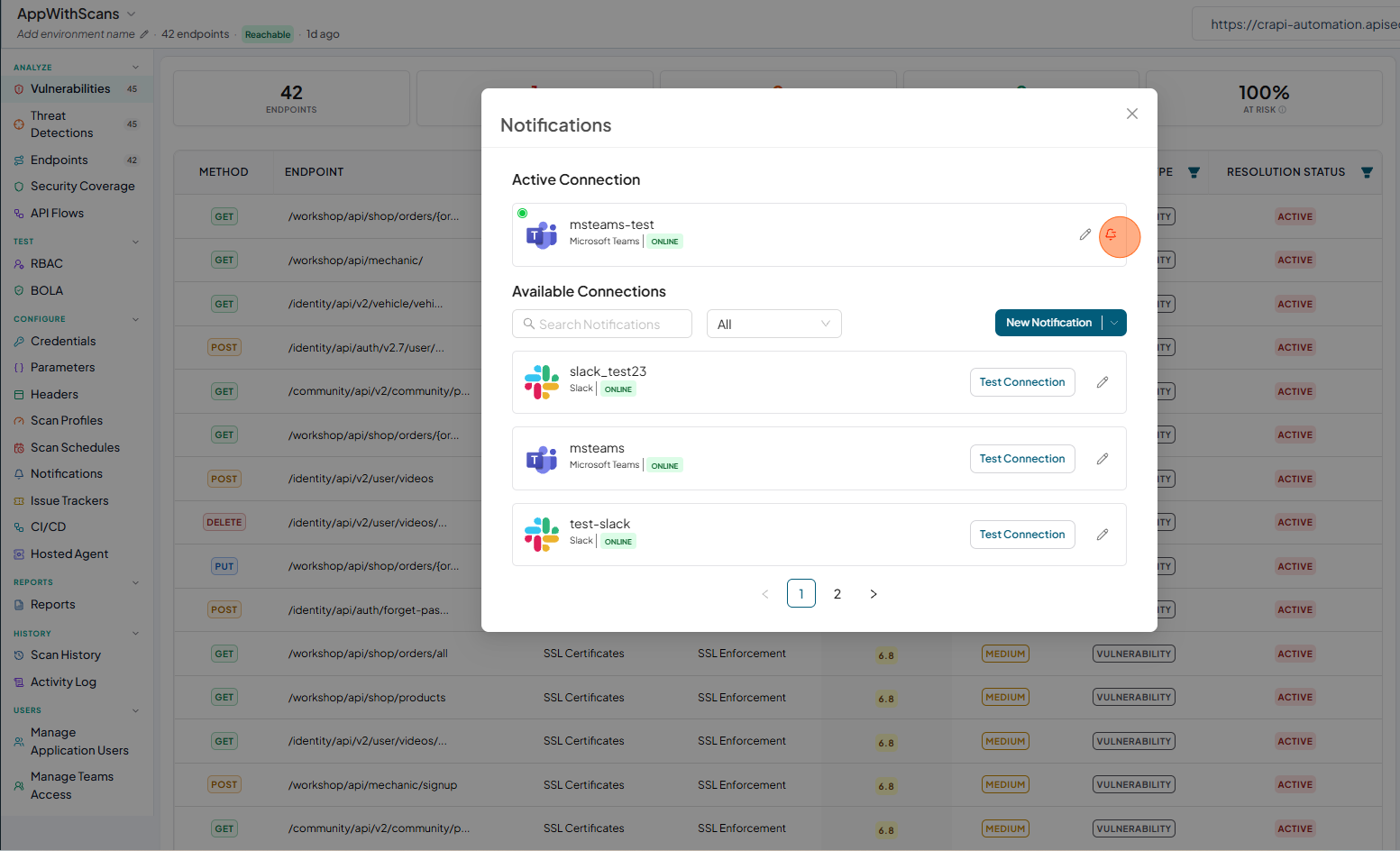
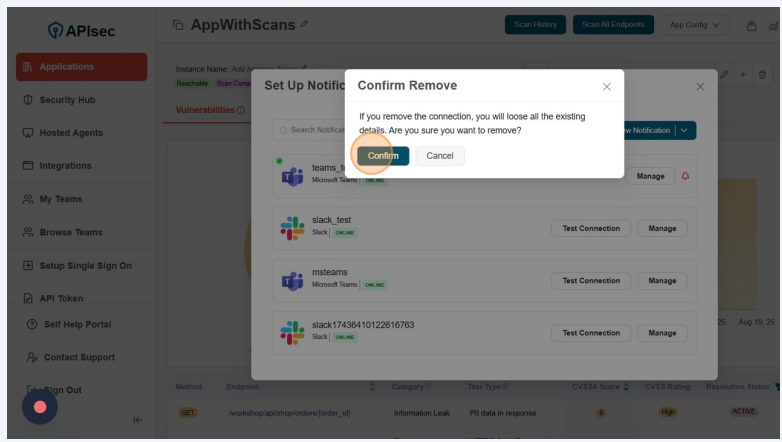
To remove the connection from the application, click the Delete icon beside the configured connection
-
Click Confirm to remove the connection
 note
noteA user role with View permissions cannot remove a Microsoft Teams connection from a shared application.